
Introduction
Welcome to the user manual for your Smart Tech 32HW01V1 32-inch HD Smart TV. This guide provides essential information for setting up, operating, maintaining, and troubleshooting your new television. Please read this manual thoroughly before using the product to ensure safe and optimal performance.
Safety Information
Always follow basic safety precautions when using this television to reduce the risk of fire, electric shock, and injury.
- Do not block ventilation openings. Ensure adequate space around the TV for proper airflow.
- Do not place the TV near heat sources or in direct sunlight.
- Protect the power cord from being walked on or pinched.
- Do not expose the TV to rain or moisture.
- Only use attachments/accessories specified by the manufacturer.
- Refer all servicing to qualified service personnel.
Package Contents
Verify that all items are included in the package:
- Smart Tech 32HW01V1 32-inch HD Smart TV
- Power Cable
- User Manual (this document)
- TV Stand
- Remote Control (requires 2 AAA batteries, not included)
Product Overview
The Smart Tech 32HW01V1 is a 32-inch HD Smart TV featuring WebOS for an intuitive user experience. It offers a clear 1280 x 720 pixel display, integrated Wi-Fi, and pre-installed applications like Netflix, YouTube, and Prime Video. The TV also includes Dolby Audio for an enhanced sound experience and multiple connectivity options.
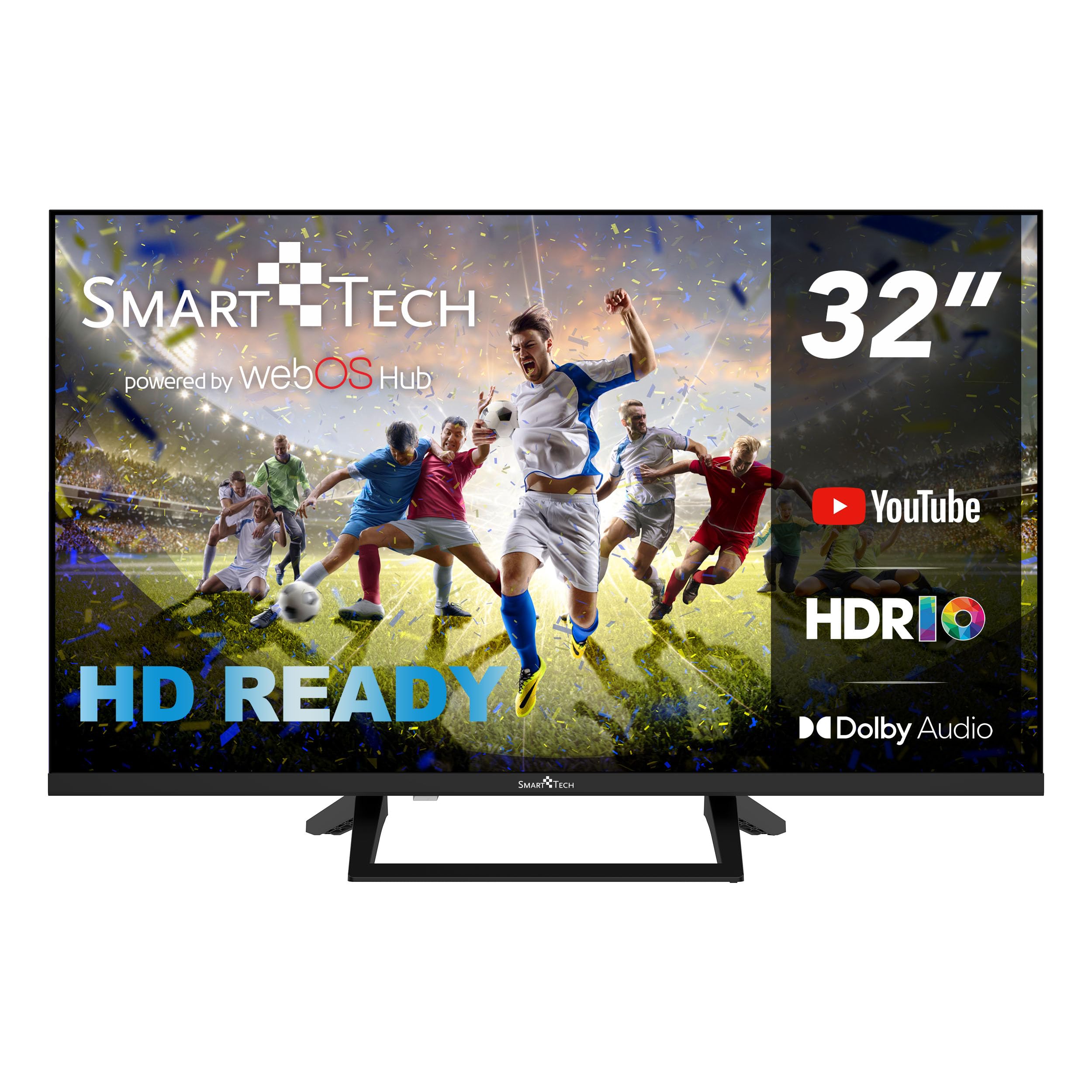
Front view of the Smart Tech 32HW01V1 TV, showcasing the WebOS home screen with quick access to streaming services and inputs.

Key features of the Smart Tech TV, highlighting smart home integration, bezel-less design, HDR10 support, and multiple tuners.

Side view of the television, illustrating its slim profile and the design of the included stand.
Setup
1. Unpacking
Carefully remove the TV and all accessories from the packaging. Retain the packaging for future transport or storage.
2. Stand Installation
Place the TV screen-down on a soft, flat surface. Attach the stand bases to the bottom of the TV using the provided screws. Ensure the stand is securely fastened before placing the TV upright.
3. Connecting Peripherals
Your Smart Tech TV offers various connection ports for external devices. Refer to the diagram below for port locations and types.
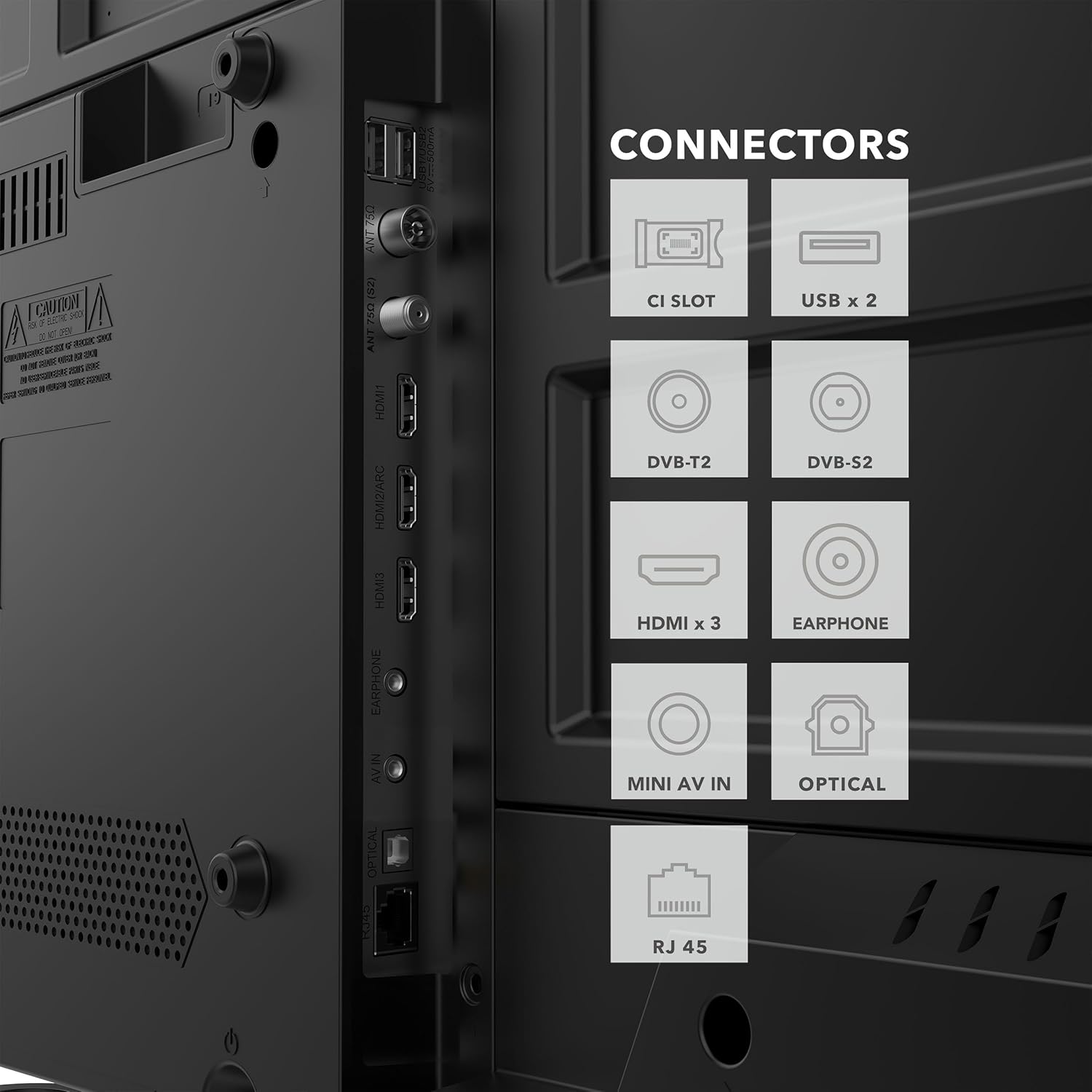
Rear panel connectors of the Smart Tech TV, including HDMI, USB, and antenna inputs.
- HDMI (x3): Connect Blu-ray players, game consoles, set-top boxes, or other HDMI-enabled devices.
- USB (x2): Connect USB storage devices for media playback.
- ANT/CABLE (DVB-T2/DVB-S2): Connect an antenna or satellite dish for terrestrial or satellite TV reception.
- RJ45 (Ethernet): Connect an Ethernet cable for a wired internet connection.
- Optical: Connect to an external audio system for digital audio output.
- Earphone: Connect headphones for private listening.
- Mini AV IN: Connect older devices using an AV adapter (not always included).
- CI Slot: For inserting a Conditional Access Module (CAM) for encrypted channels.
4. Power On
Connect the power cable to the TV and then to a power outlet. Press the power button on the remote control or on the TV itself to turn it on.
Operating the TV
1. Remote Control
The remote control allows you to navigate the TV's features. Insert two AAA batteries (not included) into the remote control, ensuring correct polarity.

The remote control provides one-click access to popular streaming applications like Netflix and Prime Video.
- Power Button: Turns the TV on or off.
- Number Buttons (0-9): Select TV channels directly.
- Volume Up/Down: Adjust the volume level.
- Channel Up/Down: Change TV channels.
- Home Button: Access the WebOS home screen.
- Navigation Buttons (Up/Down/Left/Right): Move through menus.
- OK Button: Confirm selections.
- Back/Exit: Return to the previous screen or exit a menu.
- Netflix/Prime Video Buttons: Direct access to these streaming applications.
- Input Button: Select input source (HDMI, TV, USB, etc.).
2. Initial Setup Wizard
The first time you turn on the TV, an initial setup wizard will guide you through basic settings:
- Language Selection: Choose your preferred language.
- Network Connection: Connect to your Wi-Fi network or use a wired Ethernet connection.
- Channel Scan: Scan for available TV channels (if an antenna or satellite dish is connected).
- Time and Date: Set the correct time and date.
3. WebOS Smart Features
The WebOS operating system provides a user-friendly interface for accessing smart features.
- Home Screen: Press the Home button on the remote to access the launcher bar, which displays your favorite apps, inputs, and settings.
- Applications: Access pre-installed apps like Netflix, YouTube, Prime Video, and Disney+. You can also download more apps from the WebOS Content Store.
- Miracast: Use Miracast to wirelessly mirror the screen of compatible smartphones or tablets to your TV.
4. Input Selection
To switch between connected devices (e.g., HDMI 1, USB, TV), press the Input button on your remote control and select the desired source from the on-screen menu.
5. Audio Settings
Your TV supports Dolby Audio for rich sound. You can adjust audio settings, including sound mode and equalizer, through the TV's settings menu.
Maintenance
- Cleaning the Screen: Gently wipe the screen with a soft, dry, lint-free cloth. For stubborn marks, use a screen cleaner specifically designed for TVs, applied to the cloth, not directly to the screen.
- Cleaning the Cabinet: Use a soft, dry cloth to wipe the TV cabinet. Do not use abrasive cleaners or solvents.
- Software Updates: Ensure your TV's software is up to date for optimal performance and security. Check for updates in the TV's settings menu (usually under "All Settings" > "General" > "About This TV" > "Check for Updates").
Troubleshooting
If you encounter issues with your TV, refer to the following common problems and solutions:
| Problem | Possible Solution |
|---|---|
| No power | Check if the power cable is securely connected to the TV and the power outlet. Ensure the outlet is working. Try pressing the power button on the TV itself. |
| No picture, but sound is present | Ensure the correct input source is selected. Check cable connections to external devices. Try restarting the TV and the connected device. |
| No sound, but picture is present | Check the volume level and ensure the TV is not muted. Verify audio cable connections. Check audio output settings on the TV and any connected external audio system. |
| Remote control not working | Replace the batteries with new AAA batteries, ensuring correct polarity. Ensure there are no obstructions between the remote and the TV's IR sensor. |
| Cannot connect to Wi-Fi | Ensure your Wi-Fi router is on and working. Check the Wi-Fi password. Try restarting both the TV and the router. Move the TV closer to the router if possible. |
Specifications
Detailed technical specifications for the Smart Tech 32HW01V1 TV:
| Feature | Detail |
|---|---|
| Brand | Smart Tech |
| Model Number | 32HW01V1 |
| Screen Size | 32 Inches (80 cm) |
| Display Technology | LED |
| Resolution | 720p (1280 x 720 pixels) |
| Operating System | WebOS |
| Refresh Rate | 60 Hz |
| Special Features | Miracast, Smart TV functionality (Netflix, YouTube, Prime Video, Disney+ pre-installed) |
| Audio Output | 2 x 8W speakers, Dolby Audio |
| Connectivity | 3x HDMI, 2x USB, Wi-Fi, Ethernet (RJ45), Optical Audio Out, Earphone, Mini AV IN, CI Slot |
| Aspect Ratio | 16:9 |
| Color | Black |
| Product Dimensions (WxHxD) | 72 cm x 45 cm x 21 cm (with stand) |
| Power Consumption (Energy Class) | 26 kWh/1000h (Class E) |

Energy efficiency label for the 32HW01V1 model. For more details, visit the official EU EPREL database: https://eprel.ec.europa.eu/qr/2246374

Dimensional drawing of the Smart Tech 32-inch TV, indicating width, height, and depth measurements.
Warranty and Support
Your Smart Tech 32HW01V1 TV comes with a manufacturer's warranty. Please refer to the warranty card included in your package for specific terms and conditions. Spare parts are available for up to 11 years from the date of purchase.
For technical assistance, troubleshooting beyond this manual, or warranty claims, please contact Smart Tech customer support. Contact information can typically be found on the manufacturer's official website or on the warranty card.


