
Introduction
This manual provides detailed instructions for the installation, operation, maintenance, and troubleshooting of your PHEZEN Car Radio, Model SW-2+32G. This unit is designed for Dodge Dakota vehicles manufactured between 2001 and 2004, featuring a 6.86-inch IPS touch screen with Wireless CarPlay and Android Auto capabilities. Please read this manual thoroughly before use to ensure proper functionality and safety.
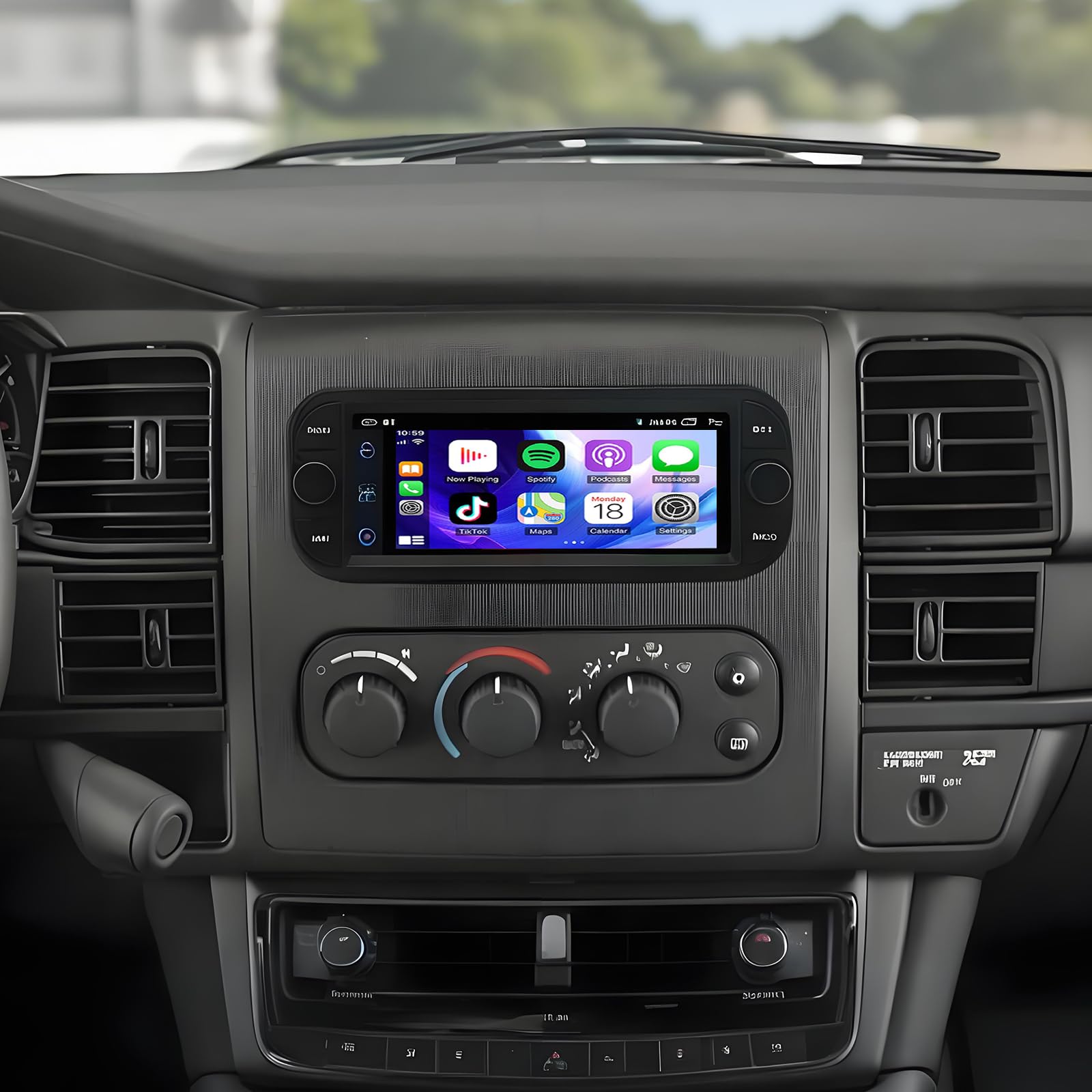
Image: Comparison of the vehicle dashboard before and after the PHEZEN car radio installation, showing the integrated 6.86-inch display.
Product Features
- Vehicle Compatibility: This car stereo is compatible with Dodge Dakota models from 2001 to 2004.
- Operating System & Memory: Built-in Android 13 system with 2GB RAM and 32GB ROM for smooth performance and multitasking.
- Display: 6.86-inch IPS touch screen with a resolution of 1024*600, providing sensitive and clear visuals.
- Wireless Connectivity: Supports wireless iOS CarPlay and Android Auto via Bluetooth and Wi-Fi for seamless smartphone integration.
- Navigation: Dual navigation system supporting both offline and online maps, ensuring guidance in areas with limited mobile signal.
- Steering Wheel Control (SWC): Compatible with existing steering wheel controls for convenient operation.
- Backup Camera Support: Includes support for a reversing camera with a 170° wide-angle lens, IP68 waterproof rating, and night vision for enhanced parking safety.
- Bluetooth: Built-in Bluetooth for hands-free calling and music playback, with integrated and external microphone support.
- FM Radio: Features an FM radio function for access to local radio stations.
What's in the Box
Upon opening the package, verify that all components are present:
- 1 x PHEZEN Car Radio Unit
- Necessary Power Cables
- RCA Input/Output Cables
- USB Cables (2)
- Camera Input Cable
- GPS Antenna
- Canbus Box (if applicable for your vehicle model)
- Radio Adapter Cable
- Instruction Manual
- Backup Camera (if included in your package)

Image: An overhead view displaying the PHEZEN car radio unit along with its various included accessories and cables.
Setup and Installation
Professional installation is recommended. Ensure the vehicle's battery is disconnected before beginning installation.
1. Wiring Connections
Connect the provided wiring harnesses to the car radio unit and your vehicle's existing wiring. Refer to the wiring diagram included in the separate installation guide for specific connections. Key connections include:
- Power Cable: Connect to the vehicle's power supply (constant 12V, accessory 12V, and ground).
- Speaker Wires: Connect to the vehicle's speaker system.
- GPS Antenna: Mount the GPS antenna in a location with a clear view of the sky, typically on the dashboard or under the windshield.
- USB Cables: Route USB cables to a convenient location for connecting external devices.
- Backup Camera Input: Connect the backup camera cable to the designated input on the radio and route the camera to the rear of the vehicle. Ensure the reverse trigger wire is connected.
- Canbus Box: If your vehicle requires a Canbus decoder for steering wheel controls or other vehicle data, connect it as per the installation diagram.

Image: The rear panel of the car radio unit with all wiring harnesses connected, illustrating the complexity of the installation.
2. Mounting the Unit
Secure the car radio unit into the dashboard opening using the provided mounting brackets and screws. Ensure it is firmly seated and does not obstruct any vehicle controls.
3. Initial Power-On and Calibration
Reconnect the vehicle's battery. Power on the unit. During the initial setup, you may need to calibrate the touch screen or steering wheel controls.
Video: This video demonstrates the process of calibrating the car radio screen, showing how to set corresponding buttons on the left side of the display.
Operating Instructions
1. Basic Controls
- Power On/Off: Press and hold the power button (or vehicle ignition) to turn the unit on or off.
- Volume Control: Use the physical knobs or on-screen controls to adjust volume.
- Touchscreen: Navigate menus and select functions by tapping or swiping the 6.86-inch IPS display.
2. Wireless CarPlay & Android Auto
To use CarPlay or Android Auto, ensure your smartphone's Bluetooth and Wi-Fi are enabled.
- On the car radio, navigate to the CarPlay or Android Auto application.
- On your smartphone, search for and connect to the car radio's Bluetooth signal.
- Follow the on-screen prompts on both your phone and the car radio to establish the wireless connection.
- Once connected, your phone's compatible apps (navigation, music, calls, messages) will appear on the car radio display.

Image: The car radio display showing the CarPlay and Android Auto interfaces, featuring icons for calls, messages, navigation, and music applications.
3. GPS Navigation & WiFi Connectivity
The unit supports both online and offline navigation. For online maps and other internet-dependent features, connect the unit to a Wi-Fi network or a mobile hotspot.
- Go to the 'Settings' menu on the car radio.
- Select 'Wi-Fi' and enable it.
- Choose your desired Wi-Fi network and enter the password if required.
- Once connected, open your preferred navigation app or other online applications.

Image: The car radio screen displaying a GPS navigation map alongside a view of various online applications, including YouTube, accessible via Wi-Fi.
4. Bluetooth Functions
Pair your phone via Bluetooth for hands-free calling and audio streaming.
- Enable Bluetooth on your smartphone and the car radio.
- On the car radio, search for available devices and select your phone.
- Confirm the pairing code on both devices.
- Once paired, you can make/receive calls and play music through the car's speakers.
5. Reverse Display & Steering Wheel Control
When the vehicle is shifted into reverse, the display will automatically switch to the backup camera view. For steering wheel controls, ensure they are configured in the unit's settings menu.
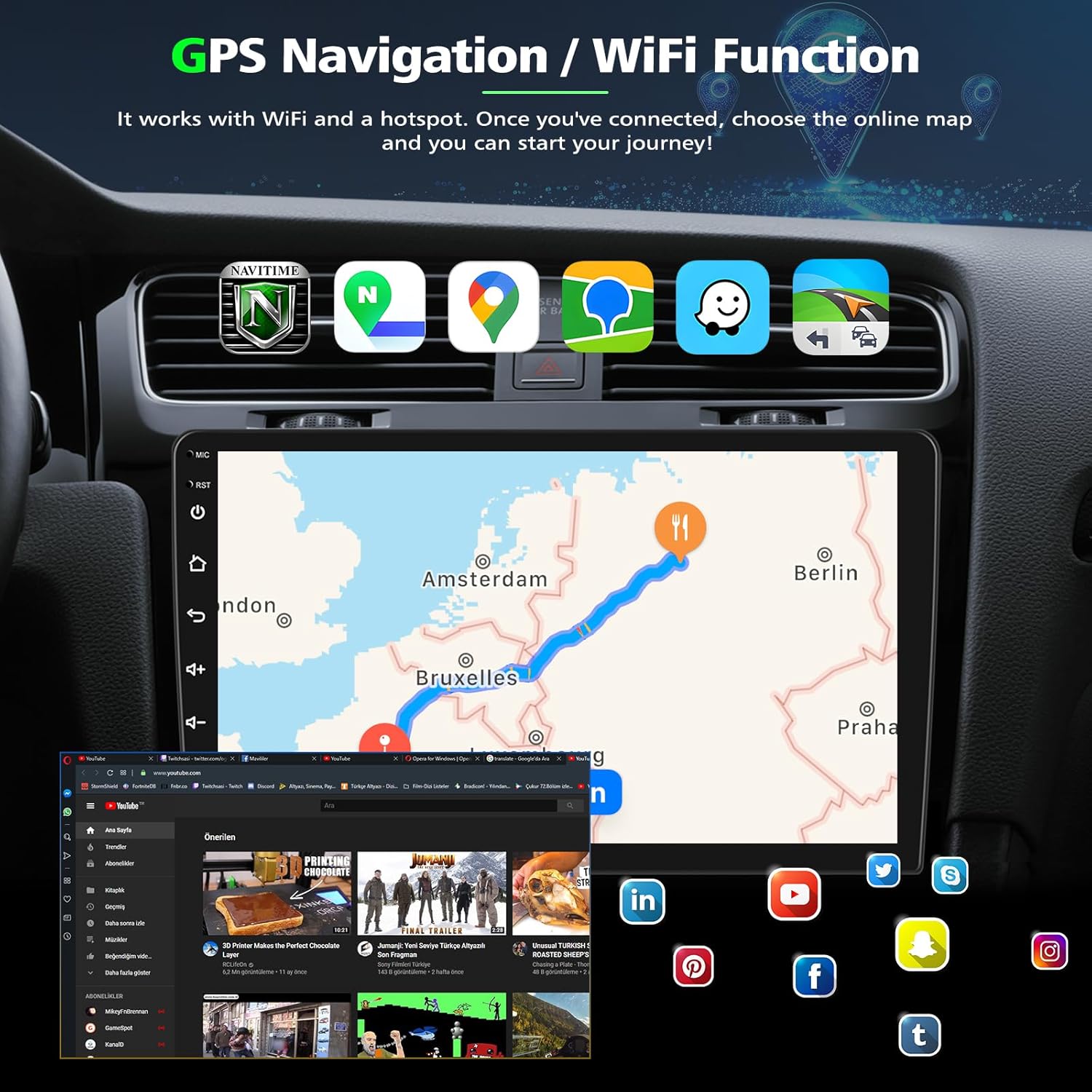
Image: The car radio screen displaying a reverse camera feed with parking assist lines, alongside a separate section illustrating the steering wheel control setup menu.
6. Additional Features
- Split Screen: Some applications can be run side-by-side on the display.
- Voice Control: Utilize voice commands through CarPlay/Android Auto (Siri/Google Assistant) for various functions.
- FM/RDS Radio: Tune into FM radio stations with RDS (Radio Data System) information display.

Image: A composite image showcasing various operational features: Bluetooth 5.2 for hands-free calling, split-screen functionality, FM/RDS radio, and voice control activation.
Maintenance
- Cleaning the Screen: Use a soft, lint-free cloth to gently wipe the touch screen. Avoid abrasive cleaners or solvents.
- Software Updates: Periodically check for available software updates through the unit's settings menu to ensure optimal performance and access to new features. Connect to Wi-Fi for updates.
- General Care: Keep the unit free from excessive dust and moisture. Avoid exposing it to extreme temperatures.
Troubleshooting
| Problem | Possible Cause | Solution |
|---|---|---|
| Unit does not power on | Loose power connection, blown fuse, vehicle battery issue. | Check all power wiring, inspect vehicle fuses, ensure vehicle battery is charged. |
| No sound | Volume too low, speaker wires disconnected, incorrect audio source. | Increase volume, check speaker wiring, select correct audio input. |
| CarPlay/Android Auto not connecting | Bluetooth/Wi-Fi off, phone not paired, app issues. | Ensure Bluetooth/Wi-Fi are on, re-pair phone, restart phone and radio. |
| Backup camera not displaying | Camera not connected, reverse trigger wire issue, camera malfunction. | Check camera wiring, verify reverse trigger connection, test camera. |
| Steering wheel controls not working | Incorrect wiring, not configured, Canbus issue. | Verify SWC wiring, configure controls in settings, check Canbus connection. |
Specifications
| Feature | Detail |
|---|---|
| Brand | PHEZEN |
| Model Number | SW-2+32G |
| Operating System | Android 13 |
| RAM | 2GB |
| ROM | 32GB |
| Screen Size | 6.86 inches |
| Display Type | IPS Touch Screen |
| Resolution | 1024*600 |
| Connectivity Technology | Bluetooth, USB, Wi-Fi |
| Wireless Features | Wireless Apple CarPlay, Wireless Android Auto |
| Special Features | GPS Navigation, FM Radio, Hands-Free Calling, Touchscreen, Steering Wheel Control Support |
| Compatible Devices | Smartphone |
| Audio Output Mode | Stereo |
| Output Power | 45 Watts (per channel, 4 channels total for 180 Watts max) |
| Video Encoding Support | MKV, AVI, MP4 |
| Audio Format Support | MP3 Audio |
Warranty Information
No specific warranty description is provided for this product. Please refer to the retailer's return policy or contact the seller directly for information regarding warranty coverage.
Support
For further assistance, technical support, or inquiries not covered in this manual, please contact the seller or manufacturer through the platform where the product was purchased. Ensure you have your model number (SW-2+32G) and purchase details available when seeking support.