
1. Introduction
This manual provides detailed instructions for the installation, operation, and maintenance of your Roinvou 4G+64G Android 15 Car Stereo. This unit is designed for Citroen Berlingo and Peugeot Partner vehicles manufactured between 2015 and 2018. It features a 9-inch In-Cell touchscreen, wireless CarPlay and Android Auto, GPS navigation, Bluetooth connectivity, FM/RDS radio, and support for a rear view camera.
Please read this manual thoroughly before installation and use to ensure proper functionality and to maximize your experience with the device.

Image 1.1: Roinvou Android 15 Car Stereo main unit with its user interface.
2. Vehicle Compatibility
This car stereo is specifically designed for Citroen Berlingo and Peugeot Partner models from 2015 to 2018. Before purchasing or installing, confirm that your vehicle's center console matches the compatible model type (Model A) shown in the image below. Incompatibility may lead to improper fit or functionality.
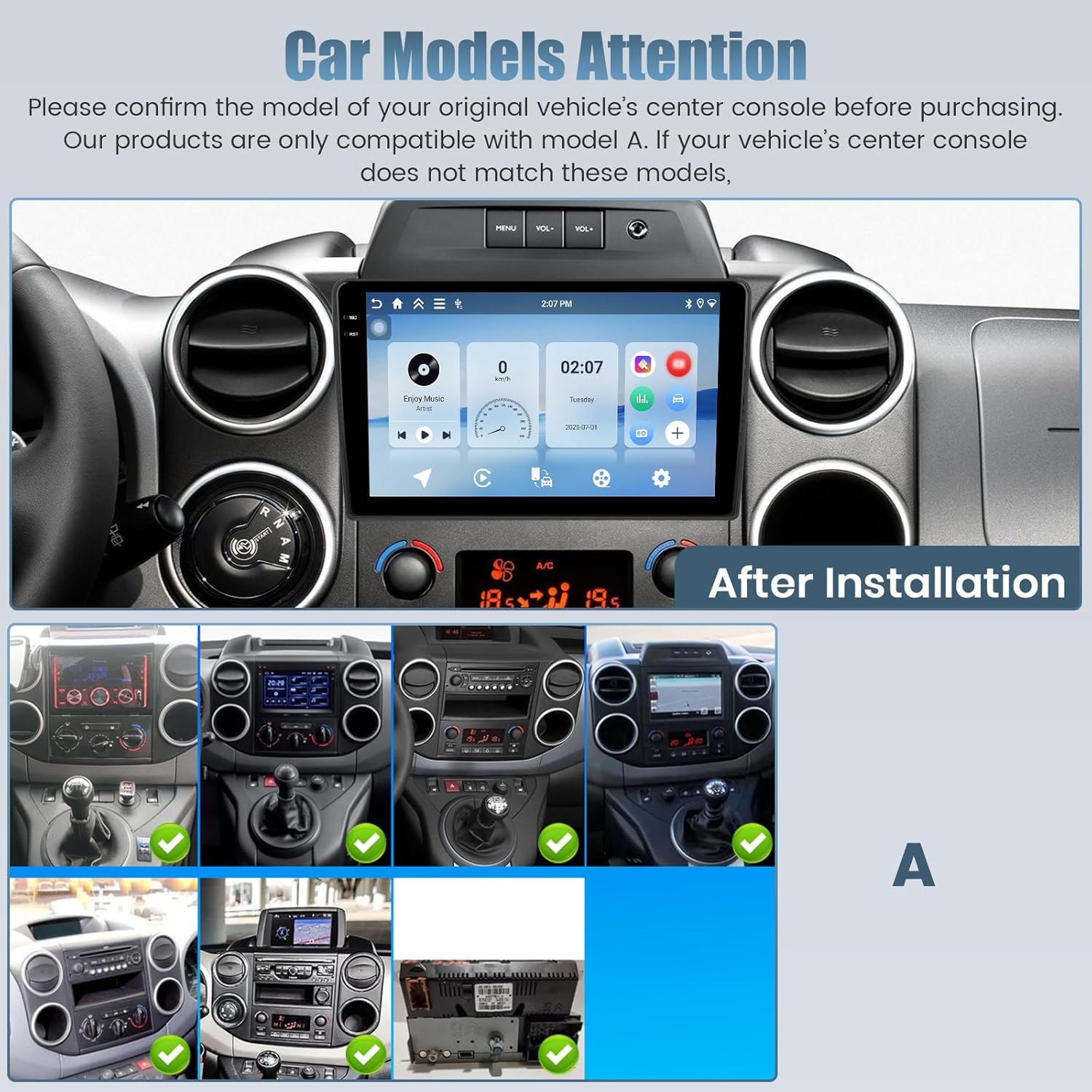
Image 2.1: Vehicle compatibility guide and an example of the stereo installed in a compatible dashboard.
3. Package Contents
Verify that all items listed below are included in your package:
- Roinvou Car Stereo Unit
- Power Cable
- USB Cables (x2)
- Radio Antenna
- CANbus Decoder
- RCA Cable
- Rear Camera Input Cable
- GPS Antenna
- AHD Rear Camera
- External Microphone
- Installation Tool
- User Manual (this document)
- Additional Accessories
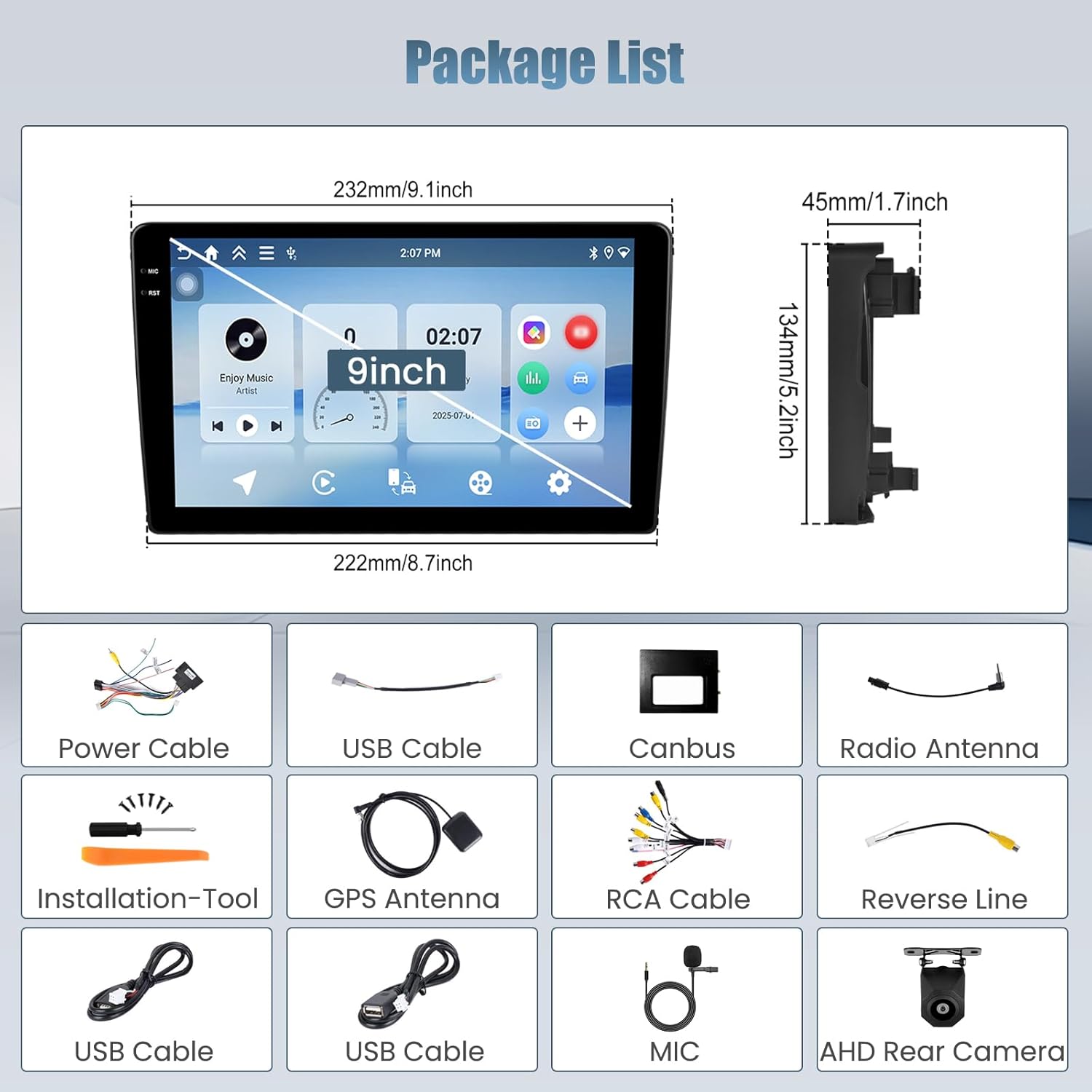
Image 3.1: Visual representation of all included package components.
4. Installation
Installation of this car stereo requires technical knowledge and experience with car electronics. It is highly recommended to seek professional installation to avoid damage to the unit or your vehicle. If you choose to install it yourself, proceed with caution and follow these general guidelines:
- Disconnect Battery: Before starting, disconnect the vehicle's negative battery terminal to prevent electrical shorts.
- Remove Old Unit: Carefully remove the existing car stereo and trim panels. Use the provided installation tool if necessary.
- Connect Wiring:
- Connect the main power cable harness to the vehicle's wiring.
- Connect the CANbus decoder to ensure proper communication with vehicle systems (e.g., steering wheel controls).
- Attach the GPS antenna, positioning it in a location with a clear view of the sky (e.g., dashboard).
- Connect the radio antenna.
- Connect USB cables for external devices.
- If installing the rear camera, route its cable to the back of the vehicle and connect it to the camera input on the stereo.
- Connect the external microphone for improved call quality.
- Test Connections: Before fully reassembling, temporarily reconnect the battery and power on the unit to test basic functions (power, audio, touchscreen, radio, GPS signal).
- Secure Unit: Mount the new Roinvou car stereo securely into the dashboard opening.
- Reassemble: Reinstall all trim panels and secure them properly.
- Final Check: Reconnect the battery fully and perform a comprehensive test of all features.
Refer to your vehicle's specific service manual for detailed instructions on removing and installing dashboard components.
5. Initial Setup
After successful installation, follow these steps for initial setup:
- Power On: Start your vehicle. The car stereo should power on automatically.
- Language and Time: Navigate to the system settings to select your preferred language and set the correct date and time.
- Wi-Fi Connection:
- Go to Settings > Network & Internet > Wi-Fi.
- Select your Wi-Fi network and enter the password to connect. This is essential for online features, app downloads, and updates.
- Bluetooth Pairing:
- Go to Settings > Connected devices > Bluetooth.
- Enable Bluetooth on the car stereo and your mobile device.
- Search for available devices on your phone and select the car stereo's name (e.g., "Roinvou Car Stereo").
- Confirm the pairing code on both devices.
- Steering Wheel Control (SWC) Configuration:
- Access the SWC settings menu (usually found under Settings > Car Settings > Steering Wheel Control).
- Follow the on-screen instructions to map your vehicle's steering wheel buttons to the corresponding functions on the stereo (e.g., volume up/down, track skip).
6. Operation
6.1. In-Cell Touchscreen
The 9-inch In-Cell touchscreen features a 1280x720 resolution, offering a responsive and clear display. This technology reduces glare and enhances touch sensitivity for precise control and an improved multimedia experience.

Image 6.1: The In-Cell touchscreen technology provides fast response and true color display.
6.2. Wireless CarPlay & Android Auto
Connect your iPhone or Android smartphone wirelessly to access navigation, calls, messages, and music directly on the car stereo display. This feature allows for hands-free operation and keeps your focus on the road.
- Connection: Ensure Bluetooth and Wi-Fi are enabled on both your phone and the car stereo. Follow the on-screen prompts in the CarPlay or Android Auto application on the stereo to establish a connection.
- Mirror Link: The unit also supports wired and wireless Mirror Link, allowing you to mirror your phone's screen directly onto the stereo display.

Image 6.2: Wireless CarPlay, Android Auto, and Mirror Link functionality.
6.3. Internet Connectivity and Applications
The car stereo supports 5G Wi-Fi, enabling fast internet access. Connect to a mobile hotspot or home Wi-Fi to download and use various applications from the app store, stream media, and browse the web.

Image 6.3: High-speed 5G Wi-Fi and support for popular applications.
6.4. Split Screen Technology & Customizable UI
Utilize the split-screen feature to run two applications simultaneously, such as navigation and music playback. The user interface is customizable, allowing you to personalize the layout and appearance to your preference.

Image 6.4: Split-screen functionality and customizable user interface options.
6.5. Audio Settings (EQ, FM/RDS)
Adjust the audio output to your liking using the built-in equalizer (EQ) settings. The FM/RDS radio provides access to your favorite stations with clear sound quality and displays station information where available.
6.6. Rear View Camera & Steering Wheel Control
The included AHD rear camera provides a clear, wide-angle view for safer parking and reversing. The display automatically switches to the camera feed when reverse gear is engaged. Steering Wheel Control (SWC) compatibility allows you to manage audio and other functions without taking your hands off the wheel, enhancing driving safety.

Image 6.5: Rear view camera display (day and night) and steering wheel control configuration interface.
7. Maintenance
- Screen Cleaning: Use a soft, lint-free cloth to gently wipe the touchscreen. Avoid abrasive cleaners or solvents.
- Software Updates: Periodically check for system software updates via the settings menu to ensure optimal performance and access to new features. A stable internet connection is required for updates.
- General Care: Avoid exposing the unit to extreme temperatures, direct sunlight for prolonged periods, or excessive moisture.
8. Troubleshooting
If you encounter issues with your Roinvou car stereo, refer to the following common problems and solutions:
| Problem | Possible Cause | Solution |
|---|---|---|
| Unit does not power on. | Loose power connection, blown fuse, vehicle battery issue. | Check all power cable connections. Inspect vehicle fuses. Ensure vehicle battery is charged. |
| No sound. | Volume too low, mute activated, speaker wiring issue, incorrect audio output settings. | Increase volume. Check if mute is active. Verify speaker connections. Adjust audio settings. |
| Touchscreen unresponsive. | Temporary software glitch, screen protector interference. | Restart the unit. Ensure screen is clean and free of obstructions. |
| GPS signal weak or inaccurate. | GPS antenna obstructed or improperly placed, antenna connection loose. | Ensure GPS antenna has a clear view of the sky. Check antenna connection. |
| CarPlay/Android Auto not connecting. | Bluetooth/Wi-Fi off, phone compatibility issue, incorrect pairing process. | Ensure Bluetooth and Wi-Fi are active on both devices. Re-attempt pairing. Check phone compatibility. |
| Steering Wheel Controls not working. | CANbus not connected, SWC not configured correctly. | Verify CANbus connection. Reconfigure SWC settings as per Section 5. |
If the problem persists after trying these solutions, please contact Roinvou customer support for further assistance.
9. Specifications
| Feature | Detail |
|---|---|
| Brand | Roinvou |
| Model Number | B0FJQTZMQL |
| Operating System | Android 15 |
| Processor | 4-core |
| RAM | 4 GB |
| Internal Storage | 64 GB |
| Screen Size | 9 inches |
| Screen Type | In-Cell Touchscreen |
| Screen Resolution | 1280x720 |
| Connectivity | Bluetooth, USB, Wi-Fi (5G), FM RDS, GPS |
| Special Features | Wireless CarPlay, Android Auto, Mirror Link, EQ, SWC, Rear Camera Support, Split Screen |
| Compatible Devices | Smartphone |
| Audio Output Mode | APE/FLAC/WAV/MP3/WMA |
| Video Encoding | MKV/RMVB/AVI/MP4/MDV |
| Surround Sound Channel Configuration | 4 |
| Connector Type | RCA, USB, Composite video |
10. Warranty and Support
Your Roinvou car stereo comes with a 24-month manufacturer's warranty. Roinvou also provides lifetime online support for inquiries, with a commitment to respond within 24 hours.
For warranty claims, technical assistance, or any questions not covered in this manual, please contact Roinvou customer service through the retailer where you purchased the product or via the official Roinvou support channels.