
1. Introduction
The KINDEEP Air Tracker Tag BT001 is a compact and efficient Bluetooth item finder designed to help you locate your valuables using the Apple Find My network. This device offers a reliable solution for tracking keys, luggage, bags, wallets, and even pets, providing peace of mind through advanced location features and robust design.
Key Features:
- Apple Find My Integration: Seamlessly connects with the Apple Find My app on iOS devices for easy tracking.
- Extended Range & Sound: Offers up to 200ft/60m Bluetooth range and a built-in 80-100dB speaker for quick local retrieval.
- Lost Mode & Alerts: Features Left-Behind Reminders and a Lost Mode for anonymous, encrypted global tracking.
- Durable Design: IP67 waterproof rating ensures protection against water and dust.
- Replaceable Battery: Powered by a CR2032 battery with up to one year of life, easily replaceable.
- Compact & Lightweight: Measuring 1.48in × 1.48in × 0.3in and weighing 10g, it's ideal for various items.

2. Setup Guide
Follow these steps to set up your KINDEEP Air Tracker Tag and connect it to your Apple Find My app.
2.1. Initial Activation
- Unpack: Remove the Air Tracker Tag from its packaging. Each 4-pack includes lanyards for easy attachment.
- Activate: The tag comes with a pre-installed CR2032 battery. To activate, pull the small plastic tab extending from the side of the tag. This completes the battery circuit.
- Power On: Press and hold the central button on the tag for approximately 10 seconds until you hear a 'beep' sound. This indicates the tag is powered on and ready for pairing.
2.2. Pairing with Apple Find My App (iOS Only)
The KINDEEP Air Tracker Tag is compatible exclusively with iOS devices.
- Enable Bluetooth & Location Services: On your iOS device, ensure Bluetooth is turned on and Location Services are enabled in your Privacy & Security settings.
- Open Find My App: Launch the Apple Find My app on your iPhone or iPad.
- Add New Item: Navigate to the 'Items' tab at the bottom of the screen. Tap the '+' icon, then select 'Add Other Item'.
- Connect: The app will begin searching for nearby items. Once 'BT001' or 'Vos Tag' appears, tap 'Connect'.
- Name Your Item: Enter a descriptive name for your tag (e.g., "My Keys," "Luggage"). You can also assign an emoji for easy identification.
- Agree to Terms: Review and agree to the terms and conditions to link the tag to your Apple ID.
- Finish Setup: The tag is now successfully paired and ready for use.


3. Operating Instructions
3.1. Locating Nearby Items
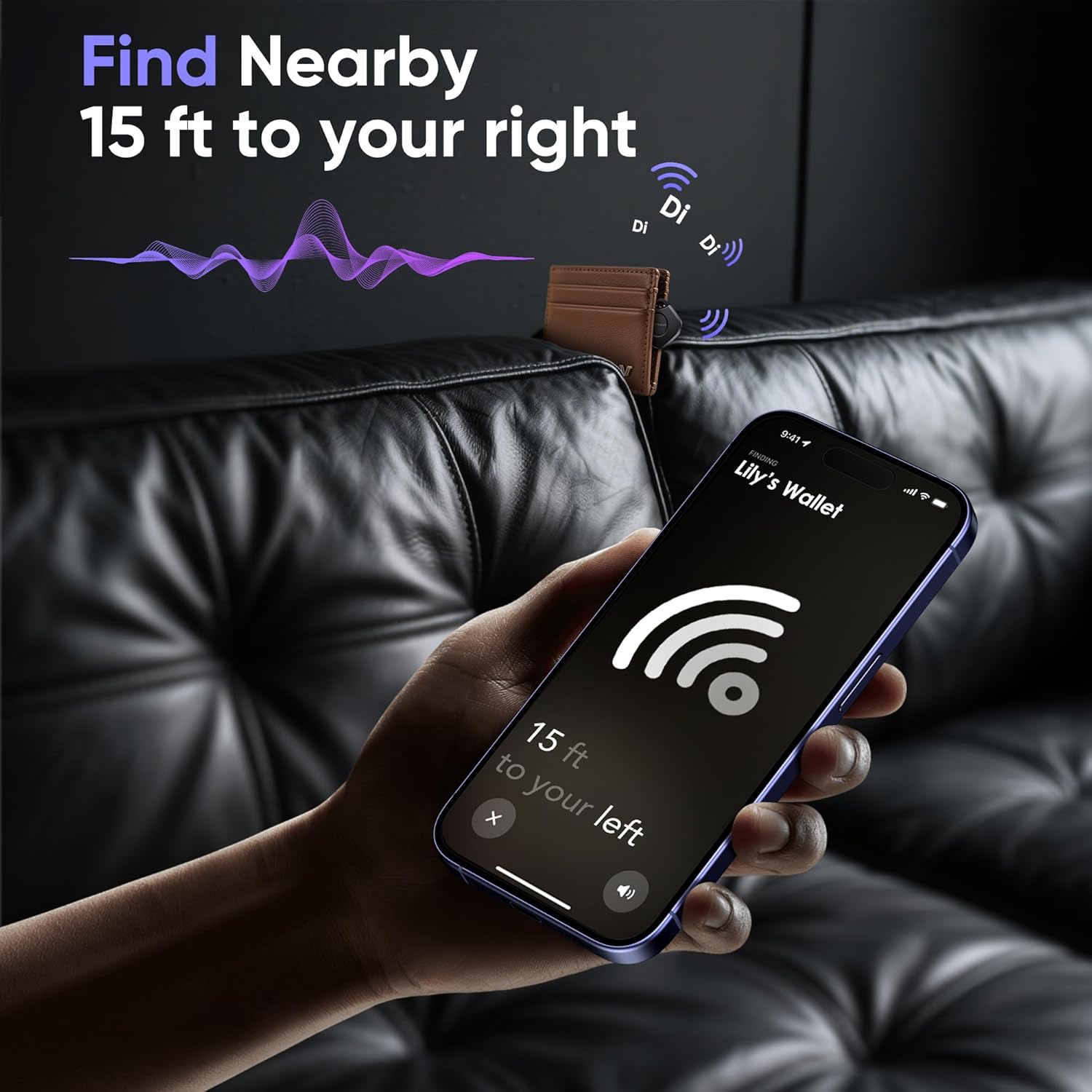
When your item is within Bluetooth range (up to 200ft/60m), you can use the Find My app to play a sound on your KINDEEP Air Tracker Tag.
- Open the Find My app.
- Go to the 'Items' tab.
- Select your KINDEEP Air Tracker Tag from the list.
- Tap 'Play Sound'. The tag will emit an 80-100dB sound, helping you pinpoint its exact location.

3.2. Locating Out-of-Range Items (Lost Mode)
If your item is outside of Bluetooth range, the Apple Find My network can still help you locate it.
- View Last Known Location: In the Find My app, select your tag. The map will display its last known location.
- Enable Lost Mode: If you believe your item is lost, activate 'Lost Mode' in the Find My app. You can enter your contact information, which will be displayed to anyone who finds your tag and scans it with their Apple device.
- Anonymous Tracking: The vast Apple Find My network (billions of devices worldwide) will anonymously detect your tag's location. When another Apple device comes within range of your lost tag, its location will be updated on your map, and you will receive a notification.

3.3. Left-Behind Reminders
The Find My app can notify you if you leave your item behind.
- Set Up Notifications: In the Find My app, select your tag and configure 'Notify When Left Behind' settings.
- Receive Alerts: If your tag disconnects from your iOS device (e.g., you walk away from your keys), you will receive an immediate notification on your device, showing the last detected location.

4. Maintenance
4.1. Battery Replacement
The KINDEEP Air Tracker Tag uses a replaceable CR2032 coin cell battery, which typically lasts up to one year. The Find My app will notify you when the battery level is low.
- Open the Tag: Carefully twist the back cover of the tag counter-clockwise to open it.
- Remove Old Battery: Remove the old CR2032 battery.
- Insert New Battery: Insert a new CR2032 battery with the positive (+) side facing up.
- Close the Tag: Align the back cover and twist clockwise until it clicks securely into place. Ensure a tight seal to maintain water resistance.

4.2. Water Resistance
The KINDEEP Air Tracker Tag features an IP67 water-resistant rating, meaning it can withstand splashes, rain, and brief immersion in water. However, it is not recommended for prolonged submersion or use during swimming.

5. Troubleshooting
If you encounter issues with your KINDEEP Air Tracker Tag, try the following steps:
- Pairing Issues: Ensure Bluetooth and Location Services are active on your iOS device. Make sure the tag's battery is not depleted. Try restarting your iOS device and the tag (by removing and reinserting the battery if necessary, or using the on/off button if available).
- No Sound: Check if the tag is within Bluetooth range. Ensure your iOS device's volume is up. If the battery is low, the sound may be weak or non-existent.
- Inaccurate Location: Location accuracy relies on the density of the Apple Find My network. In areas with fewer Apple devices, location updates may be less frequent or precise. Ensure your iOS device has a stable internet connection.
- Battery Life: If the battery drains quickly, ensure the tag is not constantly playing sound or frequently entering/exiting Bluetooth range, as this can increase power consumption.
6. Specifications
| Feature | Detail |
|---|---|
| Model Number | BT001 |
| Product Dimensions | 1.48 x 1.48 x 0.31 inches |
| Item Weight | 2.89 ounces (for 4-pack) |
| Battery Type | CR2032 (included, replaceable) |
| Battery Life | Up to 1 year |
| Connectivity | Bluetooth 5.2 |
| Compatibility | iOS devices only (Apple Find My app) |
| Water Resistance | IP67 |
| Speaker Volume | 80-100dB |
| Material | Acrylonitrile Butadiene Styrene (ABS), Plastic, Polycarbonate (PC) |
7. Important Safety Information
- Keep the device out of reach of small children and pets to prevent accidental ingestion of the battery or small parts.
- Do not attempt to disassemble or modify the device beyond battery replacement.
- Dispose of batteries according to local regulations. Do not incinerate.
- Avoid exposing the device to extreme temperatures or direct sunlight for prolonged periods.
8. Warranty and Support
For warranty information, please refer to the documentation provided with your purchase or contact the retailer. For technical support or further assistance, please visit the KINDEEP official website or contact their customer service.
