
EDJO MK358
EDJO Wireless Keyboard and Mouse Combo MK358 User Manual
Model: MK358 | Brand: EDJO
Introduction
This manual provides detailed instructions for setting up, operating, and maintaining your EDJO MK358 Wireless Keyboard and Mouse Combo. Please read this manual carefully before use to ensure optimal performance and longevity of your device.
Key Features:
- 2.4G Wireless Connection: Provides a stable and lag-free connection up to 33 feet.
- Single USB Receiver: One nano USB receiver connects both the keyboard and mouse.
- Full-Size Keyboard: Includes a numeric keypad for enhanced productivity.
- Ultra-Slim Design: Sleek and space-saving profile for a tidy workspace.
- Quiet Typing & Clicking: Responsive scissor-switch keys and silent mouse buttons for a distraction-free environment.
- Adjustable DPI Mouse: Optical mouse with 3 adjustable DPI levels (800/1200/1600) for precise control.
- Smart Power Management: Automatic sleep mode to conserve battery life.
- Wide Compatibility: Works with Windows, Mac OS, Linux, Chrome OS, and various devices like PCs, laptops, and TVs.
Setup Instructions
Follow these steps to quickly set up your EDJO Wireless Keyboard and Mouse Combo:
1. Install Batteries:
- Mouse: Open the battery compartment on the underside of the mouse. Insert one (1) AA battery (not included), ensuring correct polarity.
- Keyboard: Open the battery compartment on the underside of the keyboard. Insert two (2) AA batteries (not included), ensuring correct polarity.

Figure 1: Battery installation for the keyboard (2x AA) and mouse (1x AA). The USB receiver is stored inside the mouse's battery compartment.
2. Locate the USB Receiver:
The single nano USB receiver for both the keyboard and mouse is conveniently stored inside the mouse's battery compartment. Gently remove it.
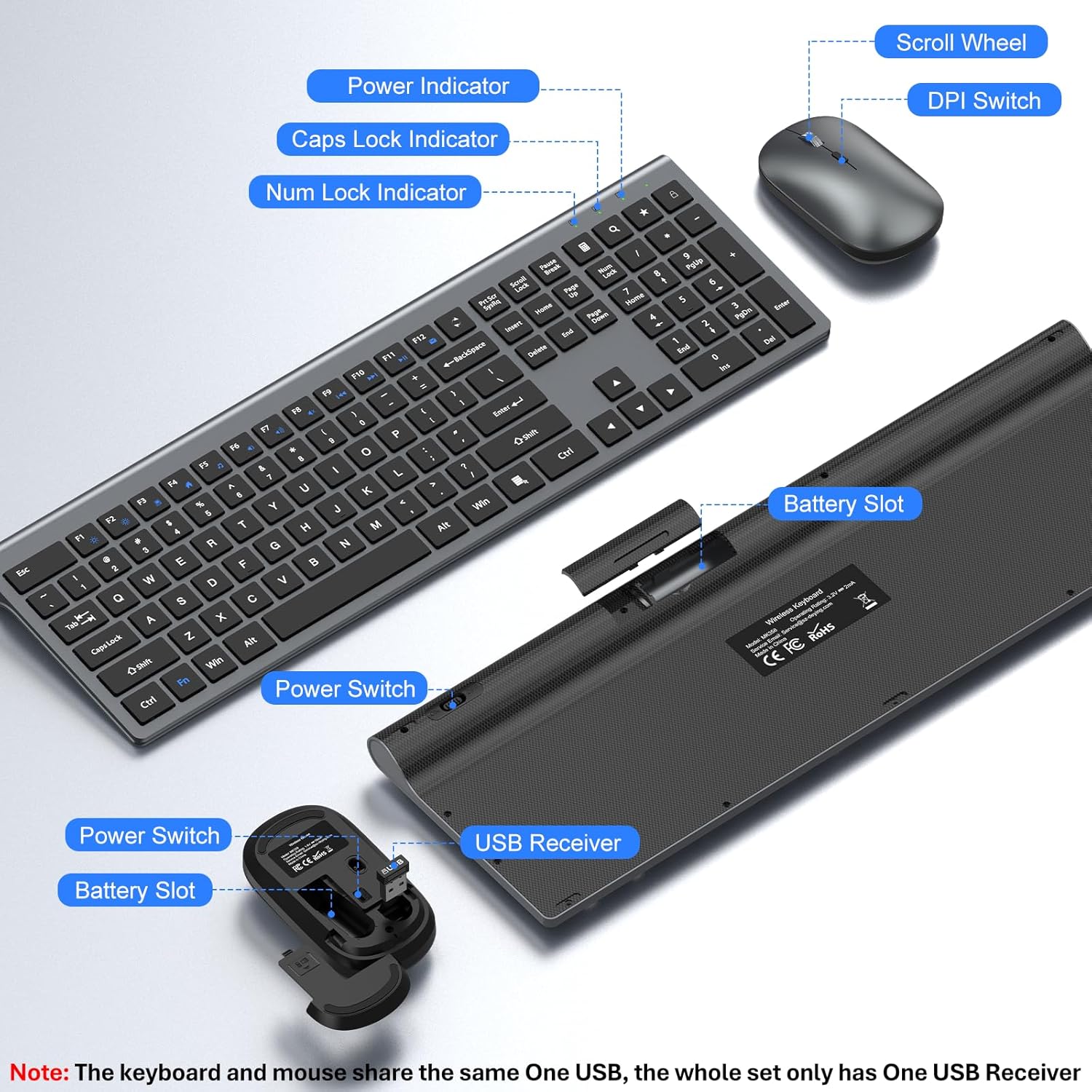
Figure 2: The USB receiver is located within the mouse's battery compartment.
3. Connect the USB Receiver:
Plug the USB receiver into an available USB-A port on your computer, laptop, PC, or other compatible device. No drivers or additional software installation are required; the devices are plug-and-play.

Figure 3: The USB receiver connects to a USB-A port for instant wireless functionality.
4. Power On Devices:
Ensure the power switches on both the keyboard and mouse are in the "ON" position. The devices should automatically connect to your computer.
Operating Instructions
Keyboard Usage:
- Typing: The full-size keyboard features responsive scissor-switch keys designed for comfortable and quiet typing.
- Function Keys: Use the 'Fn' key in combination with the F1-F12 keys for multimedia controls and other shortcuts (e.g., volume, play/pause, brightness).
- Numeric Keypad: Utilize the dedicated numeric keypad for efficient data entry.
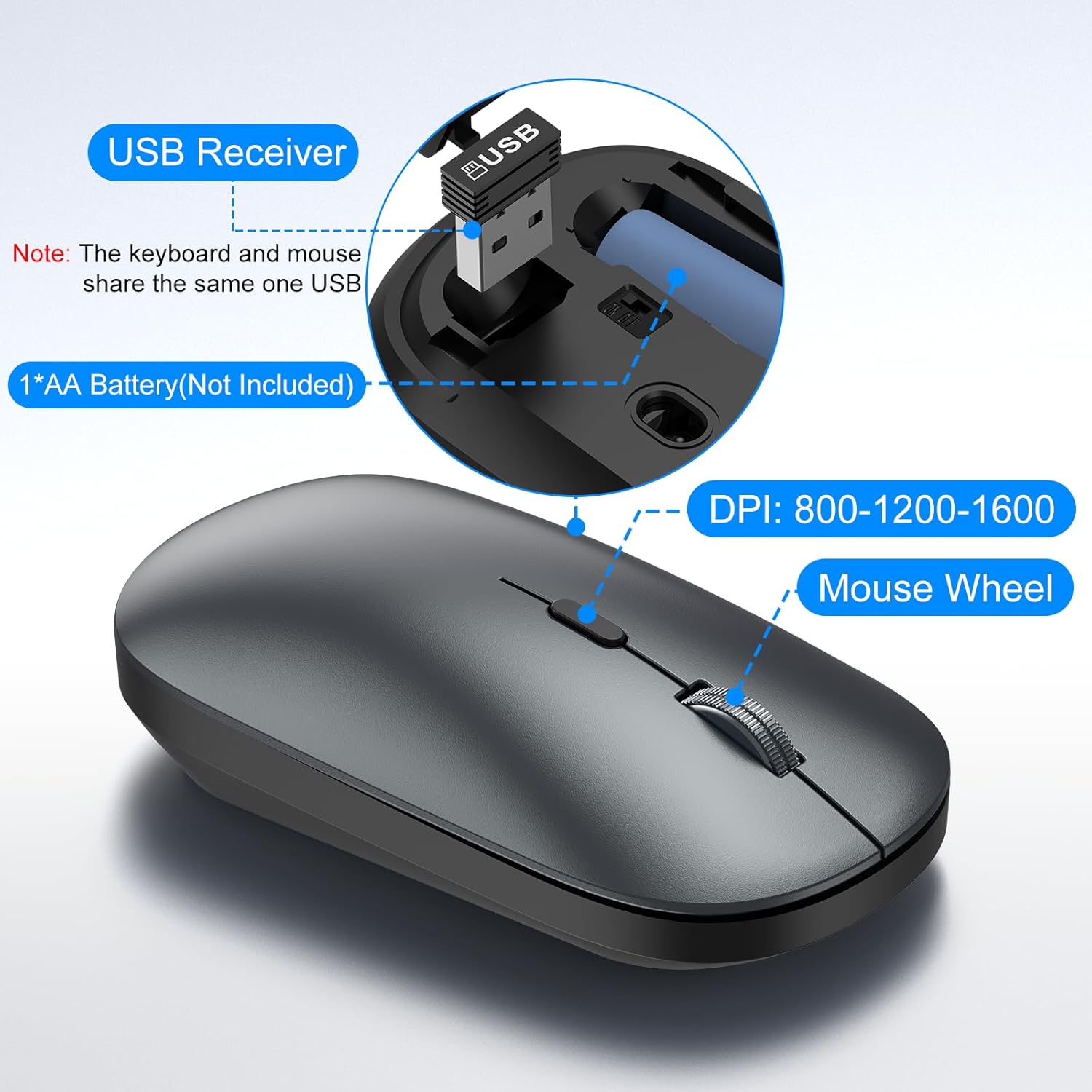
Figure 4: The keyboard features quiet keys for a comfortable typing experience.
Mouse Usage:
- Movement: The optical mouse provides smooth and precise tracking.
- DPI Adjustment: Press the DPI switch button located near the scroll wheel to cycle through 3 adjustable DPI levels (800, 1200, 1600). This allows you to customize cursor sensitivity.
- Silent Clicks: The mouse is designed for silent clicking, reducing noise in your workspace.

Figure 5: The mouse offers adjustable DPI settings for personalized cursor speed and precision.
Maintenance
Battery Replacement:
When the devices become unresponsive or the indicator light flashes, it's time to replace the batteries. Refer to the "Setup Instructions" for battery compartment locations and correct battery types (2x AA for keyboard, 1x AA for mouse).
Cleaning:
- Use a soft, dry cloth to wipe down the surfaces of the keyboard and mouse.
- For stubborn dirt, slightly dampen the cloth with water or a mild cleaning solution. Avoid excessive moisture.
- Do not use harsh chemicals or abrasive cleaners, as these can damage the finish.
Troubleshooting
Connection Issues:
- No Response: Ensure both the keyboard and mouse are powered on and have fresh batteries.
- USB Receiver: Verify that the USB receiver is securely plugged into a working USB-A port on your computer. Try a different USB port if necessary.
- Distance: Ensure the devices are within the 33-foot wireless range of the USB receiver and there are no major obstructions.
- Interference: Move away from other wireless devices (e.g., Wi-Fi routers, cordless phones) that might cause interference.
Lag or Unresponsiveness:
- Battery Level: Low batteries can cause lag. Replace them if needed.
- Surface (Mouse): Ensure the mouse is used on a suitable surface. Optical mice perform best on non-reflective, uniform surfaces.
- DPI Setting: Adjust the mouse DPI setting to a level that suits your preference.
Smart Sleep Mode:
The keyboard and mouse enter sleep mode after 10 minutes of inactivity to save power. To wake them up, simply press any button on the keyboard or click the mouse.
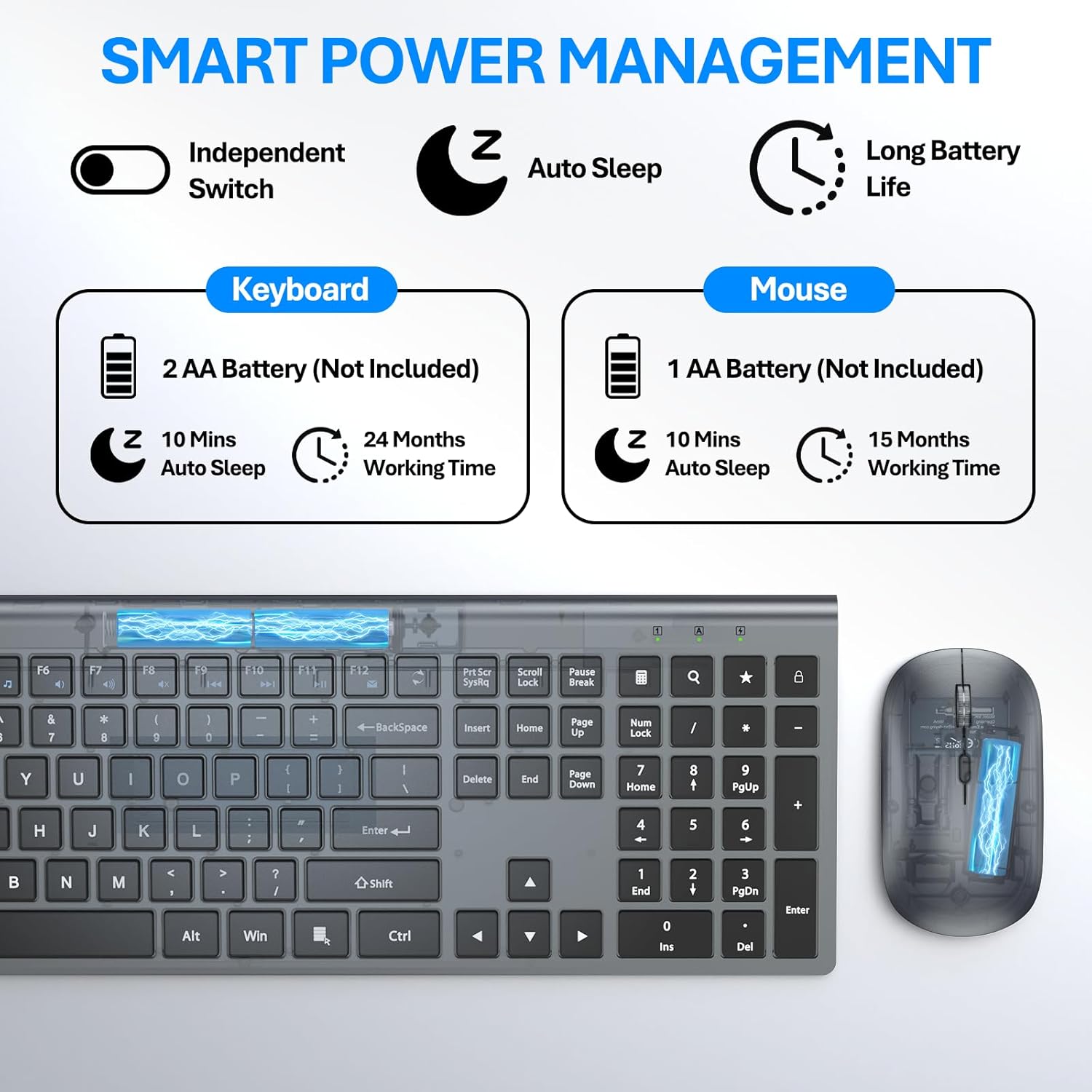
Figure 6: Smart power management features auto-sleep for extended battery life.
Specifications
| Feature | Detail |
|---|---|
| Model Number | MK358 |
| Connectivity | 2.4G Wireless (USB Receiver) |
| Wireless Range | Up to 33 feet (10 meters) |
| Keyboard Type | Full-size, Scissor-switch keys |
| Mouse Type | Optical, Silent Click |
| Mouse DPI Levels | 800 / 1200 / 1600 |
| Keyboard Battery | 2 x AA batteries (not included) |
| Mouse Battery | 1 x AA battery (not included) |
| Product Dimensions (Keyboard) | 17.09 x 5.47 x 0.23 inches |
| Item Weight | 1.7 pounds |
| Compatible Operating Systems | Windows (all versions), Linux, Chrome OS, Mac OS |
| Compatible Devices | Personal Computer, Laptop, Chromebook, PC, Desktops, TV, iMac |

Figure 7: Detailed dimensions of the EDJO MK358 keyboard and mouse.
Warranty and Support
For warranty information or technical support, please refer to the contact details provided with your product packaging or visit the official EDJO website. Keep your purchase receipt for warranty claims.
Related documentsMK358

Ask a question about this manual
Ask about setup, troubleshooting, compatibility, parts, safety, or missing instructions. Manuals+ will review the question and use this page’s manual context to help answer it.