
1. Introduction
This manual provides comprehensive instructions for the installation, operation, maintenance, and troubleshooting of your Loddery 9.7 Inch Android 14 Car Radio. Please read this manual thoroughly before using the product to ensure proper functionality and safety. Keep this manual for future reference.
2. Setup
2.1. Package Contents
Verify that all items are present in the package:
- Loddery 9.7 Inch Android 14 Car Radio Unit
- Power Harness
- GPS Antenna
- USB Cables
- RCA Cables
- External Microphone
- Rear View Camera Input Cable
- User Manual (this document)
2.2. Installation Overview
Installation of the car radio involves removing the factory unit, connecting the new unit's wiring harness, and securing the display. Professional installation is recommended to ensure correct wiring and vehicle compatibility.
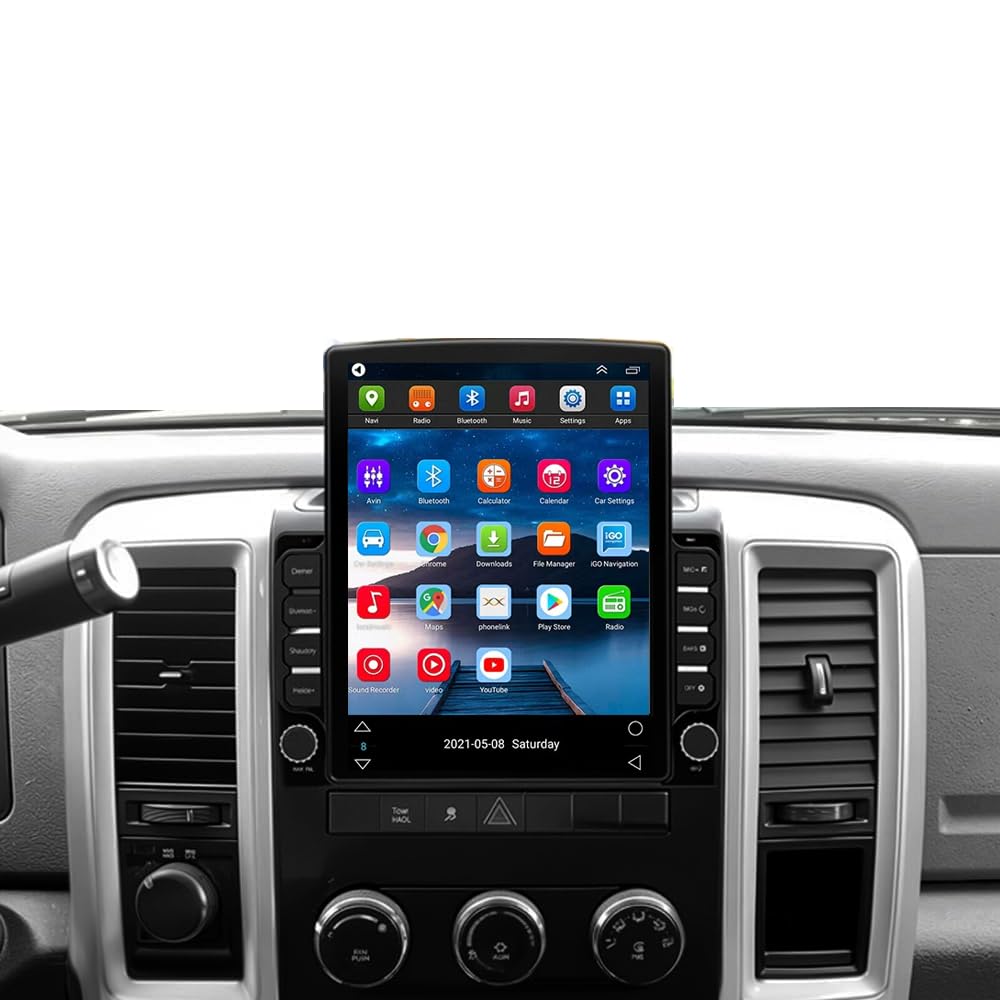
Image: The Loddery 9.7 Inch Android 14 Car Radio unit, showing its large touchscreen and physical buttons.
2.3. Wiring Connections
Connect the provided wiring harness to your vehicle's existing wiring. Ensure all connections are secure. The GPS antenna should be placed in a location with a clear view of the sky. Connect the rear view camera input cable if you plan to use a backup camera.
3. Operating Instructions
3.1. User Interface Navigation
The unit features a responsive 9.7-inch IPS touchscreen. Swipe left or right to navigate between home screens. Tap on app icons to launch applications. The bottom bar provides quick access to essential functions like Home, Climate Control, and recent apps.
Video: Demonstration of the user interface, including climate control and app navigation on the Loddery car radio for Dodge RAM 2009-2012.
3.2. Wireless & Wired CarPlay / Android Auto
The unit supports both wireless and wired Apple CarPlay and Android Auto. Connect your compatible smartphone via Bluetooth for wireless connection or a USB cable for wired connection. This allows access to navigation, music, calls, and messages directly from the car radio display.

Image: The Apple CarPlay interface displayed on the car radio, showing navigation, media, and communication apps.

Image: The Android Auto interface displayed on the car radio, featuring navigation, music, and messaging applications.
Video: Instructions on how to connect wireless CarPlay and Android Auto to the car radio for Ram 2009-2012 models.
3.3. GPS Navigation
The unit supports both offline and online GPS navigation. Use the pre-installed navigation app or download your preferred navigation applications via Wi-Fi. Ensure the GPS antenna is properly connected for optimal signal reception.

Image: A GPS navigation map showing routes and points of interest on the car radio screen.
3.4. Bluetooth Connectivity
Pair your mobile device via Bluetooth for hands-free calling and audio streaming. Access your phone's contacts and call history directly from the car radio. Ensure Bluetooth is enabled on both the car radio and your device.

Image: Bluetooth interface showing options for hands-free calls, audio streaming, and contact synchronization.
3.5. Radio (FM/RDS)
Tune into your favorite FM radio stations. The Radio Data System (RDS) feature provides additional information such as station name, program type, and traffic announcements where available.

Image: The FM/RDS radio interface displaying current frequency and additional information like real-time road conditions and news broadcasts.
3.6. Multimedia Playback
Play audio and video files from connected USB devices or internal storage. The unit supports various media formats for an enhanced entertainment experience.
3.7. Digital Sound Processor (DSP)
Utilize the built-in DSP to customize your audio experience. Adjust equalizer settings, balance, and fader to optimize sound quality for your vehicle's interior.

Image: The HIFI Audio and EQ settings interface, allowing for detailed sound customization within the car.
3.8. Steering Wheel Control
The unit supports steering wheel control functionality. Program your steering wheel buttons to control volume, track changes, answer calls, and more, enhancing driving convenience and safety.

Image: The steering wheel control settings interface, showing how to map vehicle controls to the car radio functions.
3.9. Rear View Camera
When a compatible rear view camera is connected, the display automatically switches to the camera feed when the vehicle is in reverse, aiding in safer parking and maneuvering.

Image: The rear view camera display, showing parking lines and a wide-angle view for reversing.
3.10. Split Screen Functionality
The split screen feature allows you to run two applications simultaneously on the display, such as navigation and music playback, for enhanced multitasking.
Video: Demonstration of how to use the split screen feature to display two applications concurrently on the car radio.
3.11. UI Customization
Personalize your car radio's interface by changing UI themes and layouts through the settings menu. This allows you to select a visual style that best suits your preference.
Video: Guide on how to change the user interface (UI) theme and style on the Android car stereo for Dodge Ram.
4. Maintenance
4.1. Cleaning the Screen
Use a soft, lint-free cloth to gently wipe the touchscreen. For stubborn smudges, slightly dampen the cloth with water or a screen-safe cleaner. Avoid abrasive materials or harsh chemicals.
4.2. Software Updates
Periodically check for software updates to ensure optimal performance and access to new features. Updates can typically be performed via Wi-Fi through the system settings.
5. Troubleshooting
5.1. Common Issues and Solutions
- No Power: Check all power connections and the vehicle's fuse box. Ensure the ignition is on.
- No Sound: Verify speaker connections, volume levels, and audio settings (DSP). Ensure the mute function is not active.
- GPS Signal Lost: Ensure the GPS antenna has a clear view of the sky and is securely connected.
- Bluetooth Connection Issues: Ensure Bluetooth is enabled on both devices. Try unpairing and re-pairing the device.
- Touchscreen Unresponsive: Perform a system reset (refer to the system settings for the reset option).
- CarPlay/Android Auto Not Connecting: Ensure your phone is compatible and the connection method (wired/wireless) is correctly configured. Check USB cable integrity for wired connections.
6. Specifications
- Brand: Loddery
- Model Name: 9.7 inch Car Radio Stereo for Dodge Ram 2009 2010 2011 2012
- Operating System: Android 14
- Screen Size: 9.7 Inches
- Display Type: IPS Touchscreen
- Memory Storage Capacity: 32 GB
- Connectivity Technology: Bluetooth, Ethernet, USB, Wi-Fi
- Supported Satellite Navigation System: GPS
- Control Method: Touch, Voice
- Vehicle Service Type: Car (Dodge RAM 1500, 2500, 3500 2009-2012)
- Item Weight: 1875 Grams
7. Warranty and Support
This product comes with a manufacturer's warranty. For any questions or assistance, please contact the seller or manufacturer directly. Refer to your purchase documentation for specific warranty terms and contact information.
Manufacturer: Loddery
Warranty Description: If you have any questions please feel free to contact me