
1. Introduction
Welcome to the LOKMAT APPLLP 7 MAX Android Smart Watch user manual. This guide provides comprehensive instructions to help you set up, operate, and maintain your new smartwatch. Please read this manual thoroughly before using the device to ensure optimal performance and safety.
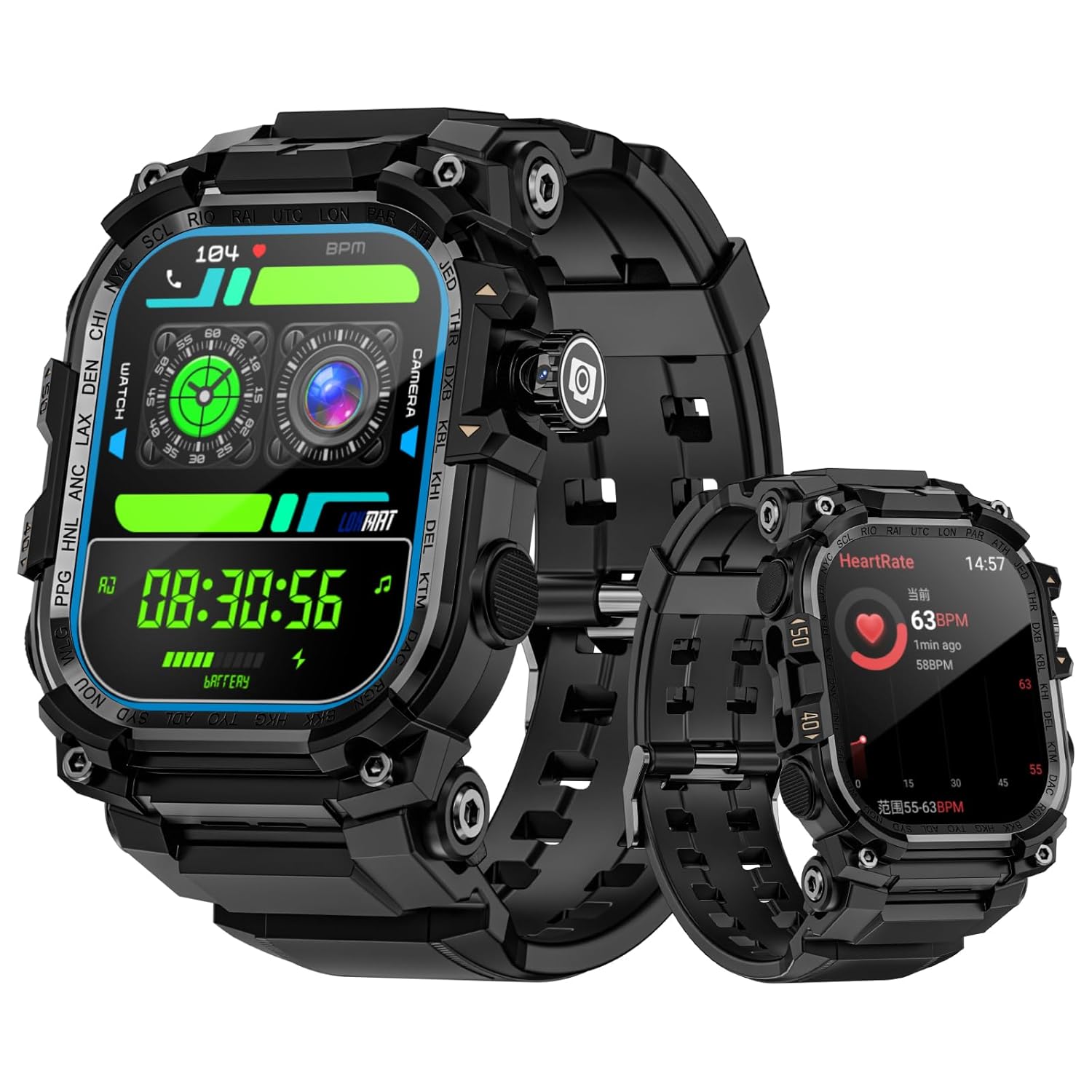
Figure 1: LOKMAT APPLLP 7 MAX Smart Watch displaying different watch faces and health metrics.
The LOKMAT APPLLP 7 MAX is an advanced Android smartwatch featuring a 2.06-inch AMOLED display, a 2-megapixel rotating camera, and 4G/5G network support for enhanced connectivity and functionality.
2. Safety Information
To ensure safe and proper use of your LOKMAT APPLLP 7 MAX Smart Watch, please observe the following precautions:
- Do not attempt to disassemble, repair, or modify the device. Unauthorized modifications may void your warranty and pose safety risks.
- Keep the device away from extreme temperatures, direct sunlight, and moisture.
- Avoid exposing the device to strong impacts or vibrations.
- Use only the provided charging cable and adapter. Using incompatible accessories may cause damage or fire.
- If the device becomes unusually hot, discontinue use immediately and contact customer support.
- Keep the device out of reach of children and pets.
- Consult a medical professional before using the device for health monitoring if you have pre-existing medical conditions.
3. Getting Started: Setup
3.1. Charging the Device
Before initial use, fully charge your smartwatch. The device features magnetic charging.
- Connect the magnetic charging cable to a compatible USB power adapter (not included).
- Align the magnetic end of the cable with the charging contacts on the back of the watch. The magnets will snap into place.
- Ensure the charging icon appears on the watch screen.
- Allow approximately 2 hours for a full charge.

Figure 2: The smartwatch connected to its magnetic charging cable, indicating charging status.
3.2. Powering On/Off
- To Power On: Press and hold the power button (usually located on the side) until the LOKMAT logo appears.
- To Power Off: Press and hold the power button, then select "Power Off" from the options on the screen.
3.3. SIM Card Installation (Optional)
The APPLLP 7 MAX supports 4G/5G cellular connectivity. To use cellular features, install a nano-SIM card.
- Locate the SIM card slot on the side of the watch.
- Carefully open the SIM tray using the provided tool (if applicable) or your fingernail.
- Insert a nano-SIM card into the tray with the gold contacts facing down, ensuring it is correctly oriented.
- Gently push the SIM tray back into the watch until it clicks into place.

Figure 3: Illustration of inserting a SIM card into the smartwatch for 4G/5G connectivity.
3.4. Initial Setup and Pairing
Follow the on-screen instructions to complete the initial setup, including language selection, time zone, and connecting to Wi-Fi. To unlock full functionality, pair your smartwatch with your smartphone via the dedicated companion application.
- Download the official LOKMAT companion app from your smartphone's app store.
- Enable Bluetooth on your smartphone.
- Open the LOKMAT app and follow the instructions to search for and pair with your APPLLP 7 MAX.
- Confirm the pairing request on both your smartphone and smartwatch.
4. Operating Instructions
4.1. Display and Navigation
The APPLLP 7 MAX features a 2.06-inch AMOLED full-touch display for intuitive interaction.

Figure 4: The 2.06-inch AMOLED display provides clear and vibrant visuals.
- Swipe Up/Down: Access quick settings or notifications.
- Swipe Left/Right: Navigate between different widgets or app screens.
- Tap: Select an item or open an application.
- Press and Hold: Customize watch faces or access context menus.
4.2. Using the Camera
The smartwatch is equipped with a 2-megapixel telescopic camera with 190-degree rotation.
- Open the Camera application on your watch.
- Rotate the camera module to adjust the viewing angle as needed.
- Tap the screen to focus, then tap the shutter icon to capture a photo or start/stop video recording.

Figure 5: The smartwatch's rotating camera module for flexible photo and video capture.
4.3. Connectivity and Communication
- 4G/5G Network: With a SIM card installed, you can make and receive calls, send messages, and use data directly from your watch.
- Wi-Fi: Connect to Wi-Fi networks for internet access and faster data transfers.
- Bluetooth: Pair with Bluetooth headphones for music or other accessories.
- Video Calls: Utilize the camera and network connectivity for high-definition video calls.
4.4. Applications and Features
The APPLLP 7 MAX runs on Android, allowing access to various applications.

Figure 6: The smartwatch's interface displaying a selection of popular applications.
- App Store: Download and install additional applications from the built-in app market.
- Music Playback: Use pre-installed music apps or download others. Connect Bluetooth headphones for a private listening experience.
- Flashlight: Activate the built-in flashlight feature for illumination.
- NFC Unlocking: Utilize NFC for quick and secure unlocking of compatible devices or systems.

Figure 7: The smartwatch displaying a music playback interface, ready for Bluetooth headphone connection.

Figure 8: The smartwatch's integrated flashlight providing illumination.

Figure 9: Using the smartwatch's NFC function for quick induction unlocking.
5. Maintenance
5.1. Cleaning Your Smart Watch
Regular cleaning helps maintain the appearance and functionality of your device.
- Wipe the screen and watch body with a soft, lint-free cloth.
- For stubborn smudges, slightly dampen the cloth with water. Avoid using harsh chemicals or abrasive materials.
- Ensure the charging contacts are clean and dry before charging.
5.2. Battery Care
- Avoid fully discharging the battery frequently.
- Charge the watch regularly, even if not in daily use, to maintain battery health.
- Store the watch in a cool, dry place when not in use for extended periods.
6. Troubleshooting
If you encounter issues with your LOKMAT APPLLP 7 MAX, refer to the following common solutions:
6.1. Device Will Not Power On or Charge
- Ensure the charging cable is securely connected to both the watch and the power source.
- Verify the power adapter is functional.
- Clean the charging contacts on the watch and cable.
- Try a different USB port or power adapter.
- If the battery is completely drained, it may take a few minutes for the charging indicator to appear.
- Perform a forced restart by pressing and holding the power button for approximately 10-15 seconds.
6.2. Short Battery Life
- Reduce screen brightness.
- Disable unnecessary notifications or background app refresh.
- Turn off Wi-Fi, Bluetooth, or cellular data when not in use.
- Limit the use of power-intensive features like GPS or continuous heart rate monitoring.
- Ensure all apps are updated to their latest versions.
6.3. App or Sensor Inaccuracy
- Ensure the watch's software and companion app are updated.
- Restart the watch and your paired smartphone.
- For health sensors (e.g., heart rate, steps), ensure the watch is worn snugly on your wrist.
- Calibrate sensors if an option is available in the watch settings or companion app.
- If an app is not working, try uninstalling and reinstalling it.
6.4. Connectivity Issues (Bluetooth, Wi-Fi, Cellular)
- Ensure Bluetooth/Wi-Fi/Cellular is enabled on the watch.
- For Bluetooth, unpair and re-pair the device.
- For Wi-Fi, forget the network and reconnect.
- For cellular, ensure the SIM card is correctly inserted and activated with your carrier. Check network signal strength.
- Restart both the watch and the connected device (e.g., smartphone).
7. Specifications
| Feature | Detail |
|---|---|
| Model | APPLLP 7 MAX |
| Display | 2.06-inch AMOLED, 410 x 502 resolution |
| Operating System | Android |
| Camera | 2-megapixel, 190° rotation |
| Connectivity | 4G, 5G, Wi-Fi, Bluetooth |
| Memory Storage Capacity | 32 GB |
| Battery Capacity | 930 Milliamp Hours (Lithium Polymer) |
| Charging Time | Approximately 2 Hours |
| Item Weight | 222 g |
| Special Features | Camera, NFC, Flashlight |
8. Warranty and Support
For warranty information and customer support, please refer to the documentation included with your purchase or visit the official LOKMAT website. Keep your proof of purchase for warranty claims.
If you require further assistance or have questions not covered in this manual, please contact LOKMAT customer service.


