
1. Introduction
This manual provides detailed instructions for the COLORROOM A30L1 Android 16 Tablet. Please read this manual carefully before using your device to ensure proper operation and to maximize its performance and lifespan. Keep this manual for future reference.

Image: The COLORROOM A30L1 Android 16 Tablet, showcasing its sleek design.
2. What's in the Box
Upon unboxing your COLORROOM A30L1 tablet, verify that all the following items are included:
- COLORROOM A30L1 Android 16 Tablet
- USB Type-C Charging Cable
- Power Adapter
- User Manual
- Protective Case
- Screen Protector (pre-applied or included separately)

Image: The COLORROOM A30L1 Tablet shown with its included accessories, including a protective case.
Video: An unboxing and feature overview of the Android 16 Tablet, demonstrating its components and capabilities.
3. Product Overview
The COLORROOM A30L1 is a high-performance Android 16 tablet designed for both productivity and entertainment. It combines advanced features with a user-friendly interface.
3.1. Key Features
- Display: 10-inch Full HD IPS display with 1280x800 resolution, 300 nits brightness, and 178-degree ultra-wide viewing angle. Widevine L1 certified for 1080P streaming.
- Performance: Android 16 OS, Unisoc T7200 Octa-core processor (1.6 GHz), 12nm process for improved power efficiency.
- Memory & Storage: 24GB RAM (4GB physical + 20GB virtual) and 64GB internal storage, expandable up to 2TB via microSD card.
- Battery: High-capacity 6,000mAh battery with 18W PD fast charging support.
- Connectivity: Dual-band 2.4GHz/5GHz Wi-Fi 5 (802.11ac) for high-speed internet, Bluetooth 5.0, and GPS.
- Cameras: 5MP front camera and 8MP rear camera.
- Security: Facial recognition unlock and enhanced data privacy protection.
- Audio: Dual speakers and a 3.5mm headphone jack.

Image: The tablet displaying the Android 16 interface with various application icons.

Image: A visual summary of the COLORROOM A30L1's key features, including battery, OS, CPU, cameras, and connectivity.
3.2. Display and Visuals
Experience vibrant colors and sharp details on the 10.1-inch IPS display. Widevine L1 certification ensures you can enjoy your favorite streaming content in full 1080P HD quality.

Image: A comparison demonstrating the superior 1080P quality with Widevine L1 versus 720P with Widevine L2.
3.3. Performance and Processing
The Unisoc T7200 octa-core processor, built on a 12nm process, delivers efficient and powerful performance for smooth app usage and multitasking. Android 16 enhances security and user experience.

Image: Diagram illustrating the Unisoc T7200 Octa-core processor, highlighting its architecture and capabilities.
3.4. Memory and Storage
With 24GB of combined RAM (4GB physical + 20GB virtual) and 64GB of internal storage, the tablet handles multiple applications with ease. Expand storage up to 2TB using a microSD card for all your files and media.

Image: The tablet with a microSD card, illustrating its expandable storage capability.

Image: Visual representation of the tablet's 24GB RAM and 64GB internal storage, with up to 2TB microSD expansion.

Image: Illustrates the vast storage potential for videos and music on the tablet.
3.5. Battery and Charging
The 6,000mAh battery provides extended usage times. With 18W PD fast charging via the Type-C port, you can quickly recharge and get back to your activities.

Image: The tablet connected to a Type-C charger, indicating fast charging.

Image: Details on the 6000mAh battery capacity and 18W PD fast charging, showing extended usage time.
3.6. Connectivity
Enjoy stable and fast internet with dual-band 2.4GHz/5GHz Wi-Fi 5. Bluetooth 5.0 allows seamless connection to wireless accessories, and built-in GPS provides accurate location services.

Image: The tablet displaying Wi-Fi and Bluetooth connection indicators.
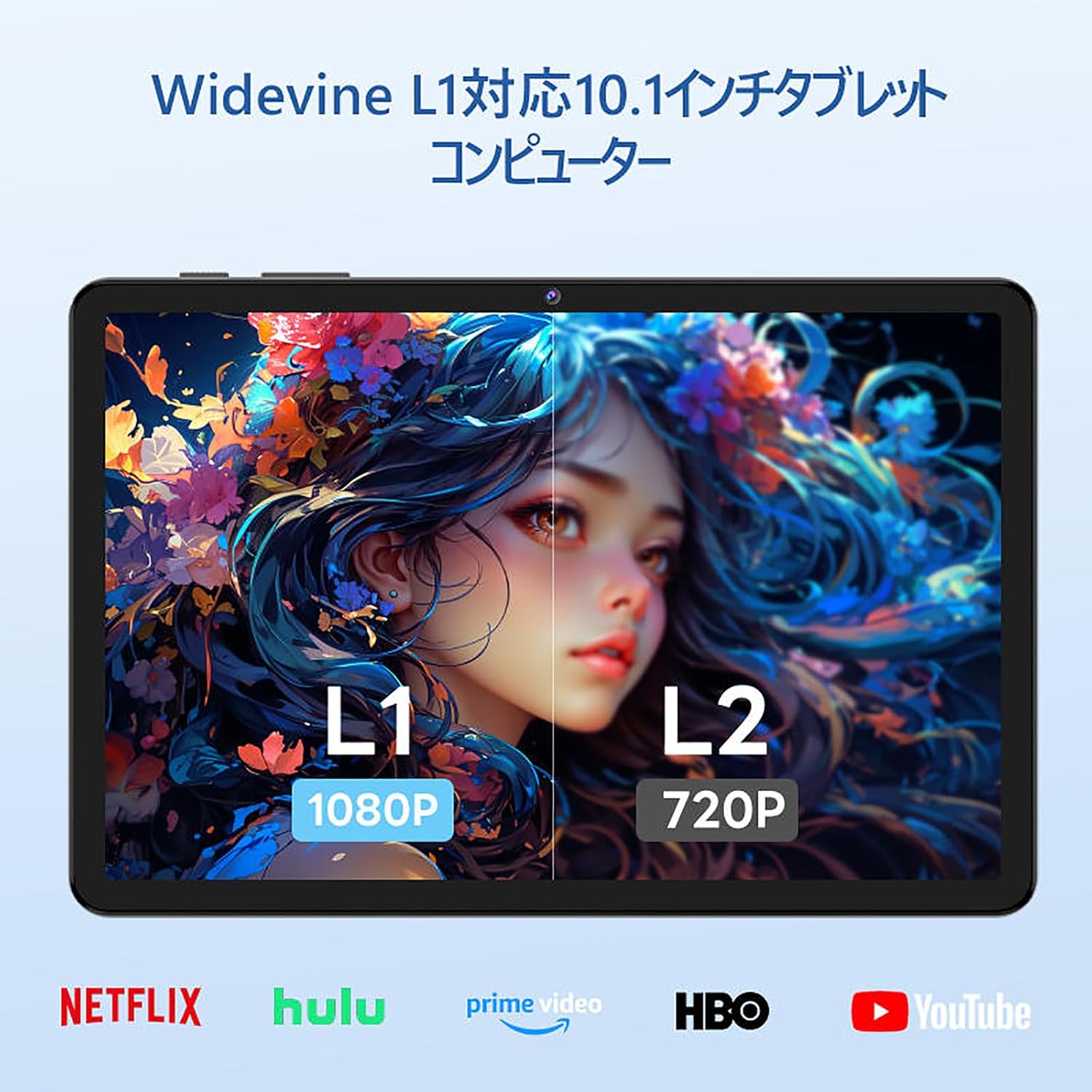
Image: The tablet showing a GPS map, indicating its navigation capabilities.
4. Setup
Follow these steps for the initial setup of your COLORROOM A30L1 tablet:
4.1. Initial Power On and Language Selection
- Press and hold the power button until the screen turns on.
- On the welcome screen, select your preferred language. For English, choose "English (United States)".
- Click "Start" to proceed.
4.2. Wi-Fi and Data Transfer
It is recommended to skip Wi-Fi connection during initial setup to avoid interruptions, especially if your Wi-Fi environment is unstable. You can connect to Wi-Fi later.
- When prompted to set up your device, click "Skip".
- If asked to connect to Wi-Fi, click "Set up offline" or "Skip". Confirm by clicking "Continue" if prompted.
4.3. Date and Time Settings
- Select your time zone (e.g., "Japan Standard Time").
- Adjust the date and time if necessary, then click "Next".
4.4. Screen Lock (PIN)
Setting a PIN or screen lock is recommended for security. You can skip this step and set it up later if desired.
- To set a PIN, enter your desired PIN (4 digits or more) and confirm.
- To skip, click "Skip" and confirm the skip action.
4.5. Google Services
- Review the Google Services information.
- Click "See more" multiple times until the "Agree" button appears.
- Click "Agree" to accept the terms and complete the setup.
Your tablet is now set up and ready for use.
Video: A step-by-step guide on the initial setup process for the tablet, including language selection and basic configurations.
5. Operating Instructions
5.1. Basic Navigation and Gestures
- Touch: Tap an icon to open an app or select an item.
- Swipe: Slide your finger across the screen to scroll through pages or content.
- Pinch-to-Zoom: Use two fingers to zoom in or out on images and web pages.
- Split Screen: Android 16 supports split-screen multitasking. Drag an app to one side of the screen to use two apps simultaneously.
- Screenshot: Use a three-finger swipe down gesture to capture a screenshot.

Image: The tablet screen showing various applications, demonstrating its multitasking capabilities.

Image: Various scenarios of using the tablet for entertainment, such as watching videos, reading, and video calls.

Image: More examples of the tablet being used in daily life, including during holidays and for cooking.
5.2. Media Playback and Streaming
With Widevine L1 support, you can stream high-definition content from popular services like Amazon Prime Video, Netflix, YouTube, and Hulu.

Image: The tablet displaying a high-definition video from a streaming service.
5.3. Wireless Projection
The tablet supports wireless projection, allowing you to mirror your screen to a larger display for an enhanced viewing experience.
5.4. GPS Functionality
Utilize the built-in GPS for navigation, location-based services, and finding points of interest. The tablet supports multiple satellite systems for accurate positioning.
6. Maintenance
To ensure the longevity and optimal performance of your COLORROOM A30L1 tablet, follow these maintenance guidelines:
- Screen Cleaning: Use a soft, lint-free cloth to gently wipe the screen. For stubborn smudges, slightly dampen the cloth with water or a screen cleaner. Avoid harsh chemicals.
- Software Updates: Regularly check for and install system updates to ensure you have the latest features, security patches, and performance improvements.
- Battery Care: Avoid extreme temperatures. Do not let the battery completely drain frequently. For long-term storage, charge the battery to around 50-60%.
- Storage Management: Periodically clear unnecessary files, apps, and cache to free up storage space and maintain performance.
- Physical Protection: Use the provided protective case and screen protector to guard against scratches, drops, and impacts.
Video: Instructions on how to apply a screen protector to the tablet, ensuring a bubble-free installation.
7. Troubleshooting
If you encounter issues with your tablet, refer to the following common solutions:
- Tablet Not Turning On: Ensure the battery is charged. Connect the tablet to the charger and wait a few minutes before attempting to power it on again.
- Screen Unresponsive: Try restarting the tablet by holding down the power button for about 10-15 seconds until it powers off, then turn it back on.
- Apps Crashing/Freezing: Close the problematic app and reopen it. If the issue persists, clear the app's cache or reinstall it. Ensure your tablet's software is up to date.
- Wi-Fi Connectivity Issues: Restart your Wi-Fi router and the tablet. Forget the Wi-Fi network on your tablet and reconnect. Ensure you are within range of the Wi-Fi signal.
- Slow Performance: Close unused apps running in the background. Clear cache and temporary files. Consider performing a factory reset if performance issues persist after other troubleshooting steps (back up your data first).
- Charging Issues: Ensure the charging cable and adapter are securely connected and undamaged. Try using a different compatible charger and cable.
If the problem cannot be resolved using these steps, please contact customer support.
8. Specifications
| Feature | Detail |
|---|---|
| Brand | COLORROOM |
| Model Name | A30L1 |
| Operating System | Android 16 |
| Display Size | 10.1 Inches |
| Display Resolution | 1280x800 Pixels (IPS) |
| CPU Brand | Unisoc |
| CPU Speed | 1.6 GHz (Octa-core T7200) |
| RAM | 24GB (4GB physical + 20GB virtual) |
| Internal Storage | 64 GB |
| Expandable Storage | Up to 2TB via microSD card |
| Battery Capacity | 6,000mAh |
| Charging | 18W PD Fast Charging (Type-C) |
| Wireless Type | 802.11ac (2.4GHz/5GHz Dual-band) |
| Bluetooth | Bluetooth 5.0 |
| GPS | Yes |
| Front Camera | 5 MP |
| Rear Camera | 8 MP |
| Item Weight | 1.07 Kilograms |
| Package Dimensions | 32.4 x 19.8 x 3.7 cm |
9. Warranty & Support
COLORROOM offers a 1-year warranty service for all tablets purchased from official COLORROOM brand direct stores. This warranty covers manufacturing defects and ensures your product is free from material and workmanship flaws under normal use.
For warranty claims, technical support, or any inquiries regarding your COLORROOM A30L1 tablet, please contact COLORROOM customer service through the retailer where you purchased the product or visit the official COLORROOM website for support contact information.
Please retain your proof of purchase for warranty validation.
