
ULNA CPE806S
ULNA CPE806S Wireless Bridge User Manual
Model: CPE806S
Introduction
The ULNA CPE806S Wireless Bridge is a high-performance, outdoor-rated device designed to extend network connectivity over long distances. Utilizing WiFi 6 technology, it provides stable, high-speed point-to-point or point-to-multipoint wireless links, making it ideal for various applications such as extending internet to remote buildings, farms, warehouses, or integrating with Starlink systems. Its robust IP65 design ensures reliable operation in diverse outdoor environments.

Image: Two ULNA CPE806S Wireless Bridge units.
What's in the Box
Verify that all components are present in your package:
- 2 x CPE806S Wireless Bridge Units
- 2 x Bracket Mounts
- 2 x 24V 1000Mbps PoE Adapters
- 2 x 3FT Test Network Cables
- 6 x Metal Straps (for mounting)
- Mounting Kit (includes nails)
- 1 x User Manual (this document)

Image: All components included in the ULNA CPE806S kit.
Key Features
- Next-Gen WiFi 6: Offers ultra-efficient data transmission, enhanced signal stability, and faster speeds for smooth long-distance internet.
- Up to 5KM Stable Wireless Transmission: Equipped with 5x 16dBi directional antennas for ultra-stable point-to-point communication over distances up to 5KM.

Image: Long-range wireless transmission capability.
- 2.5Gbps & 1Gbps Dual Port Design: Features one 2.5Gbps and one 1Gbps Ethernet port for high-speed internet, supporting bandwidth-intensive tasks.
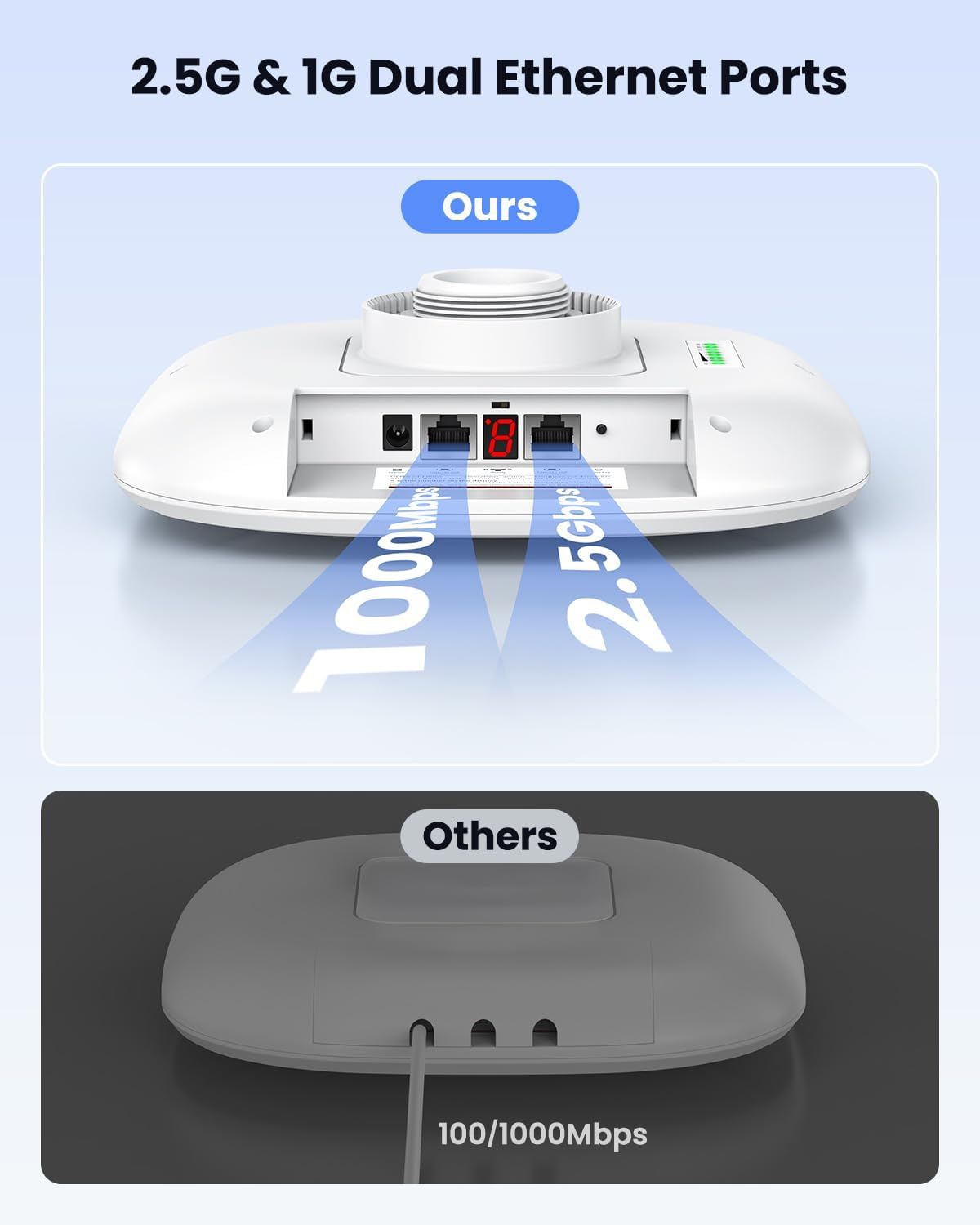
Image: Dual Ethernet port design.
- Dual-Band WiFi Access: Provides 2.4GHz and 5GHz WiFi on both units, allowing simultaneous multi-device access without additional routers.

Image: Dual-band WiFi access for connected devices.
- Dual Power Support: Supports 24V passive POE and 12V solar DC input for flexible outdoor setups. (Note: Not compatible with 48V POE switches/adapters)

Image: Flexible power options for the bridge.
- Plug-and-Play Setup: Factory pre-paired for instant connection, simplifying installation for all users.
- Point-to-Point & Multi-Point Supported: Expand your network across buildings or connect multiple IP cameras.
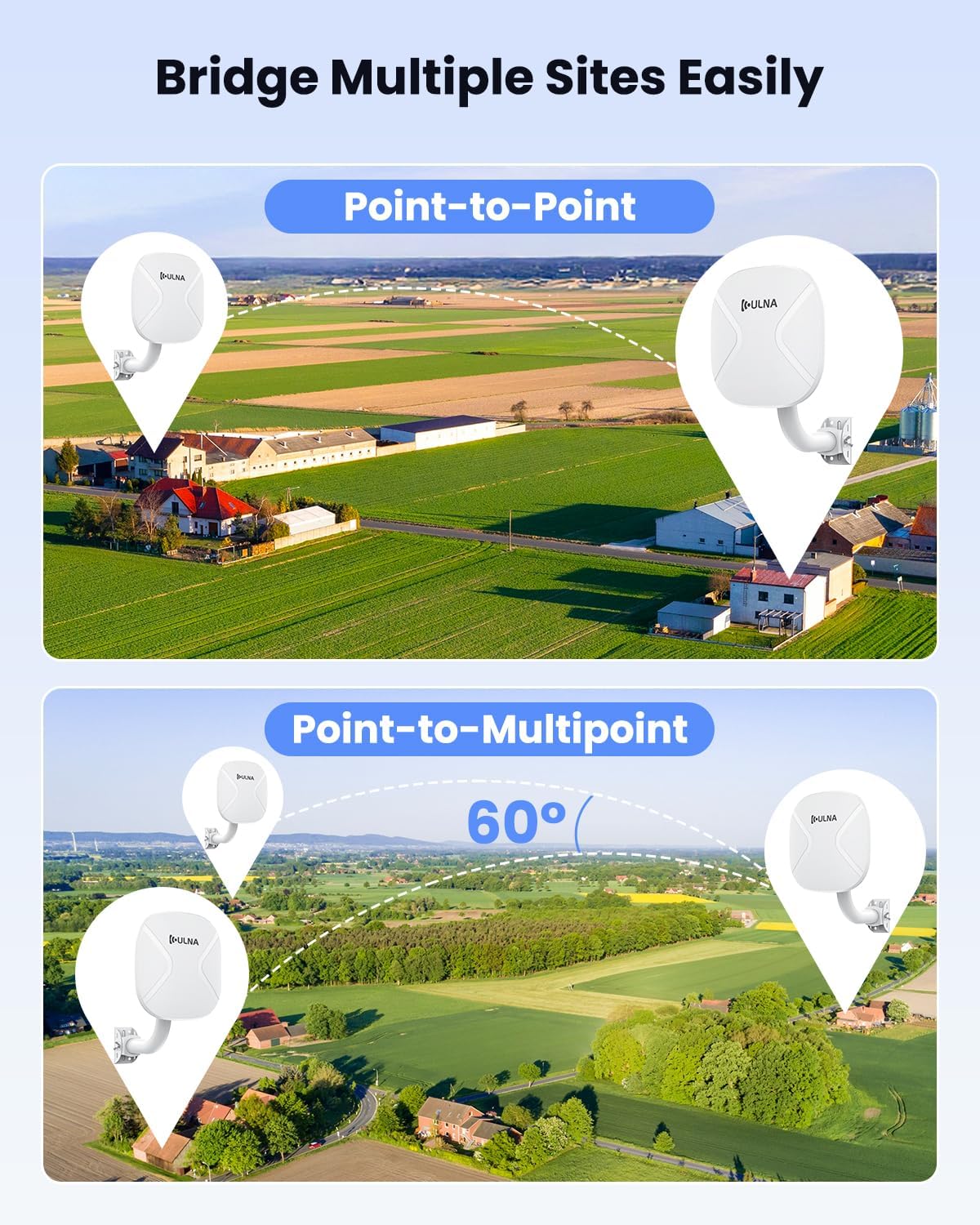
Image: Point-to-Point and Point-to-Multipoint deployment scenarios.
- Durable IP65 Protection: IP65 waterproof and dustproof rating ensures long-term reliability in outdoor environments.

Image: Outdoor suitability and durability.
Setup Guide
The ULNA CPE806S units are factory pre-paired for ease of installation. Follow these steps for a quick setup:
- Mounting the Units:
Choose suitable outdoor locations for both bridge units, ensuring a clear line of sight between them for optimal performance. Use the provided mounting brackets and metal straps to securely attach the units to poles or walls. The units are adjustable up to 150 degrees for precise alignment.
- Powering the Bridges:
Connect the provided 24V POE adapters to each CPE806S unit. Plug the Ethernet cable from the POE adapter's POE port into the CPE806S's POE port. Then, connect the POE adapter to a power outlet. Alternatively, for off-grid setups, use a 12V DC power source (e.g., solar panel) connected to the DC input port.
- Connecting the Master Bridge:
Identify one unit as the 'Master Bridge'. Connect an Ethernet cable from your router or modem's LAN port to the LAN port of the Master Bridge's POE adapter. The Master Bridge will transmit the internet signal wirelessly.
- Connecting the Slave Bridge:
Identify the second unit as the 'Slave Bridge'. Connect an Ethernet cable from the LAN port of the Slave Bridge's POE adapter to your desired network device (e.g., a computer, switch, or another router) at the remote location. The Slave Bridge will receive the wireless signal from the Master Bridge and convert it back to a wired Ethernet connection.
- Verification:
Once both units are powered on and connected, they should automatically establish a wireless link. Check the LED indicators on the units to confirm successful pairing and signal strength. You should now have internet access at the remote location.

Image: Simplified installation steps.
Operating Modes
The ULNA CPE806S supports various operating modes to suit different networking needs:
- Point-to-Point (PTP) Mode:
This is the primary mode for extending network connectivity between two distinct locations. One unit acts as the Master (transmitter) and the other as the Slave (receiver). This is ideal for connecting two buildings, such as a home to a detached garage or office.

Image: Extending network across properties using PTP mode.
- Point-to-Multipoint (PTMP) Mode:
In this configuration, one Master unit can communicate with multiple Slave units. This is useful for covering a wider area or connecting several remote locations to a central network, such as multiple IP cameras or buildings on a large property.

Image: Point-to-Multipoint wireless deployment.
- Bridge + AP Mode:
The Slave unit can also function as an Access Point, broadcasting a Wi-Fi signal at the remote location, allowing mobile phones, tablets, and laptops to connect directly without needing an additional router.

Image: Bridge + AP Mode for direct Wi-Fi access.
Management Interface
The ULNA CPE806S units can be managed via a web-based interface. This allows you to personalize Wi-Fi name (SSID), password, channel, IP settings, and other advanced configurations. Refer to the Quick Start Guide for default IP addresses and login credentials.

Image: Web-based management interface.
Maintenance
To ensure optimal performance and longevity of your ULNA CPE806S Wireless Bridge, follow these maintenance guidelines:
- Regular Cleaning: Periodically clean the exterior of the units to remove dust, dirt, and debris. Use a soft, damp cloth. Do not use harsh chemicals or abrasive cleaners.
- Inspect Cables and Connections: Annually inspect all Ethernet cables and power connections for any signs of wear, damage, or corrosion. Replace damaged cables immediately.
- Firmware Updates: Check the ULNA official website periodically for firmware updates. Keeping the firmware updated ensures the best performance, security, and compatibility.
- Environmental Considerations: While the units are IP65 rated, avoid direct exposure to extreme weather conditions if possible (e.g., prolonged submersion, direct lightning strikes). Ensure proper ventilation around the units.
- Secure Mounting: Periodically check that the mounting brackets and straps are secure and that the units are still firmly attached and properly aligned.
Troubleshooting
If you encounter issues with your ULNA CPE806S Wireless Bridge, refer to the following common troubleshooting steps:
| Problem | Possible Cause | Solution |
|---|---|---|
| No Link/Poor Signal | Obstruction in line of sight, misaligned units, excessive distance. | Ensure clear line of sight. Re-align units carefully. Reduce distance if possible. Check for strong interference sources. |
| No Power | POE adapter not connected, power outlet issue, faulty cable. | Verify POE adapter is correctly connected and plugged into a working outlet. Check Ethernet cable for damage. Ensure 24V passive POE is used (not 48V). |
| Slow Speed | Interference, outdated firmware, network congestion, cable issues. | Check for sources of interference (e.g., other 5GHz devices). Update firmware. Ensure connected devices are not saturating bandwidth. Use high-quality Ethernet cables. |
| Cannot Access Web Interface | Incorrect IP address, network configuration issues, firewall. | Ensure your computer's IP address is in the same subnet as the bridge. Disable temporary firewalls. Refer to the Quick Start Guide for default IP. |
| Units Not Pairing (if reset) | Manual pairing required after factory reset. | Follow the manual pairing instructions in the Quick Start Guide or product documentation. The units are pre-paired from the factory. |
Specifications
| Feature | Detail |
|---|---|
| Model Number | CPE806S |
| Brand | ULNA |
| Wireless Communication Standard | 802.11ac (WiFi 6 compatible) |
| Frequency Band Class | Dual-Band (2.4GHz & 5GHz) |
| Frequency | 5.8 GHz (primary for bridge link) |
| Ethernet Ports | 1x 2.5Gbps, 1x 1Gbps |
| Wireless Transmission Range | Up to 5KM (3.1 Miles) |
| Antennas | 5x 16dBi Directional Antennas |
| Power Support | 24V Passive POE, 12V DC Input (Not compatible with 48V POE) |
| IP Rating | IP65 (Waterproof and Dustproof) |
| Operating Temperature | -20°C to 75°C (-4°F to 167°F) |
| Item Weight | 6.6 pounds (per kit) |
| Package Dimensions | 12.6 x 10.24 x 10.08 inches |
Warranty and Support
ULNA products are designed for reliability and performance. For specific warranty details, please refer to the warranty card included in your product packaging or visit the official ULNA website. For technical support, troubleshooting assistance, or any inquiries, please contact ULNA customer service through the contact information provided on the official website or your purchase platform.
Online Resources:
- ULNA Official Amazon Store
- For the latest drivers, firmware, and FAQs, please visit the ULNA support page.
Related documentsCPE806S


Ask a question about this manual
Ask about setup, troubleshooting, compatibility, parts, safety, or missing instructions. Manuals+ will review the question and use this page’s manual context to help answer it.