
1. Introduction
This manual provides detailed instructions for the setup, operation, maintenance, and troubleshooting of your Jectse WiFi 6 4G/5G CPE LTE Router. Please read this manual carefully before using the device to ensure optimal performance and safety.
Key Features:
- High Performance: Connects up to 32 devices simultaneously, covering an area of approximately 300 square meters. Ideal for home or small office environments.
- Comprehensive 4G LTE Support: Compatible with a wide range of 4G LTE bands including FDD (B1, 3, 5, 7, 8, 20), TDD (B38, 40, 41), and WCDMA (B1, 5, 8), ensuring stable connectivity across various network providers.
- 6 Antenna Design: Equipped with six antennas for enhanced signal coverage and faster network speeds, providing a stable and consistent internet experience.
- Fast Internet Speeds: Achieves 4G download speeds up to 150 Mbps, upload speeds up to 50 Mbps, and wireless transfer rates up to 300 Mbps for smooth streaming, gaming, and browsing.
- Easy Setup: Simply insert a standard SIM card to convert 4G LTE into a WiFi hotspot, allowing multiple devices to connect without complex installations.
2. Package Contents
Please check the package for the following items:
- Jectse WiFi 6 4G/5G CPE LTE Router
- Power Adapter
- Ethernet Cable
- User Manual (this document)

Image: Package contents including the router, power adapter, and Ethernet cable.
3. Product Overview
Front and Top View:
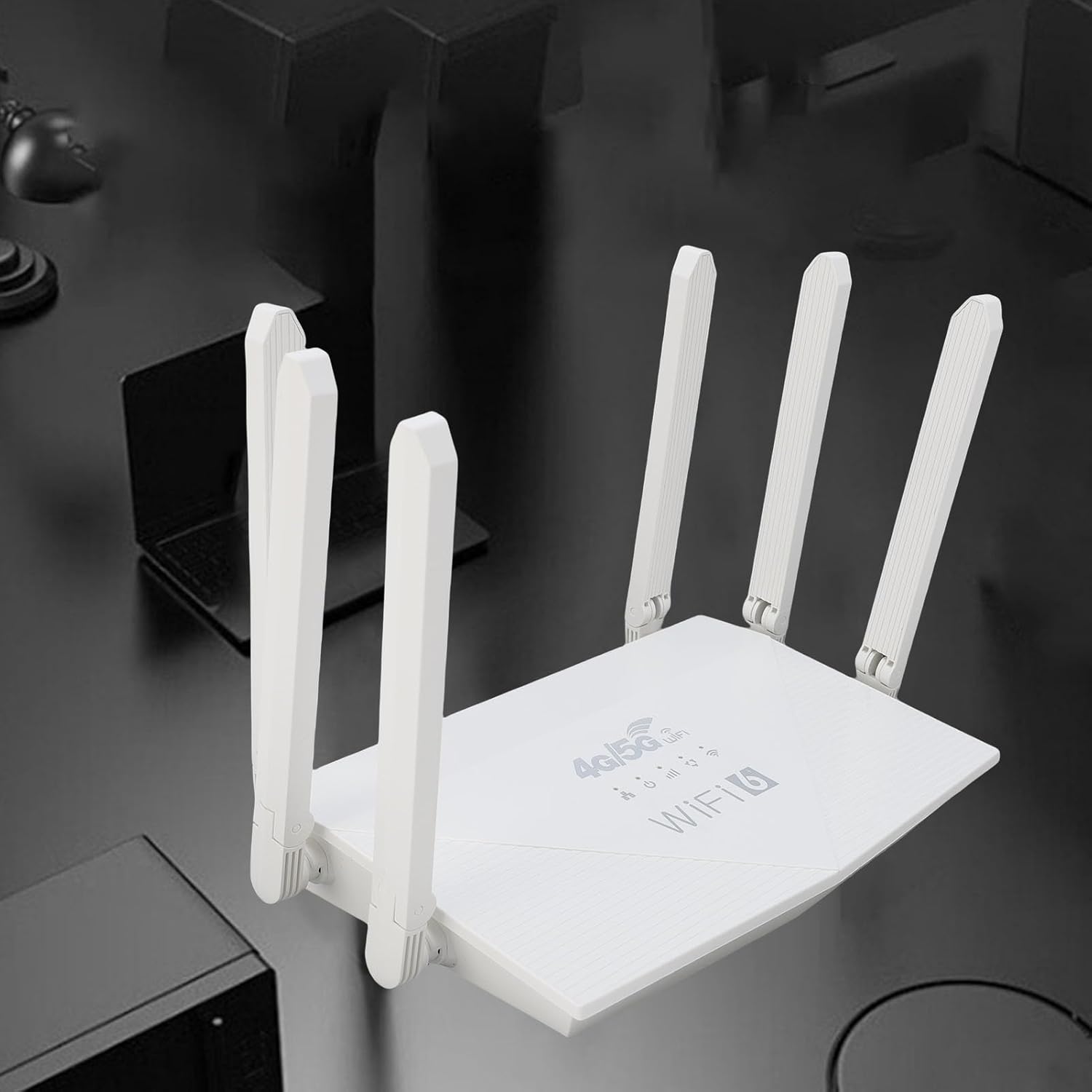
Image: Top view of the router, showing the '4G/5G LTE WiFi 6' branding and six external antennas.
Rear Panel and Ports:

Image: Rear view of the router, displaying the various ports and antenna connections.
- Reset Button: Used to restore factory settings.
- Type-C Port: For power input (if applicable, check power adapter type).
- Power Port: DC power input.
- SIM Card Slot: For inserting a standard 4G/5G SIM card.
- ETH1-ETH4 Ports: Four Ethernet LAN ports for wired connections.

Image: Close-up of the reset button, Type-C port, power port, and SIM card slot.

Image: Close-up of the four Ethernet LAN ports (ETH1, ETH2, ETH3, ETH4).
Bottom Label:
The bottom label contains important information such as the default WiFi name, WiFi key, IP address, and login credentials.

Image: Bottom label of the router with essential network details.
4. Setup Instructions
- Insert SIM Card: Locate the SIM card slot on the rear panel. Gently insert a standard-sized 4G/5G SIM card until it clicks into place. Ensure the SIM card is correctly oriented.
- Connect Power: Connect the provided power adapter to the router's power port and then plug the adapter into a power outlet.
- Power On: The router will automatically power on. Wait for the indicator lights to stabilize, which typically takes a few minutes.
- Connect Devices:
- Wireless Connection: On your device (smartphone, tablet, laptop), search for available Wi-Fi networks. Select the network name (SSID) found on the router's bottom label. Enter the default Wi-Fi key (password) also found on the label.
- Wired Connection: Connect one end of the Ethernet cable to any of the ETH1-ETH4 ports on the router and the other end to the Ethernet port on your computer or other wired device.
- Access Web Interface (Optional): Open a web browser and enter the default IP address (e.g., 192.168.0.1) found on the bottom label. Use the default username and password (e.g., admin/admin) to log in and configure advanced settings.
5. Operating Instructions
Connecting to the Network:
Once the router is powered on and the SIM card is active, your devices can connect to the internet:
- Wi-Fi: Use the SSID and password printed on the router's bottom label to connect your wireless devices.
- Ethernet: Connect devices directly to the ETH ports for a stable wired connection.
Managing Router Settings:
To customize your network, such as changing the Wi-Fi name or password, or configuring advanced features:
- Ensure your device is connected to the router (via Wi-Fi or Ethernet).
- Open a web browser and enter the router's IP address (e.g., 192.168.0.1).
- Log in using the username and password from the bottom label.
- Navigate through the interface to adjust settings as needed.
6. Maintenance
- Cleaning: Keep the router clean and free from dust. Use a soft, dry cloth. Do not use liquid cleaners.
- Ventilation: Ensure the router is placed in a well-ventilated area to prevent overheating. Do not cover ventilation holes.
- Firmware Updates: Periodically check the manufacturer's website for firmware updates. Keeping your router's firmware up-to-date can improve performance and security.
- Restarting: If you experience network issues, try restarting the router by unplugging the power adapter, waiting 10 seconds, and then plugging it back in.
7. Troubleshooting
No Internet Connection:
- Check if the SIM card is correctly inserted and active.
- Verify that the router's indicator lights are stable.
- Restart the router and your connected device.
- Ensure your SIM card has an active data plan.
- Access the router's web interface to check the network status and APN settings.
Slow Internet Speeds:
- Ensure the router is placed in an open area, away from obstructions and interference sources.
- Reduce the number of connected devices or bandwidth-intensive activities.
- Check your 4G/5G signal strength in the router's web interface.
- Contact your mobile network provider to inquire about network congestion or data plan limits.
Cannot Access Router Settings:
- Ensure your device is connected to the router's network.
- Verify you are entering the correct IP address (e.g., 192.168.0.1) in your browser.
- Confirm the username and password are correct (check the bottom label).
- Try a different web browser or clear your browser's cache.
- If all else fails, perform a factory reset by pressing the reset button for 5-10 seconds (note: this will erase all custom settings).
8. Specifications
| Feature | Description |
|---|---|
| Brand | Jectse |
| Model Number | Jectse7yitc28aer |
| Color | White |
| Operating System | RouterOS |
| Connectivity Technology | LTE, Wi-Fi |
| Special Features | Integrated firewall, full 4G LTE support, fast internet speeds |
| Compatible Devices | Smartphone, tablet, computer |
| Frequency Band Class | Single-band |
| Wireless Communication Standard | 802.11b, 802.11g, 802.11n |
| Recommended Uses | Home, Professional |
| 4G Download Speed | Up to 150 Mbps |
| 4G Upload Speed | Up to 50 Mbps |
| Wireless Transfer Rate | Up to 300 Mbps |
| Max Connected Devices | 32 |
| Coverage Area | 300㎡ |
| Supported LTE Bands | FDD (B1, 3, 5, 7, 8, 20), TDD (B38, 40, 41), WCDMA (B1, 5, 8) |
| Antennas | 6 External Antennas |
9. Warranty and Support
Warranty Information:
This Jectse router comes with a 2-year manufacturer's warranty. Please retain your proof of purchase for warranty claims. The warranty covers defects in materials and workmanship under normal use.
Customer Support:
If you encounter any issues or have questions not covered in this manual, please contact Jectse customer support or your retailer for assistance. You may find contact information on the product packaging or the official Jectse website.