
1. Introduction
This user manual provides essential information for the safe and efficient operation of your Sharp 40HF3365E 40-inch FHD QLED Google TV. Please read this manual thoroughly before using the television and retain it for future reference. It covers setup, operation, maintenance, and troubleshooting to ensure you get the most out of your new device.
2. Safety Information
Always observe the following safety precautions when operating your television:
- Power Source: Ensure the TV is connected to a power supply within the specified voltage range.
- Ventilation: Do not block ventilation openings. Allow adequate space around the TV for proper airflow.
- Water and Moisture: Do not expose the TV to rain or moisture. Avoid placing objects filled with liquids, such as vases, on the TV.
- Cleaning: Unplug the TV before cleaning. Use a soft, dry cloth. Do not use liquid cleaners or aerosol cleaners.
- Placement: Place the TV on a stable, level surface. Avoid placing it in direct sunlight or near heat sources.
- Children: Supervise children to prevent them from climbing on the TV or stand.
- Servicing: Do not attempt to service the TV yourself. Refer all servicing to qualified service personnel.
3. What's in the Box
Upon unpacking your Sharp 40HF3365E Google TV, please verify that all the following components are included:
- Sharp 40HF3365E Television
- Power Cable
- Remote Control
- Stand (2 pieces)
- User Manual (this document)
- Warranty Card
- AAA Batteries (2 for remote control)

Image: Front view of the Sharp 40HF3365E Google TV displaying the Google TV home screen with various streaming app icons and content recommendations.
4. Setup
4.1 Stand Installation
To attach the stand to your television:
- Carefully place the TV face down on a soft, flat surface to prevent screen damage.
- Align each stand piece with the corresponding slots on the bottom of the TV.
- Secure the stands using the provided screws. Ensure they are tightened firmly.

Image: Front view of the Sharp 40HF3365E television, showcasing its frameless design and the attached stand feet.
4.2 Connecting Devices
Connect your external devices (e.g., cable box, Blu-ray player, gaming console) to the TV's input ports. The Sharp 40HF3365E features multiple HDMI and USB ports.
- HDMI: For high-definition audio and video. Connect an HDMI cable from your device to any of the TV's HDMI ports.
- USB: For connecting USB storage devices to play media or for service updates.
- Antenna/Cable: Connect your antenna or cable TV feed to the RF input.
- Ethernet: For a wired internet connection.
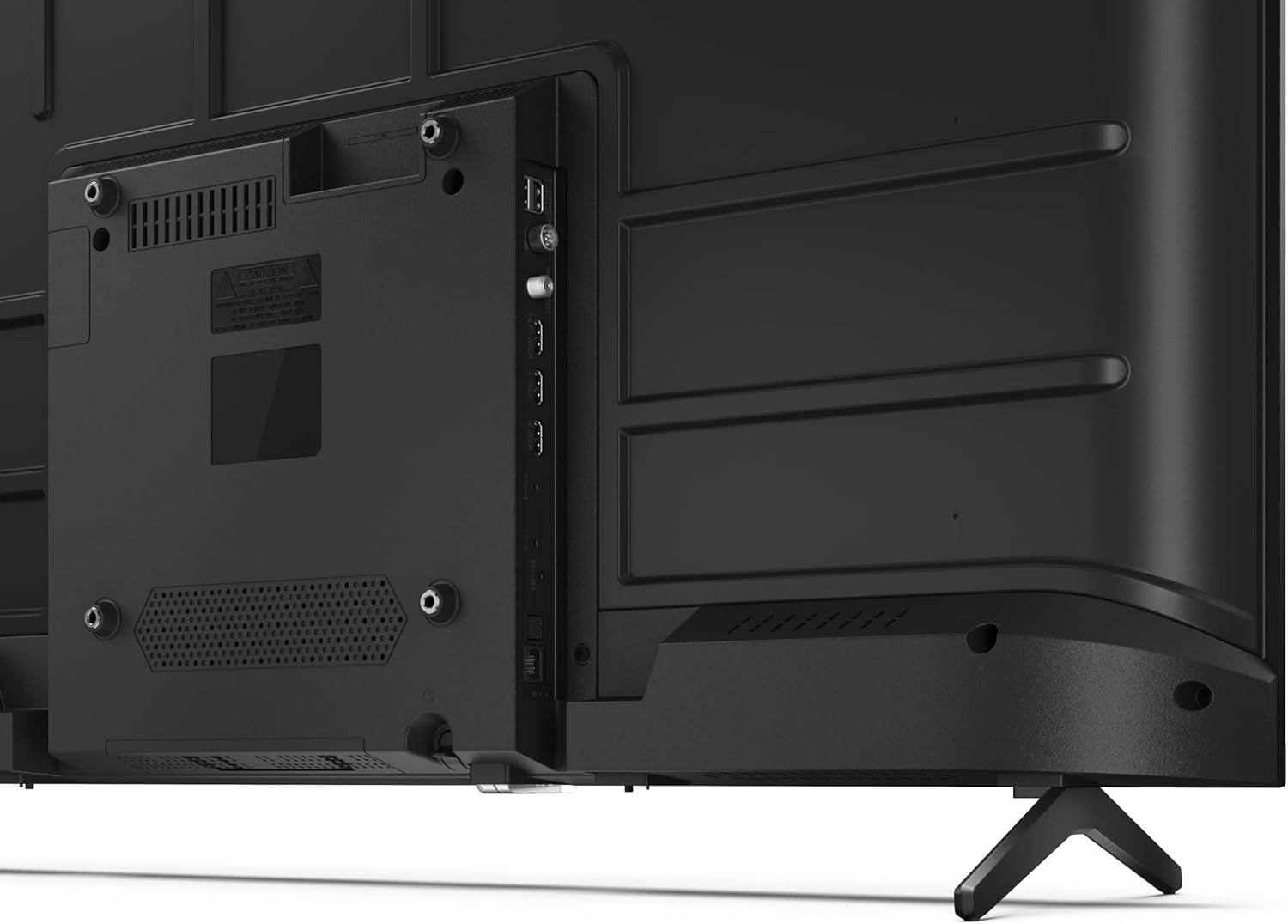
Image: Rear view of the Sharp 40HF3365E television, highlighting the arrangement of its input and output ports, including HDMI, USB, and antenna connections.

Image: Side profile of the Sharp 40HF3365E television, illustrating the slim design and the location of side-mounted connectivity ports for easy access.
4.3 Initial Power On and Google TV Setup
After connecting all necessary cables, plug the power cable into an electrical outlet. Press the power button on the remote control to turn on the TV.
- Follow the on-screen instructions to select your language and region.
- Connect to your Wi-Fi network or use an Ethernet cable for a wired connection.
- Sign in with your Google account to access Google TV features, apps, and personalized recommendations.
- Complete the channel scan if you are using an antenna or cable connection.
5. Operating the TV
5.1 Remote Control Overview
The included remote control allows you to navigate the Google TV interface and control your television's functions. Insert the two AAA batteries into the remote control, observing polarity.

Image: The remote control for the Sharp Google TV, featuring dedicated buttons for popular streaming services, navigation, and Google Assistant.
- Power Button: Turns the TV on or off.
- Source Button: Selects input sources (HDMI, AV, TV).
- Navigation Pad (Up/Down/Left/Right/OK): Navigates menus and confirms selections.
- Back Button: Returns to the previous screen.
- Home Button: Accesses the Google TV home screen.
- Google Assistant Button: Activates voice control.
- Volume Up/Down: Adjusts the volume level.
- Channel Up/Down: Changes TV channels.
- App Shortcut Buttons: Direct access to popular streaming applications (e.g., Netflix, Prime Video, YouTube).
5.2 Google TV Features
Your Sharp TV comes with Google TV integrated, offering a personalized entertainment experience.
- Personalized Recommendations: Google TV organizes movies, shows, and live TV from all your subscriptions into one place, providing recommendations based on your viewing history.
- Google Assistant: Press the Google Assistant button on your remote and speak into the microphone to search for content, control smart home devices, get answers, and more.
- Chromecast Built-in: Cast movies, shows, photos, and more from your phone, tablet, or laptop directly to your TV.
- App Access: Download and enjoy thousands of apps from the Google Play Store.
5.3 Connectivity
- Wi-Fi: Connect to your home wireless network for internet access and streaming.
- Bluetooth: Pair Bluetooth-enabled devices such as headphones or game controllers for a wireless experience.
- HDMI: Connect up to three HDMI devices for high-quality audio and video.
- USB: Two USB ports are available for media playback from external storage.
6. Maintenance
6.1 Cleaning Your TV
To maintain the appearance and performance of your television:
- Screen: Gently wipe the screen with a soft, lint-free cloth. For stubborn marks, slightly dampen the cloth with water or a specialized screen cleaner (do not spray directly onto the screen).
- Cabinet: Wipe the TV cabinet with a soft, dry cloth. Avoid using abrasive cleaners or solvents.
- Before Cleaning: Always unplug the TV from the power outlet before cleaning.
6.2 Software Updates
Your Google TV may receive automatic software updates to improve performance and add new features. Ensure your TV is connected to the internet to receive these updates. You can also manually check for updates in the TV's settings menu.
7. Troubleshooting
If you encounter issues with your TV, refer to the following common problems and solutions:
| Problem | Possible Cause / Solution |
|---|---|
| No power | Check if the power cable is securely plugged into the TV and the wall outlet. Ensure the outlet is functional. |
| No picture, but sound is present | Verify the correct input source is selected. Check cable connections (HDMI, AV). Try restarting the TV. |
| No sound, but picture is present | Check the volume level and mute status. Ensure external audio devices are properly connected and selected. |
| Remote control not working | Replace the batteries. Ensure there are no obstructions between the remote and the TV's IR sensor. Re-pair the remote if it's a Bluetooth remote. |
| Cannot connect to Wi-Fi | Check your router and modem. Ensure the Wi-Fi password is correct. Try restarting the TV and your router. |
| Picture quality issues (e.g., blurry, distorted) | Check the source resolution. Adjust picture settings in the TV menu. Ensure cables are securely connected. |
8. Specifications
Key technical specifications for the Sharp 40HF3365E Google TV:
| Feature | Detail |
|---|---|
| Model Number | 40HF3365E |
| Screen Size | 40 Inches (101 cm diagonal) |
| Display Technology | QLED |
| Resolution | 1080p (Full HD, 1920 x 1080 pixels) |
| Refresh Rate | 60 Hz |
| Operating System | Google TV |
| Special Features | QLED, Google Assistant with microphone, Chromecast built-in, HDR10 compatible |
| Connectivity Technology | Bluetooth, Ethernet, HDMI (x3), USB (x2), Wi-Fi |
| Audio Output | 2x8W |
| Aspect Ratio | 16:9 |
| Product Dimensions (WxDxH) | 89.2 x 8.4 x 50.9 cm (without stand) |
| Weight | 5.4 kg |
| Energy Efficiency Class | E |

Image: Technical diagram illustrating the precise dimensions of the Sharp 40HF3365E television, including width, height, depth, and screen diagonal.

Image: The EU energy efficiency label for the Sharp 40HF3365E television, indicating its energy class 'E' and power consumption.
9. Warranty and Support
Your Sharp 40HF3365E Google TV is covered by a manufacturer's warranty. Please refer to the included Warranty Card for detailed terms and conditions, including the warranty period and coverage. For technical support, service inquiries, or to obtain replacement parts, please visit the official Sharp support website or contact their customer service department. Contact information can typically be found on the Warranty Card or the manufacturer's website.
Online Support: For the latest support information, FAQs, and software downloads, please visit the official Sharp website.


