
Introduction
This manual provides essential information for setting up, operating, maintaining, and troubleshooting your Dell 16 laptop, Model DB16255. Please read this guide thoroughly to ensure proper use and longevity of your device.
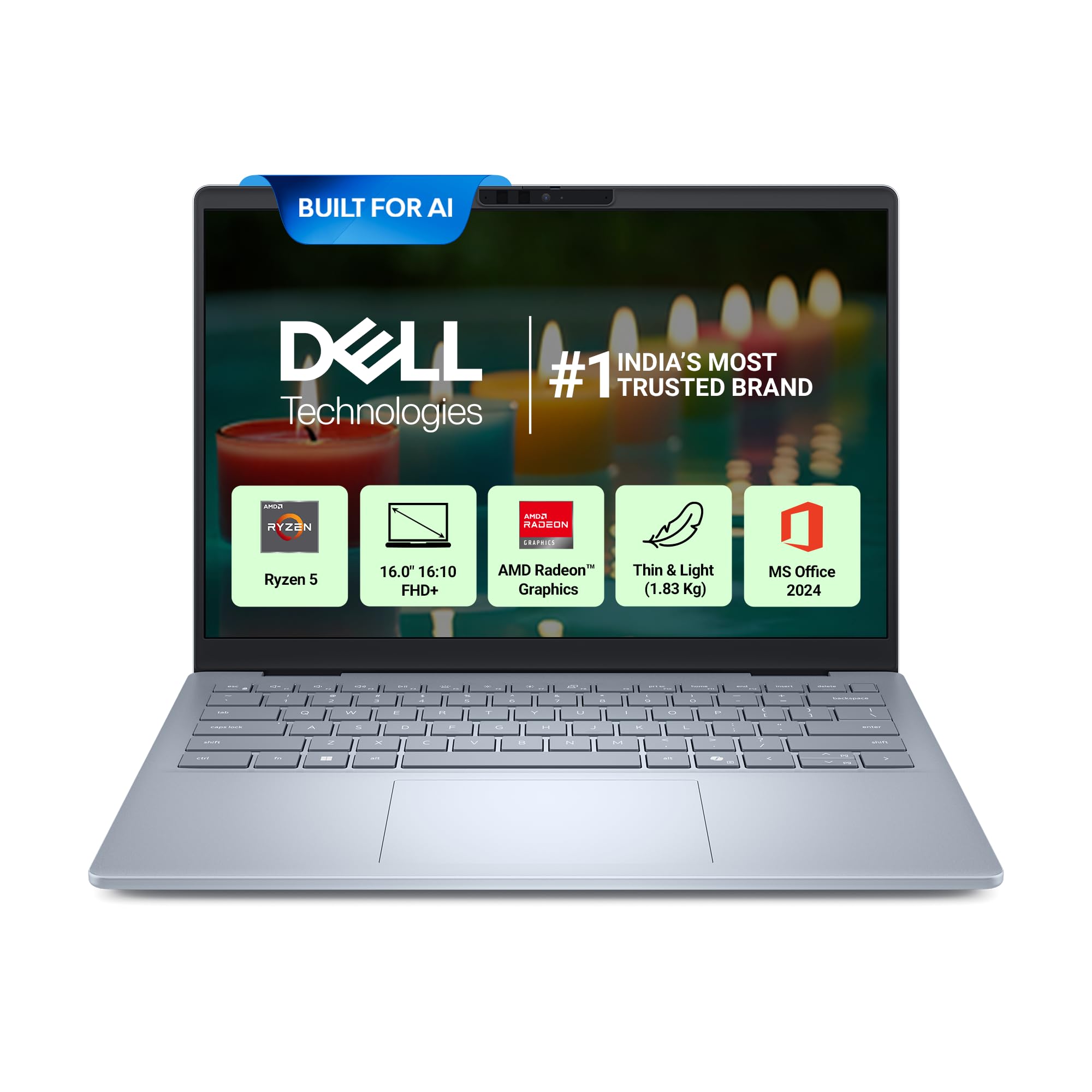
Image: Dell 16 Laptop in Ice Blue, shown closed.
Setup
Unboxing and Initial Inspection
Carefully remove the laptop and all accessories from the packaging. Verify that all components listed in the "What's in the Box" section are present and undamaged.
- Laptop
- Power Cable
- Documents
Connecting the Power Adapter
Connect the 65W Type-C power adapter to a power outlet and then to one of the USB 3.2 Gen 2 Type-C ports on your laptop. The laptop will begin charging. It is recommended to fully charge the battery before initial use.

Image: Dell 16 Laptop connected to its power adapter.
First Power On and Operating System Setup
Press the power button to turn on your laptop. Follow the on-screen instructions to complete the Windows 11 Home setup. This includes setting up your user account, network connection, and other initial preferences. Your laptop comes pre-installed with Windows 11 Home and MS Office Home and Student 2024.
Operating Your Laptop
Keyboard and Input Devices
The laptop features a backlit keyboard for comfortable typing in various lighting conditions. A fingerprint reader is integrated for secure and convenient login.

Image: Close-up of the Dell 16 Laptop's keyboard and display.
Display Features
Your Dell 16 laptop is equipped with a 16.0-inch FHD+ (1920x1200) Anti-Glare WVA/IPS display with 300 nits brightness. The ComfortView technology reduces harmful blue light emissions for extended viewing comfort.

Image: Dell ComfortView logo, indicating blue light reduction technology.
AI Capabilities
The AMD Ryzen AI 5 340 processor enables enhanced on-device AI experiences, including features like Copilot+ and Cocreator, designed to improve productivity and creative workflows.

Image: A user engaging with the Dell laptop, illustrating AI-powered experiences.
Connectivity
The laptop offers various ports for connecting external devices:
- (2) USB 3.2 Gen 2 Type-C: Supports DisplayPort and Power Delivery.
- (1) USB 3.2 Gen 1 Type-A: Standard USB port for peripherals.
- (1) HDMI 1.4: For connecting to external displays.
- (1) Global Headset Jack: For audio input/output.
Wireless connectivity includes MediaTek Wi-Fi 7 MT7925 and Bluetooth wireless card (802.11be, MU-MIMO 2x2).

Image: Diagram illustrating the various ports on the Dell 16 Laptop.
Maintenance
General Care and Cleaning
To maintain your laptop's performance and appearance, regularly clean the screen with a microfiber cloth and a screen-safe cleaner. Use compressed air to clear dust from keyboard keys and vents. Avoid exposing the laptop to extreme temperatures, direct sunlight, or liquids.
Battery Care
The laptop is equipped with a 4-Cell, 64WHr battery. For optimal battery life, avoid frequently discharging the battery completely. Store the laptop in a cool, dry place when not in use for extended periods.
Software Updates
Regularly update your Windows 11 operating system and pre-installed software like MS Office Home and Student 2024 to ensure optimal performance, security, and access to the latest features. McAfee Multi Device Security is included for 12 months to protect against malware and other threats.
Security Features
Your laptop includes a hardware TPM 2.0 security chip. This chip helps create and store passwords and encryption keys, verifies the PC's integrity, and protects data against external software attacks.

Image: Diagram illustrating the functions of the TPM 2.0 hardware security chip.
Troubleshooting
This section provides solutions for common issues you might encounter. For more complex problems, refer to the Dell support website or contact technical support.
Power Issues
- Laptop does not turn on: Ensure the power adapter is securely connected and the battery has sufficient charge. Try a different power outlet.
- Battery not charging: Verify the power adapter is functioning correctly. Check the Type-C port for debris.
Display Issues
- No display: Connect an external monitor via HDMI to check if the issue is with the laptop's internal display. Restart the laptop.
- Flickering screen: Update graphics drivers. Adjust display refresh rate in Windows settings.
Connectivity Problems
- Wi-Fi not connecting: Ensure Wi-Fi is enabled. Restart your router and laptop. Check network settings in Windows.
- Bluetooth device not pairing: Ensure Bluetooth is enabled on both devices. Place devices close to each other.
Specifications

Image: Visual summary of key specifications for the Dell 16 Laptop (Model DB16255).
| Model Name | DB16255 |
| Processor | AMD Ryzen AI 5 340 (6-core/12-thread, up to 4.80GHz, 16MB Cache) |
| RAM | 16GB LPDDR5X, 7500MT/s |
| Storage | 512GB SSD |
| Display | 16.0" FHD+ (1920x1200), 16:10, Anti-Glare, 300 nits, WVA/IPS, ComfortView |
| Graphics | AMD Radeon Graphics (Integrated) |
| Operating System | Windows 11 Home (Pre-Loaded) |
| Pre-installed Software | MS Office Home and Student 2024, McAfee Multi Device Security (12-month) |
| Ports | (2) USB 3.2 Gen 2 Type-C (DP/PowerDelivery), (1) USB 3.2 Gen 1 Type-A, (1) HDMI 1.4, (1) Global Headset |
| Keyboard | Backlit Keyboard + Fingerprint Reader |
| Wireless Connectivity | MediaTek Wi-Fi 7 MT7925, Bluetooth (802.11be, MU-MIMO 2x2) |
| Battery | 4-Cell, 64WHr |
| Power Adapter | 65W Type-C |
| Weight | 1.83 Kg |
| Color | Ice Blue |
| Country of Origin | China |
| Durability | Passed MIL-810H certification |
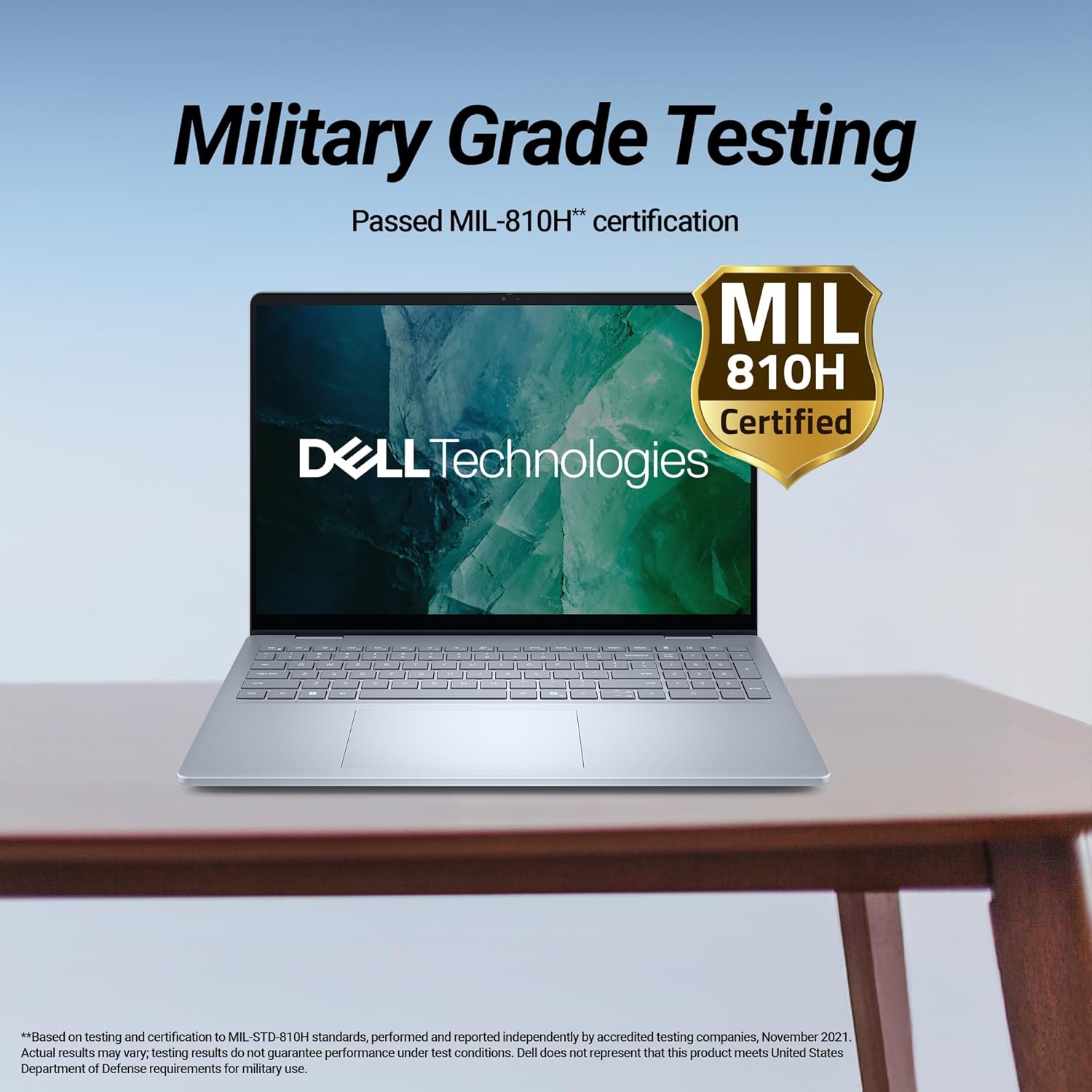
Image: Dell 16 Laptop displaying MIL-810H certification for durability.
Warranty Information
Your Dell 16 laptop comes with a 1-year limited hardware warranty. This includes 1 Year Onsite Hardware Service. For detailed terms and conditions, please refer to the warranty documentation included with your product or visit the official Dell support website.
Support
For technical assistance, product inquiries, or service requests, please contact Dell Support using the following methods:
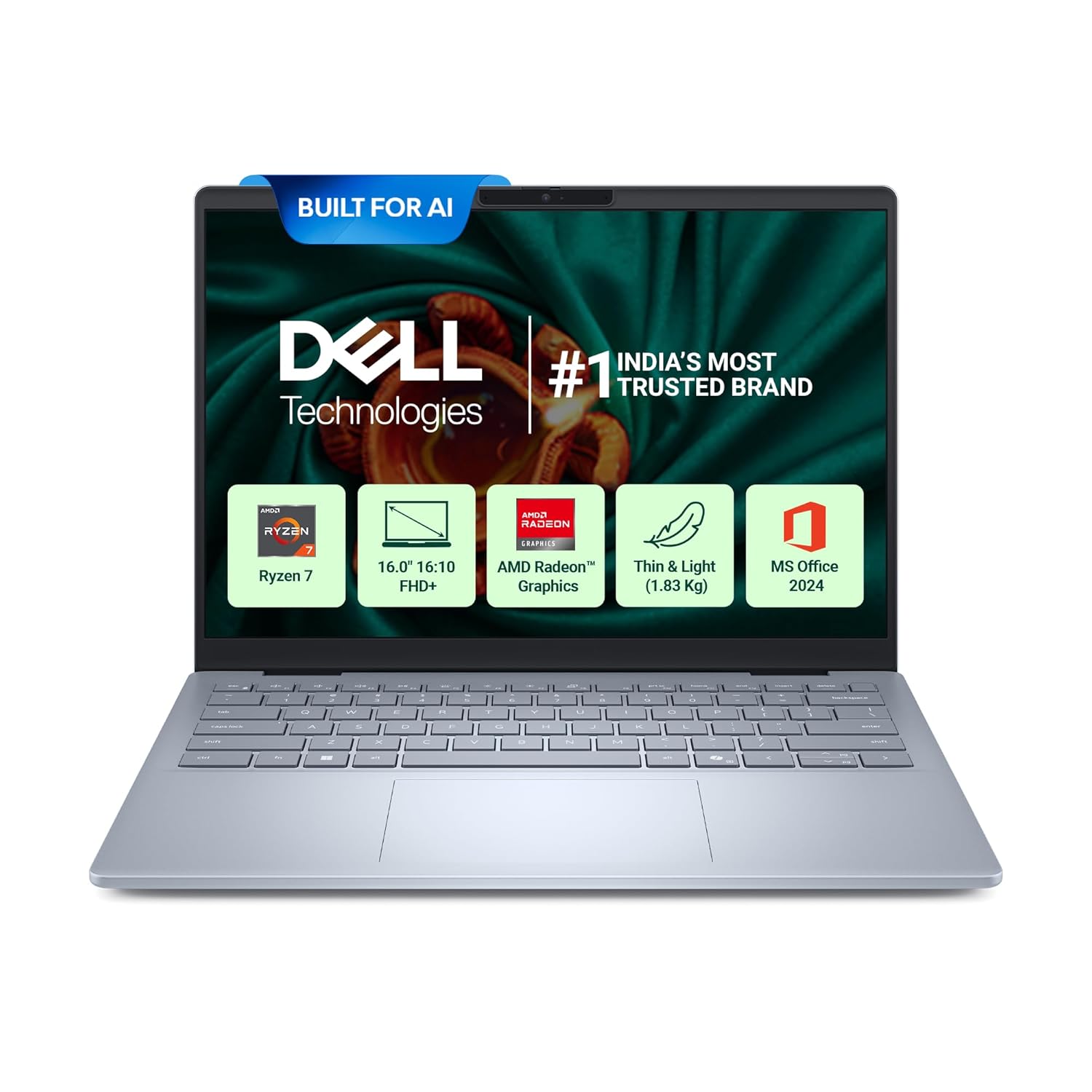
Image: Dell Technical Support contact details, including phone numbers and online resources.
- Basic Support Toll-free: 1800-420-0088 / 1800-570-8045
- Chat Support: www.dell.com/support
- Carry-in Service Centers: www.dell.com/support/home/en-in/servicecenter
- WhatsApp Support: +91 910-888-3355


