
1. Introduction
This manual provides essential information for using your Redmi 15 5G smartphone. Please read it carefully to ensure proper operation and to maximize the device's features. Keep this manual for future reference.

Image: Front and back view of the Redmi 15 5G smartphone.
2. What's in the Box
Verify that all items are present in your product package:
- Redmi 15 5G Smartphone
- Charger
- USB Cable
- SIM Eject Tool
- Warranty Card
- User Guide (this document)
- Protective Case
3. Device Overview
Familiarize yourself with the physical components of your Redmi 15 5G.
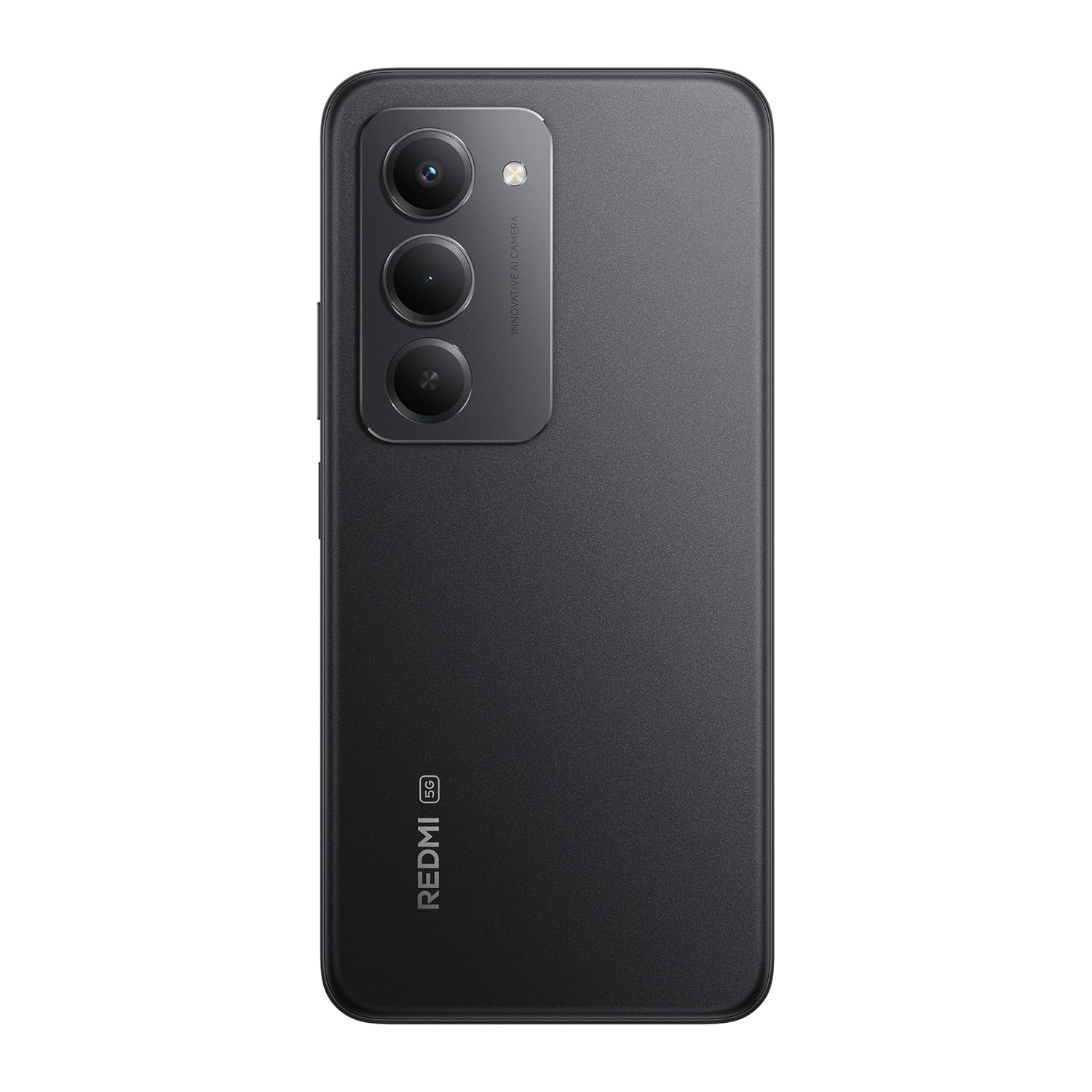
Image: Rear view of the Redmi 15 5G, highlighting the camera array.

Image: Side view of the Redmi 15 5G, illustrating button placement.
Key Features:
- Display: 17.53cm (6.9") FHD+ display with up to 144Hz refresh rate.
- Processor: Qualcomm Snapdragon 6s Gen 3.
- Camera: 50MP AI Dual Camera system.
- Battery: Massive 7000mAh battery with 33W charging and 18W reverse charging.
- Durability: IP64 dust and water resistance.
- Operating System: Android 15 with Xiaomi HyperOS.
4. Setup
4.1. Inserting SIM/SD Card
- Locate the SIM card tray on the side of your device.
- Insert the SIM eject tool into the small hole next to the tray and press firmly until the tray pops out.
- Place your Nano-SIM card(s) and/or microSD card into the designated slots on the tray. Ensure the gold contacts face downwards.
- Carefully push the tray back into the device until it clicks into place.
4.2. Initial Power On and Setup
- Press and hold the Power button (located on the side) until the Redmi logo appears.
- Follow the on-screen instructions to select your language, region, connect to Wi-Fi, and set up your Google account.
- You will be guided through setting up security features like fingerprint unlock or facial recognition.
4.3. Charging the Device
Before first use, it is recommended to fully charge your device.
- Connect the USB cable to the charger.
- Plug the charger into a power outlet.
- Connect the USB cable to the Type-C port at the bottom of your phone.
- The charging indicator will appear on the screen.

Image: Illustration of 18W reverse charging capability.
5. Operating Your Device
5.1. Basic Navigation
- Touch: Tap an icon to open an app or select an item.
- Swipe: Slide your finger across the screen to scroll or navigate between screens.
- Pinch: Use two fingers to zoom in or out on photos and web pages.
- Gestures: Configure navigation gestures in Settings for a full-screen experience.
5.2. Making Calls and Sending Messages
- Open the Phone app to dial numbers or select contacts.
- Open the Messages app to compose and send text messages.
5.3. Camera Usage
The Redmi 15 5G features a 50MP AI Dual Camera.
- Open the Camera app.
- Select your desired mode (Photo, Portrait, Video, etc.).
- Tap the shutter button to capture photos or start/stop video recording.
- Utilize AI features like AI Sky and AI Erase for enhanced photography.

Image: Close-up of the 50MP AI Dual Camera module.

Image: Demonstrating AI Sky and AI Erase camera capabilities.
5.4. Battery Management
Your device is equipped with a 7000mAh battery.
- To check battery status, go to Settings > Battery.
- Enable Battery Saver mode to extend battery life.
- The device supports 33W fast charging and 18W reverse charging.

Image: Battery performance metrics for the 7000mAh battery.
5.5. Connectivity
- Wi-Fi: Connect to wireless networks via Settings > Wi-Fi.
- Bluetooth: Pair with other Bluetooth devices via Settings > Bluetooth.
- Mobile Data: Manage your cellular data connection via Settings > Mobile network.
5.6. Software (Android 15 with Xiaomi HyperOS)
Your Redmi 15 5G runs on Android 15 with Xiaomi HyperOS, offering a customized user experience and regular security updates.

Image: Software update policy for Xiaomi HyperOS.
6. Maintenance
6.1. Cleaning Your Device
- Use a soft, lint-free cloth to clean the screen and body.
- Avoid using harsh chemicals or abrasive materials.
- Disconnect the device from power before cleaning.
6.2. Software Updates
Regularly check for software updates to ensure optimal performance and security.
- Go to Settings > About phone > MIUI version.
- Tap Check for updates.
- Follow the on-screen prompts to download and install any available updates.
6.3. Battery Care
- Avoid exposing the device to extreme temperatures.
- Do not let the battery completely drain frequently.
- Use only the official charger and cable provided.
6.4. Dust and Water Resistance (IP64)
The Redmi 15 5G is rated IP64 for dust and water resistance. This means it is protected against dust ingress and splashing water from any direction. However, it is not designed for submersion in water. Avoid exposing the device to high-pressure water or prolonged submersion.

Image: Durability features including IP64 dust and water resistance.
7. Troubleshooting
If you encounter issues with your device, try the following solutions:
- Device not turning on: Ensure the battery is charged. Connect the charger and wait a few minutes before attempting to power on again.
- Charging problems: Check if the charger and cable are properly connected. Try a different power outlet.
- Network issues: Ensure your SIM card is correctly inserted. Check network settings in Settings > Mobile network. Restart the device.
- App not responding: Force close the app from the recent apps screen or go to Settings > Apps > [App Name] > Force stop.
- Slow performance: Clear cache, uninstall unused apps, or restart the device.
- Factory Reset: As a last resort, you can perform a factory reset (Settings > About phone > Factory reset). Warning: This will erase all data on your device. Back up important data before proceeding.
8. Specifications
| Feature | Specification |
|---|---|
| Operating System | Android 15, Xiaomi HyperOS |
| RAM | 6 GB |
| Product Dimensions | 16.8 x 0.8 x 8 cm |
| Item Model Number | 25057RN09I |
| Connectivity Technologies | Bluetooth, USB, Wi-Fi |
| Special Features | Dust resistance, Water resistance (IP64) |
| Display Resolution | 1080 x 2340 pixels |
| Audio Jack | Type C |
| Colour | Midnight Black |
| Battery Power Rating | 7000 mAh |
| Item Weight | 217 g |
| CPU Speed | Up to 2.3 GHz |
9. Warranty and Support
9.1. Warranty Information
Your Redmi 15 5G comes with a limited manufacturer's warranty. Please refer to the Warranty Card included in your product package for detailed terms and conditions, including coverage period and service procedures.
9.2. Customer Support
For further assistance, technical support, or service inquiries, please visit the official Redmi support website or contact their customer service. Contact details can typically be found on the warranty card or the official Redmi website.


