
1. Introduction
This manual provides essential information for the safe and efficient use of your Xiaomi 80 cm (32 inches) A Pro QLED Series Smart TV, model L32MB-APIN. Please read this manual thoroughly before operating the television and retain it for future reference.
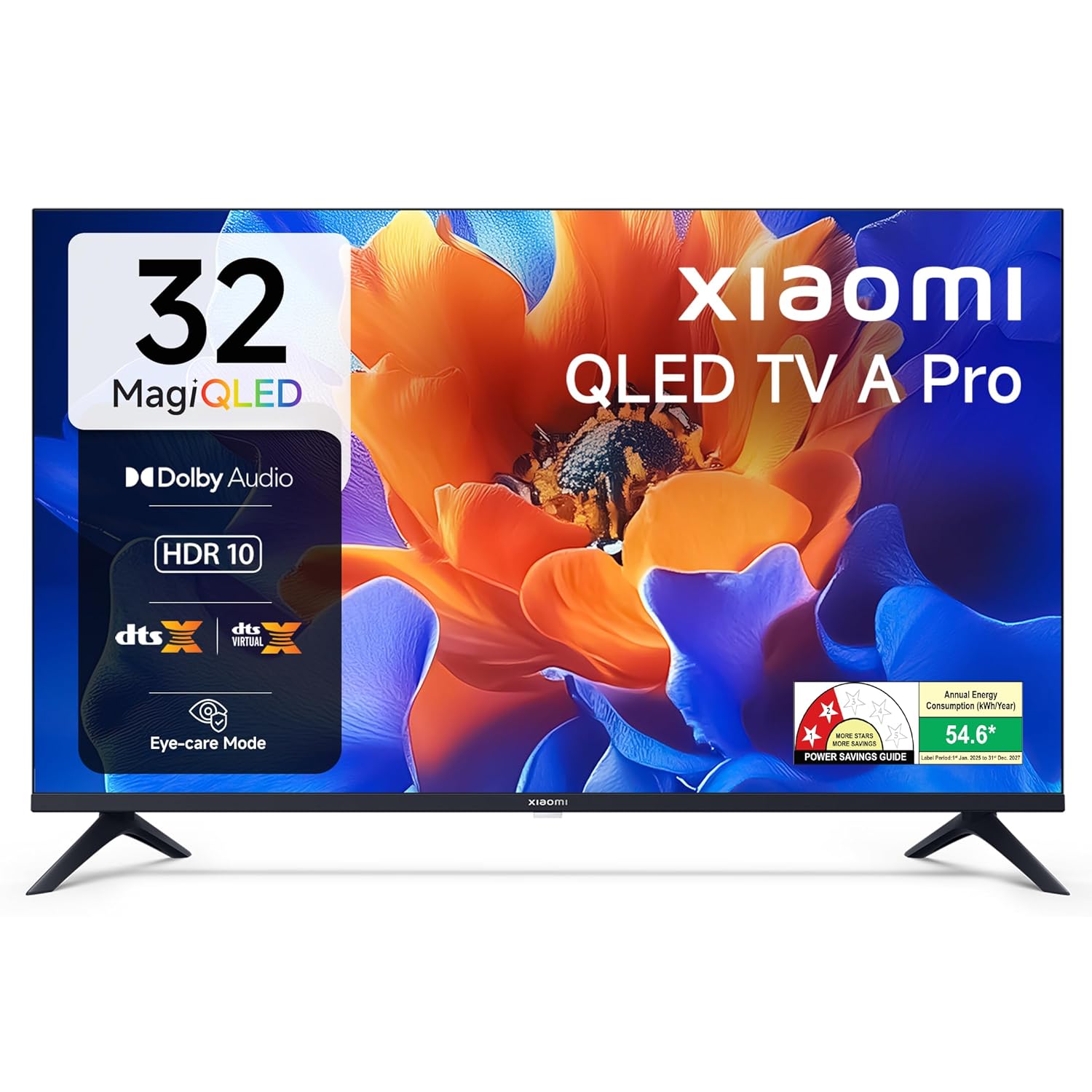
Image 1.1: Front view of the Xiaomi 32-inch A Pro QLED Smart TV.
2. Safety Information
Observe the following safety precautions to prevent fire, electric shock, or injury:
- Do not expose the TV to rain or moisture.
- Do not open the TV casing; refer all servicing to qualified personnel.
- Ensure proper ventilation around the TV.
- Place the TV on a stable, level surface or mount it securely to a wall.
- Keep the TV away from heat sources and direct sunlight.
- Unplug the TV during lightning storms or when unused for long periods.
3. Package Contents
Verify that all items are present in the packaging:
- 1 x Xiaomi LED TV (L32MB-APIN)
- 1 x Remote Control
- 1 x User Manual (this document)
- 2 x TV Stands Unit
- 4 x Screws for stand installation
- 2 x AAA Batteries for remote control
- 1 x Power Cord

Image 3.1: Illustration of the items included in the TV package.
4. Product Overview
4.1 Key Features
The Xiaomi A Pro QLED Series Smart TV offers a range of features for an enhanced viewing experience:
- Display: 32-inch HD Ready (1366 x 768) QLED panel with HDR 10, HLG, Vivid Picture Engine 2, and Eye Comfort Mode.
- Audio: 20 Watts output with Dolby Audio, DTS-X, and DTS Virtual:X for immersive sound.
- Smart TV: Powered by Android 14 OS and Google TV, featuring built-in Wi-Fi, screen mirroring, 1 GB RAM, 8 GB ROM, and support for popular streaming apps.
- Connectivity: Dual Band Wi-Fi, 2 HDMI ports, 2 USB ports, Bluetooth, and Ethernet.
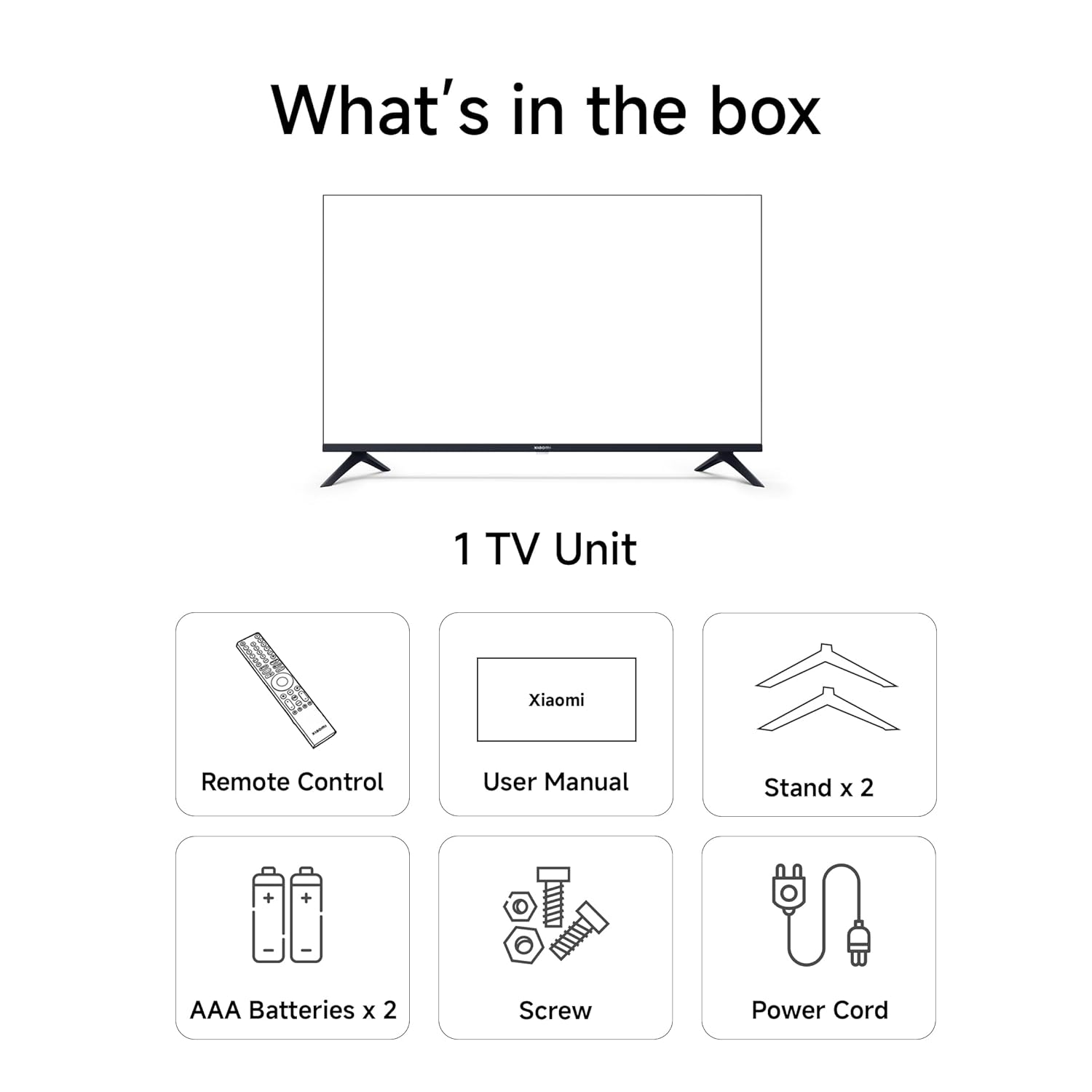
Image 4.1: Overview of the TV's main features.
4.2 Connectivity Ports
The TV provides various ports for connecting external devices:
- HDMI (x2): For connecting gaming consoles, set-top boxes, Blu-ray players.
- USB (x2): For connecting hard drives and other USB devices.
- Ethernet: For wired network connection.
- Antenna: For connecting a terrestrial or cable antenna.
- AV Input: For older audio/video devices.
- 3.5mm Earphone Jack: For connecting headphones or external audio systems.

Image 4.2: Rear view showing the TV's connectivity ports.
4.3 Remote Control
The included remote control allows for easy navigation and access to smart features:
- Dedicated buttons for popular streaming services like Netflix, Prime Video, YouTube, JioHotstar, and SonyLiv.
- Integrated Google Voice Assistant for voice commands.
- Dedicated Mute button for quick audio control.

Image 4.3: The TV's remote control with quick access buttons.
5. Setup
5.1 Stand Installation
- Carefully place the TV screen-down on a soft, flat surface to prevent damage.
- Align the two stand units with the corresponding slots on the bottom of the TV.
- Secure each stand with the provided screws.
- Carefully lift the TV to its upright position on a stable surface.
5.2 Wall Mounting
The TV supports wall mounting. Refer to the wall mount kit instructions for proper installation. Ensure the wall mount is compatible with VESA standards for 32-inch TVs and can support the TV's weight (3.2 kg without stand).
5.3 Connecting Peripherals
- HDMI Devices: Connect HDMI cables from your devices (e.g., set-top box, gaming console) to the HDMI ports on the TV.
- USB Devices: Insert USB drives or other USB devices into the USB ports.
- Network: For a wired internet connection, connect an Ethernet cable to the LAN port.
5.4 Initial Power On and Setup
- Connect the power cord to the TV and then to a power outlet.
- Press the power button on the remote control or TV.
- Follow the on-screen instructions to complete the initial setup, including language selection, network connection (Wi-Fi or Ethernet), and Google account sign-in.
- The Google TV interface will guide you through setting up your preferences and installing desired applications.
6. Operating Instructions
6.1 Basic Operation
- Power On/Off: Press the power button on the remote.
- Volume Control: Use the Volume Up/Down buttons.
- Input Source: Press the 'Input' button to select HDMI, AV, or other sources.
- Navigation: Use the directional pad and 'OK' button to navigate menus.
6.2 Smart TV Features (Google TV)
Your Xiaomi Smart TV runs on Google TV, providing access to a wide range of content and smart functionalities.
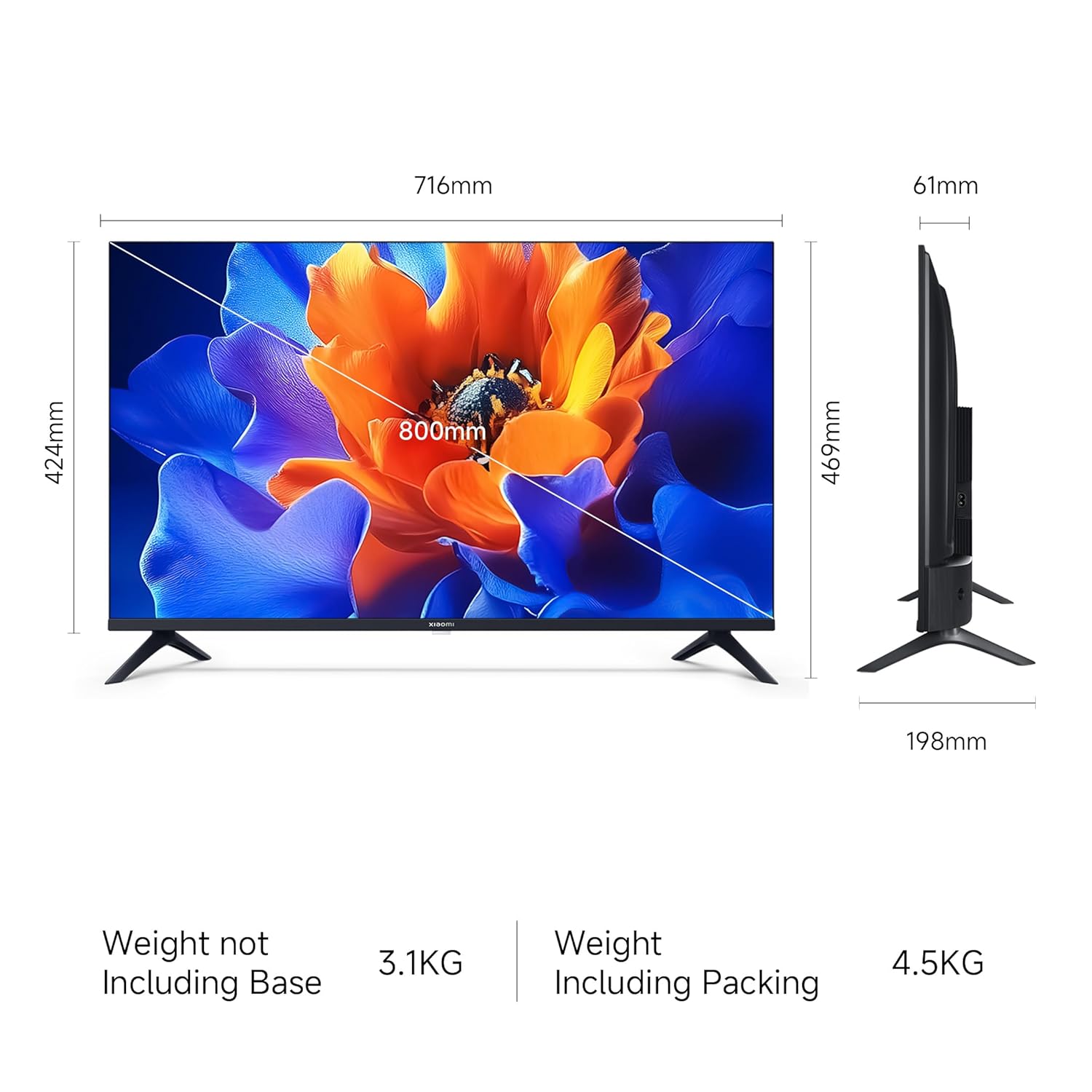
Image 6.1: Google TV interface and features.
- App Access: Launch pre-installed apps like Netflix, Prime Video, YouTube, and download more from the Google Play Store.
- Google Assistant: Press the Google Assistant button on your remote and speak your commands to search for content, control smart home devices, or get information.
- Screen Mirroring (Google Cast): Cast content from your compatible smartphone or tablet directly to the TV.
- Personal Profiles: Create individual profiles for personalized recommendations and watchlists.
6.3 Display and Audio Settings
- Picture Modes: Adjust picture settings (e.g., Standard, Vivid, Movie) to suit your viewing preference. The TV supports HDR 10 for enhanced contrast and color.
- Eye Comfort Mode: Activate this feature to reduce blue light emission, which can be beneficial during long viewing sessions.
- Sound Modes: Select from various sound modes (e.g., Standard, Music, Movie) to optimize audio output. The TV features Dolby Audio and DTS-X for a cinematic sound experience.

Image 6.2: MagiQLED technology for vibrant colors.

Image 6.3: Vivid Picture Engine 2 in action.
Image 6.4: Eye Care Mode for comfortable viewing.

Image 6.5: Cinematic Audio features.
7. Maintenance
7.1 Cleaning the TV
- Always unplug the TV before cleaning.
- Use a soft, dry, lint-free cloth to wipe the screen and cabinet.
- For stubborn marks, lightly dampen the cloth with water or a mild, non-abrasive screen cleaner. Do not spray cleaner directly onto the screen.
- Avoid using abrasive cleaners, waxes, or solvents.
7.2 General Care
- Do not block ventilation openings.
- Avoid placing heavy objects on the TV.
- Protect the power cord from being walked on or pinched.
8. Troubleshooting
Before contacting support, try these common solutions:
| Problem | Possible Solution |
|---|---|
| No power | Ensure the power cord is securely connected and the power outlet is working. Try a different outlet. |
| No picture, but sound is present | Check the input source. Ensure external devices are powered on and connected correctly. |
| No sound, but picture is present | Check volume levels and mute status. Verify audio settings and external speaker connections. |
| Remote control not working | Replace batteries. Ensure no obstructions between the remote and TV. Re-pair Bluetooth remote if necessary. |
| Smart TV features are slow or unresponsive | Check internet connection. Restart the TV by unplugging it for a few minutes. Clear app caches or factory reset if issues persist (data will be lost). |
9. Specifications
| Feature | Detail |
|---|---|
| Brand | XIAOMI |
| Model | L32MB-APIN |
| Screen Size | 32 Inches (80 cm) |
| Display Technology | QLED |
| Resolution | HD Ready (1366 x 768 Pixels) |
| Refresh Rate | 60 Hz |
| Operating System | Google TV (Android 14 OS) |
| RAM Memory | 1 GB |
| Internal Storage | 8 GB |
| Audio Output | 20 Watts |
| Audio Features | Dolby Audio, DTS-X, DTS Virtual:X |
| Connectivity | Dual Band Wi-Fi, Bluetooth, Ethernet, 2 HDMI, 2 USB, AV Input, 3.5mm Audio |
| Special Features | Eye Comfort Mode, HDR 10, HLG, Vivid Picture Engine 2, Google Assistant |
| Product Dimensions (LxWxH) | 71.6 x 19.8 x 46.9 cm (with stand) |
| Item Weight | 3.2 kg |
| Power Source | AC 240 Volts |

Image 9.1: TV dimensions.
10. Warranty and Support
10.1 Warranty Information
Your Xiaomi A Pro QLED Series Smart TV comes with a 1 Year Comprehensive Warranty from the date of purchase. To avail warranty services, please retain your purchase invoice. The user manual can also be accessed from the official Xiaomi brand website.
10.2 Customer Support
For any assistance, service requests, or technical queries, please contact Xiaomi Support. Our team aims to provide swift solutions:
- Expect a call back from our team within 60 minutes for any service request.
- Our experts strive to arrive at your home within 24 hours of your service request, 99% of the time.
- 99% of new TV installations are completed within 3 hours of your appointment.
For the most up-to-date contact information, please visit the official Xiaomi India support website or refer to the contact details provided with your product documentation.


