
1. Introduction
This manual provides detailed instructions for the setup, operation, and maintenance of your ATTACK SHARK X8 Ultra Wireless Gaming Mouse. Designed for high-performance gaming, the X8 Ultra features a lightweight design, multiple connectivity options, and advanced sensor technology.

Image 1.1: Top view of the ATTACK SHARK X8 Ultra Wireless Gaming Mouse.
2. Package Contents
Verify that all items are present in your package:
- ATTACK SHARK X8 Ultra Wireless Gaming Mouse
- 8K USB-C Receiver
- USB-A to USB-C Charging Cable (Paracord)
- Replacement Mouse Feet Skates
- Grip Tape
- User Manual (this document)
3. Mouse Layout and Features
Familiarize yourself with the key components and features of your X8 Ultra mouse.

Image 3.1: Overview of the X8 Ultra's internal components and external features.
- Left/Right Click Buttons: Equipped with Omron micro switches for tactile feedback and durability.
- Scroll Wheel: Provides smooth scrolling with subtle tactile bumps.
- Side Buttons: Programmable buttons located on the left side for additional functions.
- DPI Button: Located on the underside of the mouse, allows cycling through preset DPI levels.
- Connectivity Switch: Located on the underside, allows switching between 2.4GHz wireless, Bluetooth, and wired modes.
- PAW3950MAX Sensor: High-precision optical sensor for accurate tracking.
- Nordic 52840 MCU: Advanced microcontroller for efficient performance and low latency.
- Nano-Ice Coating: Surface treatment designed to keep grip cool during extended use.
4. Setup Guide
4.1 Charging the Mouse
- Connect the USB-C end of the charging cable to the mouse.
- Connect the USB-A end of the charging cable to an available USB port on your computer or a USB wall adapter.
- The mouse LED indicator will show charging status. A full charge provides up to 300 hours of intermittent use.
4.2 Connecting the Mouse
The X8 Ultra supports three connection modes: 2.4GHz Wireless, Bluetooth, and Wired USB.
2.4GHz Wireless Mode:
- Locate the 8K USB-C receiver.
- Plug the receiver into an available USB port on your computer.
- Set the connectivity switch on the underside of the mouse to the "2.4G" position.
- The mouse should automatically connect.

Image 4.1: The 8K USB-C receiver for 2.4GHz wireless connection.
Bluetooth Mode:
- Set the connectivity switch on the underside of the mouse to the "BT" position.
- On your computer, open Bluetooth settings and search for new devices.
- Select "ATTACK SHARK X8 Ultra" from the list of available devices to pair.
Wired USB Mode:
- Connect the USB-C end of the charging cable to the mouse.
- Connect the USB-A end of the charging cable to an available USB port on your computer.
- Set the connectivity switch on the underside of the mouse to the "Wired" position.
- The mouse will function as a wired device and charge simultaneously.
5. Operating Instructions
5.1 DPI Adjustment
The X8 Ultra features a PixArt PAW3950MAX sensor with adjustable DPI from 50 to 42,000. To change DPI settings:
- Press the DPI button on the underside of the mouse to cycle through preset DPI levels.
- The LED indicator on the mouse will change color to indicate the current DPI setting.
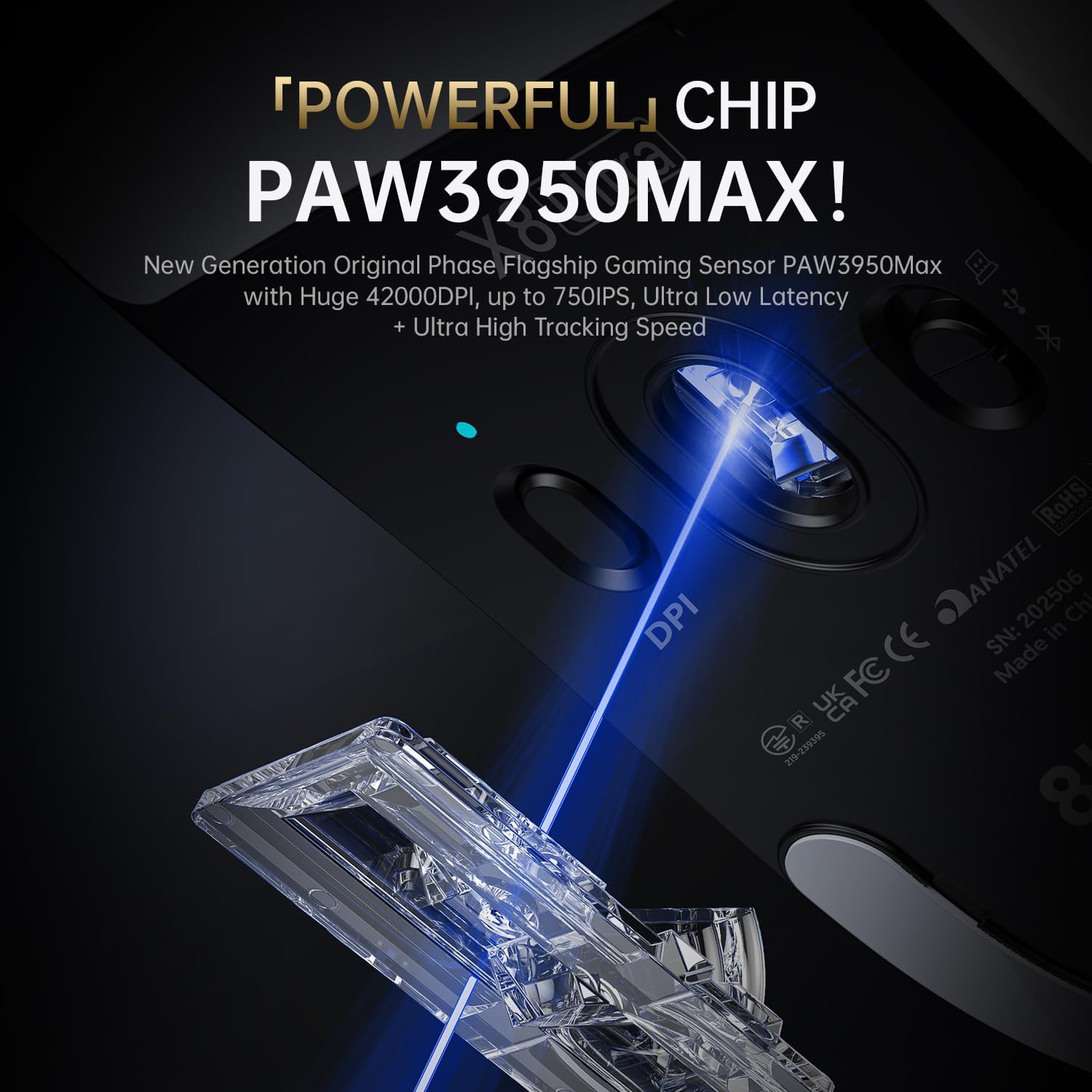
Image 5.1: The PixArt PAW3950MAX sensor for precise tracking.
5.2 Cloud Driver Software
For advanced customization, including DPI adjustment, polling rate, button remapping, macro recording, and competitive mode settings, use the web-based Cloud Driver software.
- Ensure your mouse is connected to your computer (preferably via 2.4GHz wireless or wired mode for full functionality).
- Open your web browser and navigate to the official ATTACK SHARK website (e.g., www.attackshark.pro).
- Locate the Cloud Driver section for the X8 Ultra model.
- Follow the on-screen instructions to customize your mouse settings. Settings are saved directly to the mouse's memory.

Image 5.2: The Cloud Driver interface for advanced mouse configuration.
5.3 Polling Rate
The X8 Ultra supports an 8KHz wireless polling rate for ultra-low latency and faster response. In wired mode, it operates at 1KHz. The polling rate can be adjusted via the Cloud Driver software.

Image 5.3: Explanation of 8K Polling Rate technology.
6. Maintenance
6.1 Cleaning
- Use a soft, dry cloth to wipe the surface of the mouse.
- For stubborn dirt, slightly dampen the cloth with water or a mild cleaning solution.
- Avoid using harsh chemicals or abrasive materials that could damage the mouse's finish or sensor.
- Regularly clean the optical sensor area on the underside of the mouse with a cotton swab to ensure optimal tracking performance.
6.2 Battery Care
- To prolong battery life, avoid fully discharging the mouse frequently.
- Store the mouse in a cool, dry place when not in use for extended periods.
- If the mouse will not be used for a long time, charge it to about 50% before storage.
6.3 Replacing Mouse Feet Skates
The package includes replacement PTFE mouse feet skates for maintaining smooth glide. When the existing skates show significant wear:
- Carefully peel off the old mouse feet using a thin tool.
- Clean the surface where the skates were attached to remove any adhesive residue.
- Peel the backing from the new skates and carefully apply them to the corresponding areas on the mouse's underside.
- Press firmly to ensure proper adhesion.

Image 6.1: PTFE anti-slip footpads for smooth mouse movement.
7. Troubleshooting
| Problem | Possible Solution |
|---|---|
| Mouse not responding in wireless mode. |
|
| Lag or intermittent connection. |
|
| Inaccurate tracking. |
|
| Cloud Driver software not detecting mouse. |
|
8. Specifications
Key technical specifications for the ATTACK SHARK X8 Ultra Wireless Gaming Mouse:

Image 8.1: Detailed technical specifications for the X8 Ultra and other X8 series models.
| Feature | Detail |
|---|---|
| Model | X8 Ultra |
| Sensor | PixArt PAW3950MAX |
| DPI Range | 50 - 42,000 DPI |
| Movement Speed | 750 IPS |
| Acceleration | 60G |
| Button Lifespan | 100 Million Clicks |
| Micro Switch | Omron Switch |
| Polling Rate | Wireless 8000Hz / Wired 1000Hz |
| MCU | Nordic 52840 |
| Connectivity | Wired / 2.4GHz Wireless / Bluetooth |
| Weight | 55g |
| Battery Capacity | 500 mAh |
| Dimensions | Approximately 125.5 x 63 x 40 mm (4.96 x 2.5 x 1.6 inches) |
9. Warranty and Support
ATTACK SHARK products are designed for reliability and performance. For warranty information, technical support, or service inquiries, please refer to the official ATTACK SHARK website or contact their customer service directly.
Official Website: www.attackshark.pro
Brand Store: ATTACK SHARK Amazon Store
Please retain your proof of purchase for warranty claims.


