
Introduction
Thank you for choosing the VANSING D2 MP3 Player. This device is designed to provide a portable and versatile music experience, featuring Bluetooth 5.2 connectivity, a 1.8-inch display, and multiple functions including FM radio and voice recording. This manual will guide you through the setup, operation, and maintenance of your new MP3 player.
What's in the Box
Carefully unpack your VANSING D2 MP3 Player and ensure all items are present. If any items are missing or damaged, please contact customer support.
- VANSING D2 MP3 Player (1)
- Screen Protector Case (1)
- User Manual (1)
- Screen Protector Film (2, one pre-applied)
- MP3 Lanyard (1)
- Wired Headphones (1)
- Charging Cable (1)
- 32GB Storage Card (1)

Product Overview
The VANSING D2 MP3 Player is a compact and feature-rich device designed for audio playback and more. It features a clear 1.8-inch display for easy navigation and supports various audio formats.
Key Features:
- Bluetooth 5.2: For stable and efficient wireless connection to headphones or speakers.
- Long-lasting Battery: Up to 20 hours with headphones, 4 hours with speaker on a 1.5-hour charge.
- Expandable Storage: Supports up to 512GB TF card (32GB card included).
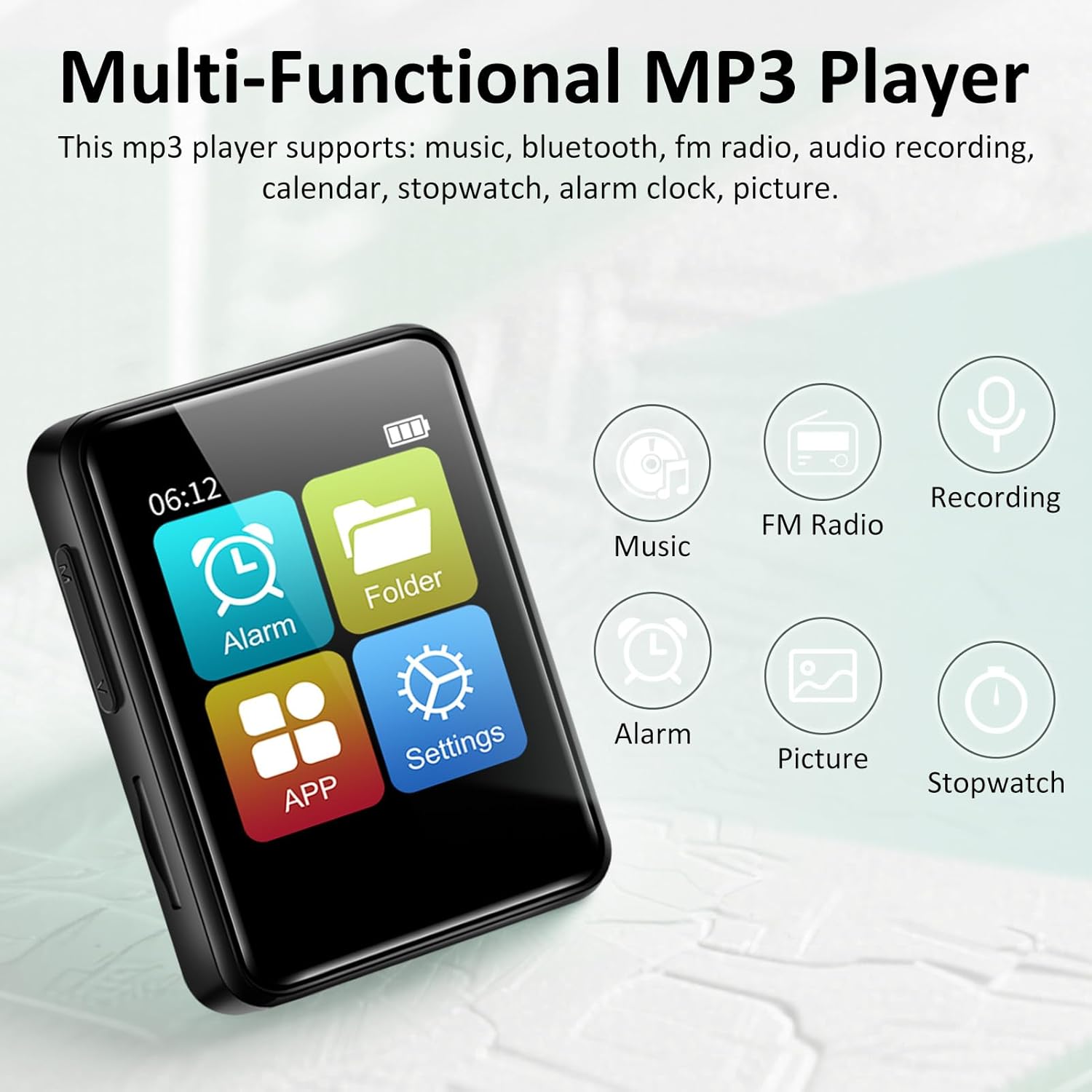
- Multi-functional: Includes music playback, FM radio, voice recorder, alarm clock, stopwatch, and calendar.
- Lossless Sound: Compatible with MP3/OGG/FLAC/AAC/WMA/WAV/APE formats.


Setup
1. Charging the Device
Before first use, fully charge your MP3 player. Connect the provided USB charging cable to the device's Mini USB port and the other end to a USB power adapter (not included) or a computer's USB port. The battery indicator on the screen will show charging status. A full charge typically takes about 1.5 hours.
2. Inserting a TF Card
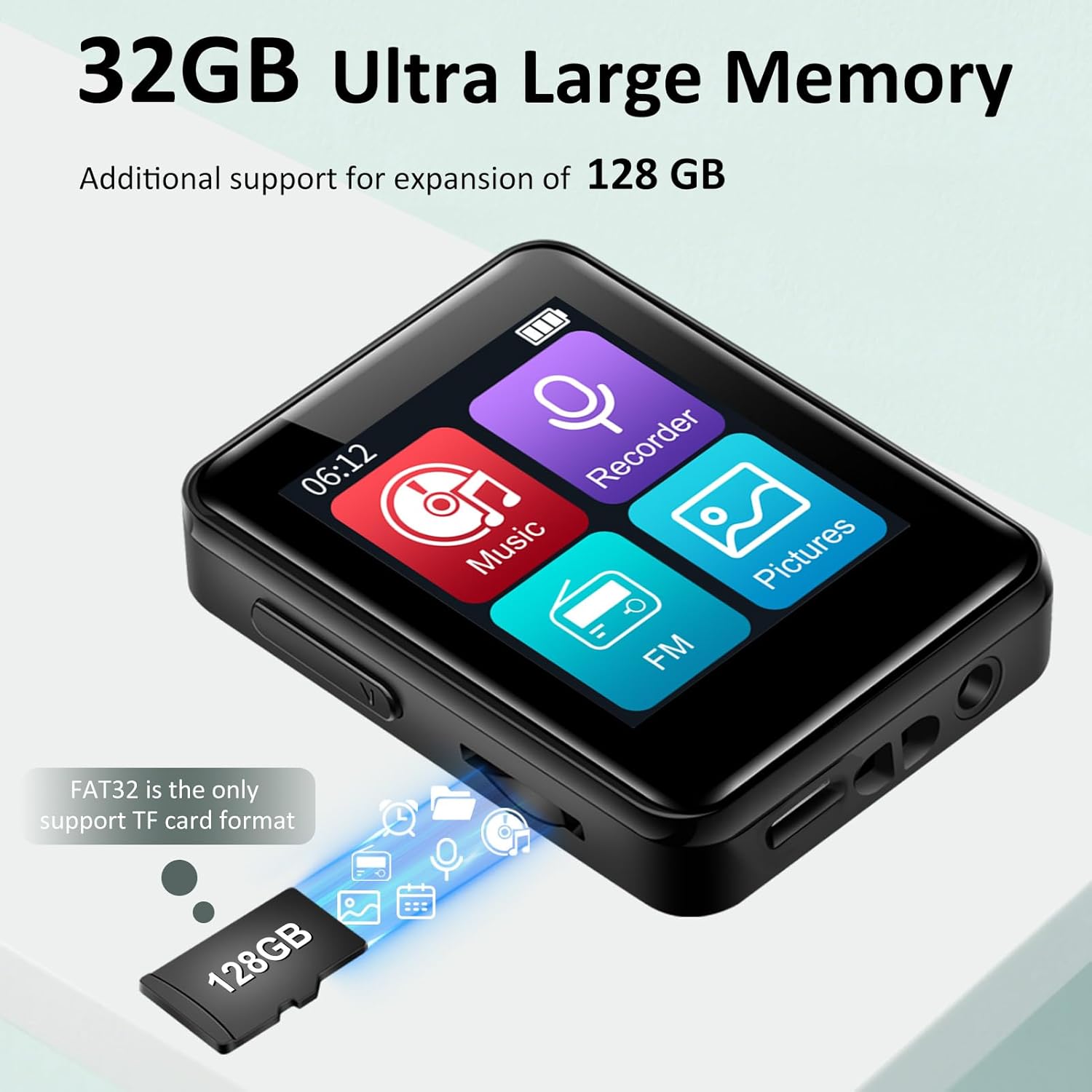
The VANSING D2 MP3 Player requires a TF (Micro SD) card for storage. A 32GB card is included. The device supports cards up to 512GB. Ensure the card is formatted to FAT32 for optimal compatibility.
- Locate the TF card slot on the side of the MP3 player.
- Gently insert the TF card into the slot until it clicks into place.
- To remove, push the card in slightly until it springs out.
3. Power On/Off
To power on the device, press and hold the power button located on the side until the screen illuminates. To power off, press and hold the power button again until the device shuts down.
Basic Operation
1. Navigating the Interface
The VANSING D2 features a touch-sensitive screen for navigation. Swipe left or right to browse through menu options and tap to select. Use the physical buttons on the side for volume control and power.
2. Music Playback
To play music:
- From the main menu, tap the "Music" icon.
- Browse your music library by artist, album, genre, or folder.
- Tap on a song to begin playback.
- Use the on-screen controls for play/pause, skip tracks, and volume adjustment.
The player supports MP3, OGG, FLAC, AAC, WMA, WAV, and APE audio formats.

3. Bluetooth Connection
To connect to Bluetooth headphones or speakers:
- From the main menu, tap the "Settings" icon.
- Select "Bluetooth".
- Turn Bluetooth ON. The player will scan for nearby devices.
- Select your desired device from the list to pair.
4. FM Radio
To use the FM radio function, wired headphones must be connected as they act as the antenna.
- Connect the wired headphones to the 3.5mm audio port.
- From the main menu, tap the "FM" icon.
- Use the on-screen controls to scan for stations or manually tune.
5. Voice Recorder
To record audio:
- From the main menu, tap the "Recorder" icon.
- Tap the record button to start recording.
- Tap the stop button to end and save the recording.
6. Other Functions
The VANSING D2 also includes:
- Alarm Clock: Set alarms for reminders.
- Stopwatch: For timing activities.
- Calendar: View dates and manage schedules.
Language and Time Settings
You can easily adjust the device's language, time, and date settings through the menu.
Changing the Language:
- Go to "Settings" (the gear icon).
- Select "Language Set".
- Choose "English" from the list.

Changing the Time:
- Go to "Settings".
- Select "Time & Date".
- Choose "Set the time".
- Adjust the hour, minute, and second selections.

Changing the Date:
- Go to "Settings".
- Select "Time & Date".
- Choose "Set the date".
- Adjust the year, month, and day selections.

File Transfer
You can transfer music and other files to your MP3 player using a computer or an OTG connection.
1. Connecting to a Computer
Connect the MP3 player to your computer using the provided USB data cable. The device should appear as a removable disk. You can then drag and drop files directly to the TF card. Ensure the TF card is inserted for file transfer functionality.
2. OTG (On-The-Go) Transfer
The device supports OTG for direct file transfer from compatible smartphones or other devices. An OTG adapter (not included) may be required. Ensure the TF card is inserted for this function.

Troubleshooting
- Device not turning on: Ensure the battery is charged. Connect to a power source and try again. If unresponsive, perform a hard reset by pressing and holding the power button for 10-15 seconds.
- Cannot connect to Bluetooth: Ensure Bluetooth is enabled on both the MP3 player and the target device. Make sure both devices are within range and not paired with other devices. Try restarting both devices.
- Files not appearing on the player: Verify that the TF card is properly inserted and formatted to FAT32. Ensure the audio files are in a supported format (MP3/OGG/FLAC/AAC/WMA/WAV/APE). Try re-transferring the files.
- Slow file transfer speed: Transfer speeds can vary depending on the computer's USB port and the TF card's speed. Ensure you are using the provided USB cable.
- FM Radio not working: Ensure wired headphones are securely plugged into the 3.5mm audio jack, as they function as the antenna.
- Screen unresponsive: If the screen is unresponsive, try restarting the device. If the issue persists, ensure the screen protector is applied correctly and not interfering with touch sensitivity.
Specifications
| Product Dimensions | 2.13 x 1.65 x 0.5 inches |
| Item Weight | 1.23 ounces |
| Brand | VANSING |
| Model Name | D2 |
| Connectivity Technology | USB, Bluetooth 5.2 |
| Memory Storage Capacity | 32 GB (expandable up to 512GB via Micro SD) |
| Screen Size | 1.8 Inches |
| Compatible Devices | Headphones, Bluetooth Speakers |
| Media Type | Micro SD |
| Special Feature | FM Radio, Voice Recorder, Built-in Speaker |
| Batteries | 1 A battery required (included) |
Maintenance
To ensure the longevity and optimal performance of your VANSING D2 MP3 Player, follow these maintenance guidelines:
- Cleaning: Use a soft, dry cloth to clean the device. Avoid using liquid cleaners or abrasive materials.
- Storage: Store the player in a cool, dry place away from direct sunlight and extreme temperatures.
- Protection: Use the provided protective case and screen protector film to prevent scratches and minor damage.
- Battery Care: Avoid fully discharging the battery frequently. Charge the device regularly, even if not in use for extended periods, to maintain battery health.
- Water Exposure: This device is not waterproof. Avoid exposure to water or high humidity.
Warranty and Support
For warranty information or technical support, please refer to the documentation included with your purchase or contact VANSING customer service directly. Keep your purchase receipt as proof of purchase.