
1. Introduction
This manual provides essential instructions for the safe and effective use of your K&F Concept M3 4K Action Camera. Please read this manual thoroughly before operating the device and retain it for future reference.
Package Contents
Verify that all items listed below are included in your package. If any items are missing or damaged, please contact customer support.
- 1x K&F Concept M3 Mini DV 4K Camera with Electronic Image Stabilization (EIS)
- 1x 64 GB microSD Memory Card with Adapter
- 1x Protective Carrying Bag
- 1x Safety Lanyard
- 1x USB-C Charging Cable
- 1x Lens Cleaning Cloth
- 1x User Manual (this document)
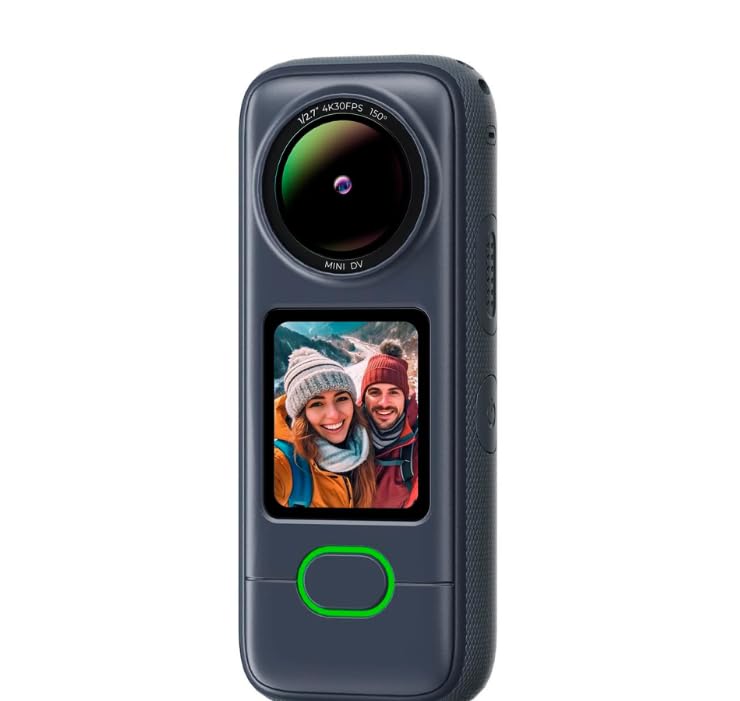
Image 1.1: K&F Concept M3 4K Action Camera with included accessories.
2. Product Overview
Familiarize yourself with the camera's components and controls.
Camera Components
- Lens: 150° wide-angle lens.
- 1.4-inch Touchscreen: For menu navigation, preview, and playback.
- Power/Mode Button: Turns the camera on/off and switches modes.
- Shutter/Record Button: Starts/stops recording or takes photos.
- MicroSD Card Slot: For memory card insertion.
- USB-C Port: For charging and data transfer.
- Dual Microphones: With noise cancellation for clear audio.
- Tripod Mount: Standard 1/4-inch thread for accessories.

Image 2.1: Front view of the K&F Concept M3 Action Camera, showing the lens and touchscreen.
3. Setup
3.1 Charging the Battery
- Connect the provided USB-C cable to the camera's USB-C port.
- Connect the other end of the cable to a USB power adapter (not included) or a computer's USB port.
- The charging indicator light will illuminate. It will turn off or change color when charging is complete.
- A full charge provides approximately 210 minutes of continuous use.

Image 3.1: Side view of the camera, representing its internal battery and power.
3.2 Inserting the MicroSD Card
The camera supports microSD cards up to 64GB. A 64GB card is included.
- Locate the microSD card slot on the side of the camera.
- Insert the microSD card with the gold contacts facing the front of the camera until it clicks into place.
- To remove, gently push the card until it springs out.
Note: Ensure the card is formatted in the camera before first use for optimal performance. Refer to the "Settings" section for formatting instructions.
3.3 Powering On/Off
- To Power On: Press and hold the Power/Mode button for a few seconds until the screen illuminates.
- To Power Off: Press and hold the Power/Mode button for a few seconds until the screen turns off.
4. Operating the Camera
4.1 Basic Recording and Photo Capture
- Switching Modes: Briefly press the Power/Mode button to cycle through video, photo, and playback modes.
- Video Recording: In video mode, press the Shutter/Record button to start recording. Press it again to stop. The camera records in 4K at 30 frames per second (fps).
- Photo Capture: In photo mode, press the Shutter/Record button to take a 20-megapixel photo.
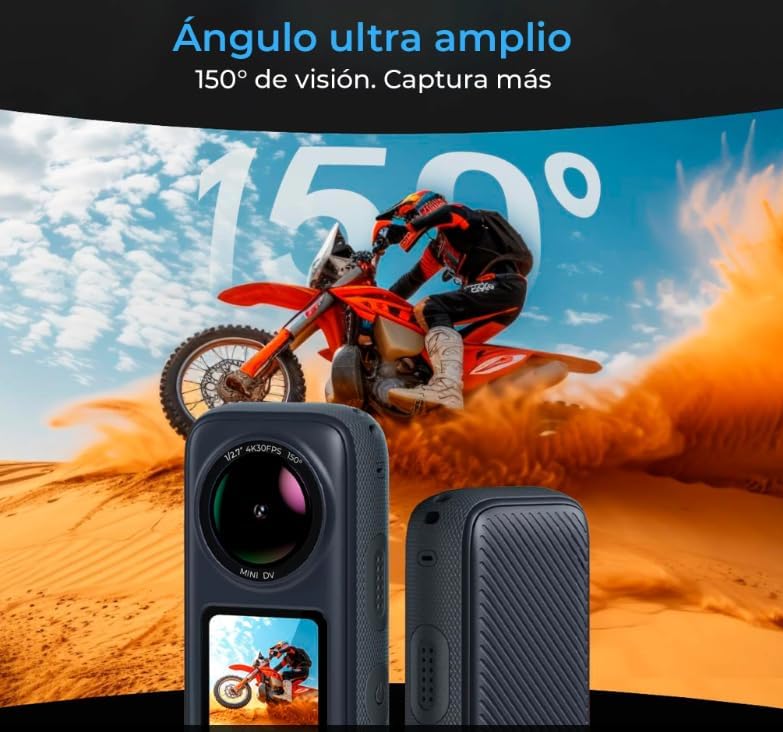
Image 4.1: The camera's capability to record 4K video and capture 20MP photos.
4.2 Electronic Image Stabilization (EIS)
The M3 features EIS technology to ensure smooth and stable footage, even during dynamic activities.
- EIS is typically enabled by default. You can verify or adjust this setting in the camera's menu.
- Access the settings via the touchscreen to toggle EIS on or off.

Image 4.2: Visual representation of Electronic Image Stabilization (EIS) in action, showing stable footage.
4.3 Wi-Fi Connection and App Control
Connect your M3 camera to a smartphone or tablet via Wi-Fi for remote control, live preview, and file transfer.
- Download the official K&F Concept app from your device's app store.
- On the camera, navigate to the Wi-Fi settings and turn Wi-Fi on. The camera will display its Wi-Fi network name (SSID) and password.
- On your smartphone/tablet, go to Wi-Fi settings, select the camera's SSID, and enter the password.
- Open the K&F Concept app. The camera should now be connected, allowing you to control it remotely.

Image 4.3: The camera demonstrating Wi-Fi connectivity for remote control and sharing.
4.4 Touchscreen Navigation
The 1.4-inch touchscreen allows intuitive control:
- Swipe Up/Down: Access quick settings or change modes.
- Swipe Left/Right: Navigate through menus or review media in playback mode.
- Tap: Select options or confirm settings.
5. Advanced Features
5.1 Dual Microphones with Noise Cancellation
The M3 camera is equipped with dual microphones designed to capture clear audio while minimizing background noise. This feature is automatically active during recording.
5.2 IPX6 Water Resistance
The camera has an IPX6 rating, meaning it is resistant to high-pressure water jets from any direction. This makes it suitable for use in rainy conditions or near water splashes.
Caution: IPX6 rating does not mean the camera is waterproof for submersion. Do not submerge the camera in water. Ensure all ports are securely closed before exposing the camera to water.

Image 5.1: The camera highlighting its IPX6 water resistance for use in wet environments.
6. Maintenance
6.1 Cleaning the Camera
- Use the provided lens cleaning cloth to gently wipe the lens and touchscreen.
- For stubborn smudges, use a soft, lint-free cloth lightly dampened with water.
- Do not use harsh chemicals or abrasive materials.
6.2 Storage
- Store the camera in a cool, dry place, away from direct sunlight and extreme temperatures.
- When storing for extended periods, ensure the battery is partially charged (around 50%) to prolong its lifespan.
- Remove the microSD card if not in use for a long time.
7. Troubleshooting
If you encounter issues with your K&F Concept M3 camera, refer to the following common solutions:
| Problem | Solution |
|---|---|
| Camera does not power on. | Ensure the battery is charged. Connect the camera to a power source using the USB-C cable. |
| Cannot record video or take photos. | Check if a microSD card is inserted and properly formatted. Ensure there is sufficient storage space. |
| Wi-Fi connection fails. | Ensure Wi-Fi is enabled on the camera and your mobile device. Double-check the Wi-Fi password. Restart both devices. |
| Footage is shaky despite EIS. | Verify that EIS is enabled in the camera settings. For extremely vigorous activities, additional stabilization may be required. |
| Camera freezes or becomes unresponsive. | Press and hold the Power/Mode button for 10-15 seconds to force a restart. If the issue persists, remove and reinsert the battery (if removable) or contact support. |
8. Specifications
Detailed technical specifications for the K&F Concept M3 Action Camera.
| Feature | Detail |
|---|---|
| Model Name | M3 (GW41.0111S1) |
| Sensor Technology | CMOS (1/2.7") |
| Video Capture Resolution | 4K (30fps) |
| Still Image Resolution | 20 MP |
| Field of View | 150° (Wide Angle Lens) |
| Image Stabilization | Electronic Image Stabilization (EIS) |
| Display | 1.4-inch Touchscreen |
| Audio | Dual Microphones with Noise Cancellation |
| Connectivity | Wi-Fi (802.11a/b/g/n/ac), USB-C |
| Water Resistance | IPX6 (Resistant to high-pressure water jets) |
| Battery Life | Up to 210 minutes (1800 mAh battery) |
| Compatible Devices | Smartphone, Tablet, Desktop, Laptop |
| Video Format | XAVC |
| Image Format | JPEG |
| Storage | MicroSD (up to 64GB, 64GB card included) |
| UPC | 720371236869 |
9. Warranty and Support
9.1 Product Warranty
The K&F Concept M3 Action Camera comes with a 3-month warranty from the date of purchase. This warranty covers manufacturing defects and malfunctions under normal use. It does not cover damage caused by misuse, accidents, unauthorized modifications, or natural disasters.
Please retain your proof of purchase for warranty claims.
9.2 Customer Support
For technical assistance, warranty claims, or any questions regarding your K&F Concept M3 Action Camera, please contact K&F Concept customer support through their official website or the retailer where the product was purchased.
Please note: Contact information for K&F Concept support can typically be found on their official website or on the product packaging.

