
1. Introduction
This manual provides essential information for the safe and efficient use of your new TCL 50S5K 50-inch FHD Smart QLED Google TV. Please read these instructions thoroughly before operating the device and retain them for future reference. This television combines a Full High Definition (FHD) QLED display with the intuitive Google TV operating system, offering a metallic bezel-less design and immersive Dolby Audio.
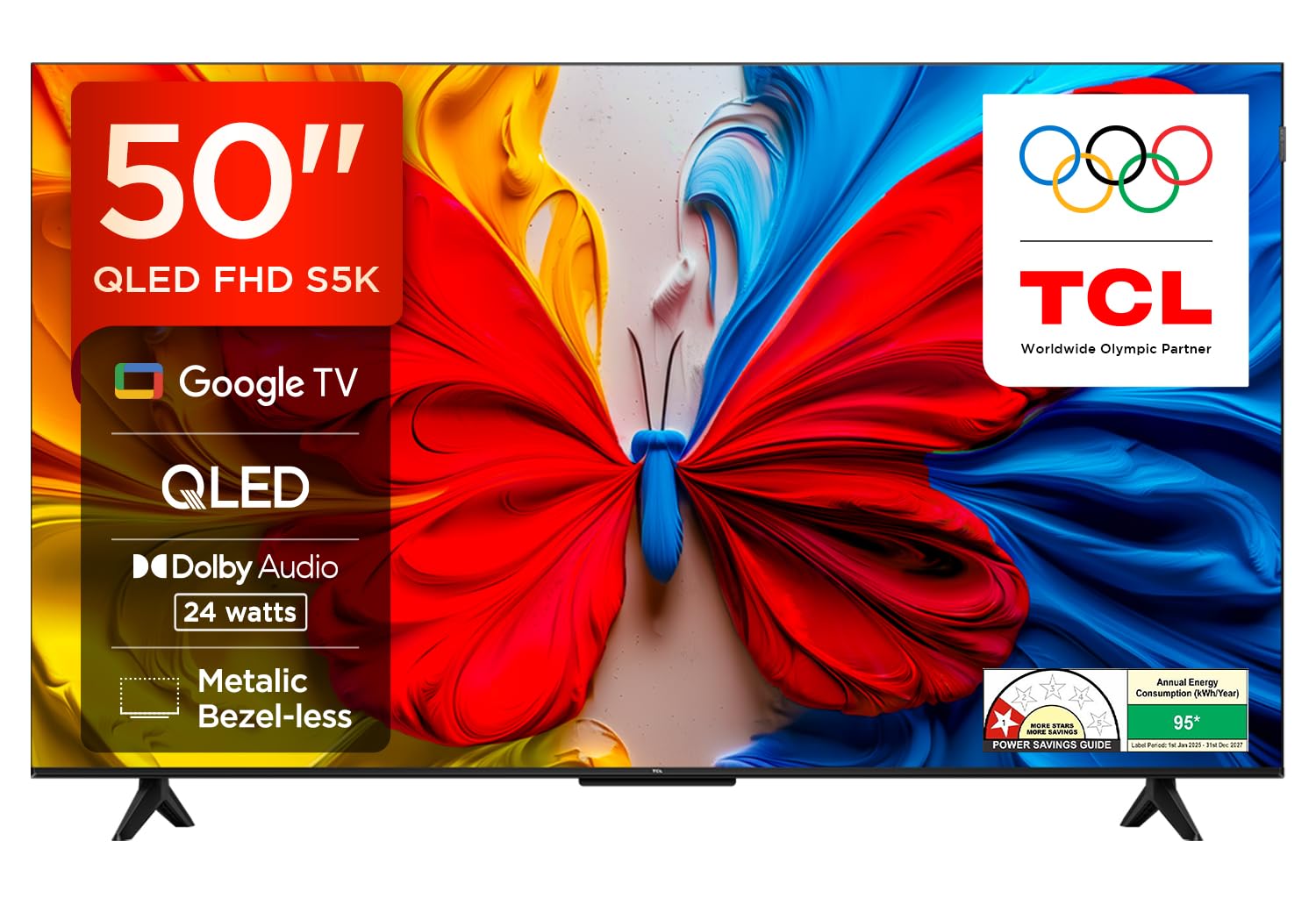
Figure 1.1: TCL 50S5K 50-inch FHD Smart QLED Google TV
2. Safety Information
Observe the following safety precautions to prevent fire, electric shock, or injury:
- Do not expose the TV to rain or moisture.
- Do not open the TV casing; refer all servicing to qualified personnel.
- Ensure proper ventilation; do not block ventilation openings.
- Place the TV on a stable, level surface to prevent it from falling.
- Keep the TV away from direct sunlight, heat sources, and strong magnetic fields.
- Unplug the power cord during lightning storms or when unused for long periods.
- Handle the screen with care; avoid touching it with sharp objects.
3. What's in the Box
Verify that all components are present upon unpacking:
- 1N LED TV
- 1N Audio Cable
- 1N Stand (for table mounting)
- 1N Remote Control
- 2N Batteries (for remote control)

Figure 3.1: Included Accessories
4. Physical Overview and Connections
4.1. TV Ports
The TCL 50S5K TV features various ports for connecting external devices. Refer to the diagram below for port locations and descriptions:

Figure 4.1: Side Connectivity Ports
- 1. USB 2.0: Connect USB storage devices for media playback.
- 2. LAN: Connect an Ethernet cable for wired internet access.
- 3. ANTENNA/CABLE INPUT: Connect an antenna or cable TV signal.
- 4. SATELLITE INPUT: Connect a satellite dish for satellite TV.
- 5. DIGITAL AUDIO OUT (OPTICAL): Connect to an external audio system for digital sound.
- 6. HDMI 1: Connect HDMI-enabled devices (e.g., Blu-ray player, game console).
- 7. HDMI 2 (ARC): Connect HDMI-enabled devices; supports Audio Return Channel for simplified audio setup with compatible soundbars/receivers.
- 8. AV IN adapter: Connect older devices using composite video and stereo audio cables.
- 9. HEADPHONE: Connect headphones for private listening.
4.2. TV Views

Figure 4.2: Side and Top Views

Figure 4.3: Rear View
5. Setup
5.1. Mounting the TV
Your TCL 50S5K TV can be mounted on a wall or placed on a table using the included stand. Ensure the mounting method is secure and appropriate for the TV's weight and size.
- Table Mount: Attach the provided stand legs to the bottom of the TV using the screws. Place the TV on a stable, flat surface.
- Wall Mount: Use a VESA-compatible wall mount (not included) that supports the TV's weight and VESA pattern. Follow the wall mount manufacturer's instructions carefully.
5.2. Connecting Power
After securing the TV, connect the power cord to the TV's power input and then plug it into a suitable electrical outlet.
5.3. Initial Setup Wizard
Upon first power-on, the TV will guide you through an initial setup wizard:
- Language Selection: Choose your preferred language.
- Network Connection: Connect to your Wi-Fi network or use a wired Ethernet connection.
- Google Account Sign-in: Sign in with your Google account to access Google TV features, apps, and personalized recommendations.
- Channel Scan: Scan for available TV channels if connecting an antenna or cable.
- Privacy Settings: Review and adjust privacy settings as desired.
6. Operating Your TV
6.1. Remote Control
The smart remote control provides easy access to TV functions and smart features.

Figure 6.1: Smart Remote Control
- Power Button: Turns the TV on or off.
- Google Assistant Button: Activates voice control for searching content, asking questions, and controlling smart devices.
- Navigation Pad: Use the directional buttons and OK button to navigate menus and select items.
- Volume +/-: Adjusts the volume level.
- Channel +/-: Changes TV channels.
- Dedicated App Buttons: Quick access to popular streaming services like Netflix, Prime Video, and YouTube.
6.2. Google TV Interface
Google TV organizes movies, shows, live TV, and more from your apps and subscriptions into one central location.
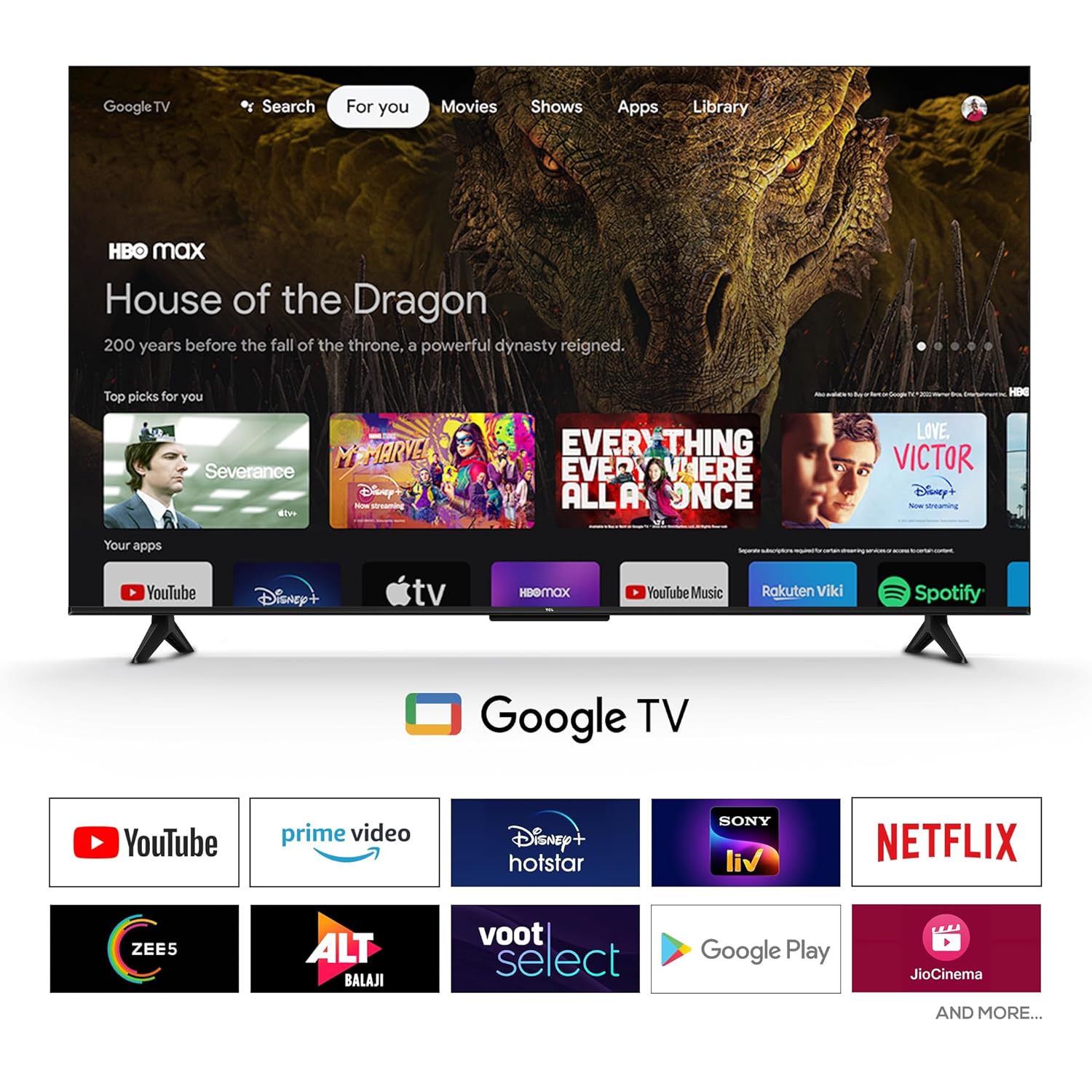
Figure 6.2: Google TV Home Screen
- Home Screen: Provides personalized recommendations and quick access to your favorite apps.
- Apps: Download and manage applications from the Google Play Store.
- Library: Access your purchased or rented content.
6.3. Smart Features
- Google Assistant: Use voice commands to control your TV, search for content, get information, and manage smart home devices.
- Chromecast Built-in: Stream movies, shows, photos, and more directly from your phone or tablet to the TV.
- Kid's Profile: Create a safe environment for children with age-appropriate content and parental controls.
- Google Meet: Connect with friends and family through video calls (compatible camera required).
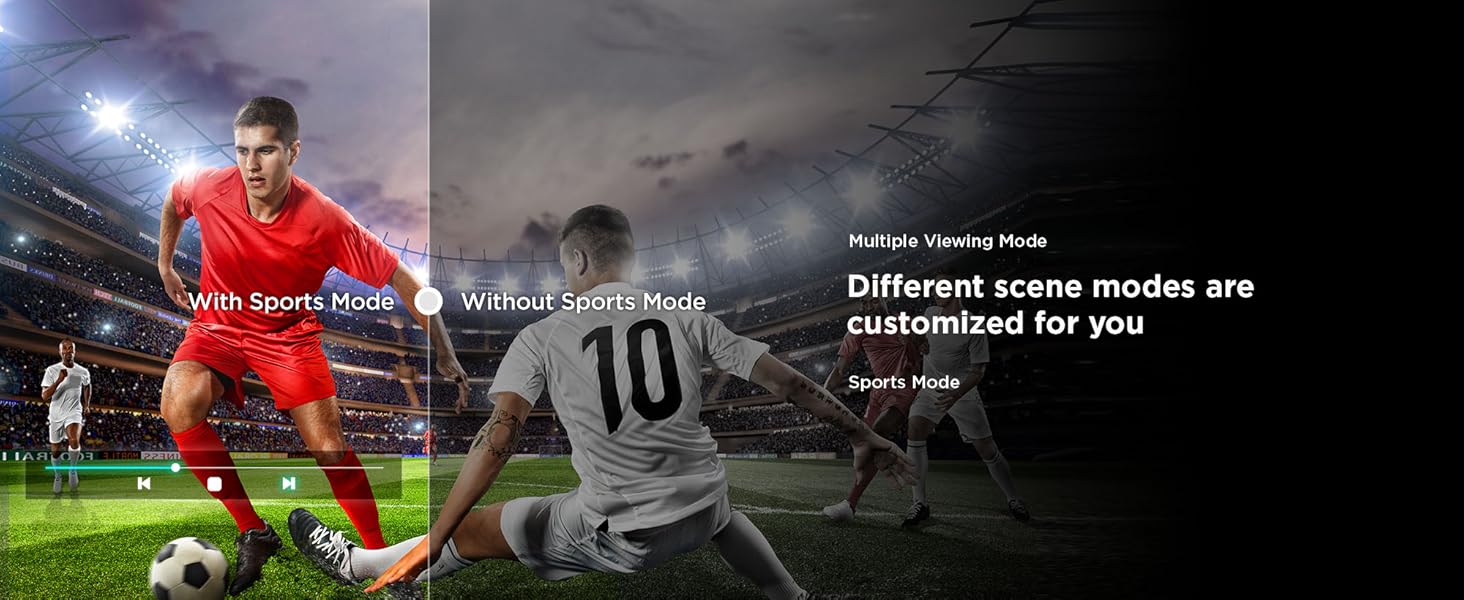
Figure 6.3: Google Assistant Integration
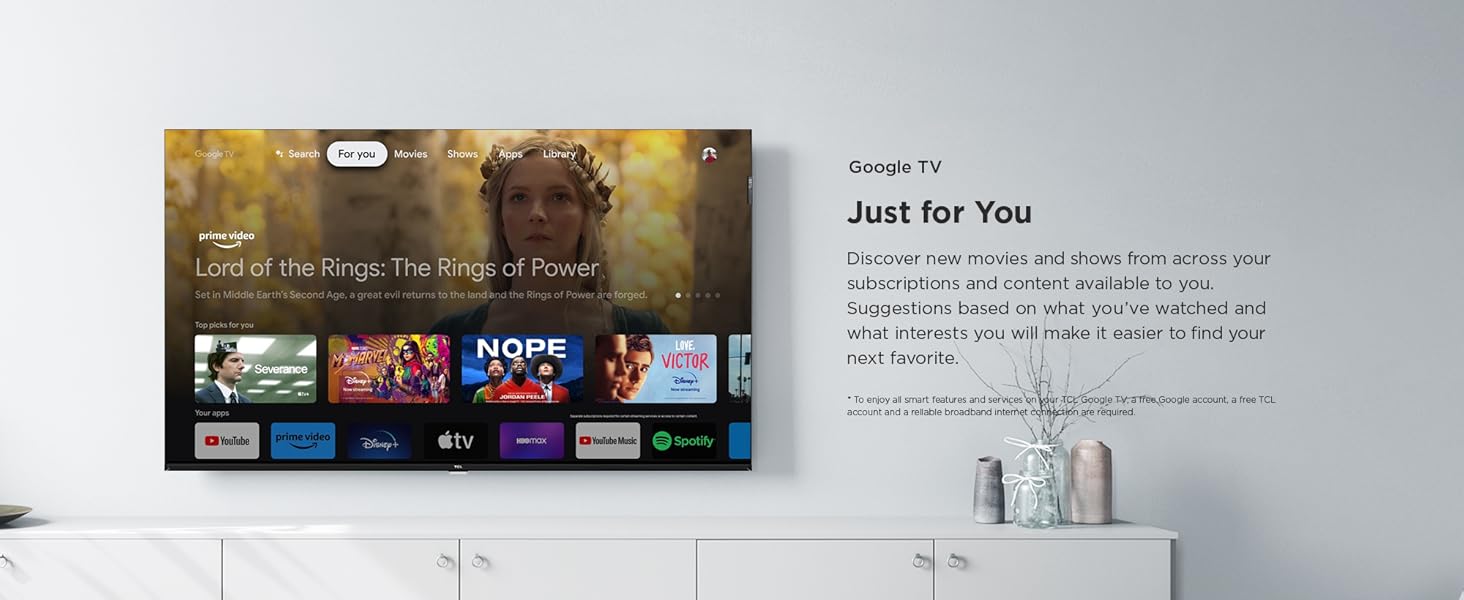
Figure 6.4: Google TV Features
7. Display and Audio Features
7.1. Display Technology
- QLED Panel: Quantum Dot technology delivers vibrant, accurate colors and high brightness.
- FHD Resolution (1920 x 1080): Provides clear and detailed images.
- HDR 10: High Dynamic Range 10 enhances contrast, brightness, and color accuracy for a more lifelike viewing experience.
- Dynamic Color Enhancement & Micro Dimming: Optimize color and contrast for improved picture quality.
- 178 Degree Wide Viewing Angle: Ensures consistent picture quality from various viewing positions.

Figure 7.1: QLED Vivid Color

Figure 7.2: QLED Color Enhancement
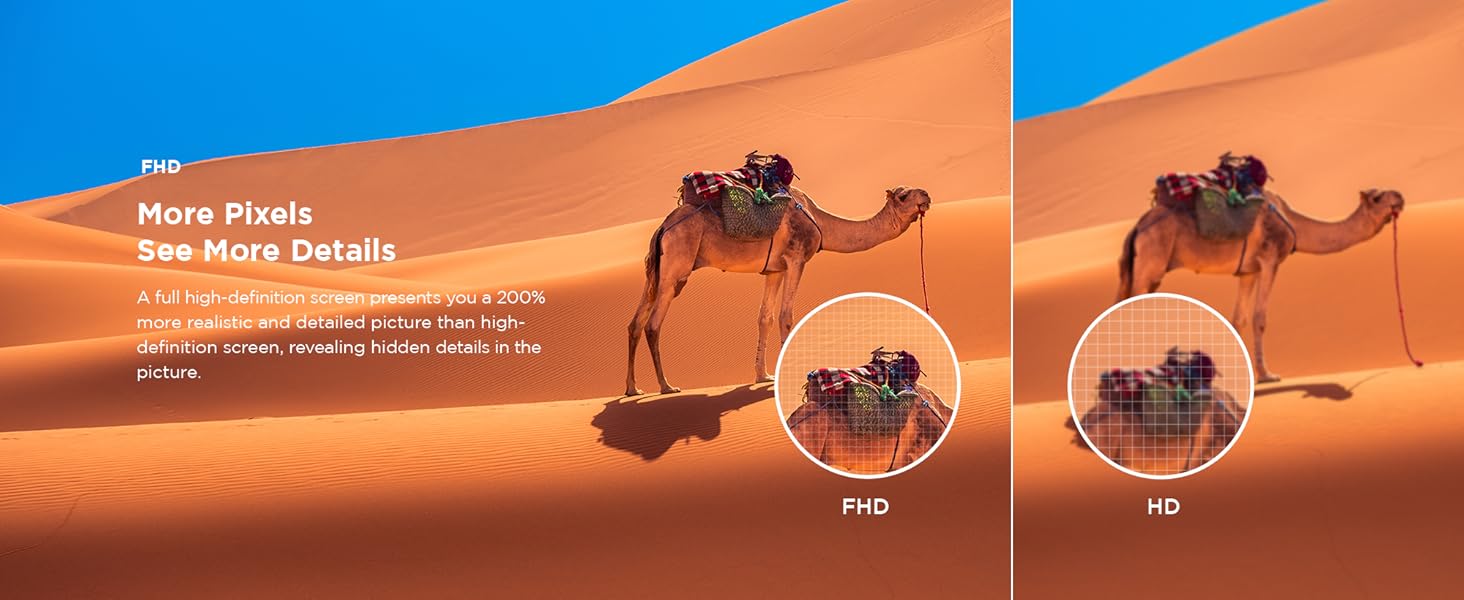
Figure 7.3: FHD Detail

Figure 7.4: HDR 10 Visuals
7.2. Audio Features
- Dolby Audio: Delivers rich, clear, and powerful sound for an immersive audio experience.
- 24 Watts Output: Powerful speakers provide clear and dynamic sound.
- Intelligent Sound Modes: Optimize audio settings for different content types (Standard, Dynamic, Music, Movie, Voice, Game, Sports).

Figure 7.5: Immersive Dolby Audio

Figure 7.6: 24W Speaker System
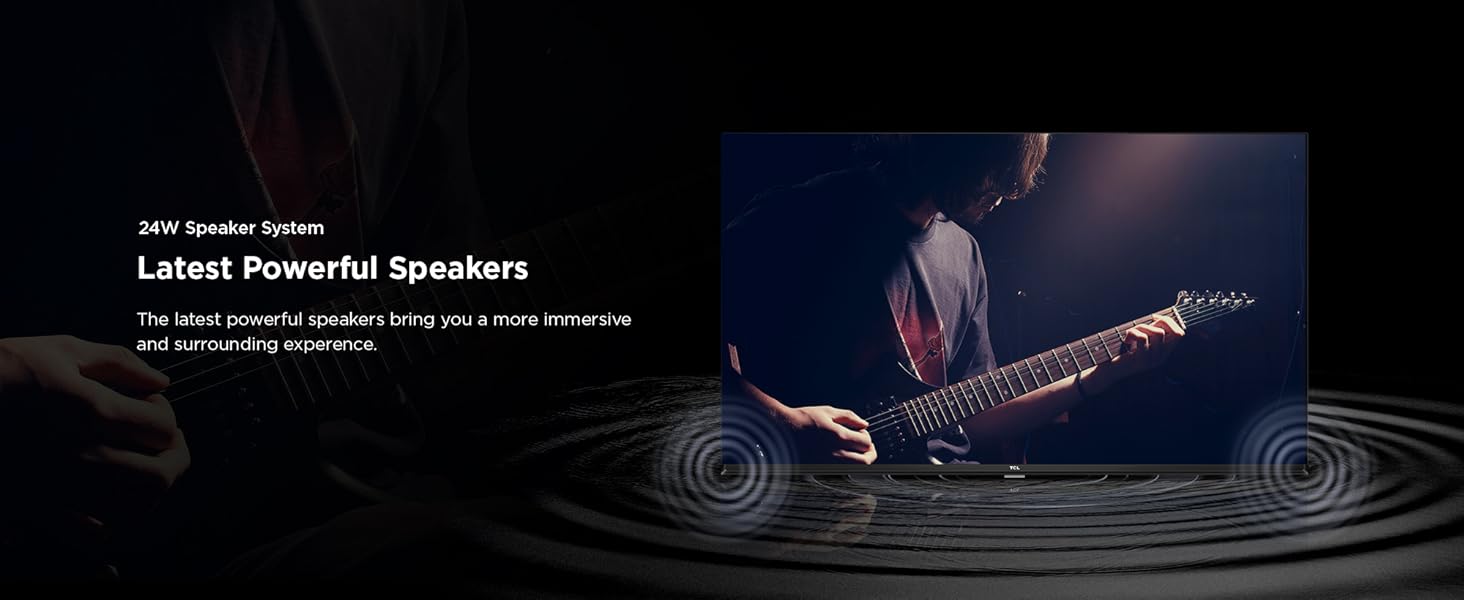
Figure 7.7: Intelligent Sound Modes
8. Maintenance
8.1. Cleaning the TV
- Screen: Gently wipe the screen with a soft, lint-free cloth. For stubborn marks, use a screen cleaner specifically designed for TVs, applied to the cloth, not directly to the screen.
- Body: Wipe the TV body with a soft, dry cloth. Avoid using abrasive cleaners or solvents.
8.2. Software Updates
Your TV may receive automatic software updates to improve performance and add new features. Ensure your TV is connected to the internet to receive these updates. You can also manually check for updates in the TV's settings menu.
9. Troubleshooting
If you encounter issues with your TV, refer to the following common problems and solutions:
| Problem | Possible Solution |
|---|---|
| No power | Check if the power cord is securely plugged into the TV and the electrical outlet. Try a different outlet. |
| No picture, but sound is present | Ensure the correct input source is selected. Check cable connections to external devices. |
| No sound, but picture is present | Check volume level and mute status. Verify audio cable connections. If using external audio, ensure it's powered on and correctly configured. |
| Remote control not working | Replace batteries. Ensure no obstructions between the remote and the TV's IR sensor. Re-pair Bluetooth remote if applicable. |
| Cannot connect to Wi-Fi | Check Wi-Fi password. Restart your router and the TV. Ensure the TV is within range of the Wi-Fi signal. |
| Picture is distorted or blurry | Check the signal source quality. Adjust picture settings (e.g., resolution, aspect ratio). |
If the issue persists, try restarting the TV by unplugging it from the power outlet for a few minutes, then plugging it back in.
10. Specifications
Key technical specifications for the TCL 50S5K 50-inch FHD Smart QLED Google TV:
| Feature | Detail |
|---|---|
| Model | 50S5K |
| Screen Size | 50 Inches (126 cm) |
| Display Technology | QLED |
| Resolution | 2K FHD (1920 x 1080) |
| Refresh Rate | 60 Hz |
| Operating System | Google TV |
| Processor | 64-bit Quad Core Processor |
| RAM | 1 GB |
| ROM (Storage) | 8 GB |
| Connectivity | Wi-Fi 4 (2.4GHz/5GHz dual-band), Bluetooth, 2 HDMI Ports, 1 USB Port, 1 LAN Port |
| Audio Output | 24 Watts, Dolby Audio |
| Viewing Angle | 178 Degrees |
| Power Consumption (On-mode) | 90 Watts |
| Product Dimensions (LxWxH) | 111.1 x 7.1 x 68.4 cm (with stand) |
| Item Weight | 7.3 kg (with stand) |
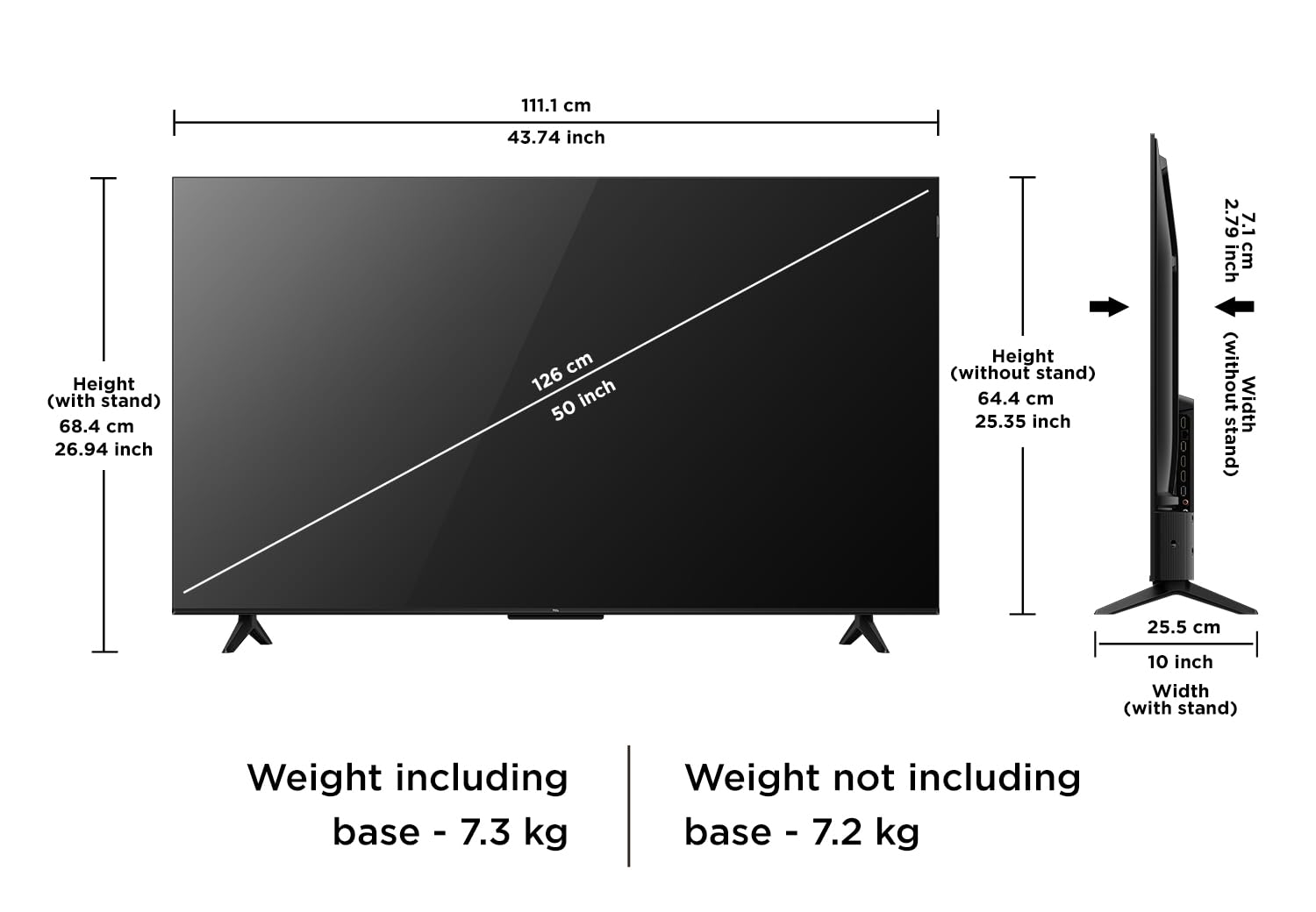
Figure 10.1: Product Dimensions and Weight
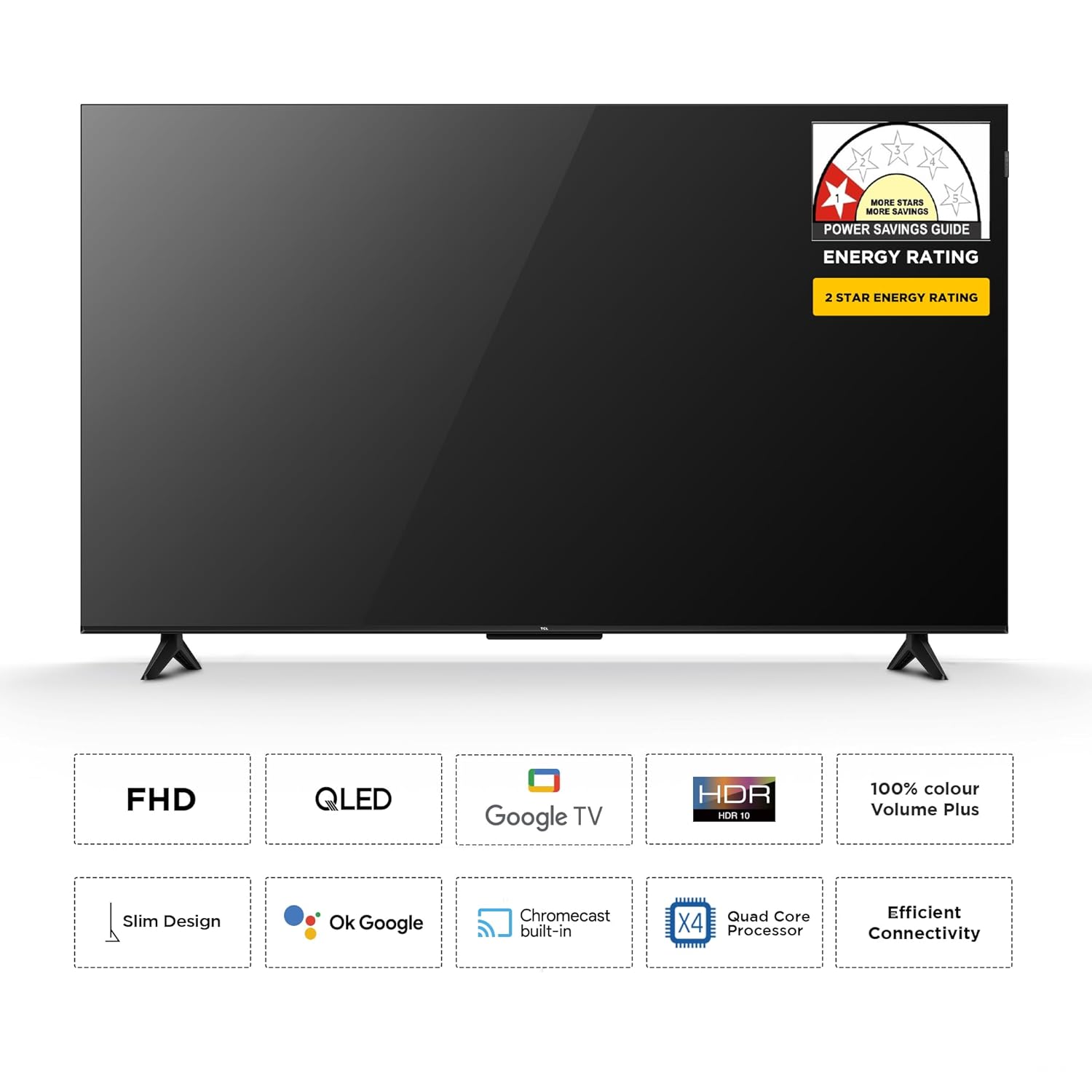
Figure 10.2: Energy Rating and Key Features Overview
11. Warranty and Support
11.1. Warranty Information
The TCL 50S5K TV comes with a manufacturer's warranty:
- TV Unit: 1-year warranty from the date of purchase.
- Remote Control: 6-months warranty.
Warranty claims can be processed using your Amazon e-invoice as proof of purchase.
11.2. Customer Support
For further assistance, technical support, or service requests, please visit the official TCL India website or contact their customer service. Refer to the packaging or the TCL website for the most current contact details.


