
Introduction
Thank you for purchasing the KOORUI 15.6-inch FHD Portable Monitor E1511A. This monitor is designed to enhance your productivity and entertainment experience with its high-quality display and versatile connectivity. This manual provides essential information for safe and efficient use, including setup instructions, operational guidelines, maintenance tips, and troubleshooting solutions. Please read this manual thoroughly before using the product and retain it for future reference.
Safety Information
To ensure safe operation and prevent damage, please observe the following precautions:
- Do not expose the monitor to rain, moisture, or extreme temperatures.
- Avoid placing the monitor near heat sources or in direct sunlight.
- Use only the power adapter and cables provided or approved by KOORUI.
- Do not attempt to disassemble or repair the monitor yourself. Refer all servicing to qualified personnel.
- Keep the monitor away from strong magnetic fields.
- Clean the screen with a soft, lint-free cloth. Avoid using abrasive cleaners or solvents.
Package Contents
Verify that all items are present in the package:
- KOORUI 15.6-inch Portable Monitor (E1511A)
- Protective Cover / Stand
- HDMI Cable
- USB-C to USB-C Cable (for video and power)
- USB-A to USB-C Power Cable (for additional power if needed)
- User Manual

Image: Contents of the KOORUI Portable Monitor E1511A package, including the monitor, protective cover, HDMI cable, USB-C cable, and user manual.
Product Overview
Familiarize yourself with the monitor's ports and controls.

Image: Close-up view of the KOORUI Portable Monitor E1511A's left and right sides, detailing the location of ports and control buttons.
Ports:
- USB-C (x2): For video signal transmission and power supply. One cable can often handle both functions if your device supports full-featured USB-C (DisplayPort Alternate Mode and Power Delivery).
- HDMI: For video signal input from devices that do not support USB-C video output.
- 3.5mm Audio Out: For connecting external headphones or speakers.
Control Buttons:
- Power Button / Home Button: Press and hold to power on/off. Short press to return to the home screen or confirm selection in the OSD menu.
- Menu / Confirm Button: Press to open the On-Screen Display (OSD) menu. Use to confirm selections within the menu.
- Up Button: Navigate up in the OSD menu or increase values.
- Down Button: Navigate down in the OSD menu or decrease values.
Note: This monitor does not support touch operation, tablet mode, built-in battery, Wi-Fi, Bluetooth, or camera functions.
Setup
Follow these steps to connect your portable monitor to a device.
1. Connecting via USB-C (Single Cable Solution)
For devices with a full-featured USB-C port (supporting DisplayPort Alternate Mode and Power Delivery), a single USB-C to USB-C cable can transmit both video and power.
- Connect one end of the provided USB-C to USB-C cable to a full-featured USB-C port on your laptop or smartphone.
- Connect the other end of the USB-C to USB-C cable to either USB-C port on the KOORUI monitor.
- The monitor should automatically detect the signal and power on.

Image: A laptop connected to the KOORUI Portable Monitor E1511A using a single USB-C cable, illustrating the dual-screen setup for enhanced productivity.
2. Connecting via HDMI and USB-C (for Power)
If your device does not have a full-featured USB-C port or if you are connecting to a gaming console or desktop PC, use an HDMI cable for video and a USB-C cable for power.
- Connect one end of the provided HDMI cable to the HDMI port on your device (e.g., laptop, game console).
- Connect the other end of the HDMI cable to the HDMI port on the KOORUI monitor.
- Connect the provided USB-A to USB-C power cable to a USB power adapter (not included) or a powered USB-A port on your device.
- Connect the USB-C end of the power cable to one of the USB-C ports on the KOORUI monitor to supply power.
- The monitor should power on and display the video signal.

Image: The KOORUI Portable Monitor E1511A connected to various devices including a Nintendo Switch, Xbox, PlayStation, smartphone, and laptop, demonstrating its wide compatibility.
3. USB-C Port Compatibility
When using a single USB-C cable for connection, ensure your device's USB-C port supports video output (DisplayPort Alternate Mode) and power delivery. Not all USB-C ports are full-featured.

Image: A diagram illustrating different types of USB-C ports on a laptop, distinguishing between compatible ports (Thunderbolt 3/4, Data + Video Transfer, DisplayPort Alt Mode) and incompatible ports (Data Transfer Only, Charging Only) for single-cable video output.
Operating
Power On/Off
- To power on the monitor, press and hold the Power Button for a few seconds until the screen illuminates.
- To power off, press and hold the Power Button again until the screen turns off.
OSD Menu Navigation
The On-Screen Display (OSD) menu allows you to adjust various monitor settings.
- Press the Menu Button to open the OSD menu.
- Use the Up and Down Buttons to navigate through the menu options.
- Press the Power Button (or Menu/Confirm button, depending on firmware) to select an option or enter a sub-menu.
- Use the Up and Down Buttons to adjust values or select sub-options.
- Press the Menu Button again to exit the current menu or the Power Button to return to the previous level.
Display Settings
Adjust settings like brightness, contrast, and color temperature for optimal viewing.
- Brightness/Contrast: Adjust these to suit your environment and preference.
- Color Temperature: Choose from presets (e.g., Warm, Cool, User) or adjust RGB values manually.
- Blue Light Filter: Activate this feature to reduce blue light emission, which can help alleviate eye strain during prolonged use.
Audio Settings
The monitor features built-in dual speakers (1W x 2) for audio output. You can also connect external audio devices.
- Volume Control: Adjust the audio volume through the OSD menu.
- External Audio: Connect headphones or external speakers to the 3.5mm Audio Out port for private listening or enhanced sound.
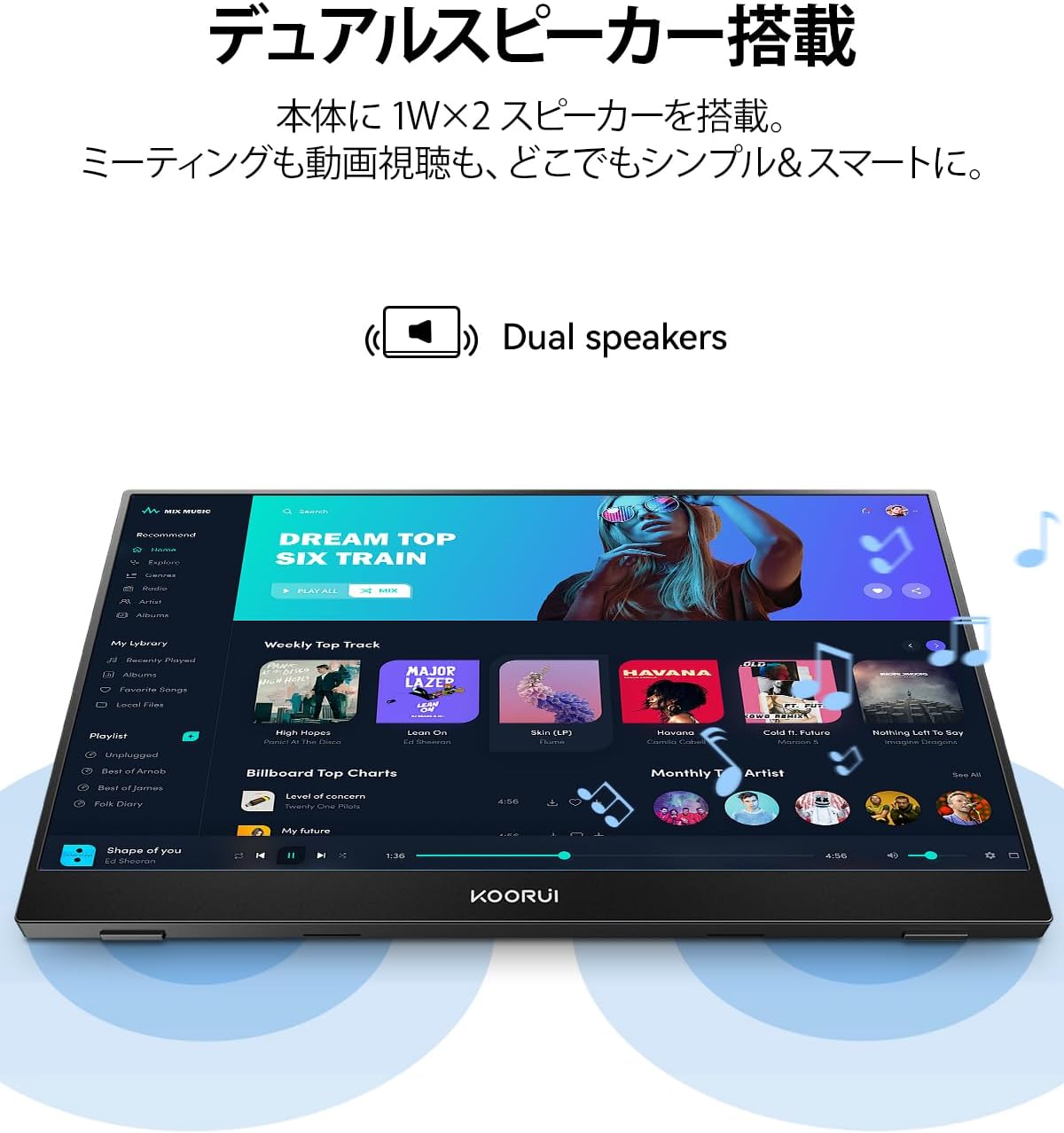
Image: The KOORUI Portable Monitor E1511A displaying a music application, highlighting its integrated dual speakers for an immersive audio experience.
Maintenance
Cleaning the Monitor
- Always power off the monitor and disconnect all cables before cleaning.
- For the screen, gently wipe with a soft, lint-free cloth. If necessary, slightly dampen the cloth with water or a screen-specific cleaning solution. Do not spray liquid directly onto the screen.
- For the casing, use a soft, dry cloth. Avoid using harsh chemicals or abrasive materials.
Storage
- When not in use, store the monitor in its protective cover to prevent scratches and dust accumulation.
- Store in a cool, dry place away from direct sunlight and extreme temperatures.
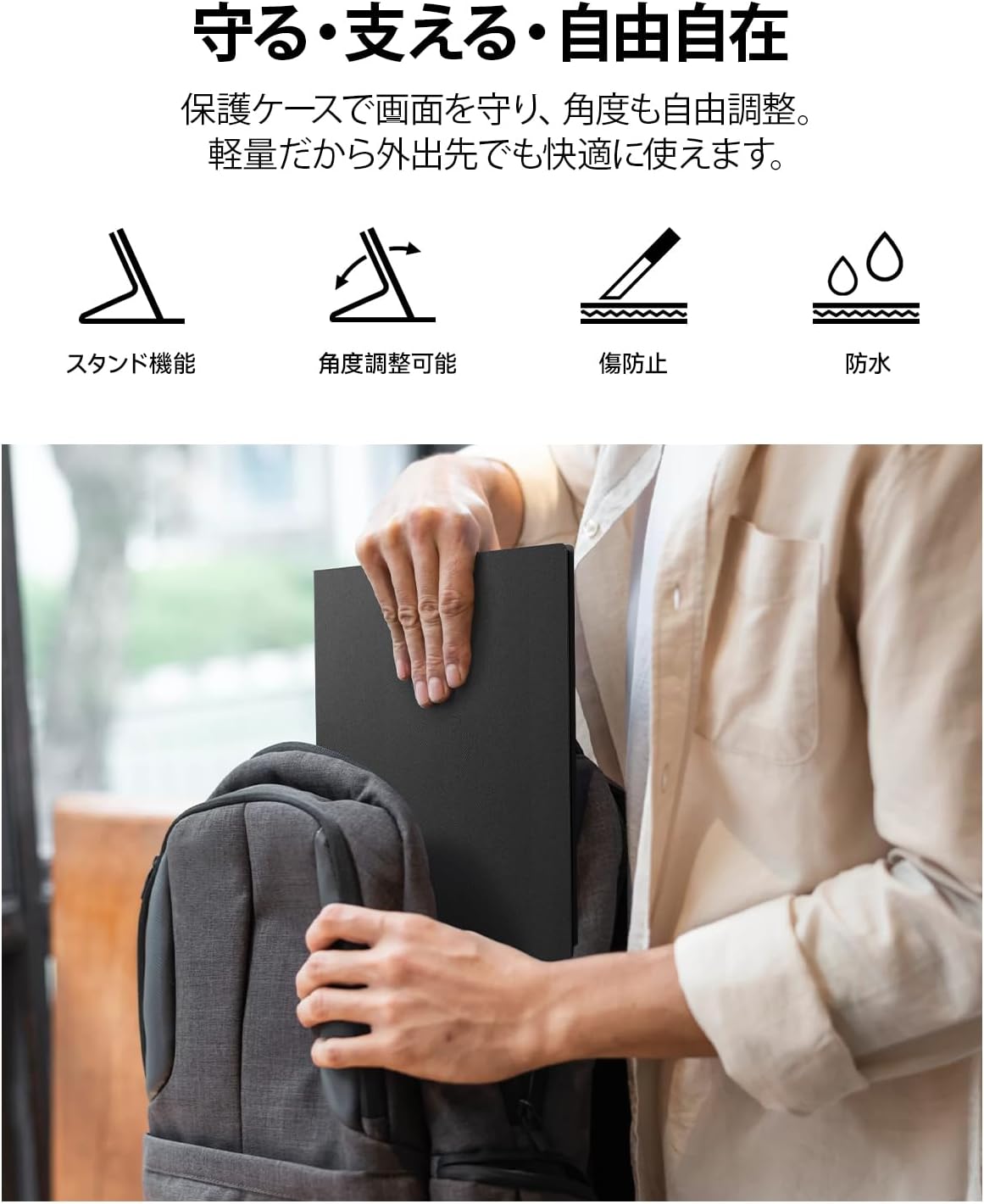
Image: A person placing the KOORUI Portable Monitor E1511A, protected by its cover, into a backpack, demonstrating its portability and the protective function of the cover.
Troubleshooting
If you encounter issues with your monitor, refer to the following common problems and solutions:
| Problem | Possible Cause | Solution |
|---|---|---|
| No display / "No Signal" message | Incorrect cable connection, insufficient power, incompatible USB-C port. |
|
| Monitor does not power on | No power supply, faulty cable, power button not pressed correctly. |
|
| No sound from speakers or headphones | Volume too low, incorrect audio output setting on source device. |
|
| Screen flickering or unstable image | Faulty cable, interference, resolution mismatch. |
|
Specifications
Detailed technical specifications for the KOORUI E1511A Portable Monitor.
| Feature | Specification |
|---|---|
| Brand | KOORUI |
| Model Number | E1511A (KR-E1511A) |
| Screen Size | 15.6 inches |
| Resolution | FHD (1920 x 1080 pixels) |
| Panel Type | Fast IPS |
| Aspect Ratio | 16:9 |
| Refresh Rate | 60 Hz |
| Response Time | 20 ms |
| Viewing Angle | 178 degrees |
| Brightness | 280 cd/m² |
| Screen Surface | Non-glare |
| Display Type | LED |
| Color Screen Function | Yes |
| Hardware Interface | 2x USB-C, 1x HDMI, 1x 3.5mm Audio Out |
| Built-in Speakers | Yes (Dual 1W speakers) |
| Product Dimensions (D x W x H) | 42.9 x 5.4 x 29.4 cm (approximate) |
| Color | Black |
| Country of Origin | China |
Warranty and Support
Warranty Information
The KOORUI monitor screen is covered by a 1-year warranty from the date of purchase. Other included accessories are covered by a 3-year warranty. Please retain your proof of purchase for warranty claims.
Customer Support
If you have any questions, concerns, or require assistance with your KOORUI portable monitor, please do not hesitate to contact our customer support team. Our professional after-sales service staff is available to provide flexible and prompt assistance.
For support inquiries, please visit the KOORUI store on Amazon or contact us through the platform where you purchased the product. We are committed to providing excellent service and support for our products.
KOORUI also offers free collection and recycling services for its monitors. Please inquire for details.


