
1. Introduction
The Redragon BM-2995 is a large, ergonomic wireless gaming mouse designed for comfort and versatility. It features tri-mode connectivity (2.4G wireless, Bluetooth, and wired USB-C), adjustable DPI up to 12800, programmable buttons, and customizable RGB backlighting. This manual provides instructions for setting up, operating, and maintaining your mouse.
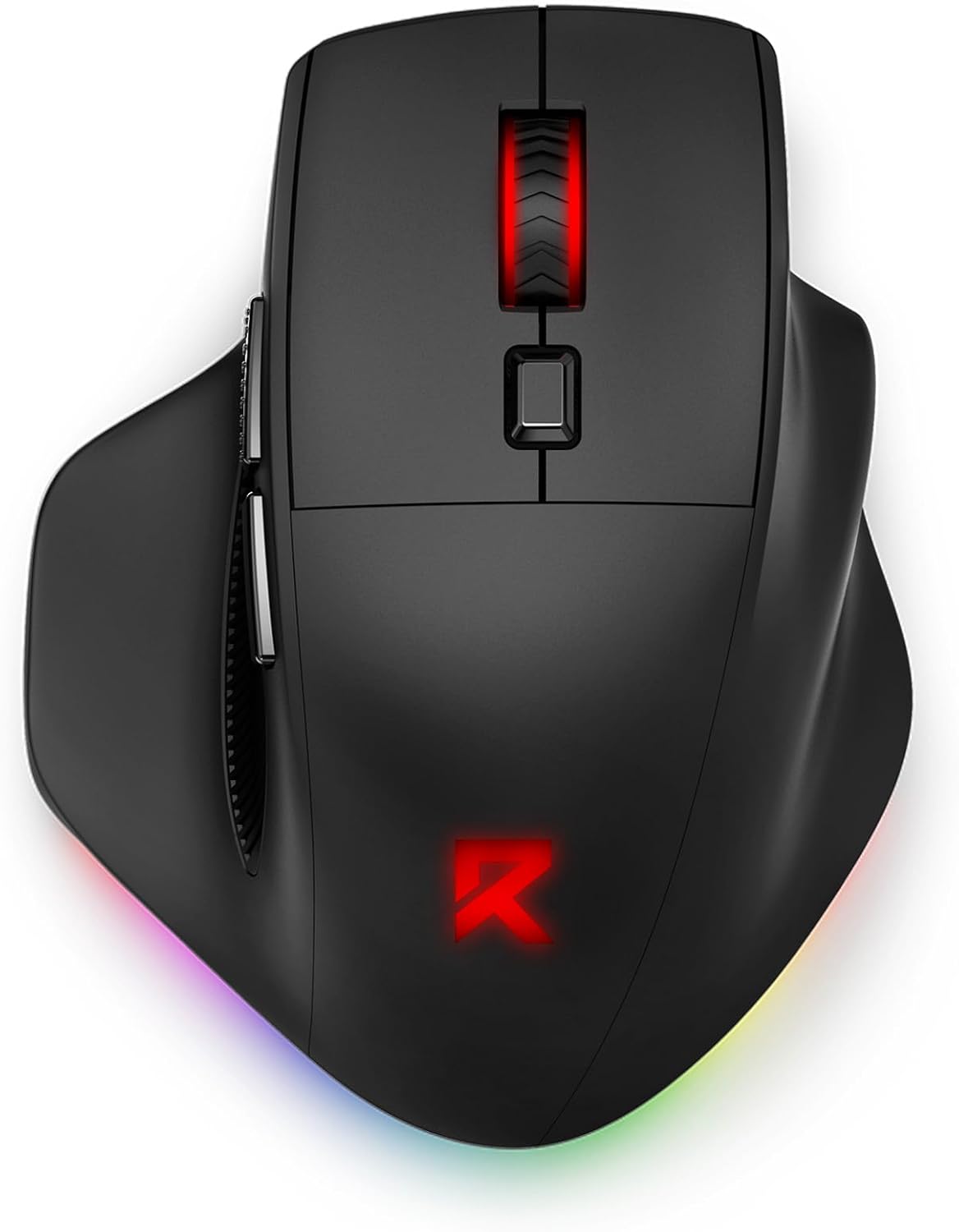
Figure 1: Top-down view of the Redragon BM-2995 Wireless Gaming Mouse, showcasing its ergonomic shape and RGB lighting.
2. Package Contents
- Redragon BM-2995 Wireless Gaming Mouse
- USB Receiver (stored in the mouse)
- USB-C to USB-A Charging/Data Cable
- User Manual
3. Setup and Connectivity
3.1. Ergonomic Design
The BM-2995 mouse is designed for medium to large hands, providing comfort during extended use. Its contoured shape, finger rests, and rubber side grips aim to reduce muscle strain.

Figure 2: The ergonomic design of the mouse, highlighting the comfortable hand position and finger rests.
3.2. Tri-Mode Connection
The mouse supports three connection modes: 2.4G wireless, Bluetooth, and wired USB-C.

Figure 3: The mouse demonstrating its ability to connect to three different devices using 2.4G wireless, Bluetooth, and wired USB-C.
3.2.1. 2.4G Wireless Mode
- Locate the USB receiver stored in the compartment on the underside of the mouse.
- Plug the USB receiver into an available USB port on your computer.
- Slide the switch on the bottom of the mouse to the "2.4G" position. The mouse should connect automatically.
3.2.2. Bluetooth Mode
- Slide the switch on the bottom of the mouse to the "BT" position.
- Press and hold the "BT Pair" button (located near the optical sensor on the underside) until the mouse's RGB lighting flashes, indicating pairing mode.
- On your device, search for Bluetooth devices and select "Redragon BM-2995" to pair.
3.2.3. Wired Mode
- Connect the provided USB-C cable to the front port of the mouse and the USB-A end to your computer.
- The mouse will function in wired mode and charge simultaneously.

Figure 4: The mouse connected via USB-C for wired operation and charging, showing battery status indicators.
4. Operating Instructions
4.1. Buttons and Functions
- Left/Right Click: Standard mouse functions.
- Scroll Wheel: For scrolling and middle-click function.
- DPI Switch Button: Located on top, below the scroll wheel, to cycle through DPI settings.
- Side Buttons: Two buttons on the left side for Forward and Backward navigation (Note: May not be suitable for Mac systems without additional software).

Figure 5: The mouse in use, illustrating the natural hand grip and accessibility of the main buttons.
4.2. DPI Adjustment
The mouse has 5 adjustable DPI levels (400-800-1600-2400-3200) by default. The maximum DPI can be adjusted up to 12800 using the dedicated driver software. The polling rate is up to 1000Hz, ensuring zero latency.

Figure 6: Visual representation of the mouse's DPI settings, from 400 to 12800, and adjustable polling rates.
4.3. RGB Backlighting
The mouse features 16.8 million RGB rainbow backlighting with 6 switchable lighting effects. You can customize unlimited lighting styles through the driver software.

Figure 7: The mouse displaying its RGB lighting effects, with an overlay of the customization software interface.
4.4. Programmable Macros (Windows Only)
Programmable buttons can be mapped to abilities, macros, and items using the driver software. This feature is supported only on Windows systems in 2.4G wireless and wired modes.

Figure 8: The mouse's software interface, illustrating options for key assignment, DIY macros, and customizable RGB settings.
5. Power Management and Charging
The mouse has a built-in 1000mAh battery and an ultra-low power chip for optimized power consumption. It features a smart sleep mode that activates after 2 inactive minutes. To wake the mouse, simply move it or click any button 2-3 times.
The mouse can be used in wired mode while charging, ensuring uninterrupted use.
6. Maintenance
- Cleaning: Use a soft, dry cloth to clean the mouse. Avoid harsh chemicals or abrasive materials.
- Battery Care: To prolong battery life, avoid fully discharging the mouse frequently. Charge it when the low battery reminder appears.
- Storage: Store the mouse in a cool, dry place when not in use for extended periods.
7. Troubleshooting
| Issue | Possible Solution |
|---|---|
| Mouse not responding in 2.4G mode. | Ensure the USB receiver is securely plugged in and the switch on the mouse is set to "2.4G". Try a different USB port. |
| Unable to pair via Bluetooth. | Ensure the switch is set to "BT" and the "BT Pair" button is pressed until the lights flash. Check your device's Bluetooth settings. |
| RGB lighting not working or customizable. | Ensure the mouse is powered on. Install or update the Redragon driver software for full customization options. |
| Mouse cursor movement is erratic or slow. | Adjust the DPI setting using the DPI switch button. Ensure the optical sensor is clean and free from obstructions. Use on a suitable surface. |
| Battery drains quickly. | Ensure the mouse is switched off when not in use. Reduce RGB brightness or disable it if not needed. Charge fully before use. |
8. Specifications
- Model: BM-2995
- Connectivity: Tri-Modes (2.4G Wireless, Bluetooth, Wired USB-C)
- DPI: 400-12800 (Adjustable via driver)
- Polling Rate: Up to 1000Hz
- Acceleration: 25G
- Buttons: Programmable (via software on Windows)
- Backlight: 16.8 Million RGB, 6 Modes
- Battery: 1000mAh Rechargeable
- Dimensions: 4.96 x 3.85 x 1.93 inches (approx.)
- Weight: 5.9 ounces (approx.)
- Compatibility: Windows, Mac OS, iOS, Android, Linux, Chrome OS (Note: Driver software for Windows only)
9. Warranty and Support
Redragon offers a 1-year free after-sales service for this product. For support or warranty claims, please contact Redragon customer service. Even after the Amazon return period, the manufacturer is committed to assisting with product-related issues.
Driver Download: For the latest driver software and full customization options (Windows only), please visit: bit.ly/BM-2995Driver


