
1. Introduction
This manual provides detailed instructions for the installation, operation, and maintenance of your AMprime Android 13 Double Din Car Stereo. Please read this manual thoroughly before using the product to ensure proper functionality and safety. Keep this manual for future reference.

Image 1.1: AMprime Android 13 Double Din Car Stereo main interface.
2. Safety Information
- Ensure professional installation to prevent damage to the vehicle's electrical system or the stereo unit.
- Do not operate the device in a way that distracts you from driving. Always prioritize road safety.
- Avoid exposing the unit to extreme temperatures, direct sunlight for prolonged periods, or moisture.
- Disconnect the vehicle's battery before installation to prevent electrical shorts.
- Use only specified voltage and power sources.
3. Package Contents
Verify that all items are present in the package:
- AMprime Android 13 Double Din Car Stereo Unit
- Power Cable
- RCA Cable
- Rear Camera Input Cable
- USB Cable (6-pin)
- GPS Antenna
- Mounting Bracket
- Microphone (MIC)
- AHD Rear Camera
- User Manual

Image 3.1: Package contents and unit dimensions.
4. Product Overview
The AMprime Android 13 Double Din Car Stereo features a 9.5-inch vertical touch screen, running on Android 13 with 2GB RAM and 64GB ROM. It integrates various functionalities for an enhanced in-car experience.
Key Features:
- Android 13 Operating System: Provides a modern and responsive user interface.
- 9.5-inch Vertical Touch Screen: Offers a large display area for navigation and media.
- Wireless/Wired CarPlay & Android Auto: Seamless smartphone integration.
- Mirror Link: Display your phone's screen on the stereo.
- Built-in GPS Navigation: Supports online and offline maps.
- WiFi Connectivity: Access online services and download apps.
- FM/RDS Radio: For local radio broadcasts.
- Bluetooth: Hands-free calling and audio streaming.
- USB Music/Fast Charging: Play media from USB and charge devices.
- Steering Wheel Control Support: Integrate with vehicle's existing controls.
- Rear View Camera Input: For safe parking and reversing.
5. Setup & Installation
5.1 Pre-Installation Checks
- Ensure your vehicle supports a double din head unit.
- Gather necessary tools (screwdrivers, wire strippers, electrical tape, etc.).
- Disconnect the negative terminal of your car battery before starting.
5.2 Wiring Diagram
Refer to the following diagram for proper wiring connections. Incorrect wiring can damage the unit or your vehicle.

Image 5.1: Rear view of the stereo unit with port labels and wiring harness connections.
5.3 Physical Installation
- Carefully remove your existing car stereo.
- Connect the wiring harness from the new stereo to your vehicle's wiring, matching colors and functions. Consult your vehicle's wiring diagram if unsure.
- Connect the GPS antenna and route it to a location with a clear view of the sky (e.g., dashboard).
- If installing the rear camera, route its cable from the back of the vehicle to the stereo unit and connect it to the 'Rear Camera Input' port.
- Secure the stereo unit into the double din slot using the provided mounting brackets.
- Reconnect the car battery and test the unit before fully reassembling the dashboard.
6. Operating Instructions
6.1 Power On/Off and Basic Controls
- Power: The unit will typically power on with the vehicle's ignition.
- Volume: Use the physical volume knob or the on-screen controls to adjust audio levels.
- Home Screen: Tap the 'Home' icon to return to the main application interface.
6.2 Android 13 Interface
Navigate the Android 13 interface by swiping and tapping the touchscreen. Apps are organized on the home screen and in the app drawer. You can customize widgets and app shortcuts.
6.3 CarPlay & Android Auto
This stereo supports both wired and wireless CarPlay and Android Auto.

Image 6.1: CarPlay and Android Auto interfaces.
- Wired Connection: Connect your smartphone to the stereo's USB port using a certified USB cable.
- Wireless Connection: Pair your smartphone via Bluetooth first, then follow the on-screen prompts to initiate wireless CarPlay or Android Auto.
- Once connected, you can access navigation, music, calls, and messages directly from the stereo screen using voice commands (Siri/Google Assistant).
6.4 Mirror Link
Mirror Link allows you to display your smartphone's screen on the stereo.
- Android Devices: Connect via USB or WiFi.
- iOS Devices: Connect via WiFi.
- Follow the instructions in the 'Mirror Link' app on the stereo to establish the connection.
6.5 GPS Navigation
The unit comes with built-in GPS and supports various navigation apps.

Image 6.2: GPS Navigation and WiFi features.
- Ensure the GPS antenna is properly installed and has a clear signal.
- Use pre-installed navigation apps or download others from the app store (e.g., Google Maps, Waze) after connecting to WiFi.
- For offline maps, download map data when connected to WiFi.
6.6 FM/RDS Radio
Access the 'Radio' app to tune into FM stations.
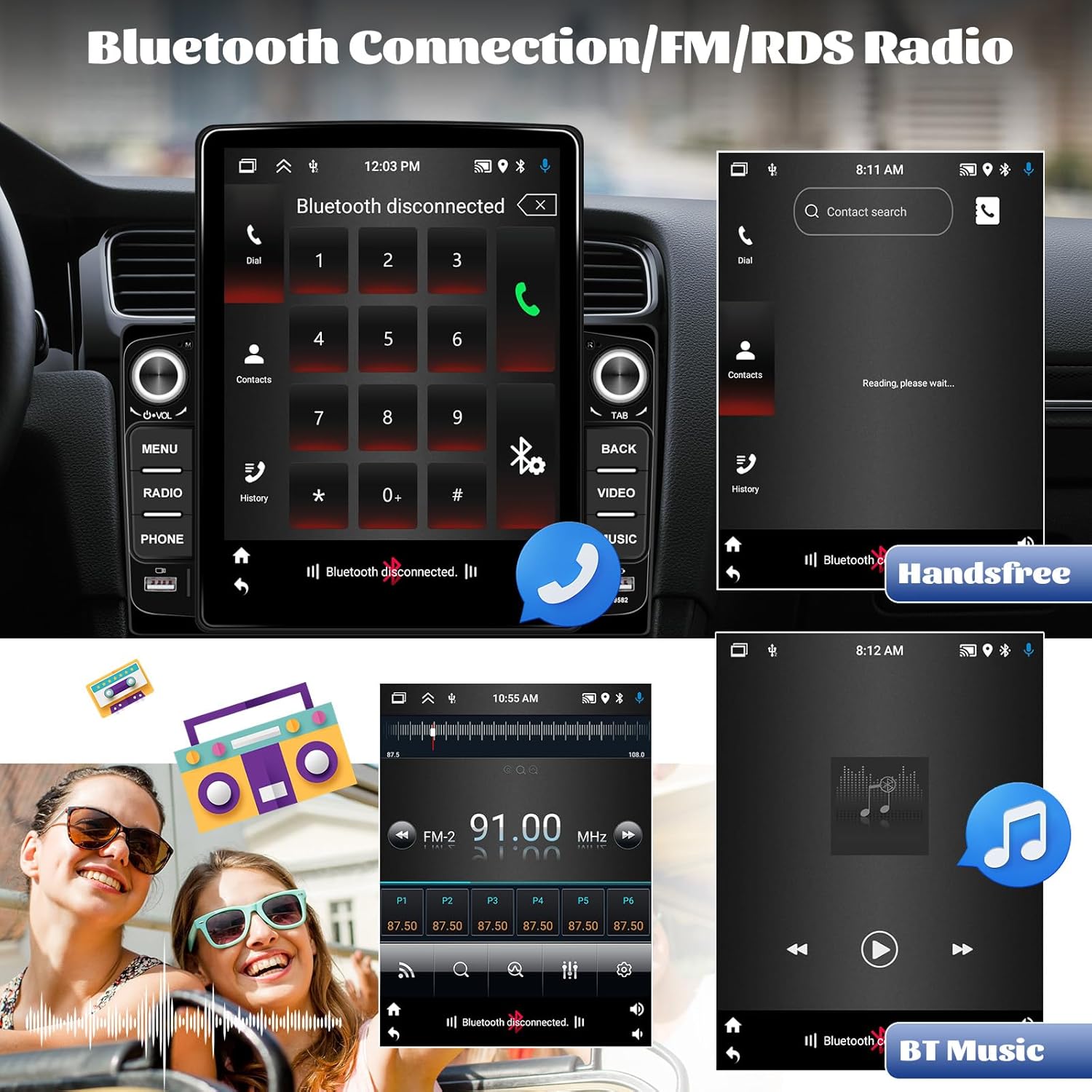
Image 6.3: Bluetooth and FM/RDS Radio functions.
- Auto Scan: Automatically scan and save available stations.
- Manual Tune: Manually adjust the frequency.
- Presets: Save your favorite stations for quick access (up to 18 presets).
- RDS (Radio Data System): Displays station information like song title or artist where available.
6.7 Bluetooth Connectivity
Pair your smartphone for hands-free calling and audio streaming.
- Go to the 'Bluetooth' settings on the stereo.
- Enable Bluetooth on your smartphone and search for available devices.
- Select the stereo's Bluetooth name (e.g., 'AMprime Car Stereo') and pair.
- Hands-free Calling: Make and receive calls directly from the stereo screen using the built-in microphone.
- Bluetooth Music: Stream audio from your phone to the stereo.
6.8 USB Music & Fast Charging
Connect USB devices for media playback or charging.

Image 6.4: EQ Settings and USB Fast Charging.
- Insert a USB drive into the USB port to play audio or video files.
- The USB port also supports fast charging for compatible devices.
6.9 Steering Wheel Control (SWC)
Configure your vehicle's steering wheel buttons to control the stereo.
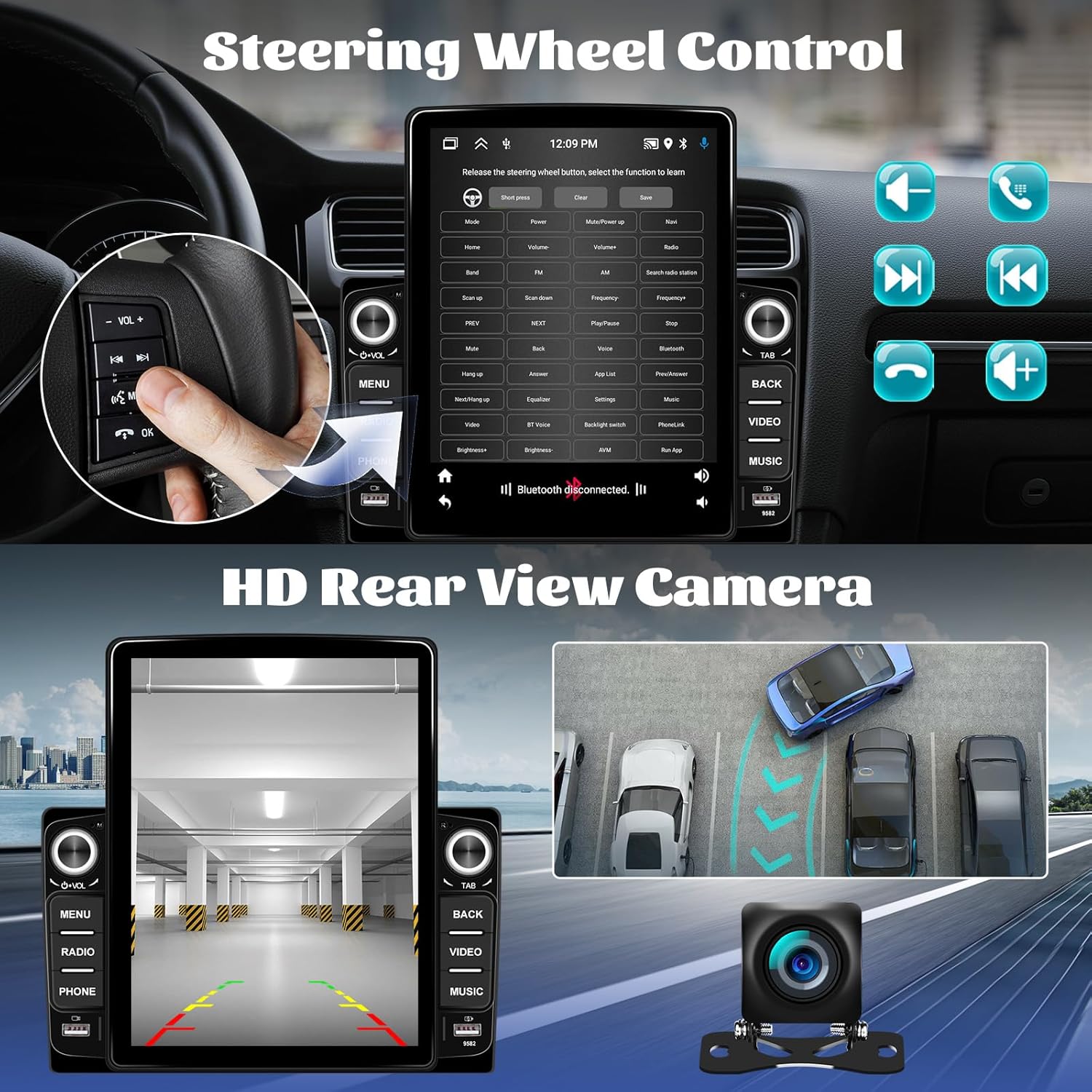
Image 6.5: Steering Wheel Control setup and Rear View Camera display.
- Access the 'Steering Wheel Control' settings in the stereo menu.
- Follow the on-screen instructions to map your vehicle's SWC buttons to specific stereo functions (e.g., volume up/down, track skip, answer call).
6.10 Rear View Camera
The stereo automatically displays the rear camera feed when reversing.
- Ensure the AHD Rear Camera is properly installed and connected.
- When the vehicle is shifted into reverse gear, the stereo screen will automatically switch to the camera view, displaying parking guidelines.
6.11 Sound Effects (EQ Settings)
Customize your audio experience.
- Navigate to the 'Sound Effects' or 'EQ Settings' menu.
- Adjust equalizer bands, select preset sound modes (e.g., Pop, Rock, Jazz), or customize your own.
6.12 WiFi Connectivity
Connect to a WiFi network to access online features.
- Go to 'Settings' and then 'Network & Internet' to find available WiFi networks.
- Select your desired network and enter the password.
- Once connected, you can download apps, browse the internet, and use online navigation services.
7. Maintenance
- Cleaning: Use a soft, dry cloth to clean the screen and unit. Avoid abrasive cleaners or solvents.
- Software Updates: Periodically check for system updates in the 'Settings' menu to ensure optimal performance and access to new features.
- Avoid Liquids: Do not spill liquids on the unit.
8. Troubleshooting
| Problem | Possible Cause | Solution |
|---|---|---|
| Unit does not power on | Incorrect wiring; Blown fuse; Vehicle battery issue | Check power connections; Inspect vehicle fuses; Verify battery charge. |
| No sound | Volume too low; Mute activated; Speaker wiring issue | Increase volume; Check mute status; Verify speaker connections. |
| GPS signal lost/inaccurate | GPS antenna obstructed or disconnected | Ensure GPS antenna has a clear view of the sky and is securely connected. |
| Bluetooth not connecting | Bluetooth off on phone/stereo; Pairing mode not active | Ensure Bluetooth is enabled on both devices; Put stereo in pairing mode; Delete previous pairings and try again. |
| Rear camera not displaying | Camera wiring issue; Incorrect camera input selected | Check camera power and video signal connections; Ensure reverse trigger wire is connected; Verify camera settings in stereo. |
| Touchscreen unresponsive | System freeze; Software issue | Restart the unit (turn vehicle ignition off and on); Perform a factory reset if necessary (data will be lost). |
9. Specifications
| Feature | Detail |
|---|---|
| Operating System | Android 13 |
| RAM | 2GB |
| ROM | 64GB |
| Display Size | 9.5 Inches |
| Connectivity | Bluetooth, WiFi, USB |
| Special Features | CarPlay, Android Auto, Mirror Link, GPS Navigation, FM/RDS Radio, Steering Wheel Control, Rear View Camera Input, Fast Charging |
| Item Weight | 2.2 pounds |
| Package Dimensions | 9.45 x 7.09 x 3.15 inches |
| Manufacturer | AMprime |
10. Warranty Information
The AMprime Android 13 Double Din Car Stereo typically comes with a 1-year manufacturer's warranty covering defects in materials and workmanship from the date of purchase. Please retain your proof of purchase for warranty claims.
Extended protection plans may be available for purchase from the seller or third-party providers. Refer to your purchase documentation for details on any additional protection plans.
11. Support
For technical assistance, troubleshooting, or any questions regarding your AMprime Android 13 Double Din Car Stereo, please contact our customer support team:
Email: AmprimeTechSupport@yeah.net
When contacting support, please provide your product model and a detailed description of the issue.