
1. Introduction
This manual provides essential information for setting up, operating, maintaining, and troubleshooting your Acer Swift Lite 14 (SFL14-54M) laptop. This device features an Intel Core Ultra 5 115U processor, a 14-inch WUXGA OLED display, 16 GB of RAM, and a 512 GB SSD, running on Windows 11 Home. Please read this manual thoroughly to ensure proper use and longevity of your laptop.
2. Setup
2.1 Unpacking and Initial Inspection
Carefully remove all components from the packaging. Verify that all items listed in the box contents are present and undamaged. If any items are missing or damaged, contact your retailer immediately.
- Laptop (1N)
- Power cord (1N)
- Adapter (1N)
- User Manual (1N)
2.2 Connecting the Power Adapter
Before first use, ensure the laptop is fully charged. Connect the power adapter to the laptop's power input port and then to a power outlet. The charging indicator light will illuminate.

Image: Side view of the Acer Swift Lite 14 laptop, illustrating the various ports including the power input.
2.3 First Power On and Windows Setup
Press the power button to turn on the laptop. Follow the on-screen instructions to complete the initial Windows 11 Home setup, including language selection, network connection, and user account creation.
3. Operating Your Laptop
3.1 Power Management
- Power On: Press the power button located on the keyboard.
- Sleep Mode: Close the lid or press the power button briefly.
- Shut Down: Go to Start > Power > Shut down in Windows.
3.2 Keyboard and Touchpad
The laptop features an 80-/81-/84-key Acer backlit keyboard with international language support. The touchpad supports multi-touch gestures for navigation.
- Backlit Keyboard: The keyboard backlight can be adjusted or toggled using function keys.
- Copilot Key: A dedicated Copilot key provides quick access to AI-powered assistance in Windows 11.
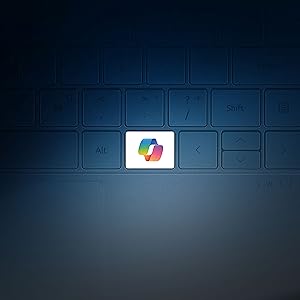
Image: Close-up of the laptop keyboard highlighting the dedicated Copilot key.
3.3 Display
The 14.0-inch WUXGA (1920 x 1200) OLED display offers high brightness (400 nits typical) and vibrant colors. The 16:10 aspect ratio is suitable for productivity and entertainment.
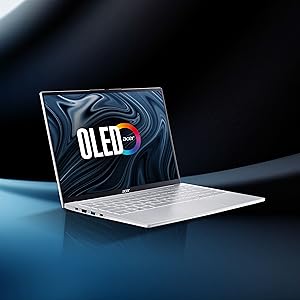
Image: The Acer Swift Lite 14 laptop showcasing its OLED display with vivid imagery.
3.4 Ports and Connectivity
The laptop provides various ports for connecting external devices:
- 1 x USB 3.2 port
- 2 x USB Type-C ports with DC-in (for charging and data)
- HDMI 1.4 port
- Audio jack
- Kensington lock slot
Wireless connectivity includes Wi-Fi 6 and Bluetooth 5.1 or above.
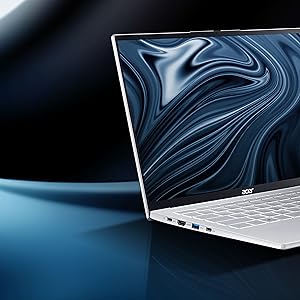
Image: A visual representation of the laptop's ports, including USB, USB-C, HDMI, audio jack, and Kensington lock.
3.5 Webcam
The integrated FHD camera includes a privacy shutter for enhanced security. Utilize Windows Studio Effects for improved video calls with features like auto framing, noise reduction, and lighting adjustments.

Image: The laptop's webcam with its privacy shutter, demonstrating enhanced video call features.
4. Maintenance
4.1 Cleaning Your Laptop
- Use a soft, lint-free cloth dampened with a small amount of water or a specialized screen cleaner for the display.
- For the keyboard and chassis, use a soft cloth. Avoid harsh chemicals or abrasive materials.
- Regularly clean the ventilation openings to prevent dust buildup.
4.2 Battery Care
- Avoid fully discharging the battery frequently.
- Store the laptop in a cool, dry place if not used for extended periods.
- Do not expose the battery to extreme temperatures.
4.3 Software Updates
Regularly update your Windows operating system and device drivers to ensure optimal performance and security. You can check for updates through Windows Settings.
5. Troubleshooting
If you encounter issues with your Acer Swift Lite 14, refer to the following common troubleshooting steps:
| Problem | Possible Solution |
|---|---|
| Laptop does not power on | Ensure the power adapter is securely connected and the battery is charged. Try a different power outlet. |
| Display is blank or flickering | Restart the laptop. Check display settings. Ensure graphics drivers are updated. |
| Wi-Fi or Bluetooth not connecting | Check if Wi-Fi/Bluetooth is enabled in Windows settings. Restart your router or Bluetooth device. Update wireless drivers. |
| System performance is slow or hangs | Close unnecessary applications. Check for malware. Ensure Windows and drivers are up to date. Consider checking disk space. |
| Keyboard backlight not working | Use the designated function keys to adjust or toggle the backlight. Check keyboard settings in Windows. |
If the issue persists after attempting these solutions, please contact Acer customer support for further assistance.
6. Specifications
Detailed technical specifications for the Acer Swift Lite 14 (SFL14-54M) laptop:
| Feature | Detail |
|---|---|
| Model Name | Swift Lite 14 |
| Model Number | SFL14-54M |
| Processor | Intel Core Ultra 5 115U (1.5 GHz base, up to 4.2 GHz max boost, 10 MB L3 cache, 8 cores) |
| RAM | 16 GB LPDDR5 |
| Storage | 512 GB SSD (M.2 PCIe Gen 4 NVMe) |
| Display | 14.0-inch WUXGA (1920 x 1200) OLED, 400 nits, AcerCineCrystal |
| Graphics | Integrated Intel Graphics |
| Operating System | Windows 11 Home |
| Ports | 1x USB 3.2, 2x USB Type-C (with DC-in), 1x HDMI 1.4, Audio Jack |
| Wireless Connectivity | Wi-Fi 6, Bluetooth 5.1+ |
| Webcam | FHD Camera with privacy shutter |
| Keyboard | Backlit, with Copilot key |
| Weight | 1.1 Kilograms |
| Dimensions (L x W x Thickness) | 31.4L x 1.5W x 21.9Th Centimeters |
| Battery Energy Content | 50 Watt Hours (Lithium Ion) |
7. Warranty and Support
7.1 Warranty Information
The Acer Swift Lite 14 (SFL14-54M) comes with a 1 Year Manufacturer Warranty. Please retain your proof of purchase for warranty claims.
7.2 Manufacturer and Importer Contact
For technical support, service, or warranty inquiries, please contact Acer directly:
- Manufacturer: Acer India PVT LTD, R.S. No: 38/2, Sedarapet Main Road, Sedarapet, Villianur Commune, Puducherry-605111
- Importer: ACER INDIA PRIVATE LIMITED Embassy Heights, 6th Floor, No. 13, Magrath Road, Next to HOSMAT Hospital, Bangalore, INDIA – 560025
You can also visit the official Acer support website for drivers, FAQs, and additional assistance.


