
1. Introduction
This manual provides instructions for the setup, operation, and maintenance of your CHROX Tanix TX5 Android 14.0 Smart TV Box. Please read this manual thoroughly before using the device to ensure proper functionality and safety.

Figure 1: Android 14.0 Operating System Interface
The CHROX Tanix TX5 operates on the Android 14.0 system, offering an updated user experience along with Wi-Fi 6 and 4K HDR capabilities.
2. Package Contents
Verify that all items listed below are included in your package:
- 1 x Android 14.0 TV Box (CHROX Tanix TX5)
- 1 x Power Adapter
- 1 x HD Cable
- 1 x Remote Control
- 1 x User Manual
3. Product Overview
The CHROX Tanix TX5 is a Smart TV Box designed to enhance your home entertainment experience. It features an Amlogic S905Y5 Quad-Core processor, 4K output, dual-band Wi-Fi, and Bluetooth connectivity.
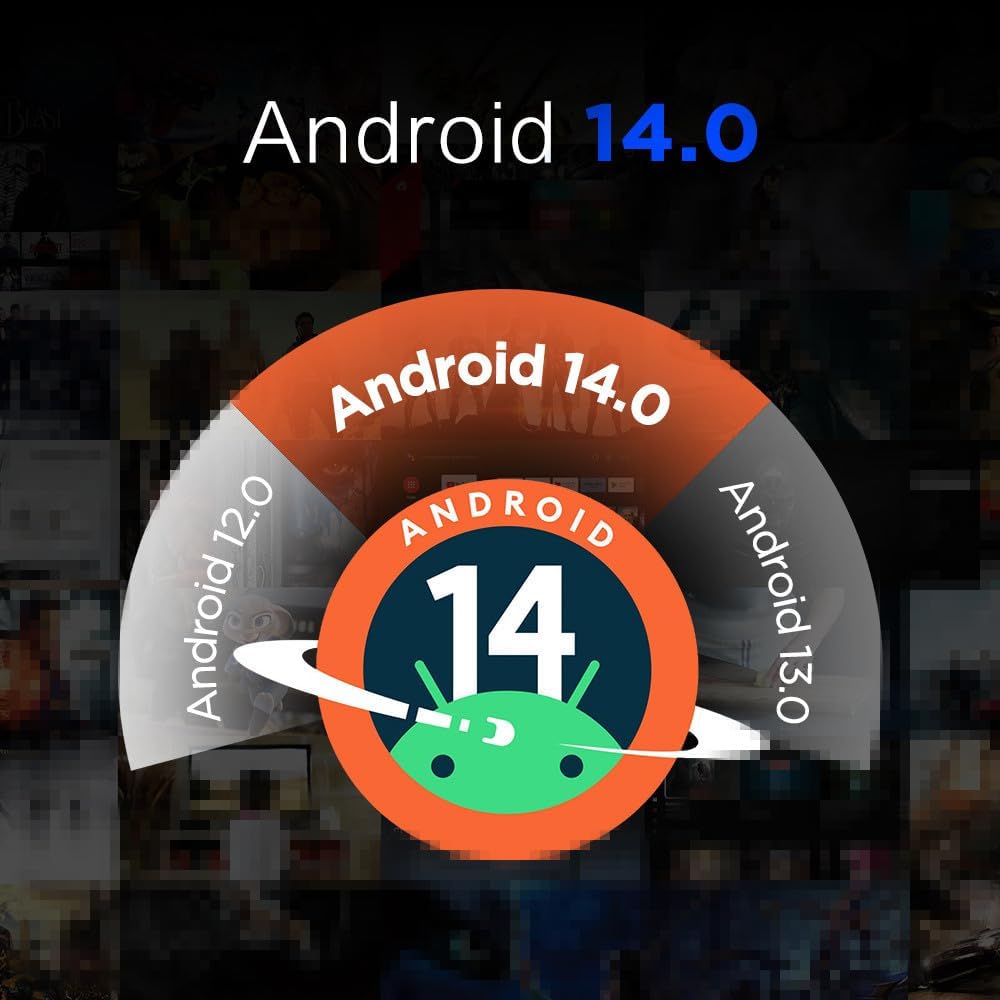
Figure 2: CHROX Tanix TX5 Smart TV Box
This image displays the main unit of the TV Box, typically showing its compact design and front panel.

Figure 3: TV Box Ports and Connections
This image illustrates the various input/output ports available on the TV Box, including USB, HDMI, Ethernet, and power input.
4. Setup Guide
- Connect to TV: Use the provided HD cable to connect the TV Box to an HDMI input port on your television.
- Connect to Power: Plug the power adapter into the DC 5V/2.5A port on the TV Box, then plug the adapter into a wall outlet.
- Connect to Network (Optional):
- Wired Connection: Connect an Ethernet cable from your router to the LAN port on the TV Box.
- Wireless Connection: After powering on, navigate to the network settings to connect to your 2.4GHz or 5GHz Wi-Fi network.
- Power On: The power indicator LED should turn blue. If not, press the power button on the remote control.
- Select Input: On your TV, select the correct HDMI input source corresponding to where the TV Box is connected.
- Initial Setup: Follow the on-screen instructions to complete the initial setup, including language selection and Google account login.
5. Operating Instructions
5.1 Remote Control Functions
Use the included remote control to navigate the interface. Common buttons include:
- Power: Turns the device on or off.
- Navigation Arrows: Move cursor or selection.
- OK/Enter: Confirm selection.
- Back: Return to the previous screen.
- Home: Go to the main home screen.
- Volume +/-: Adjust audio volume.
5.2 Navigating the Interface
The Android 14.0 interface is designed for intuitive navigation. Applications are typically displayed on the home screen or accessible through an app drawer. Use the navigation arrows and OK button on the remote to select and launch applications.
5.3 Network Settings
To change network settings or connect to a new Wi-Fi network:
- Go to Settings from the home screen.
- Select Network & Internet.
- Choose Wi-Fi to view available networks or Ethernet for wired connection status.
- Select your desired Wi-Fi network and enter the password if prompted.
5.4 Installing Applications
Applications can be downloaded and installed from the Google Play Store. Ensure you are logged in with a Google account to access the store.
6. Specifications
Below are the technical specifications for the CHROX Tanix TX5 Smart TV Box:
| Feature | Description |
|---|---|
| Operating System | Android 14.0 |
| Chipset | S905Y5 Quad-Core 64-bit Cortex-A53 |
| GPU | Penta-Core Mali-450 |
| Flash Memory | EMMC 16GB / 32GB (model dependent) |
| RAM | 2GB / 4GB (model dependent) |
| USB Ports | 1 x USB 3.0, 1 x USB 2.0 |
| LAN | Ethernet 10/100m Standard RJ-45 |
| Wireless | 2.4G/5G Dual-Band Wi-Fi 802.11 A/B/G/N |
| Bluetooth | 4.0 |
| Card Reader | Micro SD cards, max 64GB support |
| DisplayPort | HD (HD 2.0A for 4K@60Hz) |
| Power Input | 100-240V 50/60Hz |
| Power Output | DC 5V/2.5A |
| Video Decoding | 4K VP9 Video decoder, H.265/H.264 Video decoder, 1080p Other video decoders (VC-1, MPEG-1/2/4, VP6/8) |
| Video Output Resolution | 4K (3840x2160 pixels) |
| Supported Languages | English, French, German, Spanish, Italian, etc. |

Figure 4: Amlogic S905Y5 Processor
This image highlights the core processor of the TV Box, the Amlogic S905Y5, along with available RAM (2GB/4GB) and ROM (16GB/32GB/64GB) configurations.
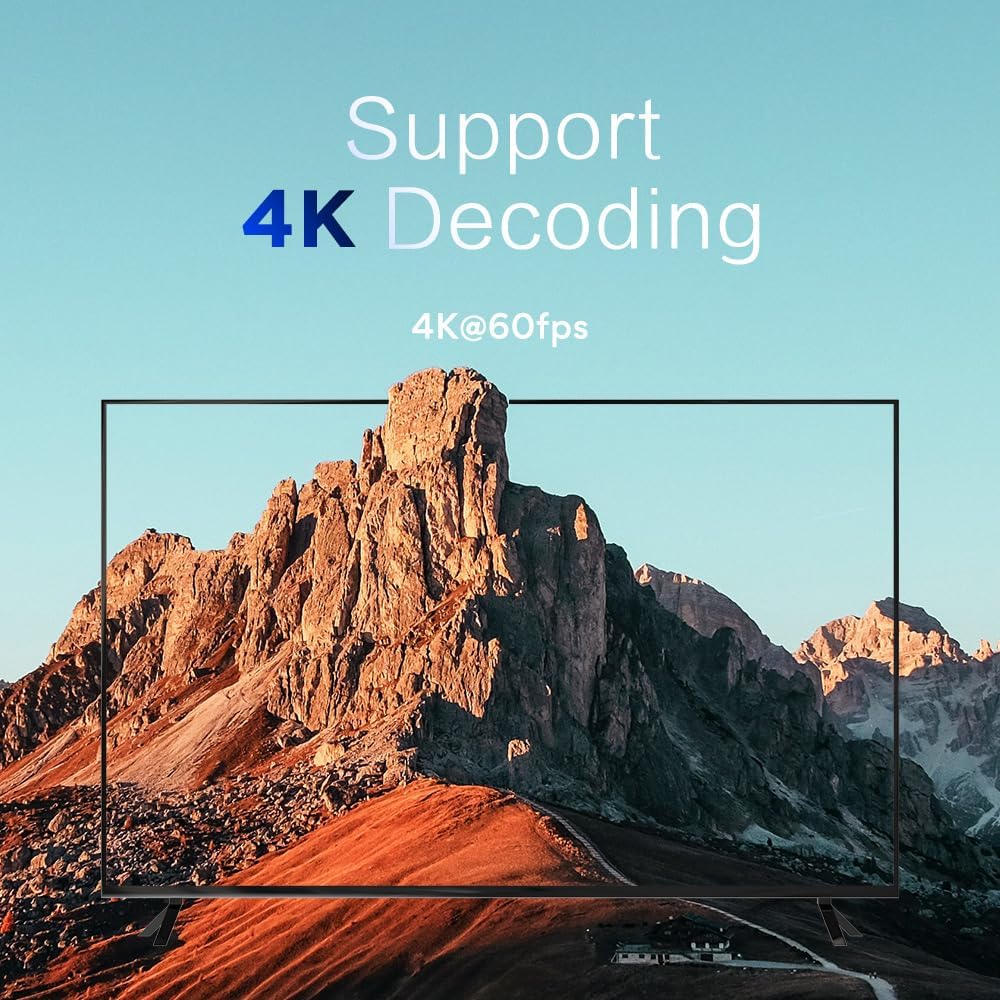
Figure 5: 4K Decoding Capability
This image confirms the device's ability to decode and output 4K video at 60 frames per second, ensuring high-resolution playback.
7. Troubleshooting
If you encounter issues with your TV Box, refer to the following common problems and solutions:
- No Power:
- Ensure the power adapter is securely connected to the TV Box and a working power outlet.
- Check if the power indicator LED is lit. If not, try a different power outlet.
- Press the power button on the remote control.
- No Picture on TV:
- Verify the HD cable is securely connected to both the TV Box and the TV.
- Ensure your TV is set to the correct HDMI input source.
- Try a different HD cable or HDMI port on your TV.
- No Sound:
- Check the volume settings on both the TV Box and your television.
- Ensure the audio output settings on the TV Box are correctly configured (e.g., HDMI audio).
- Remote Control Not Responding:
- Replace the batteries in the remote control.
- Ensure there are no obstructions between the remote and the TV Box.
- Network Connection Issues:
- For Wi-Fi, ensure the correct password is entered and the signal is strong. Try restarting your router.
- For Ethernet, ensure the cable is properly connected and your router is functioning.
8. Safety Information
Please observe the following safety precautions to prevent damage to the device or personal injury:

Figure 6: Important Safety Warning
This label provides critical safety instructions. Always handle the device with care and protect it from drops and impacts. Ensure the product is securely assembled before use.
- Handle the device with care to avoid drops and impacts.
- Ensure the product is securely assembled and placed on a stable surface before use.
- Do not expose the device to water, moisture, or extreme temperatures.
- Do not attempt to open or repair the device yourself. Refer to qualified service personnel.
- Use only the provided power adapter.
- Keep the device away from heat sources and direct sunlight.
- Ensure adequate ventilation around the device to prevent overheating.
9. Maintenance
To ensure the longevity and optimal performance of your CHROX Tanix TX5 TV Box, follow these maintenance guidelines:
- Cleaning: Use a soft, dry cloth to clean the exterior of the device. Do not use liquid cleaners or abrasive materials.
- Ventilation: Ensure that the ventilation openings are not blocked. Avoid placing the device in enclosed spaces.
- Software Updates: Periodically check for and install system updates to ensure the device has the latest features and security patches. These can usually be found in the device's settings menu.
- Storage: If storing the device for an extended period, disconnect it from power and store it in a cool, dry place.
10. Warranty and Support
For warranty information or technical support, please refer to the contact details provided with your purchase or visit the official CHROX website. Keep your purchase receipt as proof of purchase.
For further assistance, please contact customer support.