
Introduction
This manual provides comprehensive instructions for the installation, operation, and maintenance of your Meatender Gen 2 WiFi PID Controller (Model CCW-C). This controller is designed to upgrade compatible Camp Chef pellet grills to smart WiFi functionality, offering precise temperature control and remote monitoring capabilities.

Image: The Meatender Gen 2 WiFi PID Controller installed on a Camp Chef pellet grill, demonstrating app control.
Compatibility
The Meatender Gen 2 WiFi PID Controller is a direct retro-fit upgrade designed to replace the non-WiFi motherboard (part PG24-82WFR) in specific Camp Chef pellet grill models. It is compatible with:
- Camp Chef Pursuit 20
- Camp Chef SG24
- Camp Chef XT24
- Camp Chef SG30
- Camp Chef SGX36
- Camp Chef DLX24/36
- Camp Chef SmokePro series (DLX/LUX/STX/XT)
- Camp Chef Woodwind Classic 24
Important Note:
- This controller is not compatible with Camp Chef Woodwind Pro and XXL Vertical models.
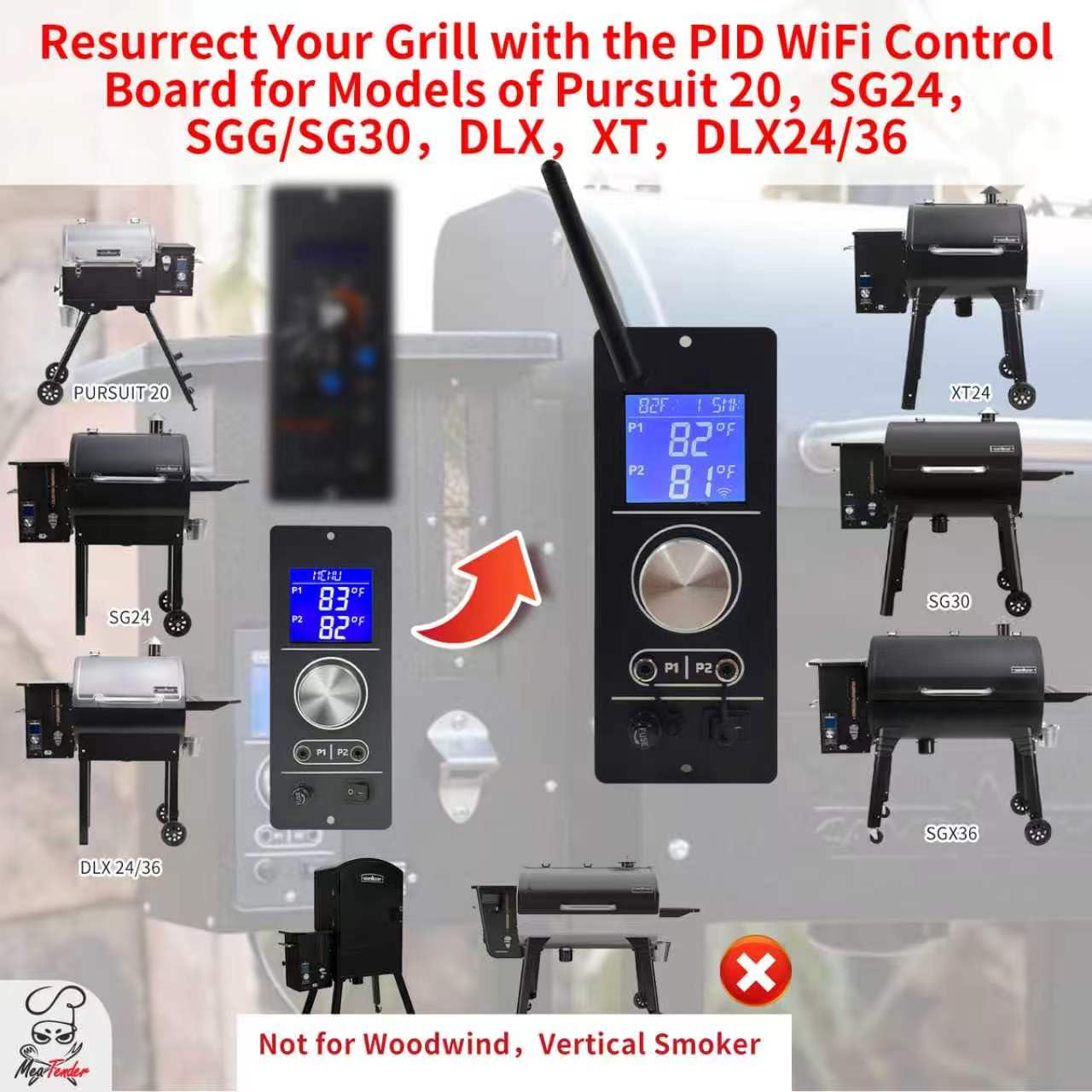
Image: Visual guide to compatible Camp Chef grill models for the Meatender PID WiFi Control Board.
Key Features
- Smart App Control: Connect to your home Wi-Fi to monitor cooking status, adjust temperatures, set programmable timers, and control 10 distinct smoke levels remotely via a smartphone application.
- Extended Wireless Range: Includes a custom external antenna for stable signal transmission in outdoor environments.
- Precision Dual PID Temperature Logic: Advanced dual PID algorithm maintains consistent temperatures from 160°F to 500°F in 5°F increments, optimizing fuel and air supply.
- Dual Probe Tracking: Monitor internal food temperatures with support for up to two meat probes simultaneously (probes not included). Set specific target temperature alerts.
- Adaptive Winter Mode: Activate this mode via the app during cold weather to optimize heating and maintain stable temperatures.
- Bypass Ignition: Allows skipping the standard ignition sequence for rapid startup when needed.

Image: Overview of the Meatender WiFi PID Controller's main features.
Setup and Installation
Installation of the Meatender Gen 2 WiFi PID Controller involves replacing your existing grill's control board. Ensure the grill is unplugged and cooled before beginning. Refer to your grill's original manual for specific access instructions to the control board compartment.
Wiring Connections:
The controller features plug-and-play Molex 2-Pin connectors for power, auger motor, fan motor, and igniter. The RTD probe uses a Plug-and-Play Molex 2510 connector, and meat probes connect via 3.5mm TRS jacks.
- Disconnect Power: Unplug your pellet grill from the power source.
- Access Control Panel: Open the control panel housing on your grill.
- Document Existing Wiring: Take photos of the current wiring connections before disconnecting anything. This will serve as a reference.
- Disconnect Old Controller: Carefully disconnect all wires from the old control board.
- Install New Controller: Mount the Meatender Gen 2 WiFi PID Controller into the housing.
- Connect Wiring: Reconnect the wires to the new controller according to the diagram below. Ensure each connector is securely seated.
- Purple Wire: Connects to the Hot Rod (some models may use 2 black wires).
- Red Wire: Connects to the Auger Motor (some models may use 2 green wires).
- Grill Probe: Connects to the RTD Probe port.
- Orange Wire: Connects to the Fan Motor.
- Black Wire: Connects to the Power Cord (some models may use yellow & black wires).
- Close Panel: Securely close the control panel housing.
- Connect Meat Probes: If using, plug meat probes into the 3.5mm TRS jacks on the front of the controller.

Image: Wiring diagram for connecting the Meatender Gen 2 WiFi PID Controller.
Operating Instructions
Initial Power-Up and Wi-Fi Connection:
- Power On: Plug the grill into a power outlet and press the power button on the controller.
- App Download: Download the companion smartphone application (e.g., "GrillirG" or similar, refer to packaging for exact app name) from your device's app store.
- Pairing: Follow the in-app instructions to pair your controller with your smartphone and connect it to your home Wi-Fi network.
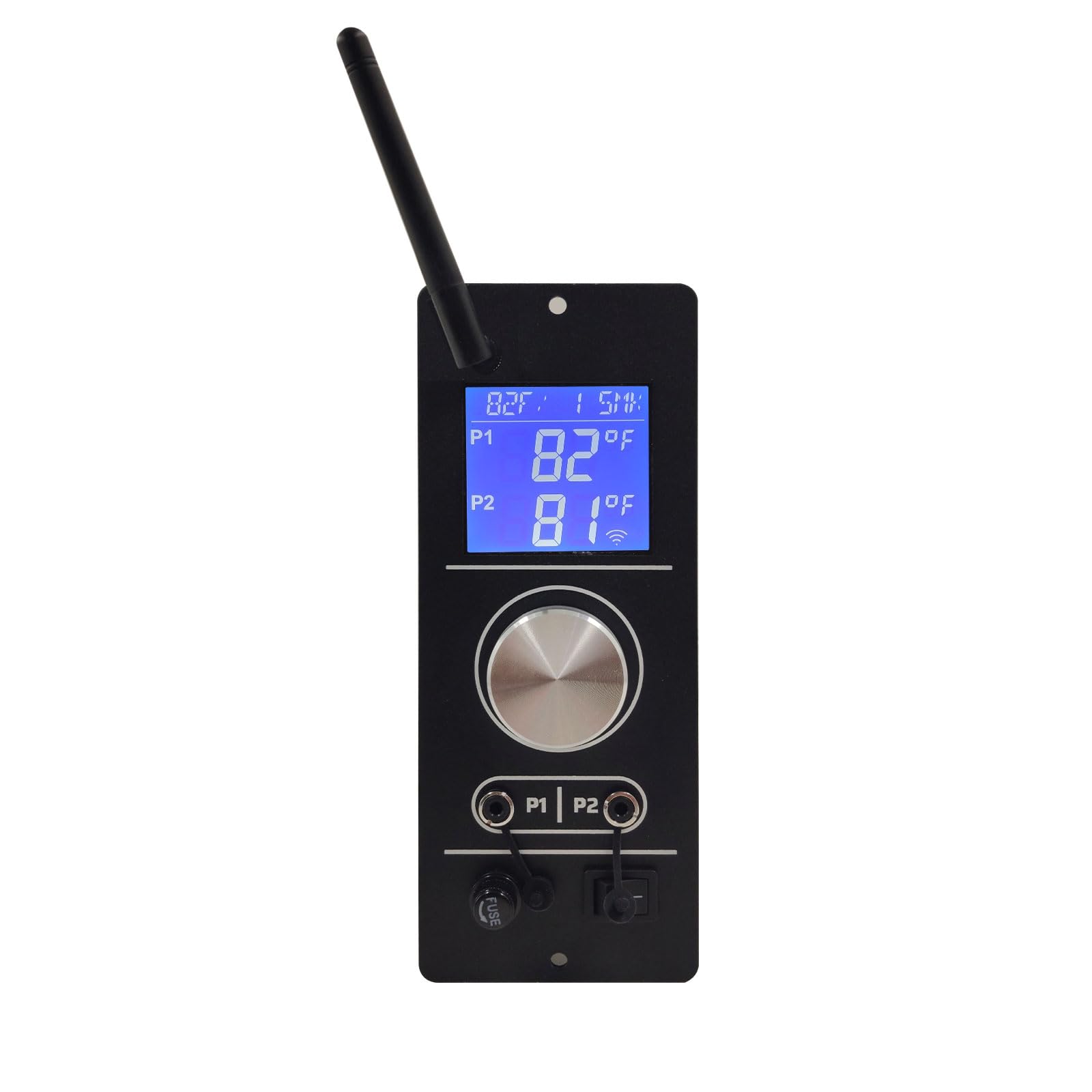
Image: Wireless app control via WiFi, showing easy login and pairing.
Temperature Control and Cooking Modes:
- Setting Temperature: Use the control knob on the unit or the smartphone app to set your desired cooking temperature between 160°F and 500°F in 5°F increments.
- Smoke Levels: Adjust smoke intensity through the app, offering 10 distinct levels.
- PID Control: The controller's PID algorithm will automatically manage the auger and fan speeds to maintain the set temperature with minimal fluctuations.

Image: App interface for setting cooking temperature and smoke levels.
Meat Probe Monitoring:
- Connect Probes: Insert up to two meat probes (not included) into the designated 3.5mm jacks on the controller.
- Monitor via App: View real-time internal food temperatures on the app.
- Set Alerts: Configure target temperature alerts in the app to be notified when your food reaches the desired doneness.

Image: Meat probes monitoring and target temperature alert feature.
Special Modes:
- Winter Mode: Activate this mode via the app during cold weather to optimize heating and maintain stable temperatures.
- Bypass Ignition: Use this mode for a rapid startup, bypassing the standard ignition sequence.

Image: Optimizing your pellet grill for cold weather cooking with Winter Mode.
Maintenance
To ensure the longevity and optimal performance of your Meatender Gen 2 WiFi PID Controller, follow these simple maintenance guidelines:
- Cleaning: Wipe the controller's exterior clean with a damp cloth. Do not use abrasive cleaners or immerse the unit in water.
- Probe Care: Clean meat probes after each use. Avoid bending or damaging the probe tips or cables.
- Storage: When not in use for extended periods, store the grill and controller in a dry, protected area.
Troubleshooting
If you encounter issues with your controller, review the following common troubleshooting steps:
| Problem | Possible Cause | Solution |
|---|---|---|
| Controller not powering on | No power, loose connection, faulty outlet. | Check power cord connection. Ensure outlet is functional. Verify internal wiring connections. |
| Wi-Fi connection issues | Out of range, incorrect password, network interference. | Move closer to router. Re-enter Wi-Fi password in app. Reduce interference from other devices. Ensure 2.4GHz network is used. |
| Inaccurate temperature readings | Faulty RTD probe, loose probe connection, dirty probe. | Ensure RTD probe is clean and securely connected. Check for damage to the probe or wiring. |
| Grill not holding temperature | Low pellets, igniter issue, fan/auger motor malfunction. | Check pellet hopper level. Ensure igniter is working during startup. Verify fan and auger motor operation. |
| Meat probe not reading | Probe not fully inserted, faulty probe, damaged cable. | Ensure meat probe is fully inserted into the jack. Test with another probe if available. Inspect cable for damage. |
The controller can also monitor for abnormal statuses. Refer to the app for specific error codes or alerts.

Image: App interface for monitoring grill's abnormal status.
Specifications
| Feature | Detail |
|---|---|
| Model | CCW-C |
| Input Voltage | 110V - 120V AC / 60Hz |
| Max Power Consumption | 280W - 350W |
| Operating Power | 50W - 75W |
| Temperature Range | 160°F - 500°F (in 5°F steps) |
| Connectivity | Wi-Fi |
| Probe Support | Dual Meat Probes (3.5mm TRS Jack), RTD Probe (Molex 2510) |
| Display Type | Digital |
| Outer Material | Metal |
| Included Components | 1 Controller, 1 User Manual |
Warranty Information
Specific warranty details for the Meatender Gen 2 WiFi PID Controller are not provided in this manual. Please refer to the product packaging, the manufacturer's official website, or contact Meatender customer support for comprehensive warranty information.
Support
For technical assistance, troubleshooting beyond this guide, or general inquiries, please contact Meatender customer support. Contact information can typically be found on the product packaging, the official Meatender website, or through your retailer.