
1. Introduction
This manual provides essential information for the proper use and maintenance of your Veidoo E10 10.3-inch E-Ink Ebook Reader. Please read it thoroughly before operating the device.
1.1 Package Contents
- Veidoo E10 E-Ink Ebook Reader with Protective Case
- 5V/2A Charger
- Stylus
- Data Cable (USB-C)
- User Manual and Warranty Card

Image 1.1: Veidoo E10 Ebook Reader with its protective case and stylus.
2. Setup
2.1 Initial Charging
Before first use, fully charge the device. Connect the provided 5V/2A charger to the USB-C port on the e-reader. The charging indicator will illuminate. A full charge typically takes several hours.
Important: Use only the original charger to ensure optimal battery life and prevent damage.
2.2 Powering On/Off
- To Power On: Press and hold the power button located on the device for a few seconds until the screen activates.
- To Power Off: Press and hold the power button. A power-off menu will appear on the screen. Select 'Power off'.
- To Sleep/Wake: Briefly press the power button to put the device into sleep mode or wake it up.
2.3 Network Connection (Wi-Fi)
- From the home screen, navigate to 'Settings'.
- Select 'Wi-Fi' and turn it on.
- Choose your desired network from the list of available networks.
- Enter the network password if prompted and tap 'Connect'.

Image 2.1: Overview of Veidoo E10 features, including Wi-Fi connectivity.
3. Operating Instructions
3.1 Reading Ebooks
The Veidoo E10 supports various ebook formats. You can access your library from the 'Books' section on the home screen.
- Tap on an ebook cover to open it.
- Swipe left or right to turn pages.
- Tap the center of the screen to bring up reading options (font size, contrast, etc.).
- The device features a 10.3-inch E-Ink display designed for comfortable reading.

Image 3.1: The 10.3-inch screen provides an expansive reading area.
3.2 Notetaking with Stylus
The included non-rechargeable stylus allows for direct annotation and notetaking on the E-Ink screen.
- Open a document or ebook that supports annotation.
- Use the stylus to write or draw directly on the screen.
- The stylus features a soft eraser function for corrections.

Image 3.2: The non-rechargeable stylus offers a smooth writing experience.
3.3 Audiobooks and Built-in Speaker
The device includes a built-in speaker for listening to audiobooks. You can also connect Bluetooth headphones.
- Access audiobook files through your library or compatible applications.
- Adjust playback speed and volume as needed.

Image 3.3: Enjoy audiobooks using the built-in speaker or connected headphones.
3.4 Storage and File Management
The Veidoo E10 comes with 64GB of internal storage (4GB RAM).
- Connect the device to a computer using the provided USB-C data cable to transfer files.
- Manage files and applications through the device's file manager.

Image 3.4: The device offers 64GB of storage for your digital content.
3.5 Reading Modes
The device supports different reading modes, including a dark mode to reduce eye strain.
- Access reading mode settings from the in-book menu.
- Switch between standard and dark mode as preferred.

Image 3.5: The device allows switching between different reading modes.
4. Maintenance
4.1 Cleaning the Device
- Use a soft, lint-free cloth to gently wipe the screen and body of the e-reader.
- Do not use harsh chemicals, abrasive cleaners, or excessive moisture.
4.2 Battery Care
- Charge the device regularly, but avoid leaving it fully discharged for extended periods.
- The 5000mAh battery provides extended usage time.

Image 4.1: The 5000mAh battery supports several weeks of use per charge.
4.3 Protective Case
The included protective case helps shield the device from daily wear and tear.
- Ensure the device is properly seated within the case for maximum protection.
- The case features a soft microfiber lining and sturdy PC corners.
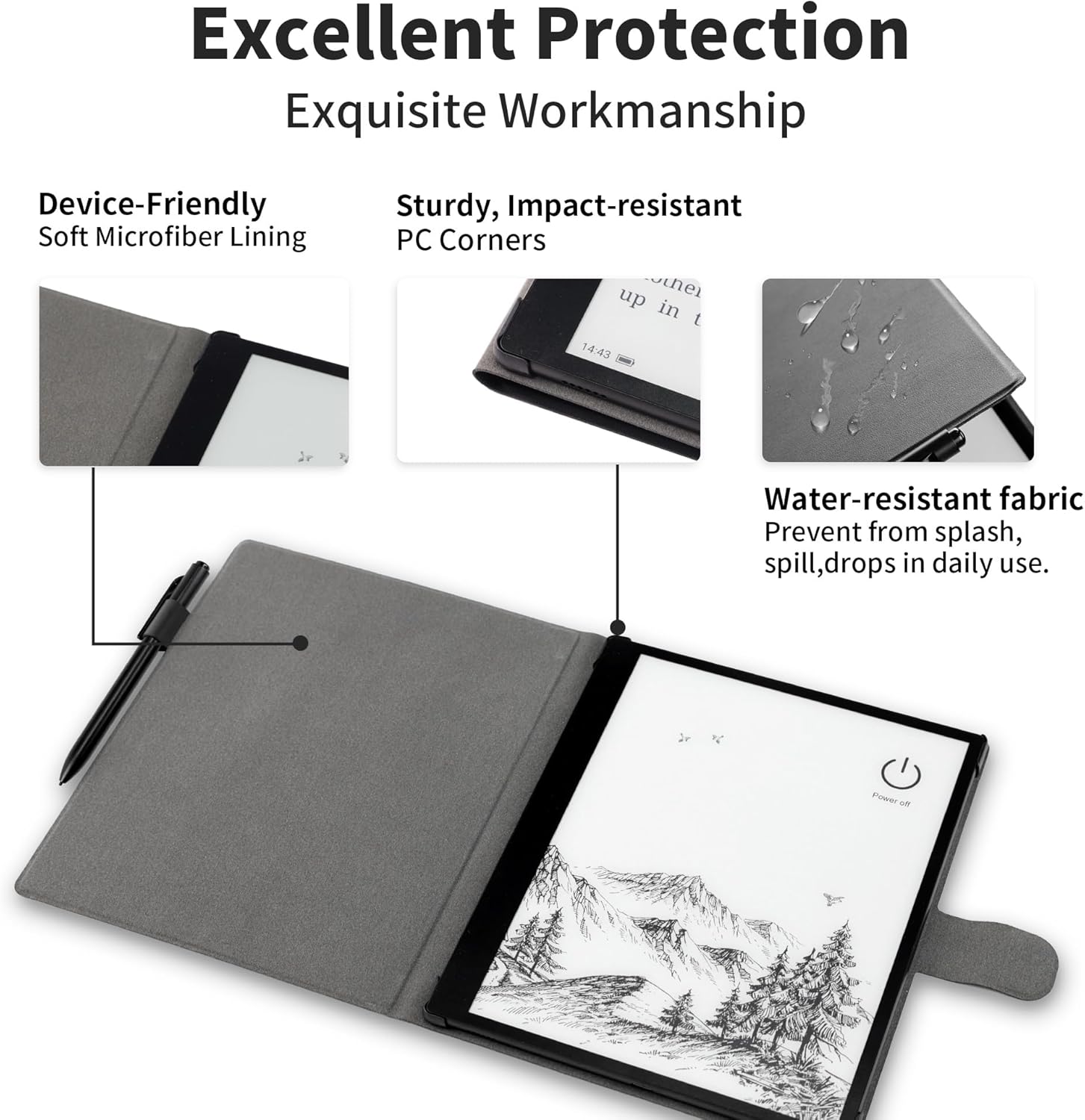
Image 4.2: The protective case offers device-friendly lining and impact-resistant corners.
4.4 Software Management
Regularly uninstall unused software to maintain efficient device performance.
5. Troubleshooting
- Device not turning on: Ensure the device is charged. Connect it to the charger for at least 30 minutes, then attempt to power on again.
- Screen not responding: Perform a soft reset by pressing and holding the power button for approximately 10-15 seconds until the device restarts.
- Wi-Fi connection issues: Verify your Wi-Fi password. Try restarting your router and the e-reader. Ensure the device is within range of the Wi-Fi signal.
- Slow performance: Close unused applications. Regularly uninstall unnecessary software. Clear cache if available in settings.
- Stylus not writing: Ensure the stylus tip is clean. No charging is required for the stylus.
6. Specifications
| Feature | Specification |
|---|---|
| Model | E10 |
| Operating System | Android |
| Screen Type | 10.3-inch E-Ink High-Definition Touch Screen |
| Resolution | 1872 x 1404 pixels (227 PPI) |
| Processor | 1.8GHz Quad-Core |
| RAM | 4GB |
| Internal Storage (ROM) | 64GB |
| Connectivity | Wi-Fi (2.4/5.8GHz), Bluetooth 5.0 |
| Battery | 5000mAh |
| Audio | Built-in Speaker |
| Dimensions | 7.3 x 0.5 x 8.9 inches (18.54 x 1.27 x 22.61 cm) |
| Weight | 14.7 ounces (416 grams) |
| Color | Dark Gray |
7. Warranty and Support
7.1 Warranty Information
Your Veidoo E10 E-Ink Ebook Reader comes with a warranty. Please refer to the warranty card included in your product package for specific terms, conditions, and duration.
7.2 Customer Support
For technical assistance, troubleshooting not covered in this manual, or warranty claims, please contact Veidoo customer support. Contact information can typically be found on the warranty card or the official Veidoo website.
When contacting support, please have your model number (E10) and purchase details ready.
