
Introduction
This manual provides essential information for the safe and efficient use of your LG 40U990A-W 40-inch Ultrafine 5K2K WUHD Nano IPS Curved Monitor. Please read this manual thoroughly before operating the product and retain it for future reference.
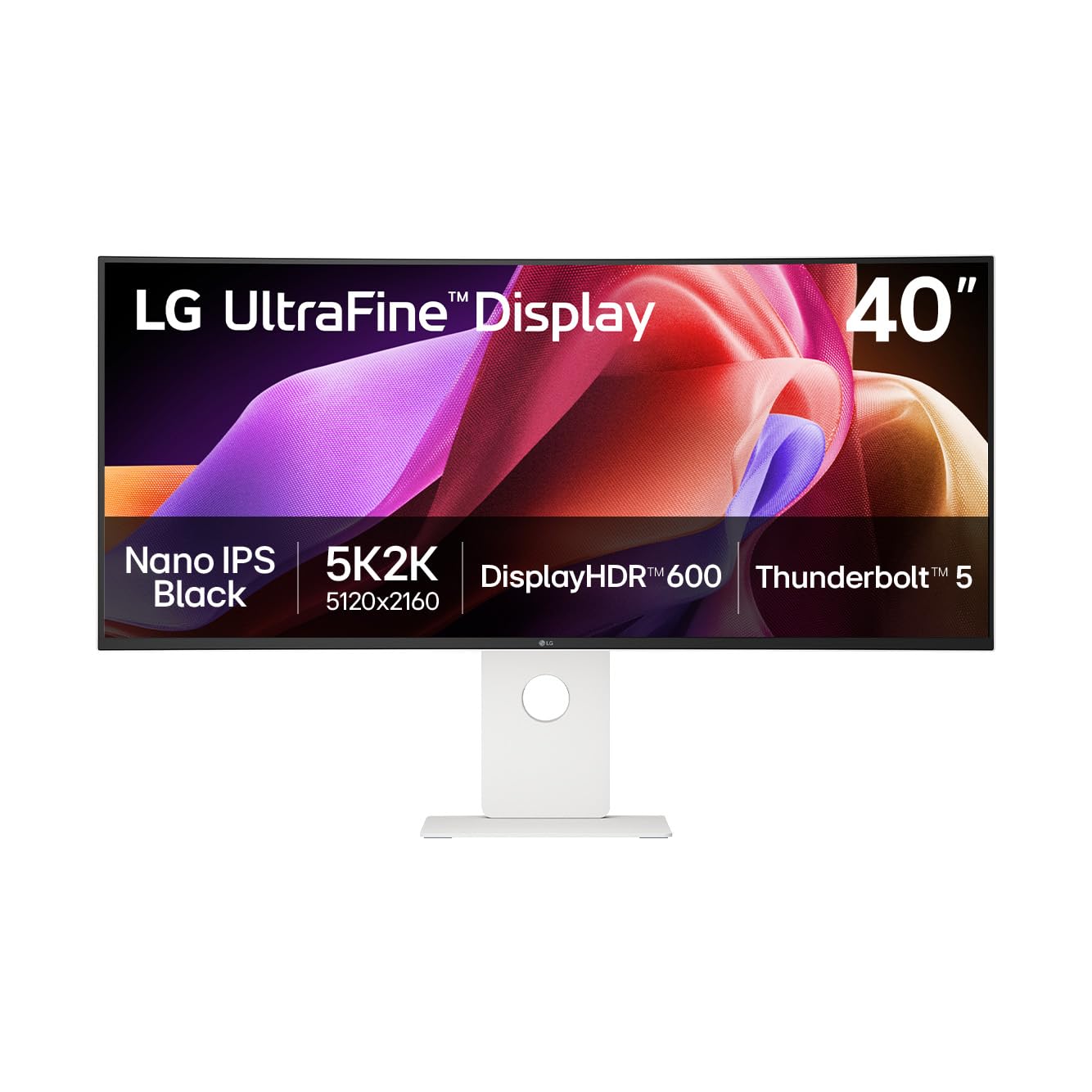
Figure 1: Front view of the LG 40U990A-W Ultrafine 5K2K WUHD Monitor.
Safety Information
Always follow these safety precautions to prevent electric shock, fire, or damage to the product:
- Do not open the monitor casing. Refer all servicing to qualified service personnel.
- Do not expose the monitor to rain or moisture.
- Ensure proper ventilation around the monitor.
- Use only the power cord and adapter supplied with the monitor.
- Avoid placing heavy objects on the power cord.
- Disconnect the power plug during lightning storms or when unused for long periods.
Package Contents
Verify that all items are present in the box:
- LG 40U990A-W Monitor
- Power Cable
- HDMI Cable
- DisplayPort Cable
- USB-C Cable
Setup
1. Physical Assembly
Carefully remove the monitor and stand components from the packaging. Attach the stand base to the stand neck, then secure the assembled stand to the monitor panel. Ensure all screws are tightened securely. Alternatively, the monitor supports VESA mounting for wall or arm installation (mounting hardware sold separately).
2. Connecting to Devices
The LG 40U990A-W offers versatile connectivity options:
- Thunderbolt 5: Connect compatible devices for high-speed data transfer (up to 80Gbps), 96W power delivery, and 5K2K display output using a single cable. The monitor features two Thunderbolt 5 ports (one in, one out for daisy-chaining).
- HDMI 2.1: Use the two HDMI 2.1 ports for connecting various multimedia devices.
- DisplayPort 2.1: Connect to devices supporting DisplayPort 2.1 (UHBR 13.5) for high-resolution video.
- USB-C: Four downstream USB-C ports are available for connecting peripherals.
- RJ45 LAN: For wired network connectivity.
- Headphone Jack: For audio output.

Figure 2: Rear view illustrating the monitor's various input and output ports.

Figure 3: Thunderbolt 5 connection providing power, data, and display to a laptop.
3. Power Connection
Connect the power cable to the monitor's power input and then to a wall outlet. Press the power button (usually a joystick on the bottom center) to turn on the monitor.
Operating the Monitor
1. Basic Controls (On-Screen Display)
The monitor features a joystick button located at the bottom center for navigating the On-Screen Display (OSD) menu. Press the joystick to open the OSD, then move it up/down/left/right to select and adjust settings.
2. Display and Picture Settings
- 5K2K WUHD Resolution: The 5120x2160 resolution provides an expansive workspace.
- Nano IPS Black: This technology delivers deep blacks and vibrant colors with a 2000:1 contrast ratio.
- DisplayHDR 600: Certified for VESA DisplayHDR 600, ensuring dynamic range and vivid highlights.
- DCI-P3 Color Gamut: Offers up to 99% DCI-P3 coverage for accurate and rich color reproduction.
- 120Hz Refresh Rate: Provides smooth visuals, beneficial for fast-paced content and precise workflows.
- Light Sensor: The monitor includes an adaptive brightness feature that adjusts screen brightness based on ambient light conditions.

Figure 4: The 5K2K resolution provides ample screen space for detailed work.

Figure 5: DisplayHDR 600 ensures dynamic range and vivid highlights.
3. Advanced Features
- Daisy Chain: Connect two monitors and a laptop via Thunderbolt 5 and DisplayPort to expand your workspace.
- LG Switch App: Customize your display settings, utilize a personalized picture wizard, and enable smart screen split features. Download the latest version from LG.com.
- Dual Controller: Manage multiple devices with a single keyboard and mouse.
- Built-in KVM: Switch between connected devices seamlessly.
- AMD FreeSync Premium Pro: For smooth, tear-free gameplay, ideal for creators who also game.

Figure 6: Daisy chain setup for enhanced multitasking efficiency.
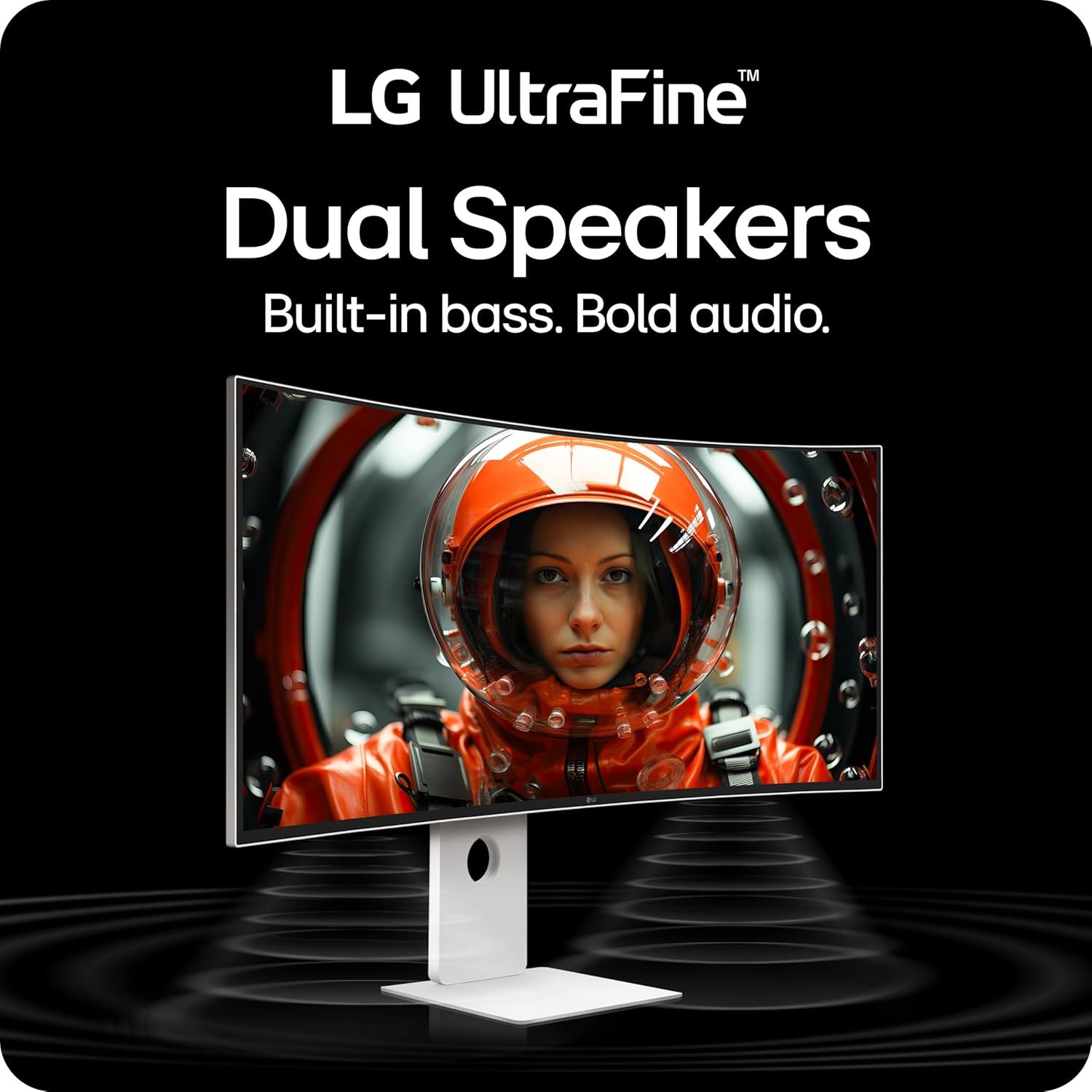
Figure 7: The LG Switch App allows for display customization and smart screen management.
4. Audio
The monitor is equipped with dual speakers and Rich Bass technology for immersive sound.
5. Ergonomics
The stand allows for various adjustments to optimize your viewing comfort:
- Tilt: Adjust the screen angle from -5° to 20°.
- Height: Adjust the screen height by up to 130mm.
- Swivel: Rotate the screen horizontally by ±20°.

Figure 8: Ergonomic stand adjustments for personalized viewing comfort.
Maintenance
1. Cleaning the Screen
Gently wipe the screen with a soft, lint-free cloth. For stubborn marks, lightly dampen the cloth with water or a specialized screen cleaner. Avoid using harsh chemicals or abrasive materials.
2. General Care
Keep the monitor away from direct sunlight, heat sources, and excessive dust. Do not block ventilation openings. When moving the monitor, handle it carefully to avoid damage.
Troubleshooting
If you encounter issues, refer to the following common solutions:
- No Display: Ensure all cables (power, video) are securely connected. Check if the monitor is powered on and the correct input source is selected.
- Poor Picture Quality: Adjust resolution and refresh rate settings on your connected device. Check monitor OSD settings for brightness, contrast, and color. Ensure video cables are not damaged.
- No Sound: Verify that the audio cable (if used) is connected, and volume levels are adjusted on both the monitor and the connected device. Check the monitor's OSD for audio output settings.
- Connectivity Issues (Thunderbolt 5): Ensure you are using the Thunderbolt 5 cable included with the monitor. Confirm your device supports Thunderbolt 5 or DisplayPort 2.1 for full functionality (96W charging, 5K2K @120Hz).
For further assistance, consult the LG support website or contact customer service.
Specifications
| Screen Size | 40 Inches |
| Resolution | 5120 x 2160 (5K2K WUHD) |
| Panel Type | Nano IPS Black Curved (2500R) |
| Refresh Rate | 120Hz |
| HDR Support | VESA DisplayHDR 600 |
| Color Gamut | Up to 99% DCI-P3 |
| Contrast Ratio | 2000:1 (Nano IPS Black) |
| Connectivity | Thunderbolt 5 (x2), HDMI 2.1 (x2), DisplayPort 2.1 (x1), USB-C Down (x4), RJ45 LAN, Headphone Out |
| Power Delivery | Up to 96W via Thunderbolt 5 |
| Dimensions (WxHxD) | 37.3 x 24.2 x 10.2 inches (with stand) |
| Weight | 31.1 pounds (with stand) |
| Stand Adjustments | Tilt (-5° to 20°), Height (130mm), Swivel (±20°) |
Warranty and Support
Your LG 40U990A-W monitor is covered by a limited warranty. Please refer to the warranty card included in your product packaging for specific terms and conditions. For technical support, driver downloads, or service inquiries, visit the official LG website or contact LG customer service.
Official Product Video:
Video 1: An overview of the LG 40U990A-W UltraFine Monitor, highlighting its key features and benefits for professional use.