
1. Introduction
This manual provides detailed instructions for the setup, operation, maintenance, and troubleshooting of your ATTACK SHARK X8 SE Wireless Gaming Mouse. Designed for performance and comfort, the X8 SE features tri-mode connectivity, a high-precision sensor, and a lightweight design for an optimal gaming experience.

Image: Top view of the ATTACK SHARK X8 SE Wireless Gaming Mouse in Berry color.
2. Package Contents
Please ensure all items are present in your package:
- ATTACK SHARK X8 SE Wireless Gaming Mouse
- USB-C Charging Cable
- 2.4GHz Wireless Receiver
- User Manual (this document)
3. Setup and Connectivity
The X8 SE mouse offers three connectivity modes: Wired, 2.4GHz Wireless, and Bluetooth. Choose the mode that best suits your needs.
3.1. Charging the Mouse
Before first use, it is recommended to fully charge the mouse. Connect the provided USB-C cable to the mouse's charging port and to a USB power source (e.g., computer USB port, USB wall adapter). The LED indicator will show charging status.

Image: The underside of the mouse, illustrating the USB-C charging port and the power/mode switch.
3.2. Wired Mode
Connect the USB-C cable directly from the mouse to your computer's USB port. The mouse will function immediately and charge simultaneously.
3.3. 2.4GHz Wireless Mode
- Locate the 2.4GHz wireless receiver, typically stored in a compartment on the underside of the mouse.
- Plug the receiver into an available USB port on your computer.
- Switch the mode selector on the bottom of the mouse to the 2.4GHz wireless icon.
- The mouse should connect automatically.

Image: Visual representation of the three connectivity modes: Wired, 2.4GHz Wireless, and Bluetooth.
3.4. Bluetooth Mode
- Switch the mode selector on the bottom of the mouse to the Bluetooth icon.
- The mouse will enter pairing mode (LED may flash).
- On your computer, navigate to Bluetooth settings and search for new devices.
- Select "ATTACK SHARK X8 SE" from the list of available devices to pair.
4. Operating the Mouse
4.1. DPI Adjustment
The mouse features a PixArt PAW3311 gaming sensor with adjustable DPI from 50 to 25,000. Use the dedicated DPI button (usually on the underside or top of the mouse, depending on configuration) to cycle through preset DPI levels. The LED indicator may change color to signify the current DPI setting.
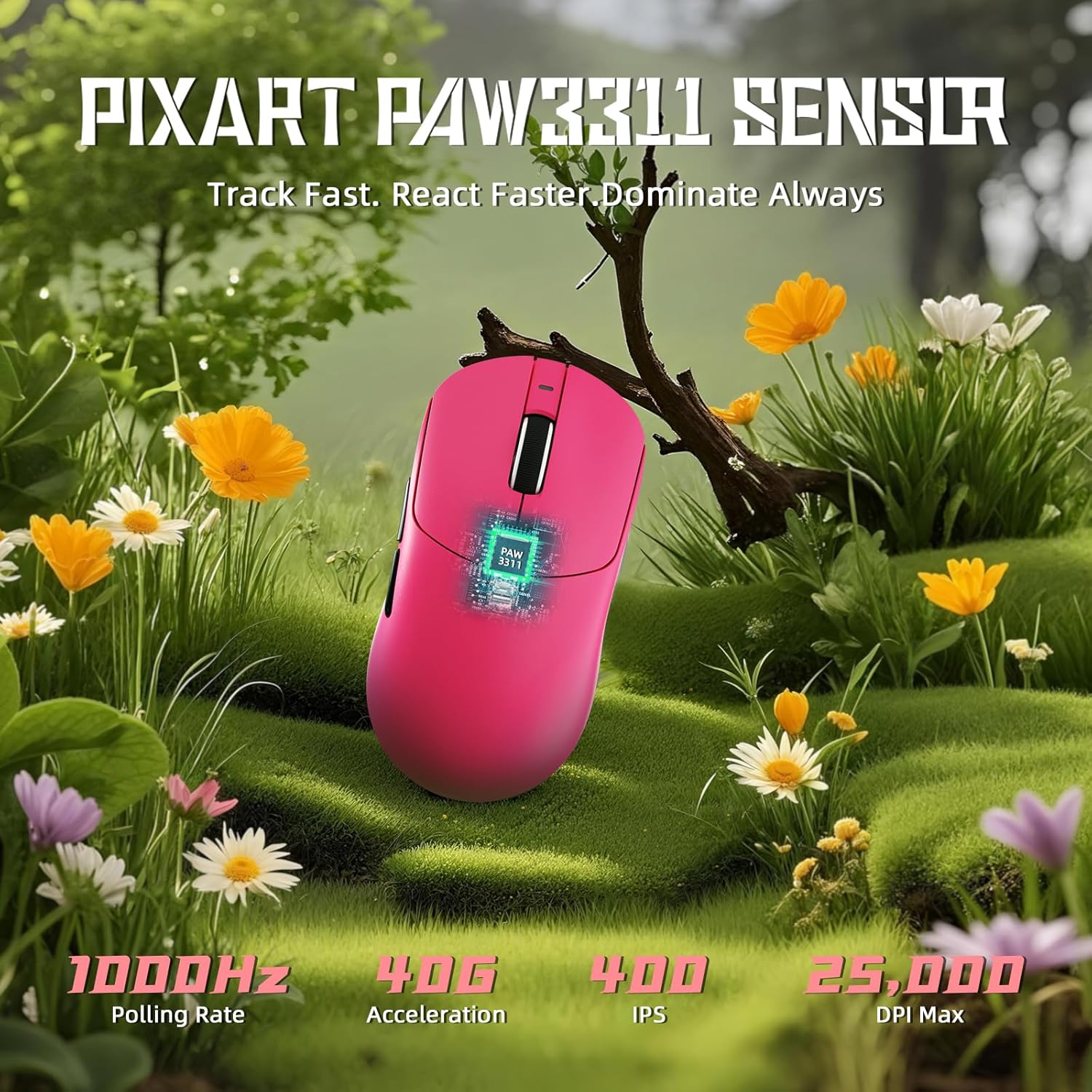
Image: Diagram illustrating the PixArt PAW3311 sensor and its performance metrics.
4.2. Polling Rate
The X8 SE supports a 1KHz (1000Hz) polling rate in both wired and 2.4GHz wireless modes, ensuring responsive and accurate cursor movements.
4.3. Customizable Buttons and Software
The mouse features programmable buttons. To customize button functions, DPI settings, polling rate, macro recording, and key mapping, utilize the cloud-driven web driver. Access the driver via the official ATTACK SHARK website. This eliminates the need for traditional software installation.
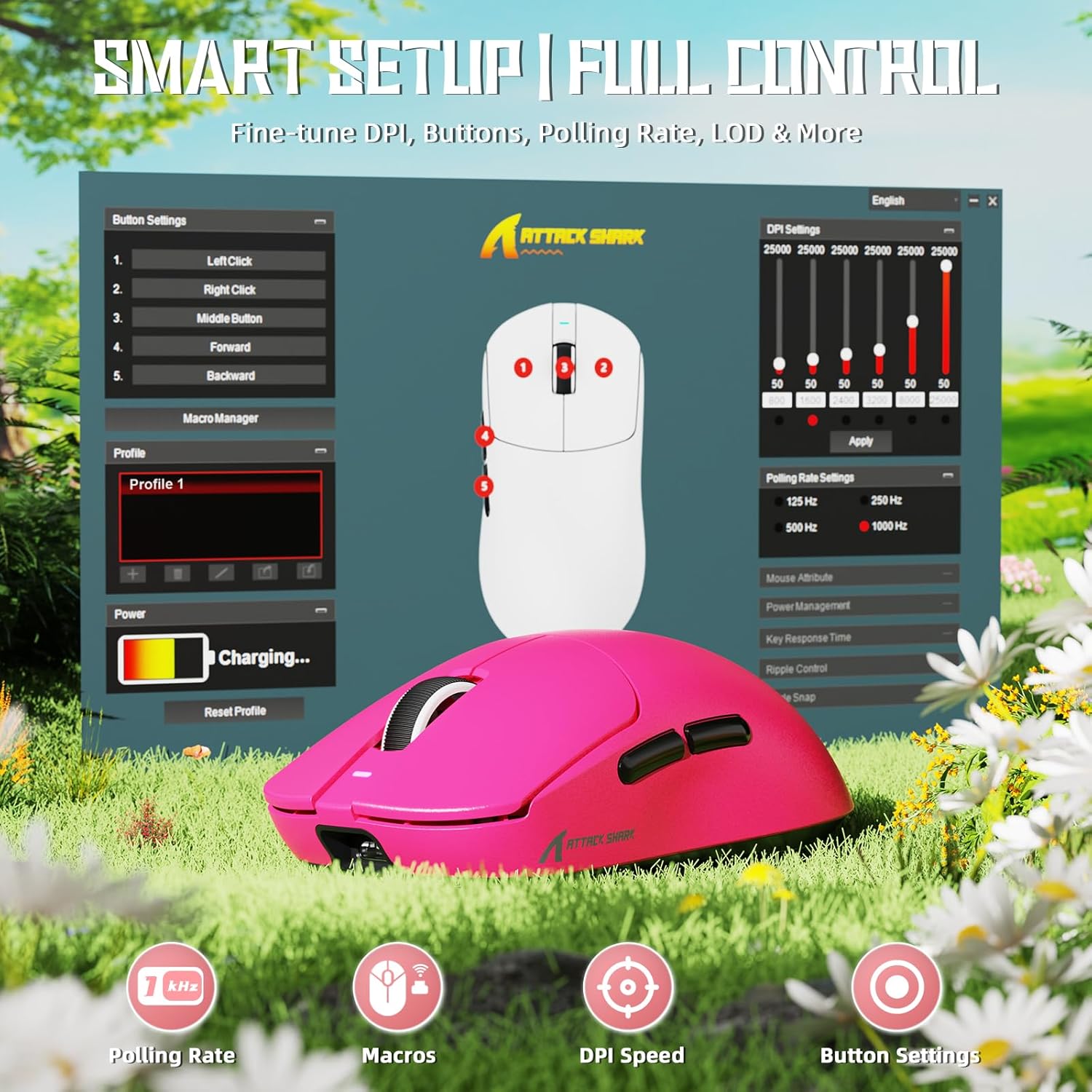
Image: Screenshot of the cloud-based driver interface for advanced customization.
4.4. Ergonomics and Grip Styles
The X8 SE is designed for users with medium to large hands, offering a comfortable grip for various styles including palm, claw, and fingertip grips.

Image: Illustration demonstrating palm, claw, and fingertip grip styles on the mouse.
5. Maintenance
5.1. Cleaning
To clean the mouse, use a soft, dry cloth. For stubborn dirt, a slightly damp cloth with mild soap can be used, ensuring no liquid enters the mouse. The Nano-ice coating is designed to resist sweat and maintain a clean feel.

Image: The mouse's Nano-ice coating helps maintain a clean surface.
5.2. Battery Care
The X8 SE features a 500mAh large-capacity battery. For optimal battery life, avoid fully discharging the mouse frequently. Recharge when the battery indicator suggests low power. A single charge can last up to 300 hours of intermittent use.
5.3. Mouse Feet
The mouse is equipped with PTFE anti-slip footpads for smooth gliding. If the glide performance degrades over time, replacement mouse feet may be available from the manufacturer.
6. Troubleshooting
6.1. Mouse Not Responding
- Wired Mode: Ensure the USB-C cable is securely connected to both the mouse and the computer. Try a different USB port.
- 2.4GHz Wireless Mode: Ensure the 2.4GHz receiver is plugged in and the mouse is switched to 2.4GHz mode. Try re-pairing by unplugging and re-plugging the receiver, then cycling the mouse power.
- Bluetooth Mode: Ensure Bluetooth is enabled on your computer and the mouse is in Bluetooth mode. Re-pair the device through your computer's Bluetooth settings.
- Battery: Check if the mouse battery is charged. Connect the charging cable and observe the charging indicator.
6.2. Cursor Movement Issues
- Clean the mouse sensor area on the underside of the mouse.
- Ensure you are using the mouse on a suitable surface (e.g., a mouse pad).
- Adjust the DPI settings to a comfortable level.
- If using wireless modes, ensure there are no significant obstructions or sources of interference between the mouse and the receiver/computer.
6.3. Cloud Driver Not Accessible
- Ensure your computer has an active internet connection.
- Verify the correct URL for the ATTACK SHARK cloud driver.
- Try a different web browser.
7. Specifications
| Feature | Detail |
|---|---|
| Model | X8 SE |
| Sensor | PixArt PAW3311 Gaming Sensor |
| DPI Range | 50 - 25,000 DPI |
| Polling Rate | 1000Hz (1KHz) |
| Connectivity | Wired (USB-C), 2.4GHz Wireless, Bluetooth |
| Weight | Approximately 55g |
| Battery Capacity | 500mAh |
| Battery Life | Up to 300 hours (intermittent use) |
| Micro Switches | HUANO (80 Million Clicks lifespan) |
| Acceleration | 40G |
| Tracking Speed | 400 IPS |
| Dimensions | Approximately 4.96 x 2.5 x 1.6 inches (125.5 x 63 x 40 mm) |

Image: Comparative technical specifications for the ATTACK SHARK X8 series, including the X8 SE model.
8. Warranty and Support
ATTACK SHARK products are designed for reliability and performance. For warranty information, technical support, or to access the cloud driver, please visit the official ATTACK SHARK website or contact their customer service.
Official ATTACK SHARK Store: ATTACK SHARK Store on Amazon


