
1. Product Overview
This Ossuret car stereo is designed to upgrade the infotainment system in your Renault Clio 3 (models 2005-2014). It features a 9-inch Android 13 touchscreen, offering modern connectivity and navigation capabilities. The system integrates seamlessly with your vehicle's existing controls and provides a range of multimedia options.

Image: The Ossuret 9-inch Android 13 Car Stereo seamlessly integrated into a Renault Clio 3 dashboard, showcasing its large display and modern interface.
2. Setup and Installation
2.1 Package Contents
Before installation, verify all components are present:
- Main Head Unit (9-inch Android 13 Car Stereo)
- Power Cable
- External Microphone
- GPS Antenna
- RCA Harness (for WiFi version only)
- USB Cables (x2)
- Rear Camera Input RCA Cable
- Canbus Decoder
- Factory USB Adapter
- Radio Antenna Adapter Cable
- Radio Antenna Adapter

Image: A comprehensive layout of all included accessories, such as power cables, USB cables, GPS antenna, external microphone, RCA harness, Canbus decoder, and various adapters.
2.2 Compatibility
This car stereo is specifically designed for Renault Clio 3 models manufactured between 2005 and 2014. Ensure your vehicle falls within this range for proper fitment and functionality.
2.3 Installation Steps (General Guide)
Installation typically involves removing the factory radio and installing the new head unit using the provided frame and wiring harnesses. Professional installation is recommended.
- Preparation: Disconnect the vehicle's battery before starting any electrical work.
- Remove Factory Unit: Carefully remove the existing car stereo and trim panels from your Renault Clio 3 dashboard.
- Connect Wiring: Connect the provided power cable, RCA harness, USB cables, and antenna adapters to the new head unit and the vehicle's wiring. The Canbus decoder ensures compatibility with factory features like steering wheel controls.
- Install GPS Antenna: Mount the GPS antenna in a location with a clear view of the sky, typically on the dashboard or under the windshield.
- Test Connections: Before fully reassembling, temporarily connect the battery and test the unit's basic functions (power, audio, display).
- Secure Unit: Mount the new head unit into the dashboard using the custom frame, ensuring a secure and flush fit.
- Reassemble: Reinstall all trim panels and reconnect the vehicle battery.

Image: A visual comparison showing the original Renault Clio 3 dashboard setup (left) versus the modernized dashboard with the Ossuret 9-inch car stereo installed (right).
3. Operating Instructions
3.1 Power On/Off and Basic Navigation
Press and hold the power button (usually located on the front panel or side) to turn the unit on or off. Navigate the Android 13 interface using the responsive 9-inch capacitive touchscreen.

Image: A hand demonstrating interaction with the responsive touchscreen interface of the car stereo.
3.2 Wireless CarPlay and Android Auto
The unit supports wireless Apple CarPlay and Android Auto via the pre-installed and activated Zlink application. Connect your smartphone via Wi-Fi or Bluetooth to access phone functions, navigation, music, and messages directly on the car stereo display.
- Connection: Enable Wi-Fi and Bluetooth on your smartphone. Open the Zlink app on the car stereo and follow the on-screen instructions to pair your device.
- Features: Access apps like Google Maps, Spotify, Podcasts, and make calls hands-free.

Image: The car stereo displaying the Apple CarPlay and Android Auto interfaces, showing various compatible applications like Phone, Music, Maps, and Messages.
3.3 Bluetooth Functionality
Connect your mobile phone via Bluetooth for hands-free calling and audio streaming.
- Pairing: Go to the Bluetooth settings on the car stereo and your phone. Select the car stereo from your phone's available devices to pair.
- Calls: Use the built-in microphone for clear hands-free conversations. You can download your phone's contacts to the radio.
- Music Streaming: Play audio from your phone through the car's speakers.

Image: The car stereo displaying a phone dialer interface, indicating an active Bluetooth connection for hands-free calling, with a built-in microphone for voice input.
3.4 GPS Navigation
The unit features integrated GPS navigation with support for online and offline map applications (e.g., Waze, Navitel, Google Maps). It offers voice guidance and a dual-zone function, allowing navigation to run in the background while other media plays.
- Map Updates: Ensure your map data is up-to-date for accurate navigation.
- Online Navigation: Connect to Wi-Fi to use online navigation apps.
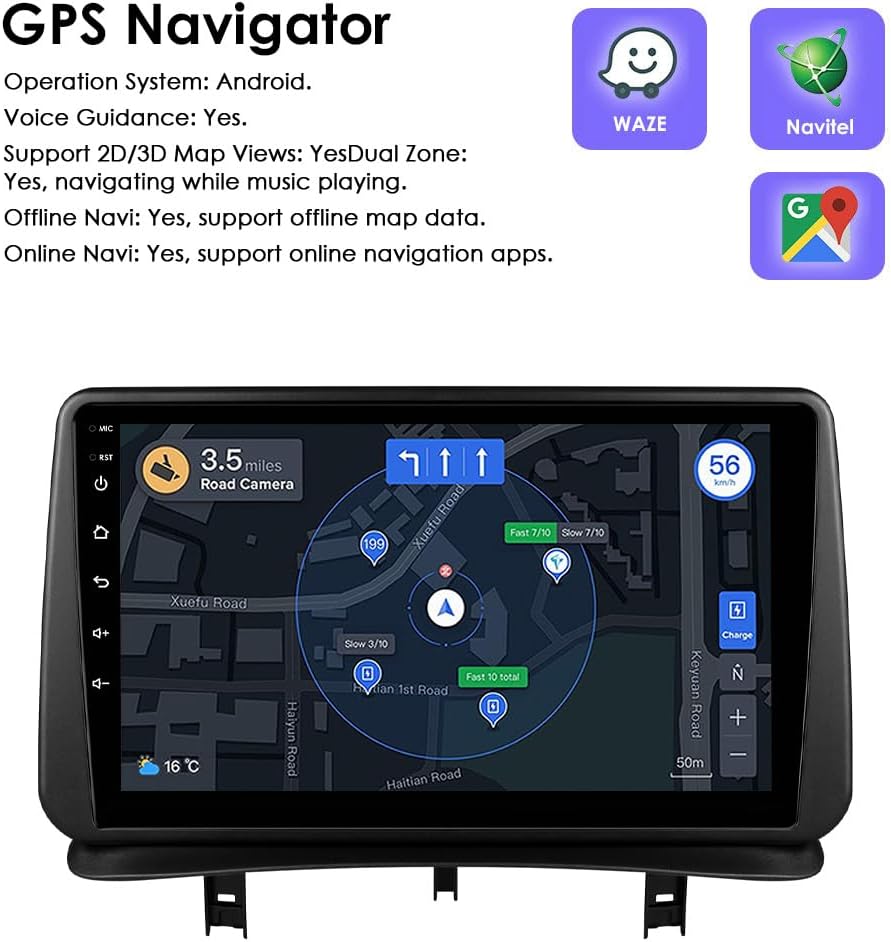
Image: The car stereo displaying a detailed GPS navigation map with route information, current speed, and road camera alerts.
3.5 USB Media Playback
Connect external USB devices (up to 2TB) to play audio and video files. The unit supports various multimedia formats.
- Supported Audio Formats: MP3, WMA, AAC, RM, FLAC, etc.
- Supported Video Formats: MPEG-1/2/4, H264, H263, VC1, RV, RMVB, DivX, Sorenson Spark, VP8, AVS Stream, etc.

Image: The car stereo displaying a file browser interface for USB storage, showing various folders and files, with two USB ports connected at the bottom.
3.6 FM Radio
Access the FM radio function to listen to local stations. The interface allows for easy tuning and station saving.

Image: The car stereo displaying the FM radio interface, showing frequency tuning and station presets.
3.7 Steering Wheel Control
The unit is compatible with your vehicle's factory steering wheel controls. This allows you to adjust volume, change tracks, and answer calls without taking your hands off the wheel.

Image: The car stereo displaying media playback controls, indicating compatibility with steering wheel controls for safe operation.
3.8 Backup Camera Input
The system supports a rear-view camera input. When the vehicle is shifted into reverse, the display automatically switches to the camera feed, providing a clear view of the area behind your car and assisting with parking maneuvers.

Image: A technical diagram illustrating the backup camera display interface on the car stereo, complete with dynamic parking guidelines.
3.9 Split Screen Display
Utilize the split-screen feature to run two applications simultaneously, such as navigation and music playback, or a camera feed and music, enhancing multitasking capabilities.

Image: The car stereo displaying a split-screen view, with navigation on one side and music playback on the other, demonstrating simultaneous application usage.
3.10 Voice Control
The system supports voice commands, allowing you to control various functions hands-free. Voice control sensitivity is enhanced for better responsiveness.

Image: The car stereo interface showing voice command prompts, such as "Hey Siri, find a restaurant" and "OK, Navigate home," indicating active voice control functionality.
3.11 Wi-Fi Connectivity
Connect the car stereo to a Wi-Fi hotspot (e.g., from your smartphone) to access online features, download apps, and browse the internet.

Image: The car stereo displaying a YouTube interface, with a smartphone showing a Wi-Fi signal, illustrating the unit's Wi-Fi connectivity for online content.
3.12 Sound Adjustment (Built-in DSP)
The integrated Digital Sound Processor (DSP) allows for advanced audio customization, including a 48-band EQ adjustment, to optimize sound quality to your preference.

Image: The car stereo displaying a graphic equalizer interface, indicating the presence of a built-in DSP for detailed sound adjustments.
4. Maintenance
To ensure the longevity and optimal performance of your Ossuret car stereo, follow these maintenance guidelines:
- Cleaning: Use a soft, dry cloth to clean the touchscreen and exterior. For stubborn smudges, a slightly damp cloth with a mild, non-abrasive cleaner can be used, followed by drying. Avoid harsh chemicals or abrasive materials.
- Software Updates: Periodically check for available software updates to ensure the system runs efficiently and has the latest features and security patches.
- Temperature: Avoid exposing the unit to extreme temperatures for extended periods.
- Connections: Ensure all cables are securely connected. Loose connections can lead to intermittent issues.
5. Troubleshooting
If you encounter issues with your car stereo, refer to the following common problems and solutions:
| Problem | Possible Cause | Solution |
|---|---|---|
| Unit does not power on. | Loose power connection, blown fuse, vehicle battery issue. | Check power cable connections. Inspect vehicle fuses. Ensure vehicle battery is charged. |
| No sound or distorted audio. | Speaker wiring issues, incorrect audio settings, volume too low. | Verify speaker connections. Adjust volume and audio settings (EQ, balance). |
| Steering wheel controls not working. | Canbus decoder not correctly installed or configured. | Ensure the Canbus decoder is properly connected and configured in the system settings. Refer to the installation guide for specific wiring. |
| GPS signal is weak or inaccurate. | GPS antenna improperly placed, environmental interference. | Relocate the GPS antenna to a position with a clearer view of the sky. Avoid obstructions. |
| CarPlay/Android Auto not connecting. | Bluetooth/Wi-Fi off on phone, Zlink app not running, phone compatibility. | Ensure Bluetooth and Wi-Fi are active on your phone. Restart the Zlink app. Check phone compatibility with CarPlay/Android Auto. |
| System is slow or freezes. | Too many apps running, low memory, software glitch. | Close unnecessary applications. Restart the unit. Check for and install any available software updates. |
6. Specifications
- Brand: Ossuret
- Compatible Vehicle: Renault Clio 3 (2005-2014)
- Screen Size: 9 Inches
- Operating System: Android 13
- Memory: 2GB RAM + 32GB Storage
- Special Features: Wireless CarPlay, Android Auto, GPS Navigation, Bluetooth, Wi-Fi, Steering Wheel Control, Backup Camera Input, Split Screen Display, Voice Control, Built-in DSP
- Connectivity Technology: Bluetooth, USB, Wi-Fi
- Control Method: Touch, Voice
- Audio Output Mode: Stereo
- Compatible Devices: Smartphone

Image: A graphic highlighting key specifications such as 48 EQ adjustment, Quad-Core processor, 2GB RAM, and 32GB storage, alongside the car stereo interface.
7. Warranty and Support
7.1 Warranty Information
This Ossuret car stereo comes with a 1-year warranty from the date of purchase. This warranty covers manufacturing defects and malfunctions under normal use. Please retain your proof of purchase for warranty claims.
7.2 Customer Support
For technical assistance, troubleshooting beyond this manual, or warranty inquiries, please contact Ossuret customer support through the retailer where the product was purchased. You may also visit the official Ossuret website for additional resources and contact information.


