
1. Product Overview
The CPVAN WiFi Home Alarm System CP2W is a smart security solution designed to protect your home or property. It features a WiFi-enabled host with a PIR motion sensor, a loud 120dB alarm, and remote control capabilities via a smartphone app or included remotes. The system is expandable with additional sensors.

Figure 1: CPVAN Home Alarm System Key Features
Package Contents:
- 1 x CPVAN WiFi Alarm Host (PIR Motion Sensor integrated)
- 1 x Remote Control
- 1 x USB Type-C Power Cable
- Mounting Accessories (screws, adhesive pads)
- User Manual

Figure 2: CPVAN Alarm System Components
2. Setup and Installation
2.1 Powering the Host
The alarm host requires continuous AC power. Connect the provided USB Type-C cable to the host and plug it into a standard AC adapter (not included). The host has an emergency backup battery that provides up to 8 hours of operation during a power outage.

Figure 3: Dual Power Supply Connection
2.2 App Installation and Pairing (with Wi-Fi)
- Download the Smart Life App or Tuya Smart App from your smartphone's app store.
- Ensure your phone's Bluetooth is enabled and connected to a 2.4GHz Wi-Fi network. The host only supports 2.4GHz Wi-Fi.
- Open the app and follow the on-screen instructions to add a new device. The app will guide you through the pairing process.
- Once paired, you can manage the alarm system and its accessories through the app.

Figure 4: Equipment Use with and without Wi-Fi
2.3 Accessory Installation (Door/Window Sensors, Remotes)
The system can be expanded with additional door/window sensors and remotes. These accessories communicate with the host via 433.92MHz frequency.
- Door/Window Sensors: Attach the two parts of the sensor to a door or window frame using the provided adhesive pads or screws. Ensure they are aligned and within 0.5 cm of each other when the door/window is closed.
- Adding Accessories: Follow the instructions in the Smart Life App to add new sensors or remotes to your system. One host can support multiple accessories, and one accessory can be added to multiple hosts.

Figure 5: DIY Installation Components
3. Operating the System
3.1 Arming and Disarming
The system can be armed or disarmed using the Smart Life App or the remote control.
- Arm Mode: Activates all sensors. If motion or an open door/window is detected, the alarm will sound, and you will receive an app notification.
- Disarm Mode: Deactivates all sensors, allowing free movement without triggering the alarm.
- Home Mode: Allows you to disarm specific sensors (e.g., indoor motion sensor) while keeping perimeter sensors (door/window) armed. This can be configured in the app.

Figure 6: Home Mode Configuration
3.2 Motion Detection
The host unit includes a PIR (Passive Infrared) motion sensor. When motion is detected in Arm mode, the alarm will trigger.
- The infrared detection window can be turned off via the Smart Life App if needed (e.g., when pets are present or for specific indoor scenarios).

Figure 7: Friendly Infrared Detector Settings
3.3 Alarm and Notifications
When an alarm is triggered, the host emits a 120-decibel siren. Simultaneously, push notifications are sent to your smartphone via the Smart Life App. You can also share access with family members or friends to receive alerts.
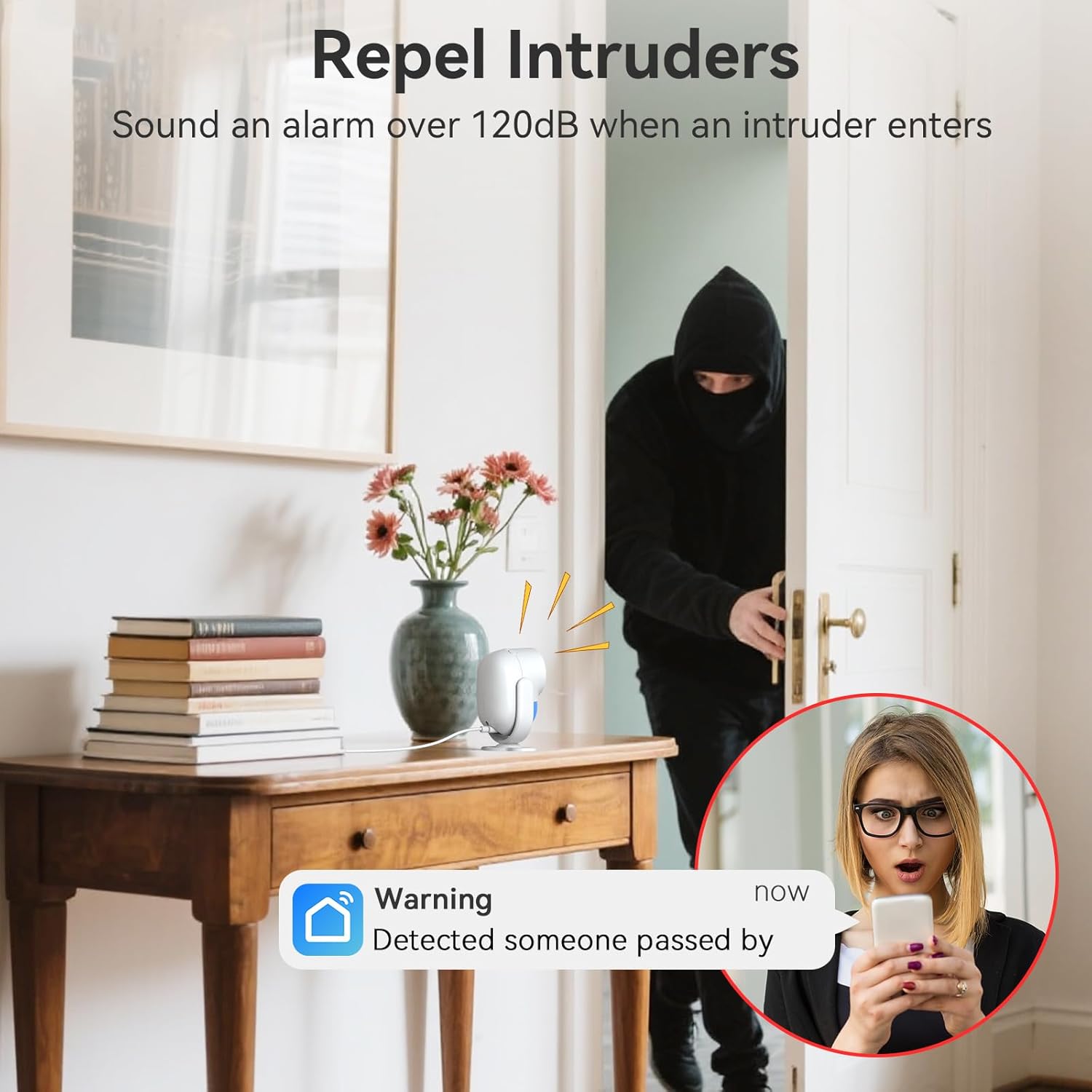
Figure 8: Alarm Trigger and App Notification
3.4 Scheduling Arm/Disarm
The Smart Life App allows you to set schedules for automatically arming and disarming the system, saving time and ensuring consistent security routines.

Figure 9: Timing Arm and Disarm Schedule
4. Maintenance
4.1 Battery Backup
The main alarm host is equipped with a backup battery. In case of a power outage, the system will continue to function for up to 8 hours. Note that app alerts will not be sent without a Wi-Fi connection.
4.2 General Care
- Keep the alarm host and sensors clean and free from dust.
- Avoid placing the host or sensors in direct sunlight or near heat sources.
- Ensure the host is always connected to AC power for optimal performance and to keep the backup battery charged.
5. Troubleshooting
- No App Alerts: Ensure your Wi-Fi network is active and the host is connected. App alerts require an active internet connection.
- Host Not Connecting to Wi-Fi: Verify that your Wi-Fi network is 2.4GHz. The host does not support 5GHz networks. Ensure your phone is also connected to the 2.4GHz network during setup.
- Sensors Not Triggering: Check battery levels in wireless sensors (if applicable). Ensure sensors are properly aligned and within range of the host. Verify that the system is in Arm mode or Home mode with the specific sensor armed.
- False Alarms: Adjust the placement of the PIR motion sensor to avoid areas with drafts, direct sunlight, or moving objects (e.g., curtains). Consider turning off the infrared detection window in the app if false alarms persist due to pets or environmental factors.
- Remote Control Not Working: Check the remote control battery. Ensure it is paired with the host.
6. Specifications
| Feature | Detail |
|---|---|
| Brand | CPVAN |
| Model Number | CP2W |
| Power Source | AC power with battery backup |
| Connectivity Technology | Wireless (2.4GHz Wi-Fi, 433.92MHz for accessories) |
| Compatible Devices | Smartphone (Smart Life App) |
| Item Dimensions (L x W x H) | 4 x 2.3 x 1 inches |
| Item Weight | 13.8 ounces (0.86 Pounds) |
| Alert Type | Motion Only (PIR sensor) |
| Alarm Volume | 120dB |
| Battery Backup Life | Up to 8 hours |
| Installation Type | Self-Adhesive / Screw-mount |
7. Warranty and Support
CPVAN offers a 60-day money-back guarantee, a 3-year manufacturer's warranty, and lifetime customer support for this product. There are no monthly fees or subscription costs associated with the basic operation of the CPVAN WiFi Alarm System.
For technical assistance or warranty claims, please contact CPVAN customer support through their official website or the Smart Life App.


