
1. Product Overview
The HOSONGIN Portable USB Audio Interface (Model USB-Audio-Interface-002) is a versatile external sound card designed to enhance your audio experience across various devices. It features voice changing effects, advanced noise reduction, and 7.1 virtual surround sound, making it suitable for gaming, streaming, recording, and general audio use. Its compact design ensures portability and ease of use with plug-and-play functionality.
Product Components

Figure 1: HOSONGIN Portable USB Audio Interface with labeled controls and ports.
- Microphone Input: Connect your microphone.
- Headphone Outputs (x2): Connect up to two headphones simultaneously.
- Volume Controls (+/-): Adjust microphone and headphone output levels.
- Reverb Knob: Adjust the intensity of the reverberation effect.
- Voice Changer Button (M): Cycle through various voice changing modes.
- Noise Reduction Button: Activate or deactivate noise reduction.
- USB-C Connector: For connection to host devices.
2. Setup Instructions
The HOSONGIN Portable USB Audio Interface is designed for instant plug-and-play functionality, requiring no additional drivers for most operating systems.
Connecting the Device
- Connect to Host Device: Use the integrated Type-C cable to connect the audio interface to your computer (PC, Mac, laptop) or mobile device (smartphone, tablet, PS4). An included USB-A adapter can be used for standard USB ports.
- Connect Audio Peripherals:
- Plug your microphone into the designated microphone input port.
- Connect your headphones or headset to one or both of the 3.5mm headphone output ports.
- For external speakers, connect them to one of the headphone output ports.
- Power On: The device will power on automatically once connected to a powered USB port.
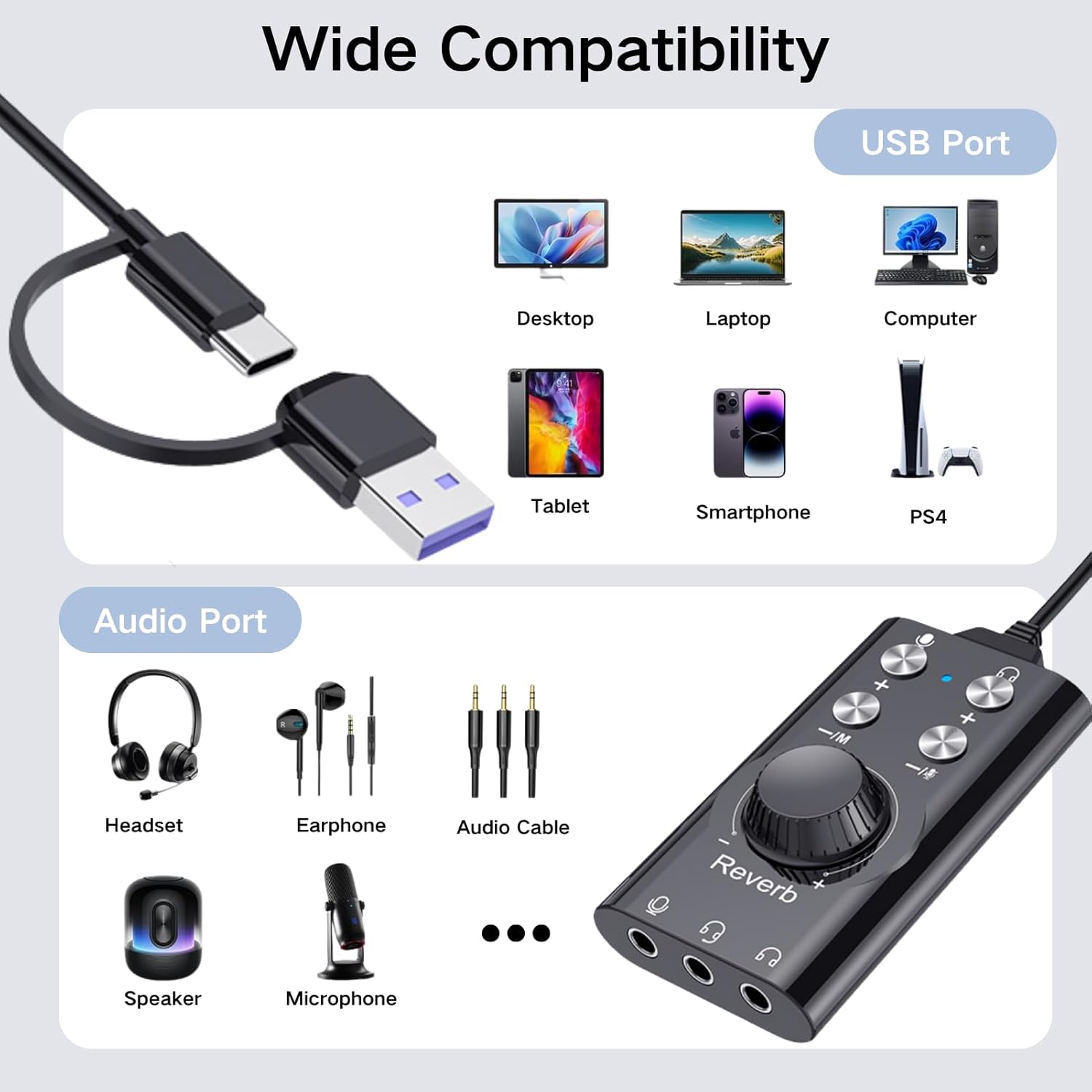
Figure 2: Connecting the audio interface to a laptop.
3. Operating Instructions
Voice Changer & Noise Reduction
The audio interface offers various voice effects and an intelligent noise reduction feature for clear audio.
- Voice Changing Effects: Press the 'M' button to cycle through 7 different voice modes, including original, male, female, cute, quirky, and more. The selected mode will be indicated by an LED.
- Noise Reduction: Activate the noise reduction feature to minimize background noise and ensure crystal-clear audio during streaming, podcasts, or calls. This feature utilizes an intelligent noise reduction chip with a 16-bit/48KHz sampling rate.

Figure 3: Intelligent noise reduction chip for CD-level sound quality.

Figure 4: Voice changing effects in use.
Immersive Gaming Audio
Experience high-fidelity 7.1 virtual surround sound, enhancing your gaming and music experience by allowing you to hear subtle audio cues like footsteps and reloads with precision.
Dual Output & Reverb Adjustment
- Dual Headphone Output: Connect two headphones simultaneously (e.g., one over-ear and one in-ear) for shared listening or monitoring.
- Volume Control: Use the dedicated '+' and '-' buttons to adjust the volume for both microphone input and headphone output.
- Reverb Adjustment: Rotate the large 'Reverb' knob to independently adjust the intensity of the reverberation effect applied to your audio.
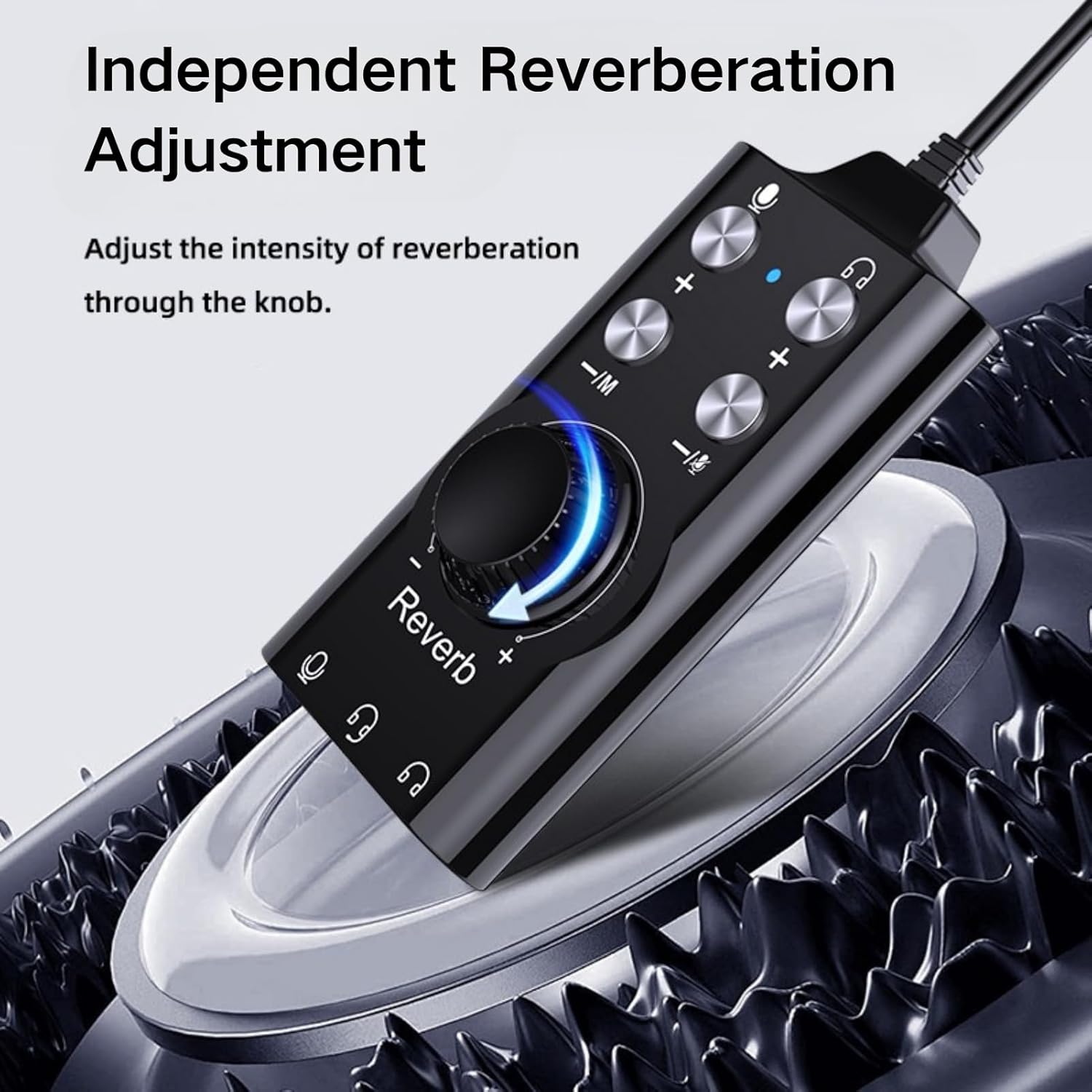
Figure 5: Simultaneous connection of two headphones.

Figure 6: Adjusting the independent reverb control.
4. Device Compatibility
The HOSONGIN Portable USB Audio Interface offers broad compatibility with various devices and operating systems.
Supported Devices & Systems
- Operating Systems: Windows, iOS, macOS
- Compatible Devices: Laptops, Personal Computers (Desktops), Mobile Phones (Smartphones), Tablets, PS4/PS5
- Audio Peripherals: Headsets, Earphones, Microphones, External Speakers
- Supported Software: DAW (Digital Audio Workstation) applications, Studio Magic Plug-in Suite, Avid Pro Tools, Ableton Live, Steinberg Cubase, and more.

Figure 7: Wide compatibility with various devices and audio equipment.
5. Product Specifications
| Feature | Detail |
|---|---|
| Brand | HOSONGIN |
| Model Number | USB-Audio-Interface-002 |
| Connectivity Technology | AUX, USB (Type-C with USB-A adapter) |
| Number of Channels | 2 |
| Audio Input | USB |
| Maximum Sample Rate | 48 KHz |
| Item Weight | 0.04 Kilograms |
| Compatible Devices | Laptop, Personal Computer, Mobile Phone, PS4/PS5 |
| Operating System | Windows, iOS, macOS |
| UPC | 718557399330 |
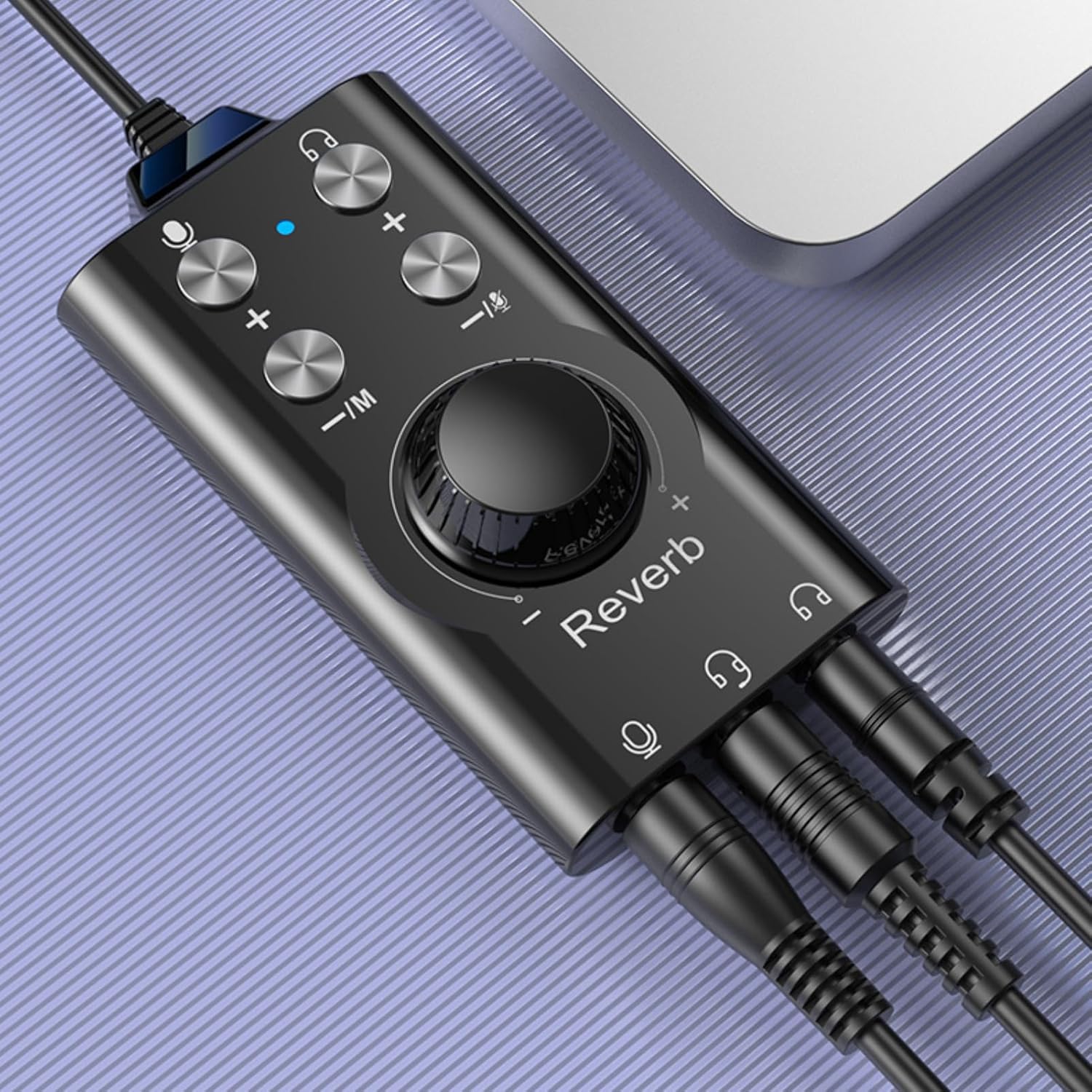
Figure 8: Product dimensions.
6. Troubleshooting
If you encounter issues with your HOSONGIN Portable USB Audio Interface, please refer to the following common solutions:
- No Sound Output/Input:
- Ensure all cables (USB, microphone, headphones) are securely connected.
- Check the volume levels on the audio interface and your connected device.
- Verify that the HOSONGIN device is selected as the default audio input/output device in your computer's sound settings or your application's audio preferences.
- Test with different headphones or microphones to rule out peripheral issues.
- Static or Muffled Audio:
- Ensure all connections are firm and free from interference.
- Try using a different USB port on your host device.
- Reduce the microphone input gain if the audio is distorted.
- Ensure the audio source quality is adequate.
- Voice Changer/Reverb Not Working:
- Confirm the device is powered on and connected correctly.
- Press the 'M' button to cycle through voice modes.
- Adjust the 'Reverb' knob to increase or decrease the effect intensity.
- Device Not Recognized:
- Disconnect and reconnect the USB cable.
- Try connecting to a different USB port or a different host device.
- Restart your computer or mobile device.
7. Warranty and Support
Warranty Information
The HOSONGIN Portable USB Audio Interface comes with a 1-year warranty from the date of purchase. This warranty covers manufacturing defects and malfunctions under normal use. It does not cover damage caused by misuse, accidents, unauthorized modifications, or improper installation.
Customer Support
For technical assistance, warranty claims, or any product-related inquiries, please contact HOSONGIN customer support through the retailer where you purchased the product or visit the official HOSONGIN website for contact information.