
Introduction
Welcome to the DUNHOO Y10 16-inch i5 Laptop user manual. This guide provides essential information for setting up, operating, maintaining, and troubleshooting your new laptop. Please read this manual thoroughly to ensure optimal performance and longevity of your device.
Safety Information
- Do not expose the laptop to extreme temperatures, direct sunlight, or high humidity.
- Avoid placing heavy objects on the laptop.
- Use only the provided power adapter to charge the device.
- Keep the laptop away from liquids and strong magnetic fields.
- Do not attempt to disassemble or repair the laptop yourself. Contact qualified service personnel for assistance.
Setup
1. Unboxing and Initial Inspection
Carefully remove the laptop and all accessories from the packaging. Verify that all components listed in the 'What's in the Box' section are present. Inspect the laptop for any physical damage.
Video: Unboxing and initial setup of the DUNHOO Y10 laptop. This video demonstrates opening the package, identifying components, and the first power-on sequence.
2. Powering On and Initial Configuration
- Connect the AC adapter to the laptop's charging port and then to a power outlet.
- Open the laptop lid. The laptop may power on automatically, or you may need to press the power button located on the keyboard deck.
- Follow the on-screen instructions to complete the Windows 11 Pro setup, including language selection, network connection, and user account creation.
3. Connecting Peripherals
The DUNHOO Y10 laptop offers a variety of ports for connecting external devices:
- USB 3.0 Ports: Connect USB devices such as mice, keyboards, external hard drives, or flash drives.
- HDMI Port: Connect an external monitor or TV for extended display.
- Type-C Port: For data transfer or connecting compatible Type-C devices.
- Headphone Jack: Connect headphones or external speakers.
- TF Card Slot: Insert a TF (MicroSD) card for additional storage or data transfer.
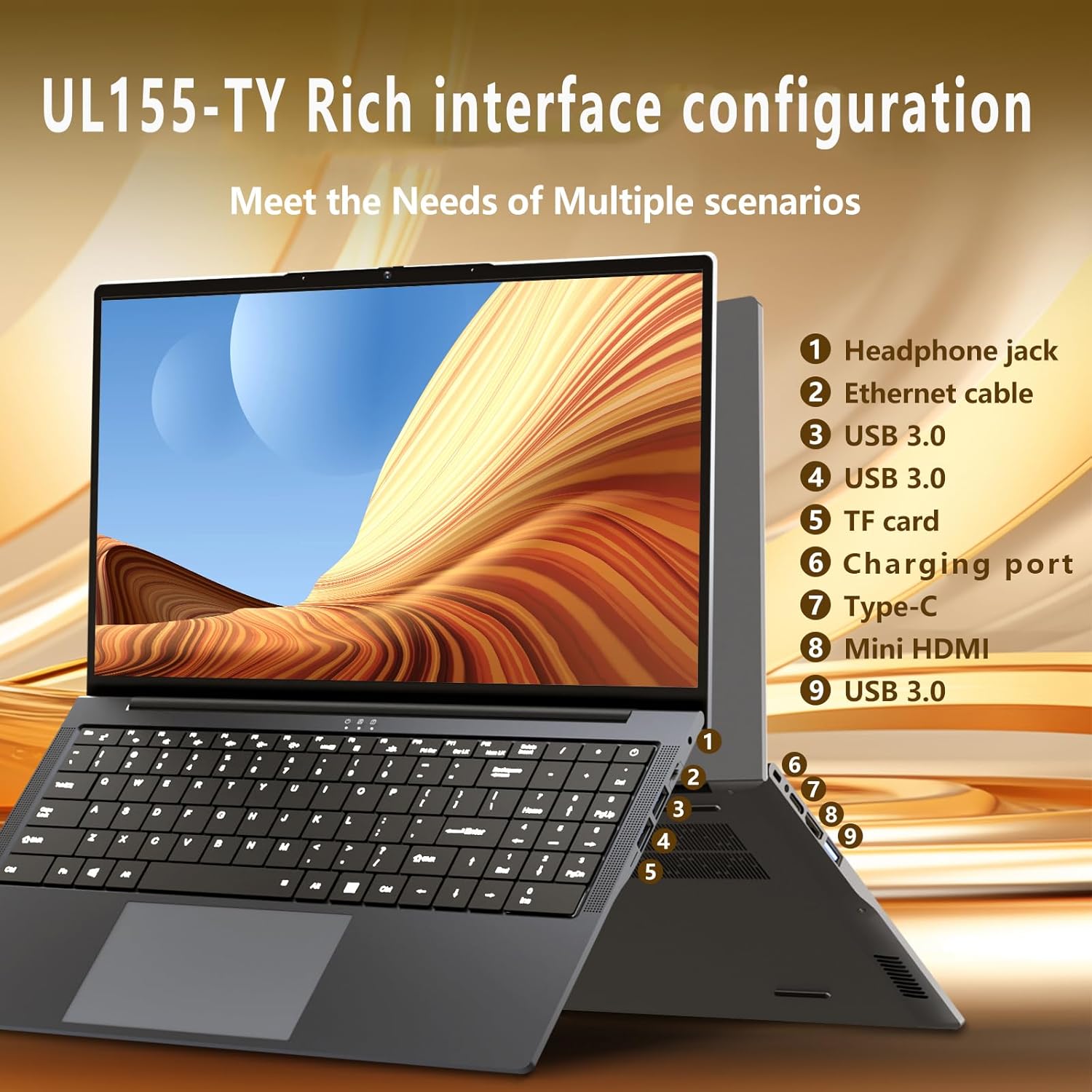
Image: A detailed view of the DUNHOO Y10 laptop's side ports, including USB 3.0, Mini HDMI, DC-in, Type-C, TF card slot, and headphone jack.
Operating the Laptop
1. Basic Navigation
- Touchpad: Use the integrated touchpad for cursor control. Supports multi-touch gestures for scrolling and zooming.
- Keyboard: The laptop features a full-size keyboard with a numeric keypad for efficient data entry.

Image: Close-up of the DUNHOO Y10 laptop's keyboard and large touchpad, highlighting its comprehensive functionality.
2. Display Features
The 16-inch IPS Full HD display (1920x1200) provides sharp and vibrant visuals, ideal for work, entertainment, and gaming.

Image: The DUNHOO Y10 laptop display showcasing its 16-inch Full HD IPS screen with 1920x1200 resolution and slim bezels.
3. Performance and Storage
Equipped with an Intel Core i5-8210Y processor, 16GB RAM, and a 512GB SSD, the laptop delivers stable performance for multitasking and quick application loading.
Video: A general overview of the DUNHOO Y10 laptop's features, including its performance in various tasks and gaming capabilities.

Image: Visual representation of the Intel Core i5-8210Y processor, highlighting its 2 cores, 4 threads, and 3.6GHz burst frequency.

Image: The DUNHOO Y10 laptop displaying multiple applications running simultaneously, emphasizing its 16GB LPDDR3 RAM and 512GB PCIe SSD for efficient multitasking.
4. Battery Management
The 5800mAH battery provides reliable power for on-the-go use. For optimal battery life, ensure the laptop is fully charged before use and avoid extreme temperatures.

Image: The DUNHOO Y10 laptop in various usage scenarios, highlighting its 44Wh battery and up to 12 hours of battery life.
Maintenance
- Cleaning: Use a soft, lint-free cloth to clean the screen and exterior. Avoid harsh chemicals.
- Software Updates: Regularly check for and install Windows updates to ensure system stability and security.
- Storage Management: Periodically delete unnecessary files and applications to free up storage space and maintain performance.
Troubleshooting
Common Issues and Solutions:
- Laptop not powering on: Ensure the AC adapter is securely connected and the battery has sufficient charge. Try a different power outlet.
- Display issues: Check external monitor connections if applicable. Adjust brightness settings. If the screen remains black, try restarting the laptop.
- Connectivity problems (Wi-Fi/Bluetooth): Verify that Wi-Fi and Bluetooth are enabled in Windows settings. Restart your router or modem if internet issues persist.
- Slow performance: Close unnecessary applications. Check for background processes consuming high resources. Ensure sufficient free storage space.
Specifications
| Feature | Detail |
|---|---|
| Brand | DUNHOO |
| Model Name | Y10 |
| Screen Size | 16 Inches |
| Screen Resolution | 1920 x 1200 pixels (Full HD IPS) |
| Processor | 1.6 GHz Core i5-8210Y (up to 3.6 GHz) |
| RAM | 16 GB LPDDR3 |
| Hard Drive | 512 GB SSD |
| Graphics Coprocessor | Intel UHD Graphics 617 |
| Operating System | Windows 11 Pro |
| Wireless Type | 802.11a/b/g/n/ac, Bluetooth 5.0 |
| Ports | Type-C x1, USB 3.0 x2, Mini HDMI x1, DC x1, TF card slot, 3.5mm Headphone Jack x1 |
| Battery | 5800mAH (44Wh), up to 4 hours average battery life |
| Item Weight | 5 pounds |
| Product Dimensions | 14 x 9 x 0.8 inches |
Warranty and Support
DUNHOO provides a one-year effective warranty period, including free return or exchange service. For any product-related matters or after-sales support, please contact our professional service team via email or through your Amazon account.
- Email Support: weservice02@outlook.com
- Phone Support (US): +1 888-695-1196 (Work Hour: 5:00am-9:00pm UTC)
- Amazon Contact: Login to your Amazon account > 'Your orders' > Find the order > Click 'Contact seller'.
We are committed to your satisfaction and aim to resolve any issues as soon as possible.