
Thrustmaster 4169104
Thrustmaster T598 Servo Base User Manual
Model: 4169104
1. Introduction
This manual provides essential information for the proper setup, operation, and maintenance of your Thrustmaster T598 Servo Base. Please read these instructions carefully before using the product and retain them for future reference.
The Thrustmaster T598 Servo Base is a direct axial drive force feedback racing wheel base designed for an immersive simracing experience. It features a new generation of Direct Drive technology, providing precise and powerful force feedback effects.
Compatibility: This servo base is compatible with PlayStation 5 (PS5), PlayStation 4 (PS4), and PC (Windows 10/11).
2. Safety Instructions
- Always connect the power adapter to a grounded electrical outlet.
- Do not expose the device to water or excessive moisture.
- Avoid placing the device in direct sunlight or near heat sources.
- Do not attempt to disassemble or modify the device. This will void the warranty.
- Keep the device away from children and pets.
- Ensure proper ventilation around the servo base during use to prevent overheating.
3. Package Contents
The package should contain the following items:
- Thrustmaster T598 Servo Base
- Power Adapter and Cable
- USB Connection Cable
- Mounting System (if included with specific bundle)
- User Manual (this document)
4. Setup and Installation
4.1. Physical Installation
The T598 Servo Base can be mounted to a cockpit or a desk/table. It features 4 attachment points on the underside for cockpit mounting. For desk/table use, a Desk Mounting Kit (sold separately) may be required.
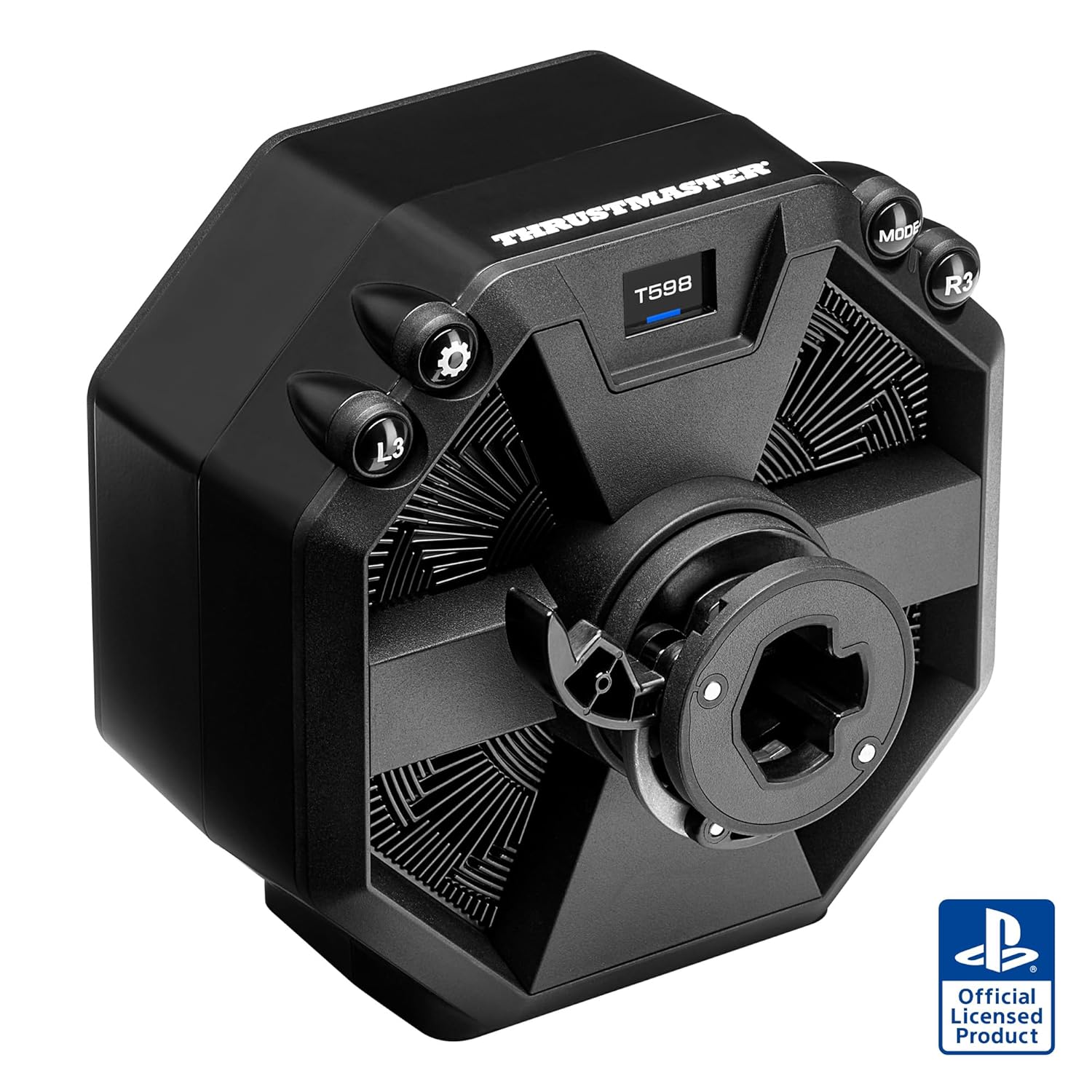
Figure 4.1: The Thrustmaster T598 Servo Base, a direct drive racing wheel base.
Ensure the servo base is securely fastened to prevent movement during intense gameplay.

Figure 4.2: Dimensions of the T598 Servo Base, showing approximate measurements of 210mm x 210mm x 165mm.
4.2. Connecting to a Console (PS5/PS4)
- Connect your Thrustmaster wheel rim (sold separately) to the servo base.
- Connect your Thrustmaster pedal set (sold separately) to the appropriate port on the servo base.
- Plug the USB cable from the servo base into an available USB port on your PlayStation console.
- Connect the power adapter to the servo base and then to a wall outlet.
- Turn on your PlayStation console. The servo base should be automatically detected.
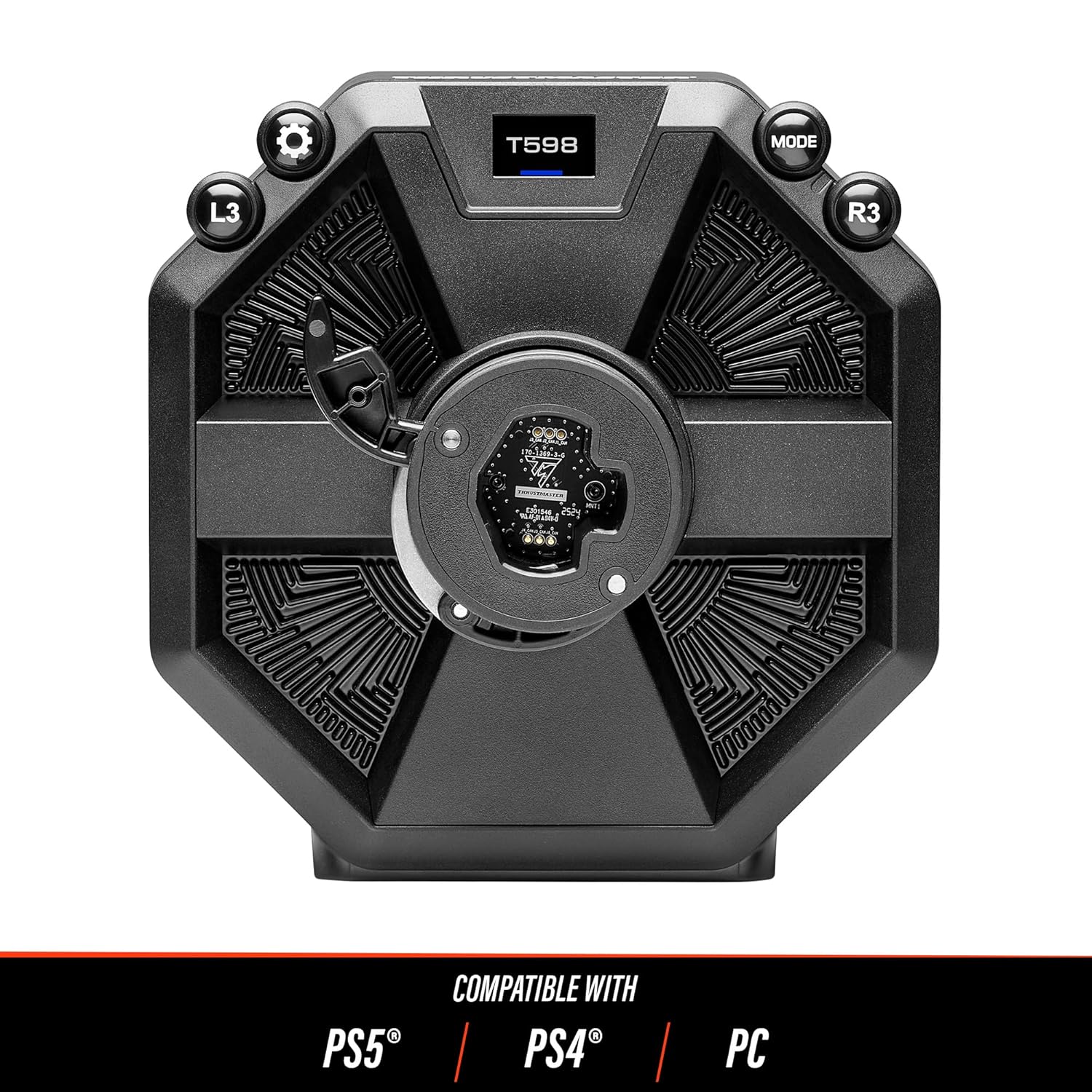
Figure 4.3: Front view of the T598 Servo Base, indicating compatibility with PS5, PS4, and PC.
4.3. Connecting to a PC (Windows 10/11)
- Connect your Thrustmaster wheel rim and pedal set (sold separately) to the servo base.
- Plug the USB cable from the servo base into an available USB port on your PC.
- Connect the power adapter to the servo base and then to a wall outlet.
- Download and install the latest drivers and firmware from the official Thrustmaster support website. This is crucial for optimal performance and compatibility.
- Follow the on-screen instructions during driver installation.
- After installation, you can access the Thrustmaster Control Panel to configure settings and test the device.
5. Operating Instructions
5.1. Force Feedback Technology
The T598 Servo Base utilizes a Direct Axial Drive with an Axial Flux motor, providing a highly realistic and precise force feedback experience. This technology minimizes cogging, resulting in clearer and more detailed effects.
- 5 Nm Constant Torque: Delivers consistent and strong force feedback.
- +100% Overshoot Capability: Allows for sudden, powerful bursts of force feedback, enhancing impact sensations.
- HARMONY Technology: Produces high-frequency torque, enabling the sensation of subtle details like rumble strips, tire screeching, and road textures.
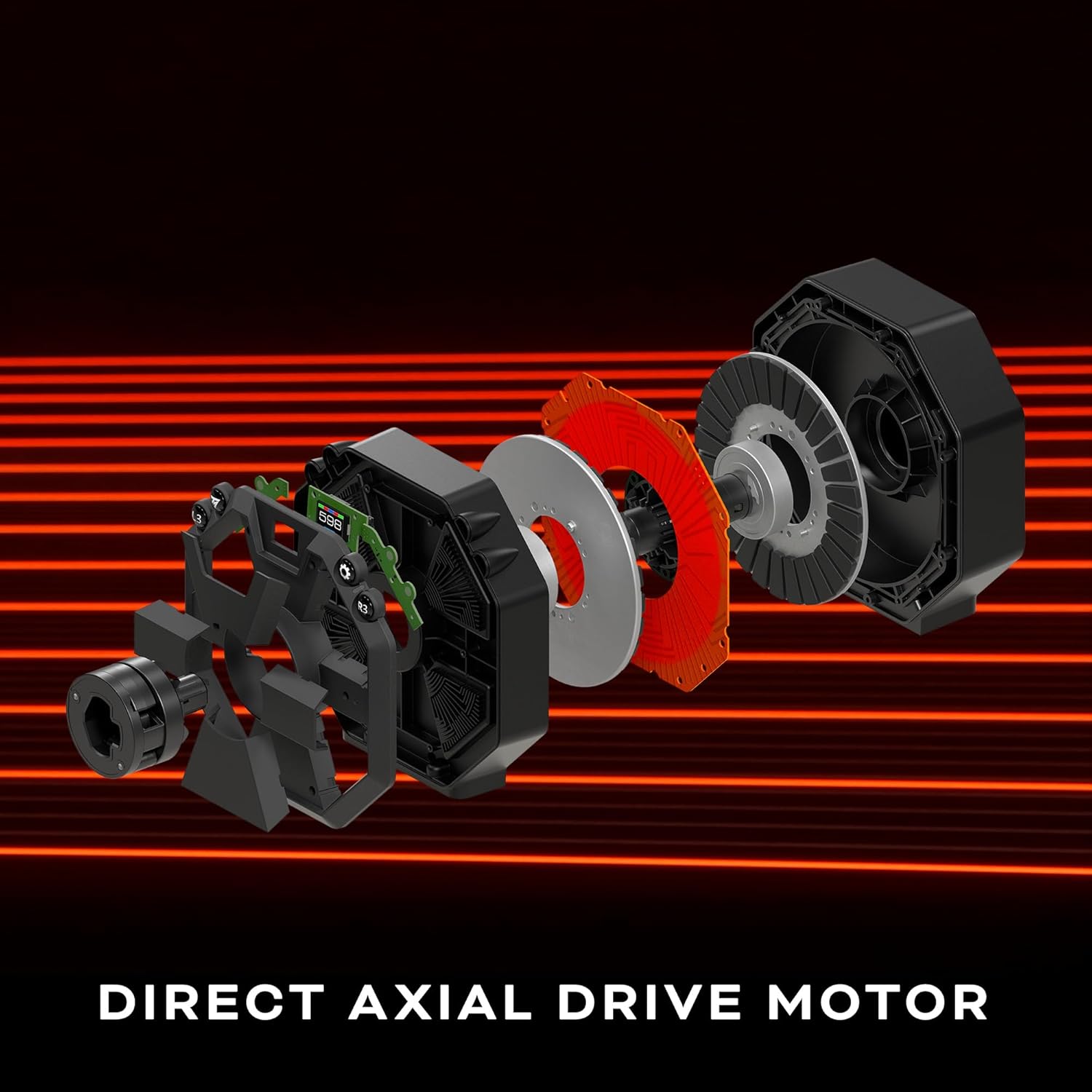
Figure 5.1: Exploded view illustrating the components of the Direct Axial Drive motor within the T598 Servo Base.

Figure 5.2: Graph demonstrating the 5 Nm constant torque with an overshoot capability of +100%, indicating peak force feedback potential.
5.2. Race Dash Screen
The integrated Race Dash screen allows for on-the-fly configuration of Force Feedback settings and displays important in-game information. Refer to your specific game's settings and the Thrustmaster software for detailed customization options.

Figure 5.3: Close-up of the Race Dash display, showing Force Feedback settings (FFB3, Gear Jolt High) and button indicators (L3, R3).
5.3. Ecosystem Compatibility
The T598 Servo Base is designed to be fully compatible with the Thrustmaster ecosystem of wheel rims, pedal sets, shifters, and handbrakes. This allows for extensive customization and upgrades.

Figure 5.4: Diagram illustrating the T598 Servo Base's compatibility with various Thrustmaster wheel rims, showcasing the modularity of the system.
6. Maintenance
- Cleaning: Use a soft, dry cloth to clean the exterior of the servo base. Avoid abrasive cleaners or solvents.
- Ventilation: Ensure that the ventilation openings on the servo base are not obstructed to allow for proper airflow and prevent overheating.
- Storage: When not in use, store the servo base in a clean, dry environment, away from extreme temperatures.
- Cable Management: Periodically check all cables for wear and tear. Ensure they are not kinked or pinched.
7. Troubleshooting
7.1. Device Not Detected
- Check Connections: Ensure all cables (USB, power) are securely connected to the servo base, console/PC, and power outlet.
- USB Port: Try connecting to a different USB port on your console or PC. For PC, avoid using unpowered USB hubs.
- PC Drivers: On PC, verify that the latest drivers and firmware are installed. Visit the Thrustmaster support website for downloads.
- Restart: Restart your console or PC.
7.2. No Force Feedback or Weak Force Feedback
- Power Connection: Ensure the power adapter is correctly connected and the servo base is receiving power.
- Game Settings: Check the in-game force feedback settings. Ensure they are enabled and adjusted to your preference.
- PC Control Panel: On PC, open the Thrustmaster Control Panel and verify force feedback settings. Perform a test to ensure the motor is functioning.
- Firmware Update: Ensure the servo base firmware is up to date.
7.3. Calibration Issues
- Recalibration: Follow the specific recalibration procedure outlined in the Thrustmaster support documentation for your device.
- Firmware: An outdated firmware can sometimes cause calibration issues. Update to the latest version.
For further assistance, please visit the official Thrustmaster support website: support.thrustmaster.com
8. Specifications
| Feature | Detail |
|---|---|
| Model Number | 4169104 |
| ASIN | B0FHRWZZ56 |
| Manufacturer | Thrustmaster |
| Compatibility | PlayStation 5, PlayStation 4, PC (Windows 10/11) |
| Motor Type | Direct Axial Drive with Axial Flux motor |
| Constant Torque | 5 Nm |
| Overshoot Capability | +100% |
| Dimensions (approx.) | 12.5 x 11.5 x 11 inches (Package) |
| Item Weight | 10.36 pounds |
| Release Date | September 19, 2025 |
9. Warranty and Support
Thrustmaster products are covered by a warranty against defects in materials and workmanship. The specific warranty period and terms may vary by region. Please refer to the warranty card included with your product or visit the official Thrustmaster website for detailed warranty information.
For technical support, driver updates, firmware updates, and frequently asked questions, please visit the Thrustmaster support website:
https://support.thrustmaster.com/
You may also find helpful resources and community forums on the official Thrustmaster website.
Related documents4169104


Ask a question about this manual
Ask about setup, troubleshooting, compatibility, parts, safety, or missing instructions. Manuals+ will review the question and use this page’s manual context to help answer it.