
1. Introduction
The TP-Link NE200-Outdoor 5G CPE Router is engineered to deliver high-speed 5G and 4G LTE connectivity in outdoor environments. This device provides a reliable and robust internet connection for homes and businesses, leveraging advanced cellular technology and durable design for consistent performance.

Figure 1: TP-Link NE200-Outdoor 5G CPE Router and Packaging
This manual provides essential information for setting up, operating, and maintaining your NE200-Outdoor router.
2. Key Features
- Blazing-Fast 5G Speeds: Experience download speeds up to 4.67 Gbps with 5G technology.
- LTE-Advanced Cat19: Offers mobile download speeds up to 1.6 Gbps for unparalleled performance.
- Durable Outdoor Enclosure: Robust outdoor connectivity and reliability with IP66 weather protection, ±6kV lightning protection, and ±15kV ESD protection.
- 2.5GE Port for Internet Access: The 2.5 Gigabit Ethernet port provides exceptional speed, ensuring an enhanced network experience.
- PoE Power Supply: Supports passive PoE and 802.3af/802.3at PoE, allowing for easy deployment.
- Multi-Mount Installation: Easily install anywhere with pole, wall, or window mounting for flexible and convenient use.
- Plug and Play: Insert a SIM card for immediate internet access anywhere.

Figure 2: Key Features Overview
3. What's in the Box
Verify that all components are present in the package:
- NE200-Outdoor Unit
- 10-meter RJ45 Ethernet Cable
- PoE Adapter
- AC Power Cable
- Grounding Terminal
- Quick Installation Guide
- Window/Pole/Wall Mounting Kit
4. Setup
4.1 SIM Card Installation
Locate the Nano SIM card slot on the device. Ensure the device is powered off before inserting the SIM card. Gently insert your activated Nano SIM card into the designated slot until it clicks into place. This device requires an activated SIM card without a PIN lock.

Figure 3: SIM Card Slot and 2.5GE PoE Port
4.2 Mounting Options
The NE200-Outdoor router offers versatile mounting options to suit various outdoor environments:
- Pole Mounting: Use the provided kit to attach the router to a pole.
- Wall Mounting: Securely mount the router to a wall using the appropriate hardware.
- Window Mounting: Utilize the window mounting kit for installation on a window surface.
Refer to the Quick Installation Guide included in the box for detailed instructions on each mounting method.
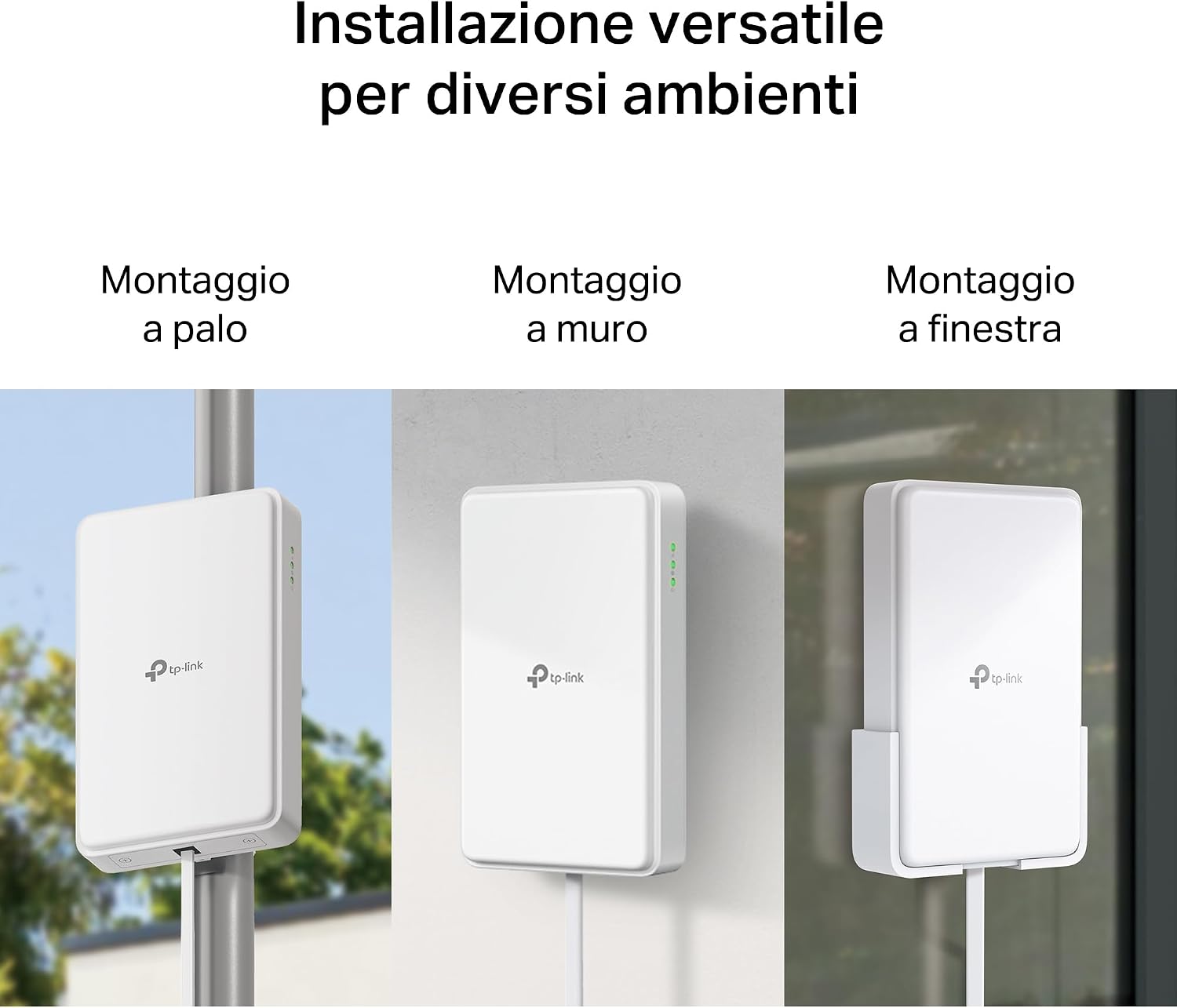
Figure 4: Versatile Installation Options
4.3 Power Connection
Connect the router to power using the provided PoE adapter and AC power cable. The PoE adapter allows both power and data to be transmitted over a single Ethernet cable, simplifying outdoor installation.
5. Operating
5.1 Initial Configuration
After physical installation and power-up, connect to the router's default Wi-Fi network or via an Ethernet cable. Download the TP-Link Tether app on your smartphone for an easy and intuitive setup process. The app will guide you through the initial configuration steps, including setting up your Wi-Fi network name (SSID) and password.
5.2 Connecting Devices
Once configured, you can connect your devices to the NE200-Outdoor router via Wi-Fi or by using an Ethernet cable connected to the 2.5GE port. The router extends high-speed internet access throughout your indoor environment.

Figure 5: Extending High-Speed Internet Indoors
5.3 Status Indicators
The router features LED indicators that provide information about its operational status, including power, internet connectivity, and signal strength. Refer to the Quick Installation Guide for a detailed explanation of each LED's behavior.
6. Maintenance
To ensure optimal performance and longevity of your NE200-Outdoor router, consider the following maintenance tips:
- Firmware Updates: Regularly check for and install firmware updates via the TP-Link Tether app or the router's web management interface. Updates often include performance improvements, security enhancements, and bug fixes.
- Cleaning: Periodically clean the exterior of the device with a soft, dry cloth. Avoid using liquid cleaners or aerosols.
- Environmental Conditions: While designed for outdoor use with IP66 protection, ensure the device is installed in a location that minimizes direct exposure to extreme conditions beyond its operating temperature range (-30°C to +60°C) and severe physical impact.

Figure 6: Robust Outdoor Protection Features
7. Troubleshooting
If you encounter issues with your NE200-Outdoor router, try the following troubleshooting steps:
- No Internet Connection:
- Ensure the SIM card is correctly inserted and activated.
- Check the LED indicators for internet status.
- Verify that your cellular plan has active data.
- Slow Speeds:
- Check the signal strength indicators on the device or via the Tether app. Relocate the router for better signal reception if needed.
- Ensure no other devices are consuming excessive bandwidth.
- SIM Not Detected:
- Power cycle the router.
- Remove and reinsert the SIM card, ensuring it is properly seated.
- Test the SIM card in another compatible device to confirm it is functional.
- Connection Instability:
- Ensure the router has adequate ventilation and is not overheating.
- Perform a factory reset if issues persist (refer to the Quick Installation Guide for reset instructions).
For further assistance, consult the comprehensive user manual available on the TP-Link support website or contact TP-Link technical support.
8. Specifications
| Brand | TP-Link |
| Model Name | NE200-Outdoor |
| Connectivity Technology | 5G, LTE |
| Dimensions | 22.4 x 20.2 x 12.7 cm (8.8 x 8.0 x 5.0 inches) |
| Item Weight | 1.83 Kilograms (4.03 lbs) |
| Operating Temperature | -30°C to +60°C |
9. Warranty and Support
For warranty information, please refer to the warranty card included with your product or visit the official TP-Link website. TP-Link provides technical support and resources to assist you with any questions or issues you may encounter.
TP-Link Support Website: www.tp-link.com/support
Please have your product model and serial number ready when contacting support.


