
1. Introduction
This manual provides instructions for the safe and effective use of your Yixinxin 4K 64MP Underwater Digital Camera, Model YXXUP019B01. This camera is designed for capturing high-resolution photos and videos in various environments, including underwater up to 33 feet (10 meters).
Key features include:
- 33 ft Waterproof and Dustproof Design: Allows for underwater adventures without an additional waterproof case. The camera floats for easy retrieval.
- 4K UHD Video and 64MP High-Resolution Photos: Capture stunning visuals with bright colors and fine details.
- Autofocus Macro Shots and 16x Digital Zoom: Enables precise close-up photography from 3.97 inches and distant landscape capture.
- HD Dual Screen Design: Features a 2.8-inch rear screen and a 1.4-inch front screen for easy framing, especially for selfies.
- 1500 mAh Battery Capacity: Supports continuous 4K video recording for up to 100 minutes.
- Electronic Image Stabilization (EIS): Helps ensure stable and clear recordings.
2. Package Contents
Verify that all items listed below are included in your package. If any items are missing or damaged, please contact customer support.
- 1 x Yixinxin 4K 64MP Underwater Digital Camera (Main Unit)
- 1 x 32GB Micro SD Card (TF card)
- 1 x High Voltage Battery (1500mAh)
- 1 x Type-C USB Cable
- 1 x Storage Bag
- 1 x Neck Strap
- 1 x User Manual (this document)
3. Camera Overview
Familiarize yourself with the camera's physical components before operation.
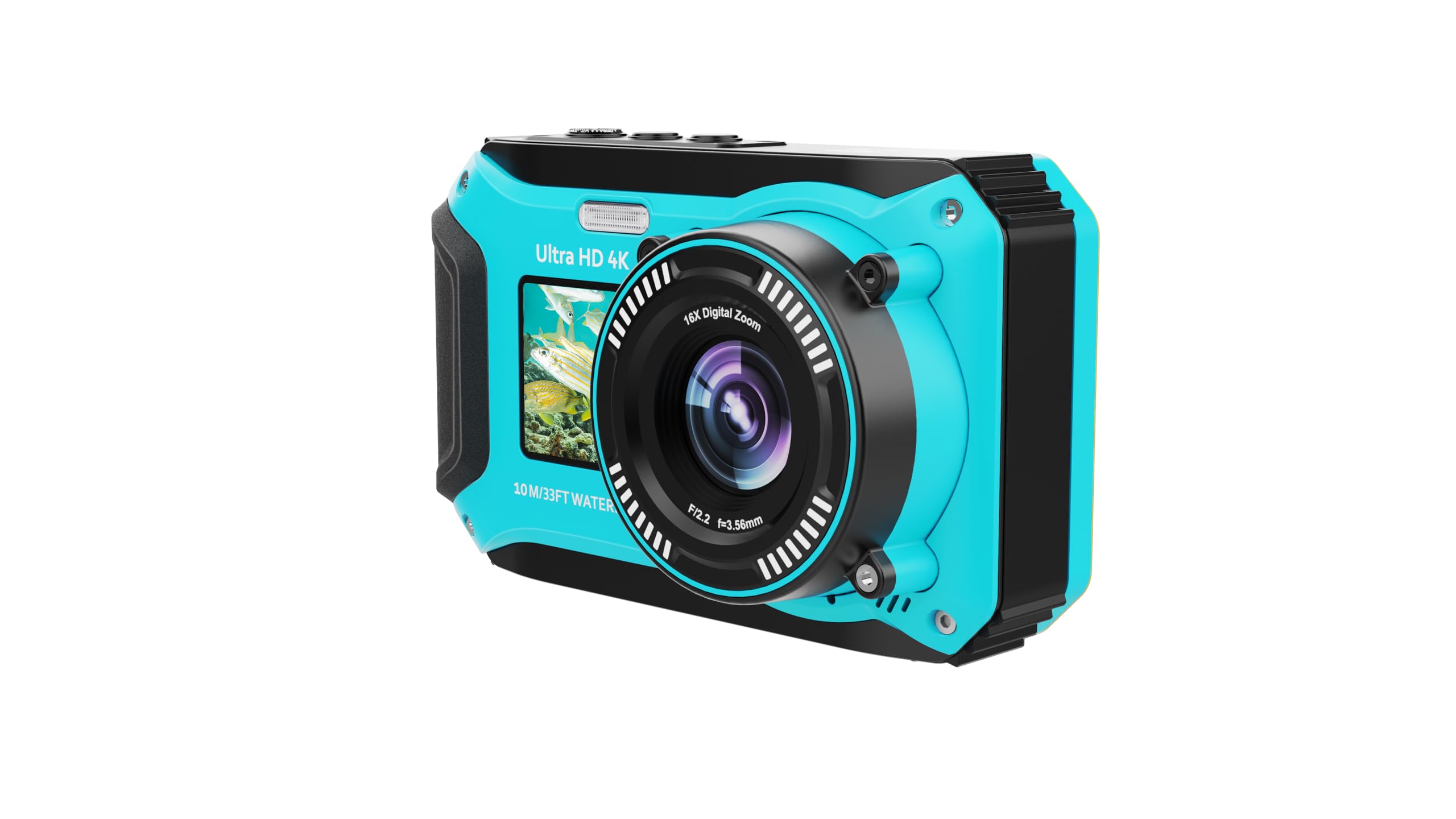
Figure 3.1: Front view of the Yixinxin 4K 64MP Underwater Digital Camera, showing the lens, front screen, and flash.
3.1 Front Panel
- Lens: Captures images and videos.
- Front Screen (1.4 inch): For self-portraits and monitoring.
- Flash: Provides illumination in low-light conditions.
3.2 Rear Panel
- Rear Screen (2.8 inch): Main display for viewing menus, photos, and videos.
- Control Buttons: Navigation, menu access, playback, and mode selection.
3.3 Top Panel
- Power Button: Turns the camera on/off.
- Shutter Button: Takes photos or starts/stops video recording.
- Zoom Lever: Controls digital zoom.
3.4 Side/Bottom Panels
- Battery Compartment: Houses the rechargeable battery.
- Micro SD Card Slot: For inserting the memory card.
- Type-C USB Port: For charging and data transfer.
- Tripod Mount: For attaching the camera to a tripod (if applicable).
4. Setup
4.1 Charging the Battery
- Open the battery compartment cover.
- Insert the provided 1500mAh high voltage battery, ensuring correct polarity.
- Close the battery compartment cover securely.
- Connect the camera to a power source (e.g., computer USB port or USB wall adapter) using the supplied Type-C USB cable.
- The charging indicator light will illuminate. Once fully charged, the light will change or turn off. A full charge provides approximately 90-100 minutes of 4K video recording.
4.2 Inserting the Micro SD Card
- Ensure the camera is powered off.
- Locate the Micro SD card slot, usually next to the battery compartment.
- Insert the provided 32GB Micro SD card (or another Class 10 or above card up to 256GB) into the slot with the gold contacts facing the correct direction (refer to the diagram inside the compartment if available).
- Push the card gently until it clicks into place. To remove, push again until it springs out.
4.3 Initial Power On and Language Setting
- Press and hold the Power button to turn on the camera.
- Upon first use, you may be prompted to set the language. Use the navigation buttons to select your preferred language (English, French, German, Spanish, Dutch, Italian, Portuguese, Czech, Hungarian, Turkish, Polish, Russian, Simplified Chinese, Japanese) and confirm.
- Set the date and time if prompted.
5. Operating the Camera
5.1 Taking Photos
- Turn on the camera. Ensure it is in photo mode (usually indicated by an icon on the screen).
- Frame your shot using the rear or front screen.
- For autofocus, press the Shutter button halfway down. The camera will focus, and the focus indicator will confirm.
- Press the Shutter button fully down to capture the photo.
- To use the 16x digital zoom, use the zoom lever (often labeled T/W or +/–).
5.2 Recording Videos
- Turn on the camera and switch to video recording mode.
- Press the Shutter button to start recording. A recording indicator (e.g., red dot, timer) will appear on the screen.
- Press the Shutter button again to stop recording.
- The camera supports UHD 4K, QHD 2.7K (30 FPS), FHD (30 FPS), and HD (30 FPS) resolutions. These can typically be adjusted in the camera's menu settings.
5.3 Using Dual Screens
The camera features a 2.8-inch rear screen and a 1.4-inch front screen. A dedicated button (often labeled "Mode" or an icon) allows you to switch between the two screens, making it convenient for selfies or group shots where you want to see yourself.
5.4 Underwater Operation
The camera is waterproof up to 33 feet (10 meters) without a separate case. Ensure all compartment covers (battery, memory card, USB port) are securely closed and latched before submerging the camera. After use in saltwater, rinse the camera with fresh water and dry thoroughly.
5.5 Webcam Functionality
The camera can be connected to a computer via the Type-C USB cable and used as a webcam. Once connected, select the "Webcam" option on the camera's screen (if prompted) or configure it through your computer's operating system settings.
5.6 Playback and Deleting Files
- Enter playback mode (usually via a dedicated button or menu option).
- Use the navigation buttons to browse through your photos and videos.
- To delete a file, select it and press the delete button (often indicated by a trash can icon). Confirm deletion when prompted.
5.7 Transferring Files to a Computer
- Connect the camera to your computer using the Type-C USB cable.
- The camera should appear as a removable disk or device on your computer.
- Open the camera's folder to access and copy your photos and videos to your computer.
5.8 Official Product Video
Video 5.1: Demonstration of the Yixinxin 4K 64MP Underwater Digital Camera's features and operation. This video provides a visual guide to using the camera.
6. Maintenance
6.1 Cleaning the Camera
- Lens: Use a soft, lint-free cloth specifically designed for camera lenses. For stubborn smudges, use a small amount of lens cleaning solution. Avoid touching the lens with your fingers.
- Body: Wipe the camera body with a soft, damp cloth. For saltwater exposure, rinse thoroughly with fresh water immediately after use and dry completely with a soft cloth.
- Screens: Use a soft, dry microfiber cloth to clean the LCD screens.
- Do not use harsh chemicals, solvents, or abrasive cleaners.
6.2 Waterproof Seal Care
- Before each underwater use, inspect the rubber seals around the battery and memory card compartments for any dirt, sand, hair, or damage. Even a small particle can compromise the waterproof seal.
- Ensure all compartment covers are firmly closed and latched before submerging the camera.
- Avoid opening compartments when the camera is wet or in a dusty environment.
6.3 Battery Care
- Store the battery in a cool, dry place when not in use.
- Avoid fully discharging the battery frequently.
- If the camera will not be used for an extended period, remove the battery.
7. Troubleshooting
| Problem | Possible Cause | Solution |
|---|---|---|
| Camera does not turn on. | Battery is depleted or incorrectly inserted. | Charge the battery fully. Ensure the battery is inserted with correct polarity. |
| Cannot take photos/record videos. | Memory card is full, not inserted, or corrupted. | Insert a Micro SD card. Delete unnecessary files or format the card (this will erase all data). Ensure the card is not locked. |
| Images are blurry or out of focus. | Lens is dirty. Camera did not focus correctly. Subject is too close/far. | Clean the lens. Press the shutter button halfway to allow the camera to focus before fully pressing. Ensure subject is within focus range (macro for close-ups). |
| Camera is not recognized by computer. | Incorrect USB cable. Driver issue. Camera not in correct mode. | Use the provided Type-C USB cable. Try a different USB port. Restart computer and camera. Select "Mass Storage" or "Webcam" mode on the camera if prompted. |
| Water leakage after underwater use. | Compartment covers not securely closed. Damaged waterproof seals. | Immediately remove the battery and memory card. Do NOT turn on the camera. Dry the camera thoroughly. Inspect seals for damage or debris. If seals are damaged, contact customer support. Ensure all covers are firmly latched before future use. |
8. Specifications
| Feature | Detail |
|---|---|
| Model Name | YXXUP019B01 |
| Brand | Yixinxin |
| Waterproof Depth | Up to 33 ft (10 m) |
| Image Sensor | CMOS, 1/4-inch |
| Effective Still Resolution | 64 MP |
| Image Format | JPG |
| Video Resolution | UHD 4K, QHD 2.7K (30 FPS), FHD (30 FPS), HD (30 FPS) |
| Video Format | AVI |
| Digital Zoom | 16x |
| Autofocus | Yes, supports full autofocus in photo mode (shortest distance 10cm in macro) |
| Image Stabilization | Digital (EIS) |
| Display Screens | Rear: 2.8 inch (4:3) IPS HD LCD; Front: 1.4 inch IPS HD LCD |
| Storage | Supports Micro SD card up to 256GB (Class 10 or above), 32GB card included |
| Battery | 1500mAh High Voltage Lithium Ion (approx. 90-100 min 4K video recording) |
| Charging Interface | Type-C USB 2.0 |
| Webcam Function | Yes |
| System Languages | English, French, German, Spanish, Dutch, Italian, Portuguese, Czech, Hungarian, Turkish, Polish, Russian, Simplified Chinese, Japanese |
| Weight | 380 g |
| Dimensions (Package) | 16.2 x 12.6 x 6 cm / 6.4 x 5 x 3.4 inches |
| UPC | 717504965338 |
9. Warranty and Support
9.1 Limited Warranty
The Yixinxin 4K 64MP Underwater Digital Camera (Model YXXUP019B01) comes with a limited warranty. Please refer to the warranty information provided with your purchase or contact Yixinxin customer support for details regarding warranty coverage and terms. The warranty typically covers manufacturing defects but does not cover damage caused by misuse, accidents, or unauthorized modifications.
9.2 Customer Support
For technical assistance, troubleshooting not covered in this manual, or warranty inquiries, please contact Yixinxin customer support. Contact information can usually be found on the product packaging, the official Yixinxin website, or through your retailer.
When contacting support, please have your camera model number (YXXUP019B01) and purchase details readily available.