
Introduction
This manual provides essential instructions for the safe operation, setup, and maintenance of your PLEGBLE PL-710 GPS Drone. Please read this manual thoroughly before operating the drone to ensure optimal performance and user safety. The PL-710 is a lightweight, foldable drone equipped with a 4K EIS camera, a controller with a built-in screen, and intelligent flight modes for an enhanced flying experience.
1. Unboxing and Package Contents
Upon opening your PLEGBLE PL-710 drone package, verify that all components are present and in good condition. The drone comes securely packed in a dedicated carrying case designed for safe transport.
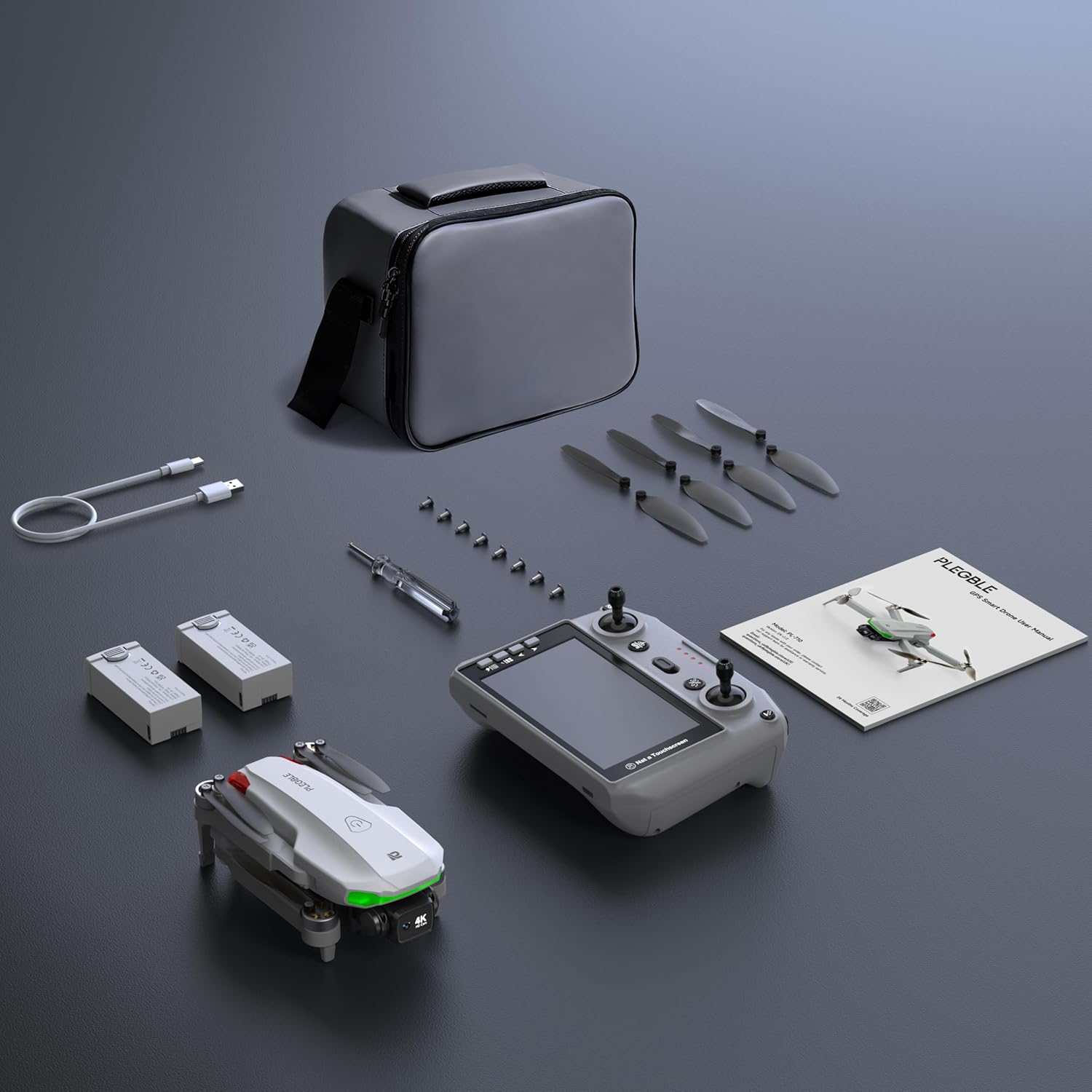
Image: All components of the PLEGBLE PL-710 drone package, including the drone, controller, batteries, and accessories.
Package Contents:
- PLEGBLE PL-710 Drone (Foldable)
- Remote Controller with Built-in 5.0" HD Screen
- 7.6V 2700mAh Modular Batteries (x2)
- Carrying Case
- Extra Propellers (set)
- Propeller Guard
- USB-C Charging Cable
- Screwdriver and Screws
- User Manual
Video: A user unboxes the PLEGBLE PL-710 drone, showcasing the protective carrying case, the remote controller with its built-in screen, the drone itself, and all included accessories such as batteries and spare parts.
2. Product Overview
The PLEGBLE PL-710 drone is engineered for both beginners and experienced pilots, offering advanced features in a compact design.
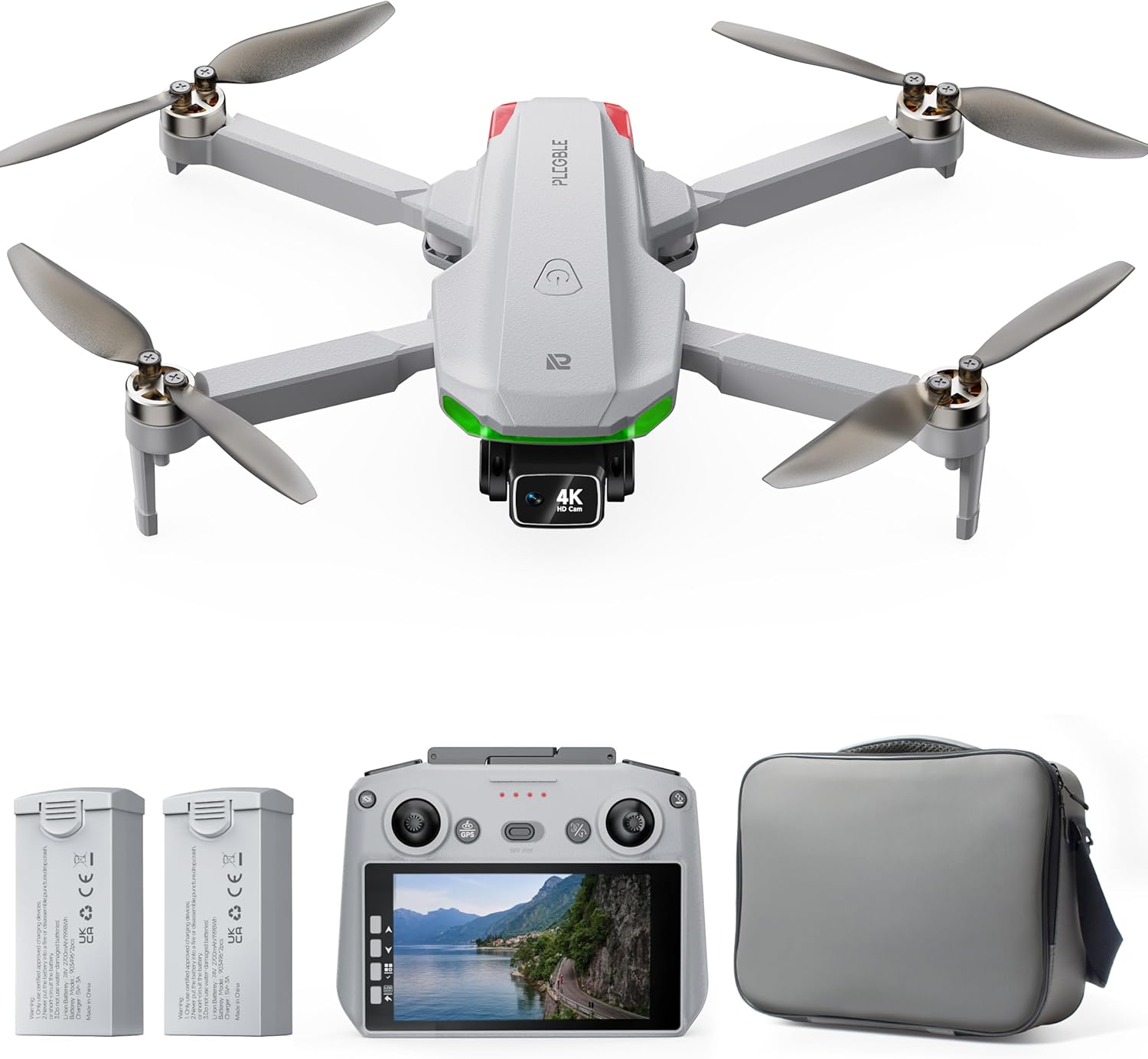
Image: The PLEGBLE PL-710 drone and its primary components.
Key Features:
- Integrated FPV Screen: The remote controller features a built-in 5.0" HD screen for real-time FPV transmission, eliminating the need for a smartphone.
- 4K EIS Camera: Capture high-resolution 4K@30fps video and 3840×2160 photos with Electronic Image Stabilization (EIS) for smooth, shake-free footage. The camera has a 130° wide-angle lens and 90° adjustable tilt.
- GPS Functionality: Enjoy precise positioning, Smart Return to Home, Low Battery Return, and Signal Loss Return for enhanced safety and control.
- Extended Flight Time: Two 7.6V 2700mAh modular batteries provide up to 70 minutes of total flight time.
- Long Range Transmission: Experience stable transmission up to 10KM.
- Compact & Foldable: Weighing under 249g, its foldable design ensures portability and FAA/Remote ID exemption.
- Intelligent Flight Modes: Includes Follow Me, Waypoint Fly, and Circle Flight modes for dynamic aerial footage.
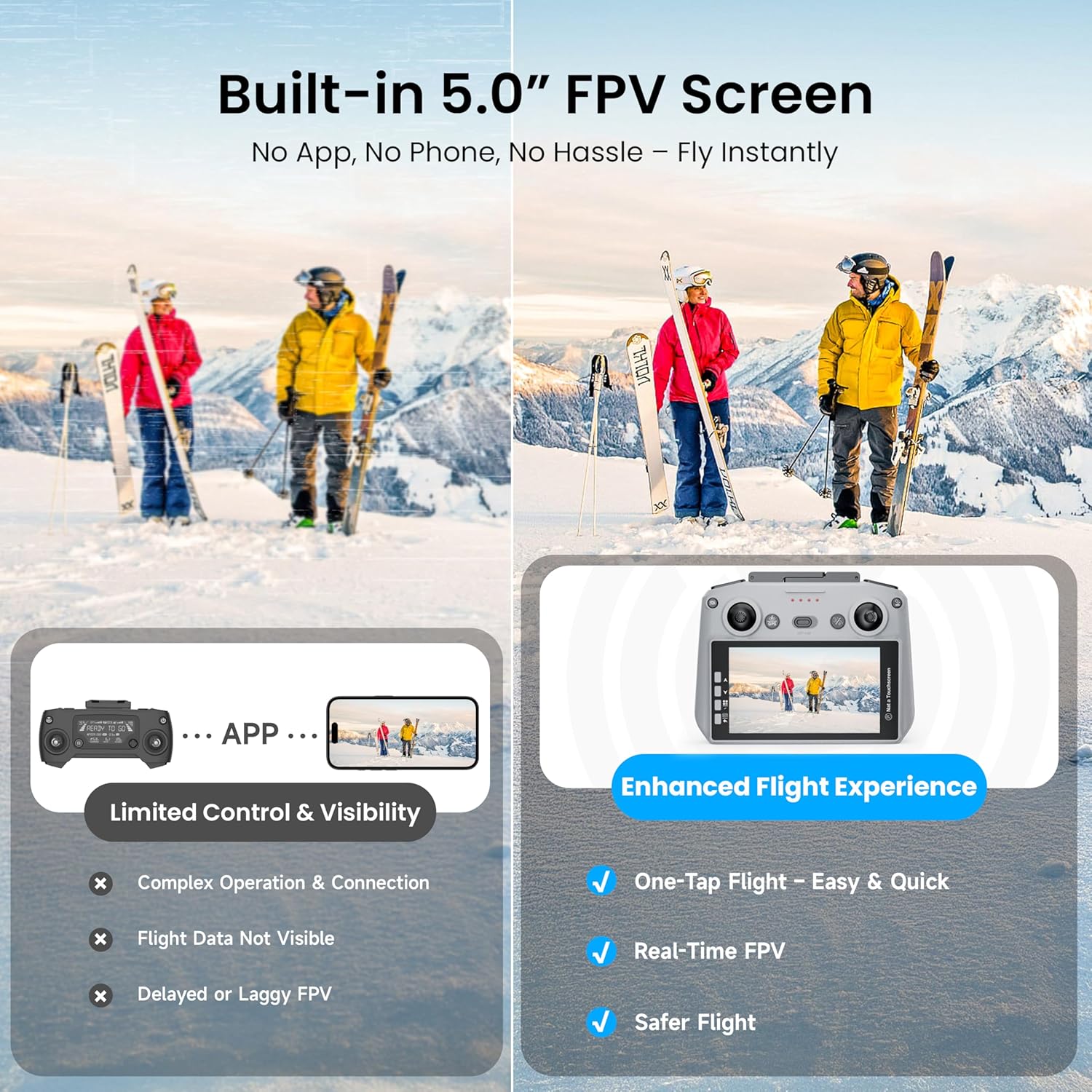
Image: The drone controller's built-in FPV screen for direct viewing.
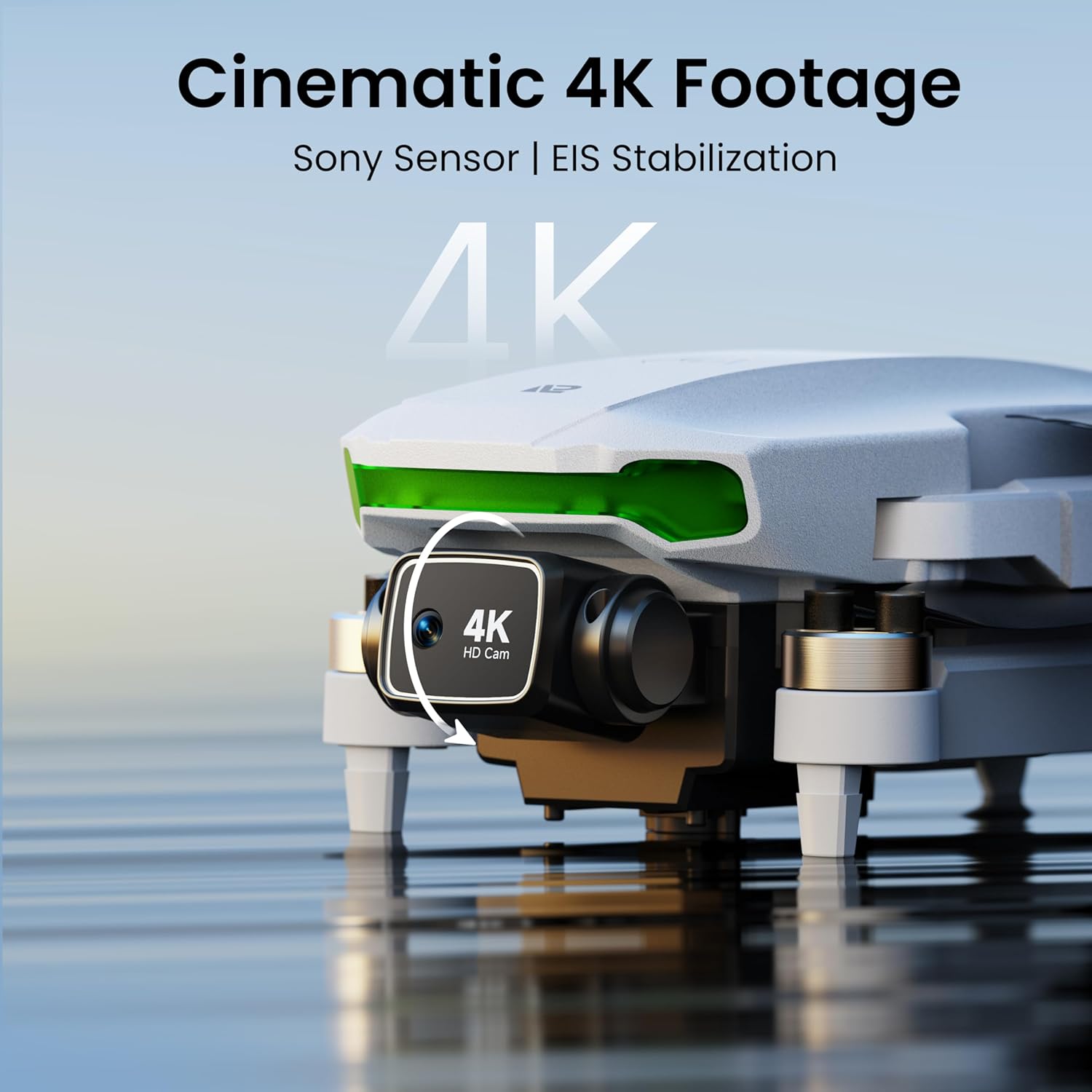
Image: Detail of the 4K HD camera with EIS stabilization.
3. Setup
3.1 Battery Installation and Charging
- Insert the fully charged 7.6V 2700mAh modular battery into the drone's battery compartment until it clicks into place.
- To charge the batteries, connect them to the USB-C charging cable. The batteries support fast charging and have built-in overcharge and short-circuit protection.
3.2 Controller Setup
- Attach the joysticks to the remote controller by screwing them into the designated ports.
- If desired, attach the provided lanyard to the controller for added security during flight.
- Ensure the controller is fully charged before use.
3.3 Drone Preparation
- Carefully unfold the drone's arms until they are fully extended and locked into position.
- Remove the camera gimbal protector.
3.4 Calibration
Before your first flight, it is crucial to calibrate the drone's geomagnetic sensors for stable and accurate flight.
- Place the drone on a flat, level surface.
- Power on the drone, then power on the remote controller.
- Follow the on-screen instructions on the controller to initiate geomagnetic calibration. This typically involves rotating the drone horizontally three times, then vertically three times, until a double beep confirms successful calibration.
Video: A user demonstrates the initial setup of the drone, including attaching joysticks to the remote controller and performing the geomagnetic calibration by rotating the drone horizontally and vertically.
4. Operating Instructions
4.1 Power On/Off and Motor Arming
- To power on the drone, press and hold the power button until the indicator lights illuminate.
- To power on the remote controller, slide the power switch to the 'ON' position.
- To arm the motors, push both joysticks on the controller down and outwards (7 o'clock and 5 o'clock positions) simultaneously until the propellers begin to spin.
4.2 Basic Flight Controls
- One-Key Takeoff: Press the dedicated one-key takeoff button on the controller. The drone will automatically ascend to a safe altitude and hover.
- Altitude Hold: The drone features automatic altitude holding for stable hovering.
- Directional Control: Use the left joystick to control altitude and rotation, and the right joystick for forward, backward, left, and right movement.
- One-Key Landing: Press the dedicated one-key landing button. The drone will automatically descend and land gently.
Video: A user demonstrates one-touch takeoff, basic flight maneuvers, and altitude holding with the PLEGBLE PL-710 drone.
4.3 Camera Operation
- Adjusting Camera Angle: Use the dedicated scroll wheel or buttons on the remote controller to adjust the camera's tilt angle (90° range) during flight.
- Photo/Video Capture: Use the designated buttons on the controller to take photos or start/stop video recording.
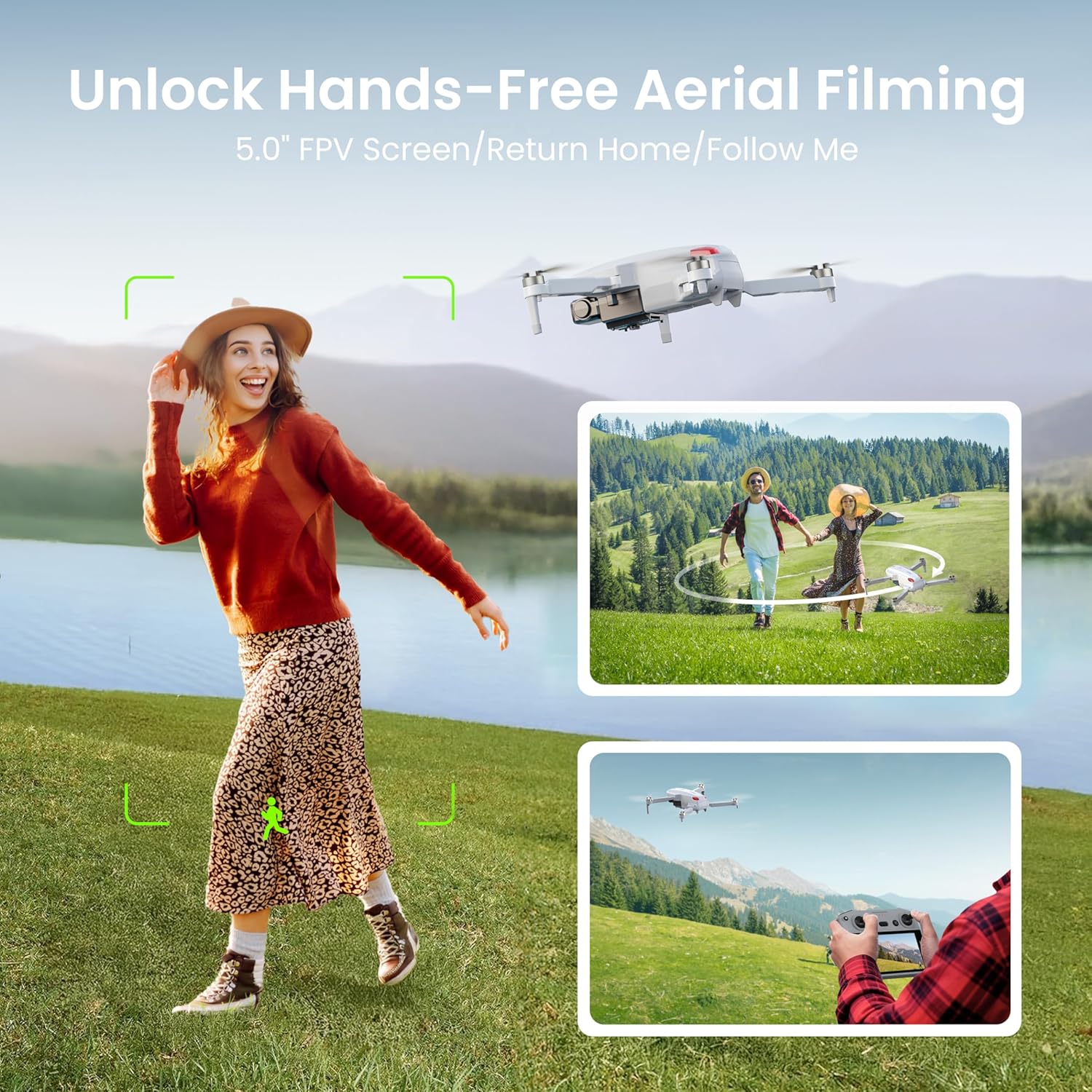
Image: Drone utilizing intelligent flight modes for hands-free filming.
4.4 Intelligent Flight Modes
- Follow Me Mode: Activate this mode to have the drone automatically follow the controller, capturing dynamic footage of your movement.
- Orbit Mode (Circle Flight): Long-press the Follow Me/Circle button to activate Orbit Mode, where the drone will fly in a circular path around a designated point.
- Smart Return to Home (RTH): Press the GPS RTH button. The drone will automatically return to its takeoff point. This feature also activates in case of low battery or signal loss.

Image: Smart GPS Auto Return features for drone safety.
Video: The drone demonstrates Follow Me mode, orbiting a user, and the automatic Return to Home function.
5. Maintenance
5.1 Battery Care
- Always use the provided USB-C charging cable.
- Do not overcharge or completely discharge batteries.
- Store batteries in a cool, dry place away from direct sunlight.
5.2 Propeller Replacement
If propellers are damaged, replace them immediately using the spare propellers and screwdriver provided.
- Power off the drone.
- Carefully unscrew the damaged propeller.
- Attach a new propeller, ensuring it is the correct type (indicated by markings on the propeller and motor arm), and screw it firmly into place.
5.3 Cleaning
Regularly clean the drone body and camera lens with a soft, dry cloth to prevent dust and debris buildup.
6. Troubleshooting
- Drone not powering on: Ensure batteries are fully charged and correctly inserted.
- Unstable flight: Perform geomagnetic calibration in an open area away from magnetic interference. Check for damaged propellers.
- No FPV feed: Ensure the drone and controller are properly connected and within range. Check controller screen settings.
- GPS signal issues: Fly in an open outdoor area with clear sky visibility.
7. Specifications
| Feature | Specification |
|---|---|
| Brand | PLEGBLE |
| Model Name | PL-710 |
| Special Features | Auto Follow, Integrated GPS, Long Battery Life, One Button Return, Portable |
| Color | Grey |
| Video Capture Resolution | 4K |
| Effective Still Resolution | 8.3 MP |
| Connectivity Technology | Wi-Fi |
| Skill Level | All |
| Item Weight | 0.2 Kilograms (7 ounces) |
| Battery Capacity | 2700 Milliamp Hours |
| Video Capture Format | MP4 |
| Remote Control Technology | Bluetooth |
| Control Type | Remote Control |
| Maximum Range | 10000 Meters |
| Material | Plastic |
| Product Dimensions | 8.66"L x 7.05"W x 2.22"H |
8. Warranty and Support
PLEGBLE stands behind its products with expert help and tutorials. For any questions, technical assistance, or warranty claims, please contact our US-based support team. We aim to respond within 24 hours.
- Email Support (USA): customerservice_us@plegble.store
- Email Support (UK): customerservice_uk@plegble.store
- Email Support (EU): customerservice_eu@plegble.store
Access step-by-step video guides and full feature support through our official channels.
