
ATTACK SHARK X820Ultra
ATTACK SHARK X820 Ultra 75% Wireless Gaming Mechanical Keyboard User Manual
Model: X820Ultra
Brand: ATTACK SHARK
1. Introduction
The ATTACK SHARK X820 Ultra is a high-performance 75% wireless mechanical gaming keyboard designed for versatility and customization. Featuring a smart TFT display, metal control knob, hot-swappable switches, gasket mount structure, and tri-mode connectivity, it offers a premium typing and gaming experience. This manual provides detailed instructions for setup, operation, maintenance, and troubleshooting to help you get the most out of your keyboard.
2. Product Features
- Smart TFT Display & Metal Control Knob: Real-time display of RGB settings, OS modes, battery status, date, and connection status. The precision knob allows for intuitive tactile control and adjustments.
- 75% Layout Hot-Swappable: Compact yet functional 75% layout with hot-swappable sockets, allowing for easy switch replacement without soldering. Equipped with custom linear Gift Switches for smooth keystrokes.
- Gasket Structure with Advanced Acoustic Tuning: Features a soft gasket-mounted design with a 1.2mm FR4 fiberglass dual-layer PCB. Enhanced with PORON foam, IXPE pad, PET sheet, DEPDM, and molded silicone for improved sound and typing feel.
- Tri-Mode Connectivity & Long Battery Life: Supports 2.4GHz ultra-low latency wireless, Bluetooth 5.1 for multi-device pairing, and wired USB-C connection. Powered by a 4000mAh battery for extended use.
- Dynamic RGB Lighting & South-Facing LEDs: Offers 16.8 million colors and over 19 lighting presets. South-facing LEDs ensure vibrant and even backlighting, adjustable via the knob or TFT screen.
- Wide Compatibility & Web Driver: Compatible with Windows and macOS. Features a cloud-based web driver (QMK support at qmk.top) for macro adjustments, lighting customization, and key remapping directly through your browser.

Image: Overview of the X820 Ultra Mechanical Keyboard highlighting its main features.
3. Package Contents
Please check the package for the following items:
- ATTACK SHARK X820 Ultra Keyboard
- USB-C Cable
- 2-in-1 Key Puller (for keycaps and switches)
- User Manual
- ATTACK SHARK Mascot Stickers (2 pcs)
- Extra Switches (2 pcs)
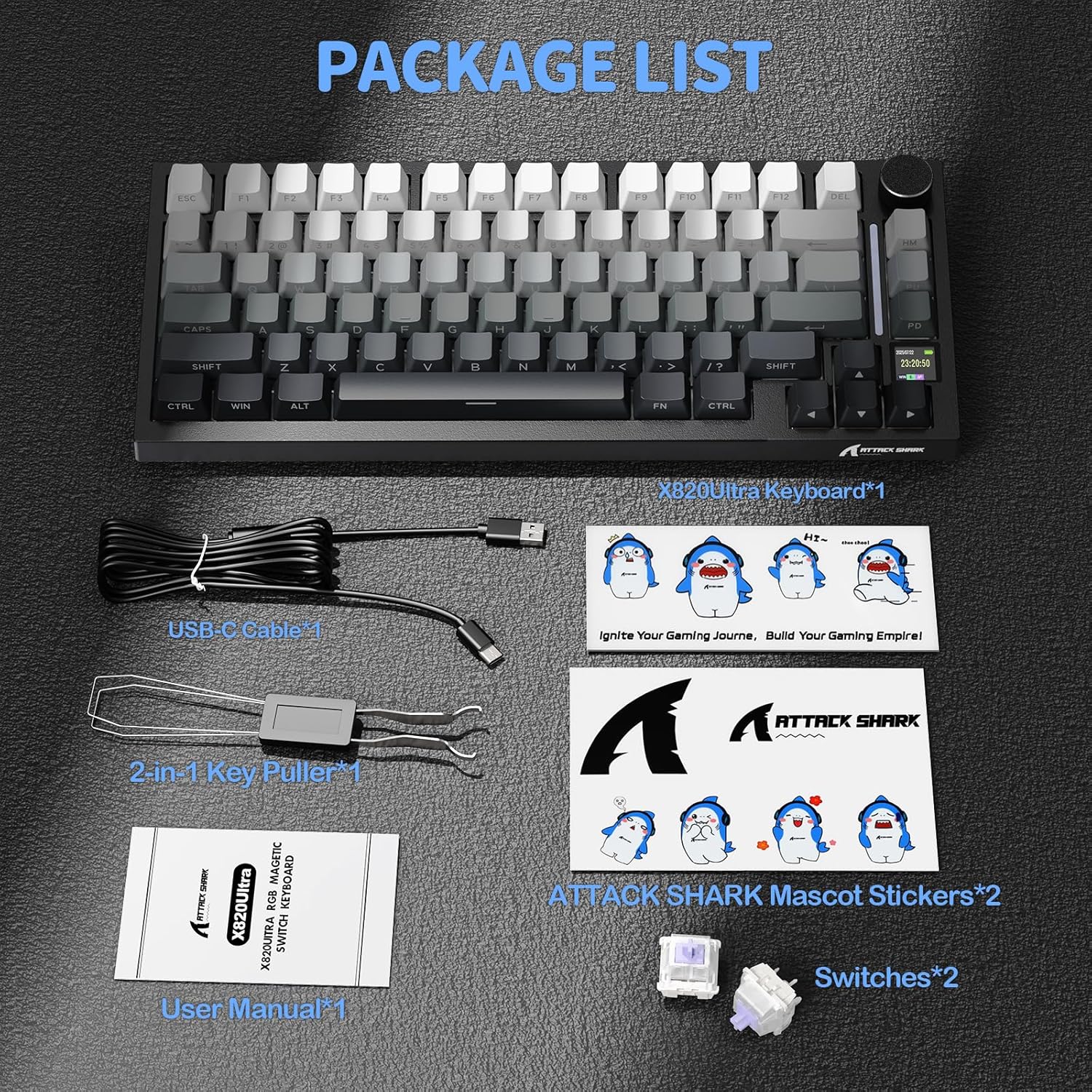
Image: All items included in the X820 Ultra product package.
4. Setup
4.1 Connectivity Modes
The X820 Ultra keyboard supports three connection modes: 2.4GHz wireless, Bluetooth 5.1, and wired USB-C. You can switch between modes using the dedicated switch on the keyboard.
- 2.4GHz Wireless: For ultra-low latency gaming. Insert the 2.4GHz USB receiver into your device.
- Bluetooth 5.1: For multitasking and connecting to multiple devices (up to 3 switchable devices). Pair the keyboard via your device's Bluetooth settings.
- Wired USB-C: For zero-delay gaming and charging. Connect the provided USB-C cable from the keyboard to your device.

Image: The keyboard showcasing its tri-mode connectivity options: wired, Bluetooth, and 2.4GHz wireless.
4.2 Initial Charging
Before first use, it is recommended to fully charge the keyboard using the provided USB-C cable. Connect the cable to the keyboard's USB-C port and to a powered USB port on your computer or a wall adapter. The TFT display will indicate charging status.
5. Operating Instructions
5.1 Smart TFT Display & Control Knob
The integrated TFT display and metal knob provide real-time information and control:
- Volume Control: Press the Fn key + press the knob, then scroll the knob for volume adjustment.
- Menu Navigation: Scroll the knob to navigate through menu pages (Home Page, Custom Gif/Image, Settings). Short press the knob to select or confirm.
- Display Information: View current date, time, battery level, connection mode (2.4G, BT, USB), and operating system (Windows/Mac).
- Settings: Access settings for connection mode, lighting effects, light intensity, light speed, light color, and language choice directly from the display.

Image: Detailed view of the TFT screen and knob, explaining how to adjust volume and navigate menus.
5.2 RGB Lighting Customization
The keyboard features dynamic RGB lighting with 16.8 million colors and over 19 presets. You can personalize the lighting effects:
- Turn On/Off RGB: Use Fn + [ key combination.
- Change Color: Use Fn + Enter key combination.
- Custom Light Effect: Use Fn + [ key combination to cycle through custom effects.
- Adjust via Knob/Screen: Lighting effects and intensity can also be adjusted directly through the TFT display menu using the control knob.

Image: The keyboard displaying its vibrant RGB backlight with various control options.
5.3 Hot-Swappable Switches
The X820 Ultra features a hot-swappable PCB, allowing you to easily change mechanical switches without soldering. This supports both 3-pin and 5-pin switches.
- Use the provided 2-in-1 key puller to gently remove the keycap from the desired switch.
- Use the switch puller end of the tool to carefully grip the top and bottom clips of the switch.
- Pull the switch straight up to remove it from the PCB.
- Align the pins of the new switch with the holes on the PCB. Ensure the pins are straight.
- Gently press the new switch down until it clicks into place. Do not force it.
- Replace the keycap.

Image: Visual guide on the hot-swappable PCB, showing switch and keycap removal/installation.
5.4 Innovative Web Driver (QMK Support)
The X820 Ultra supports a cloud-based web driver, eliminating the need for software installation. You can customize macros, lighting, DPI, and key remapping directly through your browser. Full QMK web driver support is available at qmk.top for advanced customization.
- Macro Editing: Create and edit complex key sequences.
- Remap Keys: Assign new functions to any key.
- Screen Sync: Synchronize settings with the keyboard's TFT display.
- GIF Upload: Customize the TFT display with your own GIFs or images.

Image: Examples of the web driver interface for macro editing, key remapping, and display customization.
5.5 Gasket Structure
The keyboard features a gasket-mounted structure, which provides a softer, more flexible typing experience and improved acoustics. This design incorporates multiple layers of sound-dampening materials, including PORON foam, IXPE pad, PET sheet, DEPDM, and molded silicone, to reduce resonance and enhance the typing sound.

Image: Diagram illustrating the various layers of the gasket structure, including PCB, foams, and pads.
5.6 Typing Sound Demonstration
Experience the sound profile of the ATTACK SHARK X820 Ultra with Gift Switches:
Video: A demonstration of the typing sound and feel of the ATTACK SHARK X820 Ultra Wireless Gaming Mechanical Keyboard with Gift Switches.
6. Maintenance
- Cleaning: Use a soft, dry cloth to wipe down the keyboard. For deeper cleaning, remove keycaps using the provided key puller and use compressed air to clear debris from between switches.
- Switch Care: If a switch feels inconsistent, you can hot-swap it with one of the spare switches provided or a new compatible switch.
- Storage: Store the keyboard in a cool, dry place away from direct sunlight and extreme temperatures.
7. Troubleshooting
- Keyboard not responding: Ensure the keyboard is charged. Check the connection mode switch (2.4G, BT, Wired) and ensure it matches your intended connection. For wired mode, try a different USB port or cable. For wireless modes, ensure the receiver is properly inserted or Bluetooth is paired.
- Keys not registering: Check if the specific switch is properly seated. If not, remove the keycap and switch, then reinsert the switch firmly. If the issue persists, try replacing the switch with a spare.
- RGB lighting not working: Ensure RGB is enabled via Fn key combinations or the TFT display settings. Check brightness levels.
- TFT display not showing information: Ensure the keyboard is powered on. If the display is blank or frozen, try restarting the keyboard.
- Connectivity issues (2.4G/BT): Ensure no strong interference sources are nearby. For Bluetooth, try unpairing and re-pairing the device. For 2.4G, try moving the receiver to a different USB port, preferably a USB 2.0 port.
8. Specifications
| Feature | Detail |
|---|---|
| Model Name | ATTACK SHARK X820Ultra |
| Keyboard Description | Mechanical |
| Connectivity | 2.4GHz Wireless, Bluetooth 5.1, Wired USB-C |
| Layout | 75% (81 Keys) |
| Switches | Gift Switch (Linear, Hot-Swappable) |
| Display | Smart TFT Display |
| Knob | Metal Control Knob |
| Battery Capacity | 4000mAh |
| RGB Lighting | 16.8M Colors, 19+ Presets, South-Facing LEDs |
| Compatibility | Windows, macOS (QMK Web Driver Support) |
| Item Weight | 2.43 pounds |
| Package Dimensions | 13.86 x 7.28 x 1.97 inches |
9. Warranty and Support
ATTACK SHARK products are manufactured to high quality standards. For warranty information, technical support, or service inquiries, please refer to the warranty card included in your product package or visit the official ATTACK SHARK website or brand store:
Visit the ATTACK SHARK Store on Amazon
Please retain your proof of purchase for any warranty claims.
Related documentsX820Ultra


Ask a question about this manual
Ask about setup, troubleshooting, compatibility, parts, safety, or missing instructions. Manuals+ will review the question and use this page’s manual context to help answer it.