
FYDEE A9
FYDEE Model A9 Record Player Instruction Manual
Comprehensive guide for setup, operation, and maintenance of your FYDEE Model A9 Record Player with Bluetooth, USB, and 3-speed vinyl playback.
1. Introduction
Welcome to the instruction manual for your FYDEE Model A9 Record Player. This versatile device combines classic vinyl playback with modern connectivity options, including Bluetooth 5.4, USB recording and playback, and RCA output. Enjoy your favorite music with built-in stereo speakers or connect to external audio systems.
2. Important Safety Information
- Read all instructions carefully before use.
- Keep this manual for future reference.
- Do not expose the unit to rain, moisture, or extreme temperatures.
- Ensure proper ventilation; do not block ventilation openings.
- Use only the power adapter supplied with the unit.
- Avoid placing the unit near heat sources or in direct sunlight.
- Clean the unit with a soft, dry cloth. Do not use abrasive cleaners or solvents.
- Do not attempt to disassemble or repair the unit yourself. Refer all servicing to qualified personnel.
3. Package Contents
Verify that all items are included in your package:
- FYDEE Model A9 Record Player x 1
- AC Adapter x 1
- Dust Cover x 1
- Instruction Manual x 1
- RCA Cable x 1
- 45 RPM Adapter x 1
4. Product Diagram and Parts Identification
Familiarize yourself with the components of your record player:
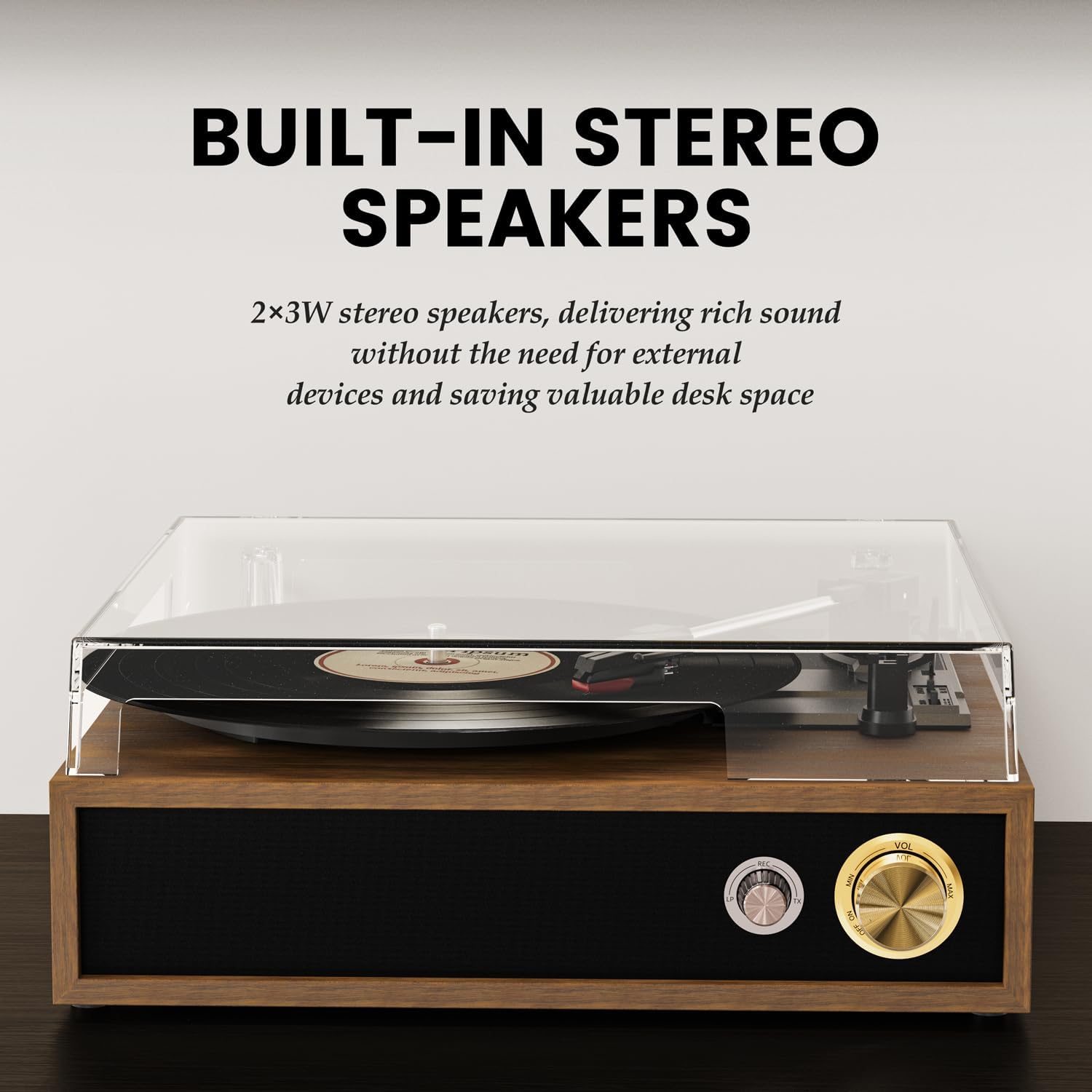
Figure 1: Exploded view of the FYDEE Model A9 Record Player, highlighting its various components including the acrylic dust cover, belt-driven turntable, 45 RPM adapter, wood grain shell, stereo speakers, and shock-absorbing foot pads.
- Turntable Platter: Where the vinyl record is placed.
- 45 RPM Adapter: Used for playing 7-inch records with a large center hole.
- Tone Arm: Holds the cartridge and stylus.
- Auto Stop Switch: Controls automatic stopping of the platter at the end of a record.
- Speed Selector (33/45/78 RPM): Adjusts playback speed for different record types.
- Cartridge/Stylus: Reads the grooves of the record.
- Tone Arm Rest and Security Latch: Secures the tone arm when not in use.
- Built-in Stereo Speakers: Integrated speakers for direct audio playback.
- Power Indicator / Bluetooth Indicator: Red light indicates power, blue light indicates Bluetooth activity.
- Headphone Jack: 3.5mm output for private listening.
- Power Switch & Volume Control: Turns the unit on/off and adjusts audio volume.
- AUX-IN: 3.5mm input for connecting external audio sources.
- RCA L/R Output: For connecting to external amplifiers or powered speakers.
- USB Port: For USB playback and recording.
5. Setup Instructions
- Install the Dust Cover:
Carefully align the hinges of the dust cover with the slots on the back of the record player and slide it into place. The dust cover protects the turntable and records from dust and debris.

Figure 2: The record player with its dust cover installed and open.
Video 1: Demonstrates the installation of the dust cover and initial setup of the record player.
- Connect Power:
Plug the AC adapter into the DC IN port on the back of the record player, then plug the adapter into a wall outlet. The power indicator light will illuminate.

Figure 3: Rear panel connections including power input, RCA output, and USB port.
- Connect External Speakers (Optional):
If you wish to use external powered speakers or an amplifier, connect them to the RCA L/R output ports on the back of the record player using the supplied RCA cable.
6. Operating Instructions
6.1 Playing Vinyl Records
- Power On: Rotate the Power Switch & Volume Control knob clockwise to turn on the record player. The power indicator will light up red.
- Place a Record: Place your vinyl record on the turntable platter. If playing a 7-inch record, place the 45 RPM adapter on the spindle first.
- Select Speed: Set the Speed Selector switch to 33, 45, or 78 RPM according to your record's speed.
- Remove Stylus Guard: Gently remove the protective cap from the stylus.
- Unlock Tone Arm: Release the tone arm from its rest by pushing the security latch.
- Position Tone Arm: Lift the tone arm using the lift lever, move it over the desired track of the record, and then slowly lower it onto the record using the lift lever. The platter will begin to spin automatically.
- Adjust Volume: Rotate the Power Switch & Volume Control knob to adjust the listening volume.
- Auto-Stop Function: The Auto Stop Switch can be set to ON or OFF. When ON, the turntable will stop spinning automatically when the record finishes. When OFF, it will continue to spin.
- To Stop Playback: Lift the tone arm using the lift lever, return it to the tone arm rest, and secure it with the latch. Rotate the Power Switch & Volume Control knob counter-clockwise to turn off the unit.
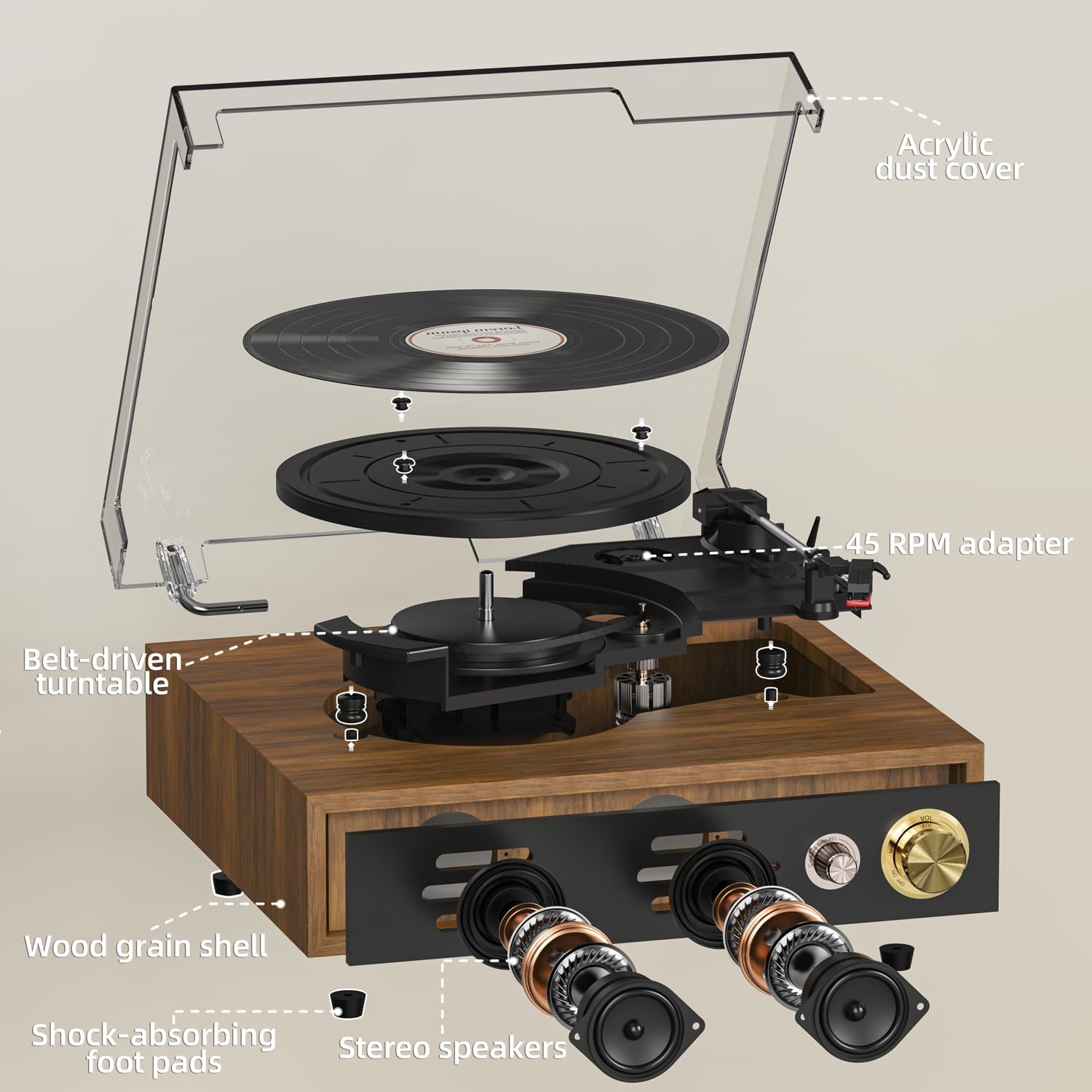
Figure 4: Speed selector for 33, 45, and 78 RPM records.
6.2 Bluetooth Connectivity (Bidirectional)
The FYDEE Model A9 supports Bluetooth 5.4 for both receiving and transmitting audio.
- Bluetooth Input Mode (Using the turntable as a Bluetooth speaker):
- Turn on the record player.
- Rotate the MODE knob to "BT" (Bluetooth). The Bluetooth indicator light will flash blue.
- On your smartphone or other Bluetooth device, enable Bluetooth and search for "FYDEE A9" (or similar device name).
- Select the device to pair. Once connected, the Bluetooth indicator light will turn solid blue.
- Play music from your device, and it will stream through the record player's built-in speakers.
- Bluetooth Output Mode (Streaming vinyl to external Bluetooth speakers/headphones):
- Turn on the record player and play a vinyl record.
- Ensure your external Bluetooth speaker or headphones are in pairing mode.
- On the record player, press the "BT OUT" button (if available, or refer to specific model instructions for Bluetooth transmission pairing). The record player will search for nearby Bluetooth devices.
- Once connected, the audio from the vinyl record will stream to your external Bluetooth device.
Video 2: A quick guide to setting up Bluetooth connectivity for the FYDEE turntable.
6.3 USB Playback and Recording
The USB port allows for both playing digital music files and converting your vinyl records to MP3 format.
- USB Playback:
- Insert a USB flash drive containing MP3 files into the USB port.
- Rotate the MODE knob to "USB". The unit will automatically start playing music from the USB drive.
- Use the control buttons (if available) or your connected device to navigate tracks.
- USB Recording (Vinyl-to-MP3 Conversion):
- Insert a USB flash drive into the USB port.
- Start playing your vinyl record as described in section 6.1.
- Press the "REC" button (usually near the USB port) to start recording. The indicator light will change to show recording is active.
- Press "REC" again to stop recording, or press "SPLIT" to create a new track file without stopping the recording process.
- The recorded MP3 files will be saved on your USB drive.
6.4 AUX-IN Playback
Connect external audio devices (e.g., MP3 players, smartphones) via a 3.5mm audio cable to the AUX-IN port on the back of the record player. Rotate the MODE knob to "AUX" to play audio through the record player's speakers.
6.5 Headphone Output
For private listening, plug 3.5mm headphones into the Headphone Jack on the front panel. The built-in speakers will be muted automatically.
7. Maintenance and Care
- Cleaning the Unit:
Wipe the record player and dust cover with a soft, dry, lint-free cloth. Do not use abrasive cleaners or solvents, as they may damage the finish.
- Stylus Care:
Handle the stylus with care. Avoid touching it with your fingers. Clean the stylus gently with a soft brush, moving from back to front. Replace the stylus when sound quality deteriorates or if it is visibly damaged.
- Record Care:
Keep your records clean and store them vertically in a cool, dry place to prevent warping and dust accumulation.
8. Troubleshooting Guide
| Problem | Possible Cause | Solution |
|---|---|---|
| No power/Unit does not turn on. | Power adapter not connected or faulty. | Ensure the power adapter is securely connected to the unit and a working power outlet. Try a different outlet. |
| No sound from speakers. | Volume too low, headphones connected, incorrect mode selected. | Increase volume. Disconnect headphones. Ensure correct mode (PH for vinyl, BT for Bluetooth, USB for USB, AUX for AUX-IN) is selected. |
| Skipping or distorted sound during vinyl playback. | Dirty record, damaged stylus, unit not on a stable surface. | Clean the record. Check stylus for damage and replace if necessary. Place the unit on a stable, level surface away from vibrations. |
| Bluetooth pairing issues. | Device too far, not in pairing mode, interference. | Ensure devices are within range. Put both devices in pairing mode. Turn off other Bluetooth devices to reduce interference. |
| Record stops prematurely (Auto-Stop). | Auto Stop switch is ON. | If you prefer continuous playback, set the Auto Stop switch to OFF. |
9. Specifications
- Brand: FYDEE
- Model: A9
- Dimensions: 32 x 29 x 13 cm
- Weight: 2.58 kg
- Material: Acrylic, Engineered Wood, Metal
- Color: Teak
- Speeds: 33 1/3, 45, 78 RPM
- Motor Type: Belt-driven
- Bluetooth Version: 5.4 (Bidirectional)
- Speakers: Built-in Dual Stereo Speakers (2x3W)
- Outputs: RCA L/R, 3.5mm Headphone Jack
- Inputs: AUX-IN (3.5mm), USB
- Special Features: Adjustable Speed, Built-in Bluetooth, Dust Cover, USB Recording/Playback, Auto-Stop Function.
- Voltage: 110 Volts
- Power Source: AC adapter
10. Warranty and Support
For any questions, technical support, or warranty claims, please contact FYDEE customer service. Our team is dedicated to assisting with setup, troubleshooting, and providing solutions including repair or replacement as needed.
Contact Information: Refer to your purchase documentation or the product packaging for specific contact details.
Related documentsA9


Ask a question about this manual
Ask about setup, troubleshooting, compatibility, parts, safety, or missing instructions. Manuals+ will review the question and use this page’s manual context to help answer it.