
MSXTTLY U2AC-L9
MSXTTLY U2AC-L9 Wireless Android Auto Adapter User Manual
Model: U2AC-L9
Introduction
Thank you for choosing the MSXTTLY U2AC-L9 Wireless Android Auto Adapter. This device converts your car's wired Android Auto system into a wireless connection, offering enhanced convenience and a seamless driving experience. This manual provides detailed instructions for setup, operation, and troubleshooting to ensure optimal performance.
Product Overview and Package Contents
The MSXTTLY U2AC-L9 is a compact and robust adapter designed to provide a stable and fast wireless Android Auto connection. Its small size ensures a neat and tidy installation in your vehicle.
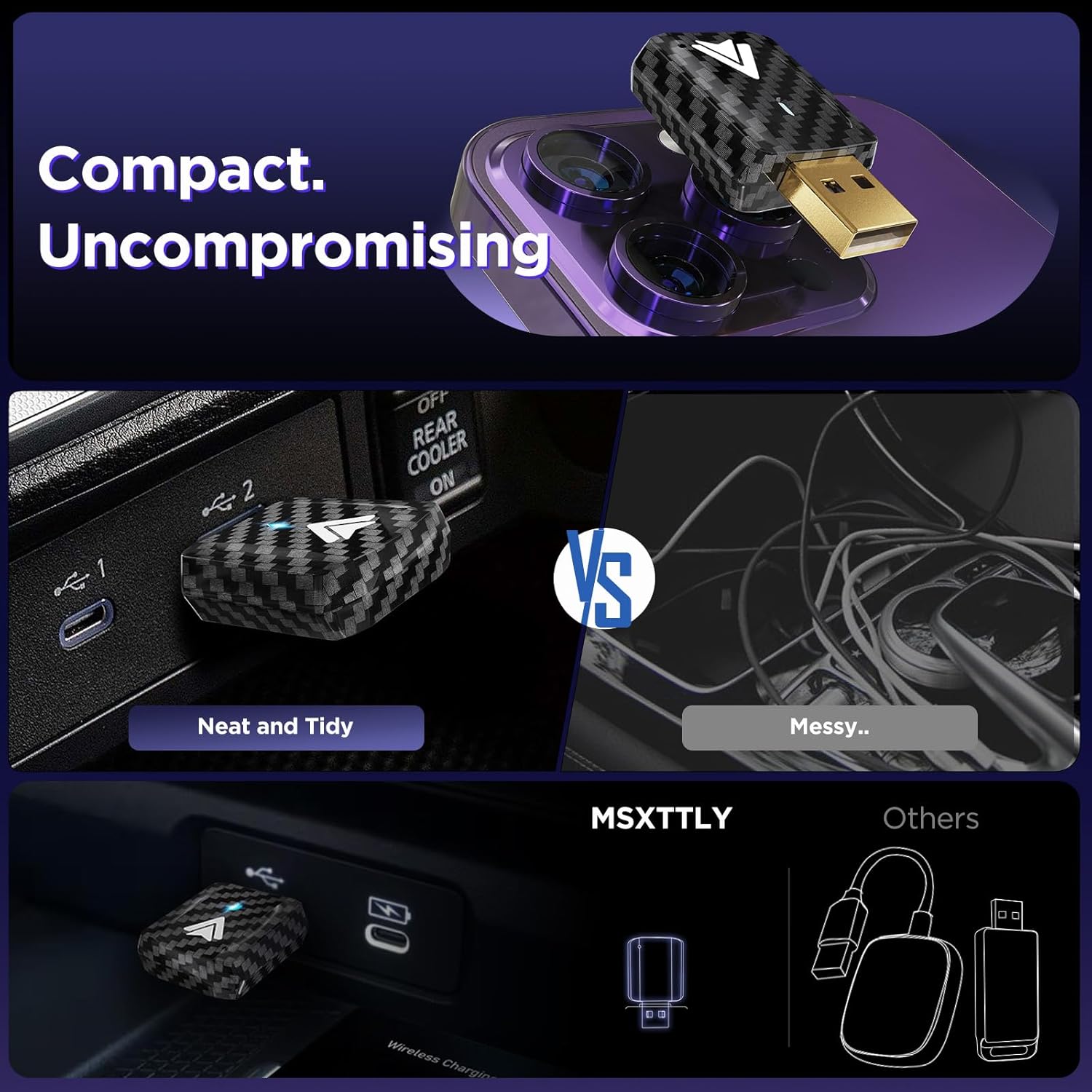
Image: The MSXTTLY U2AC-L9 adapter, a small black device with a carbon fiber pattern, plugged into a car's USB port, contrasting its compact design with a tangled mess of cables.
Package Contents:
- MSXTTLY U2AC-L9 Wireless Android Auto Adapter
- USB A-C Cable
- User Manual
- 12-month Global Warranty Card
- 3M Adhesive Tape (for optional secure placement)
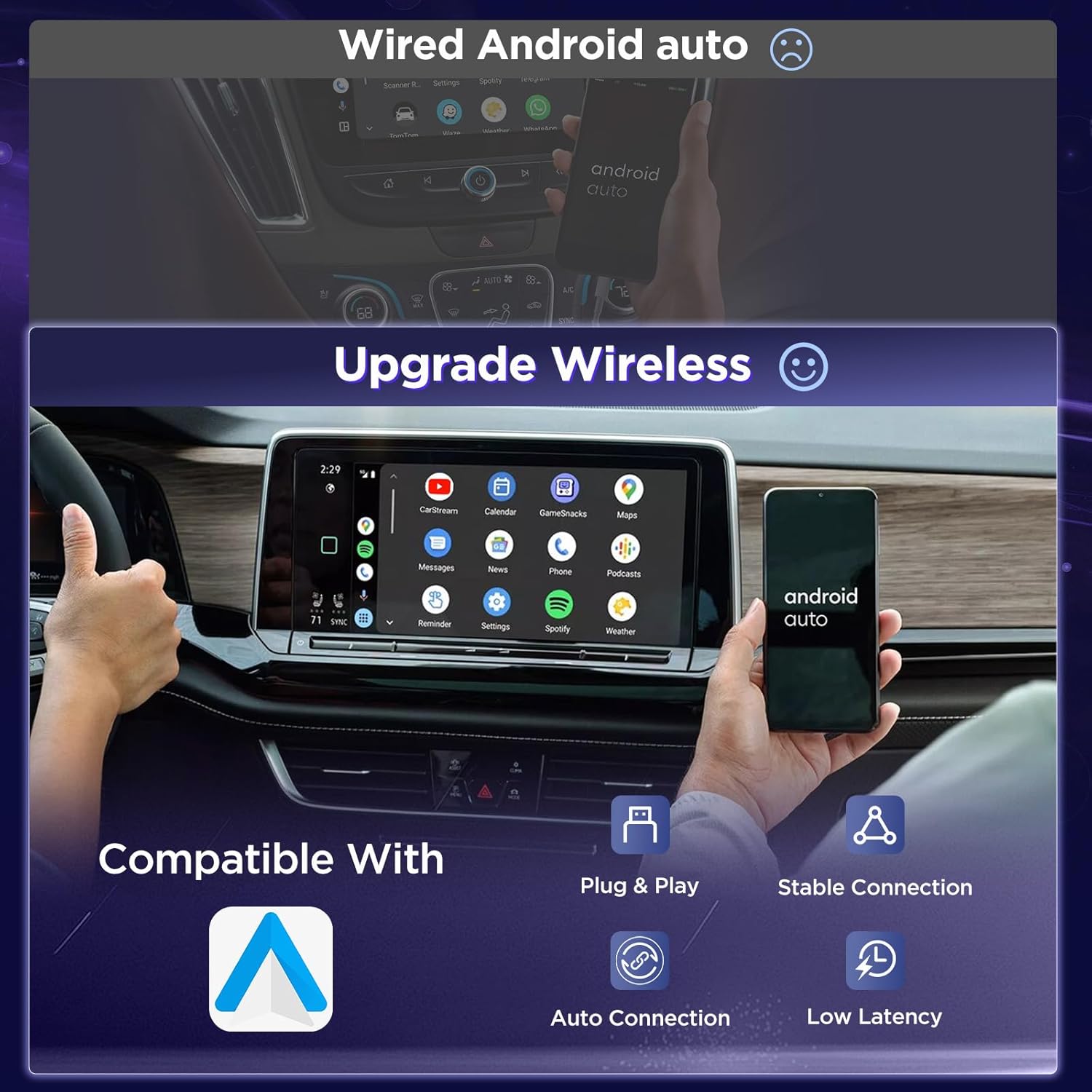
Image: The MSXTTLY U2AC-L9 adapter, a compact black device with a carbon fiber texture and a gold-colored USB-A connector, shown alongside its USB-A to USB-C cable and user manual.
Setup Instructions
Follow these simple steps to set up your MSXTTLY U2AC-L9 adapter:
- Insert the Adapter: Plug the U2AC-L9 adapter into your car's USB port that supports wired Android Auto. Use the provided USB A-C cable if your car has a USB-C port.
- Activate Bluetooth & Wi-Fi: On your Android smartphone, ensure both Bluetooth and Wi-Fi are turned on.
- Pair with Adapter: On your phone's Bluetooth settings, locate and select the device named "SmartBox-xxxx" (the xxxx will be a unique identifier).
- Confirm Connection: A pairing notification will appear on your phone. Confirm the pairing to establish the connection.
- Launch Android Auto: Once paired, Android Auto Wireless should automatically launch on your car's display.
Important: Do not use a VPN on your phone when setting up or using the adapter.
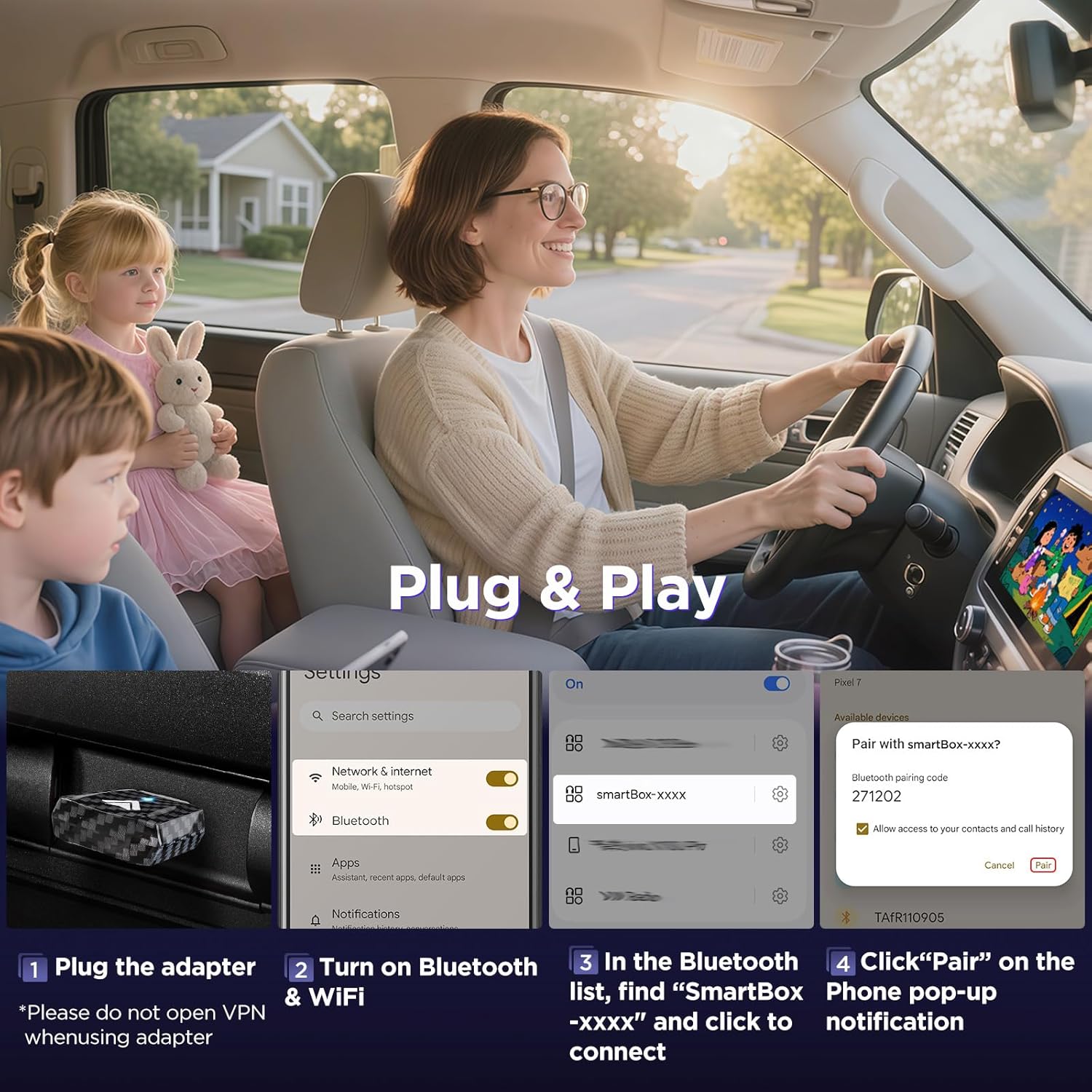
Image: A visual representation of the 3-step connection process: plugging in the adapter, enabling Bluetooth and Wi-Fi on the phone, and pairing with the 'SmartBox-xxxx' device.
Operating Instructions
General Operation
After successful setup, the adapter will automatically connect to your phone when you start your car, provided Bluetooth and Wi-Fi are enabled on your device. Android Auto will then appear wirelessly on your car's infotainment screen, allowing access to navigation, music, calls, and other compatible apps.
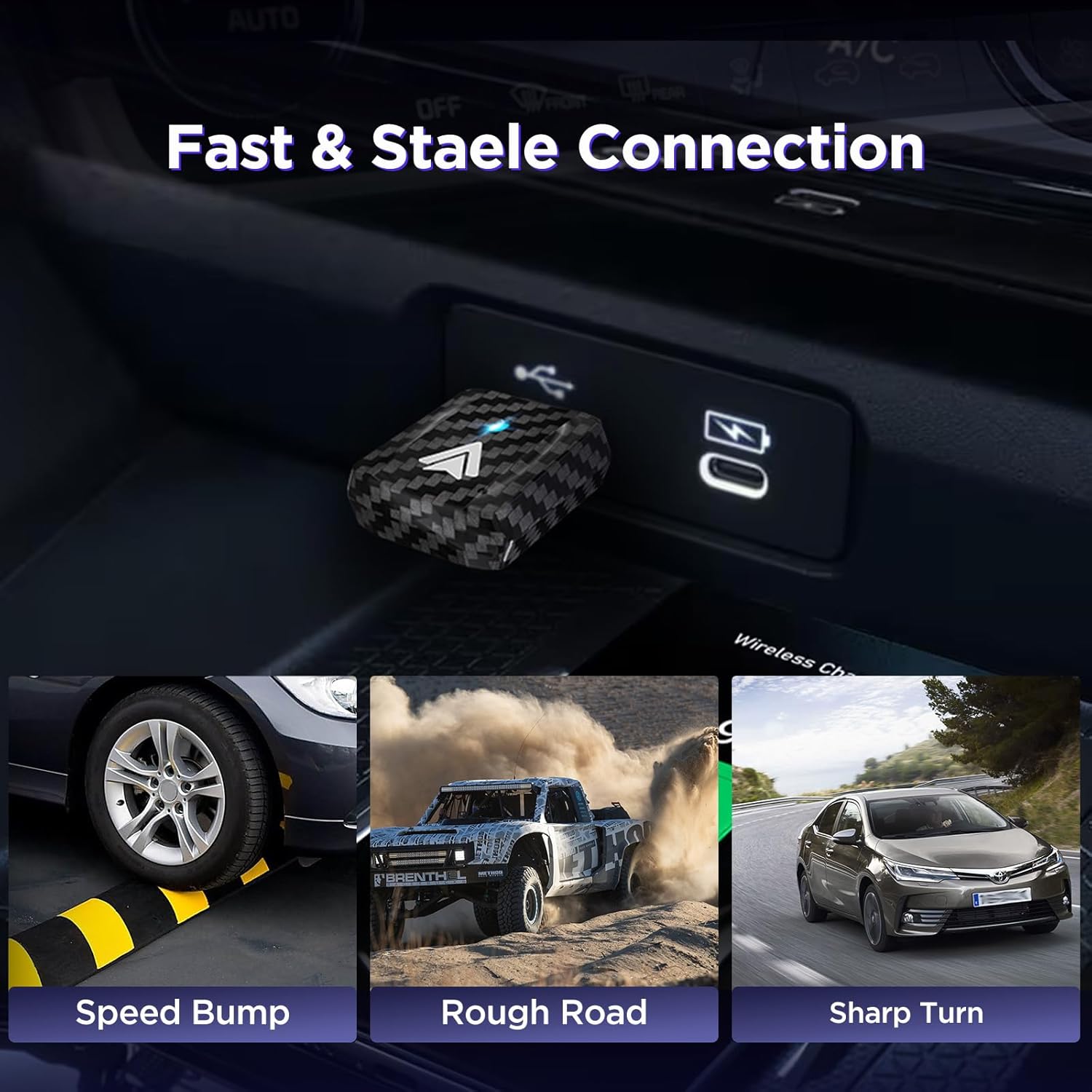
Image: The MSXTTLY U2AC-L9 adapter plugged into a car's USB port, illustrating its compact and stable connection for fast operation.
Using Video Streaming Apps (CarStream & YouTube)
The U2AC-L9 adapter supports video streaming apps like YouTube via CarStream. To use this feature:

Image: A car's infotainment screen displaying both the standard wireless Android Auto interface and the YouTube app, demonstrating the adapter's streaming capabilities.
- Download AAAD and Install CarStream: On your Android phone, download the AAAD (Android Auto Apps Downloader) application. Use AAAD to install CarStream. Ensure you allow installation from unknown sources in your phone's settings if prompted.
- Enable Desktop Mode in CarStream: Open CarStream and navigate to its settings. Enable "Desktop Mode" for optimal viewing.
- Connect and Enjoy: Connect to Android Auto wirelessly using the adapter. Open CarStream from your Android Auto interface to watch YouTube and other video content.
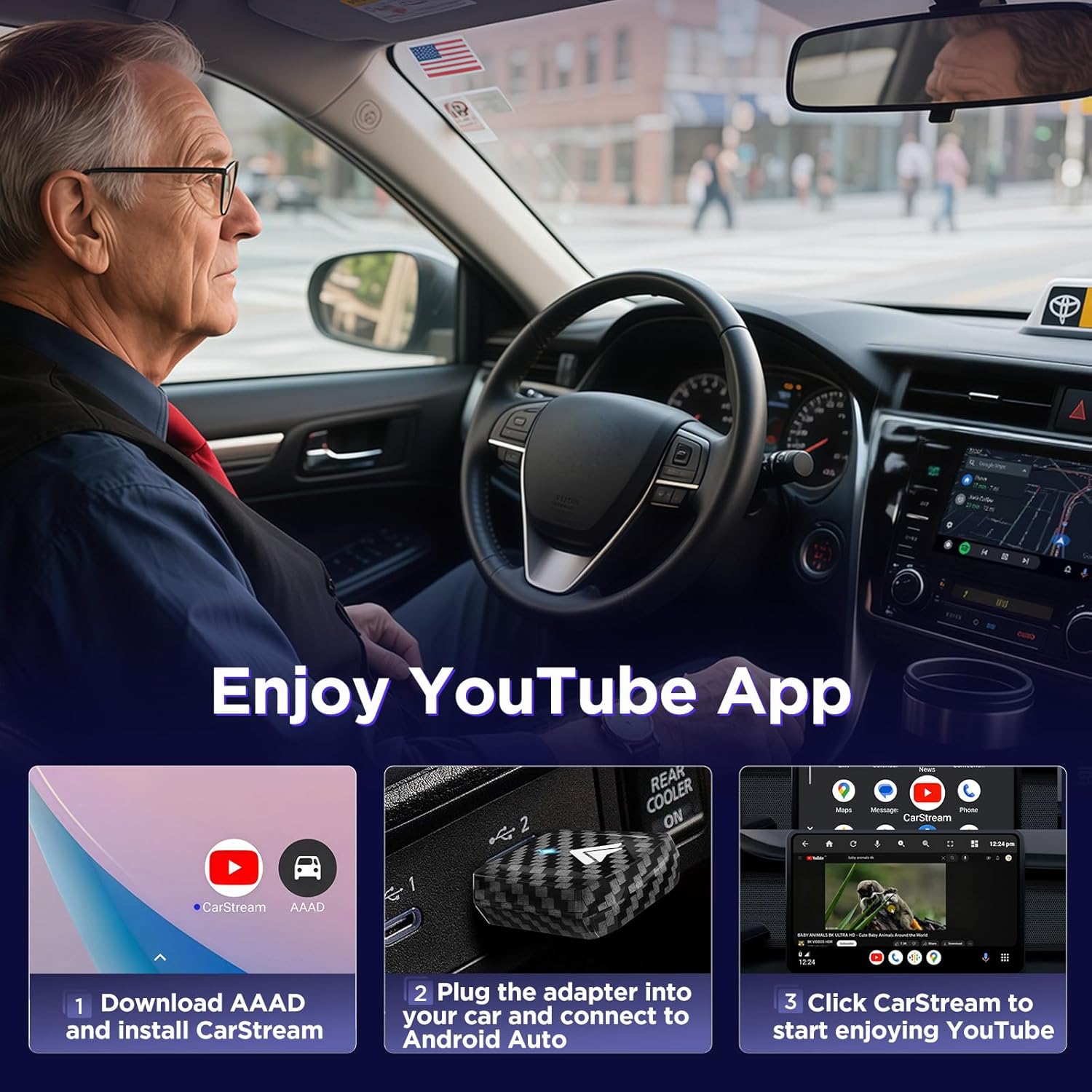
Image: A visual guide showing the steps to download AAAD, install CarStream, and access YouTube through Android Auto.
Compatibility
- Compatible Phones: Only Android smartphones running Android 11.0 or higher are supported.
- Compatible Vehicles: Only vehicles equipped with a factory-installed wired Android Auto system are supported.
- Not Supported:
- CarPlay systems
- iOS devices (iPhones)
- Vehicles with integrated wireless Android Auto or wireless CarPlay
- Zlink/Screen Mirroring applications
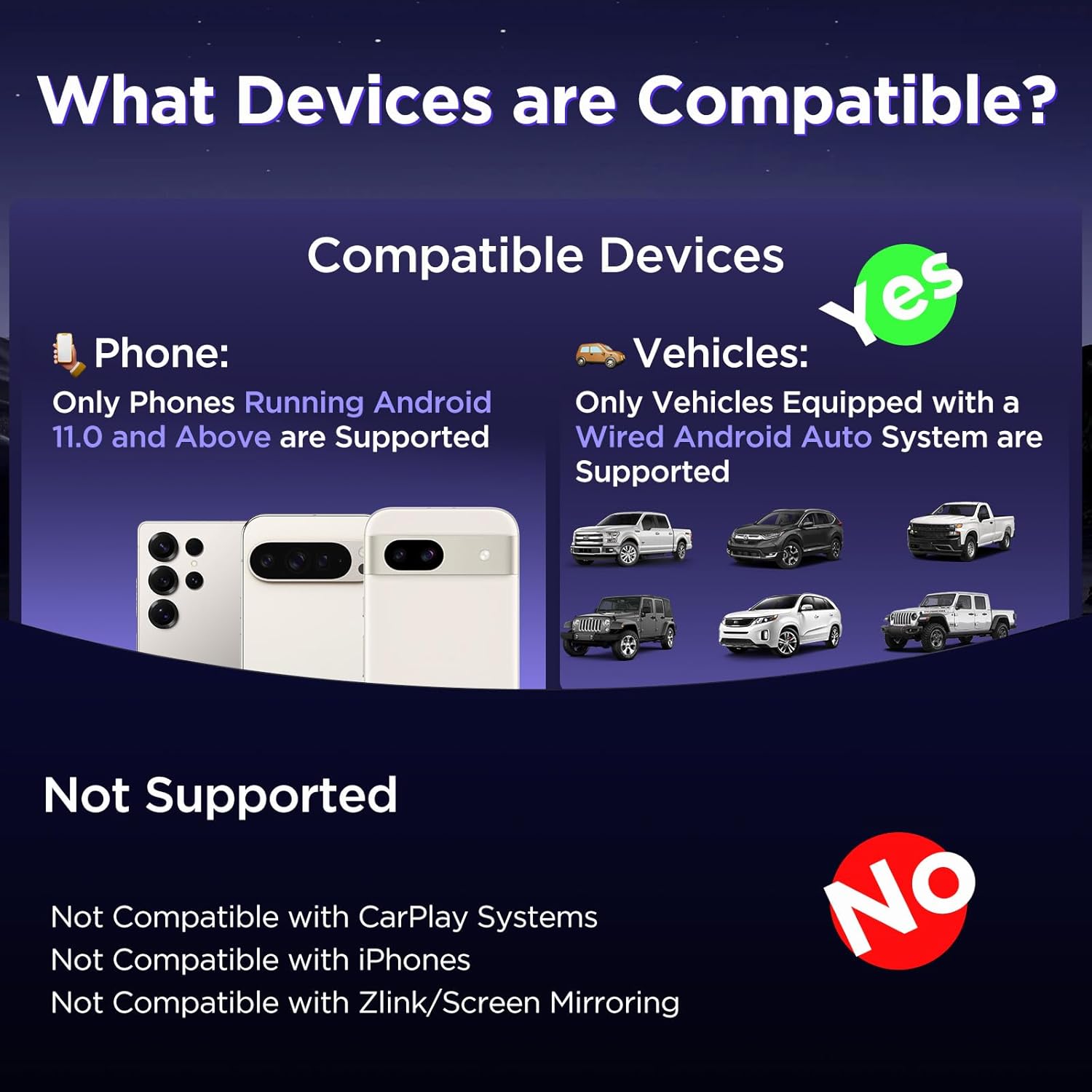
Image: A diagram illustrating compatible Android phone versions (11.0+) and vehicles with wired Android Auto, alongside a list of unsupported systems like CarPlay and iPhones.
Maintenance
Heat Dissipation
The U2AC-L9 adapter is designed with heat dissipation features. For optimal cooling, especially during extended use or in warm environments, you may use an extension cord (not included) to position the adapter near an air conditioning outlet in your vehicle. This helps maintain stable performance and prolong the device's lifespan.
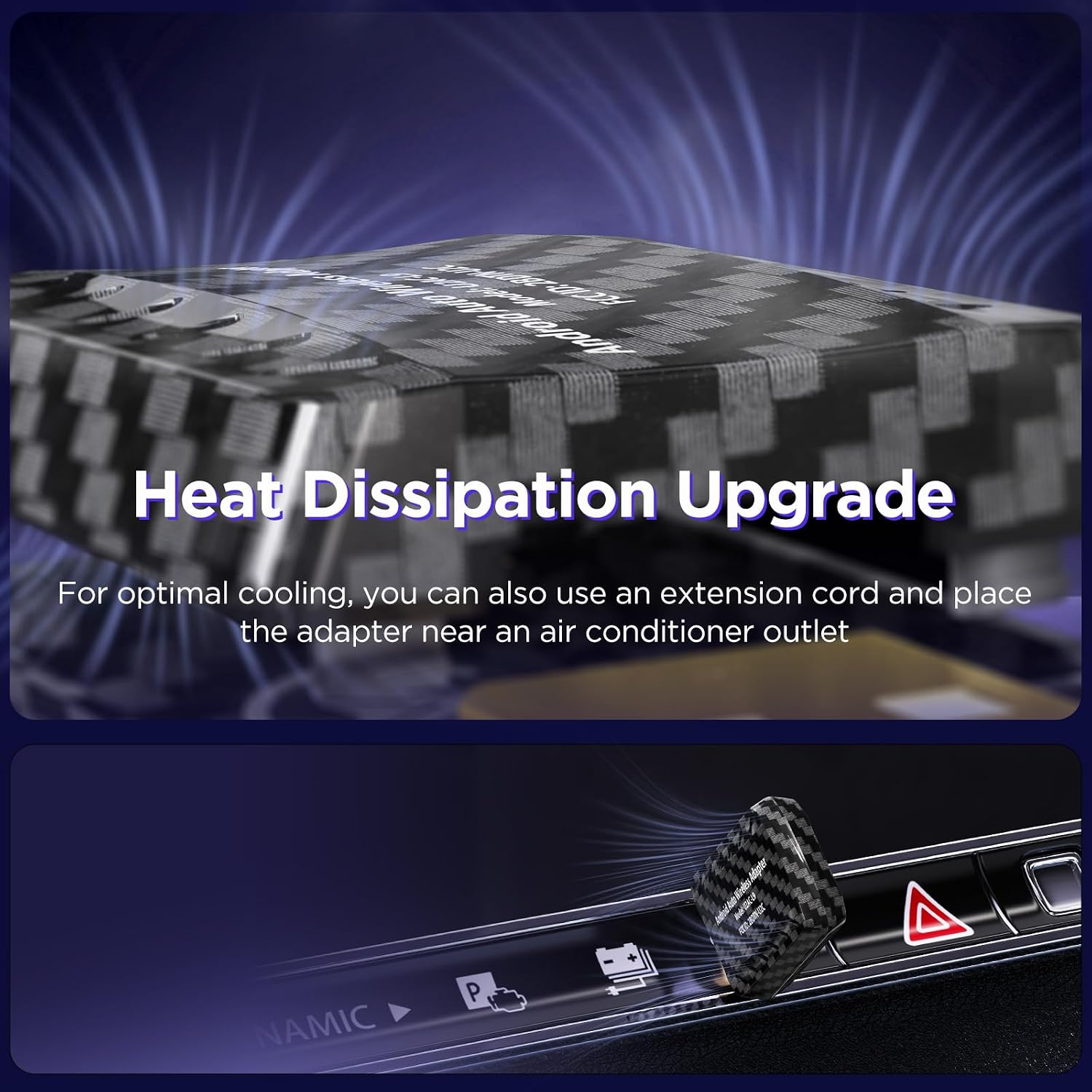
Image: An illustration highlighting the heat dissipation design of the adapter and suggesting placement near an air vent for enhanced cooling.
Troubleshooting
- Connection Issues:
- Ensure your car's wired Android Auto functions correctly without the adapter.
- Verify that Bluetooth and Wi-Fi are enabled on your phone.
- Check that the adapter is securely plugged into the correct USB port.
- Restart your phone and your car's infotainment system.
- Forget the "SmartBox-xxxx" Bluetooth device on your phone and re-pair.
- No Android Auto Display:
- Confirm your phone is running Android 11.0 or higher.
- Ensure your vehicle supports wired Android Auto.
- Check for any pending software updates for your car's infotainment system or your phone.
- Video App (CarStream/YouTube) Problems:
- Ensure AAAD and CarStream are correctly installed and updated on your phone.
- Verify that "Desktop Mode" is enabled in CarStream settings.
- Check your phone's internet connection for streaming.
- Overheating:
- If the adapter feels excessively hot, unplug it and allow it to cool.
- Consider using an extension cable to position the adapter in a cooler location, such as near an air vent.
Specifications
| Model Number | U2AC-L9 |
| Brand | MSXTTLY |
| Compatible Devices | Android Smartphones (Android 11.0+), Tablets, Laptops (for firmware updates) |
| Specific Product Uses | Car Audio and Video |
| Color | Black |
| Number of Ports | 1 (USB) |
| Input Interface | USB Type-C (via included cable) |
| Smart Home Compatibility | Not compatible with smart home systems |
| Country of Origin | China |
Warranty and Support
The MSXTTLY U2AC-L9 Wireless Android Auto Adapter comes with a 12-month global warranty. Additionally, MSXTTLY provides lifetime technical support for this product. If you encounter any issues or have questions, please refer to the contact information provided on your warranty card or visit the official MSXTTLY website for assistance.
Related documentsU2AC-L9


Ask a question about this manual
Ask about setup, troubleshooting, compatibility, parts, safety, or missing instructions. Manuals+ will review the question and use this page’s manual context to help answer it.