
1. Introduction
This manual provides essential information for setting up, operating, maintaining, and troubleshooting your realme C71 4G Smartphone. Please read this guide carefully to ensure optimal performance and longevity of your device.
The realme C71 features a 6.745-inch 90Hz Eye Comfort Display, a powerful 6300mAh battery, a 37MP camera system, and is powered by the Unisoc T7250 chip. It also boasts IP54 dust and splash resistance for enhanced durability.
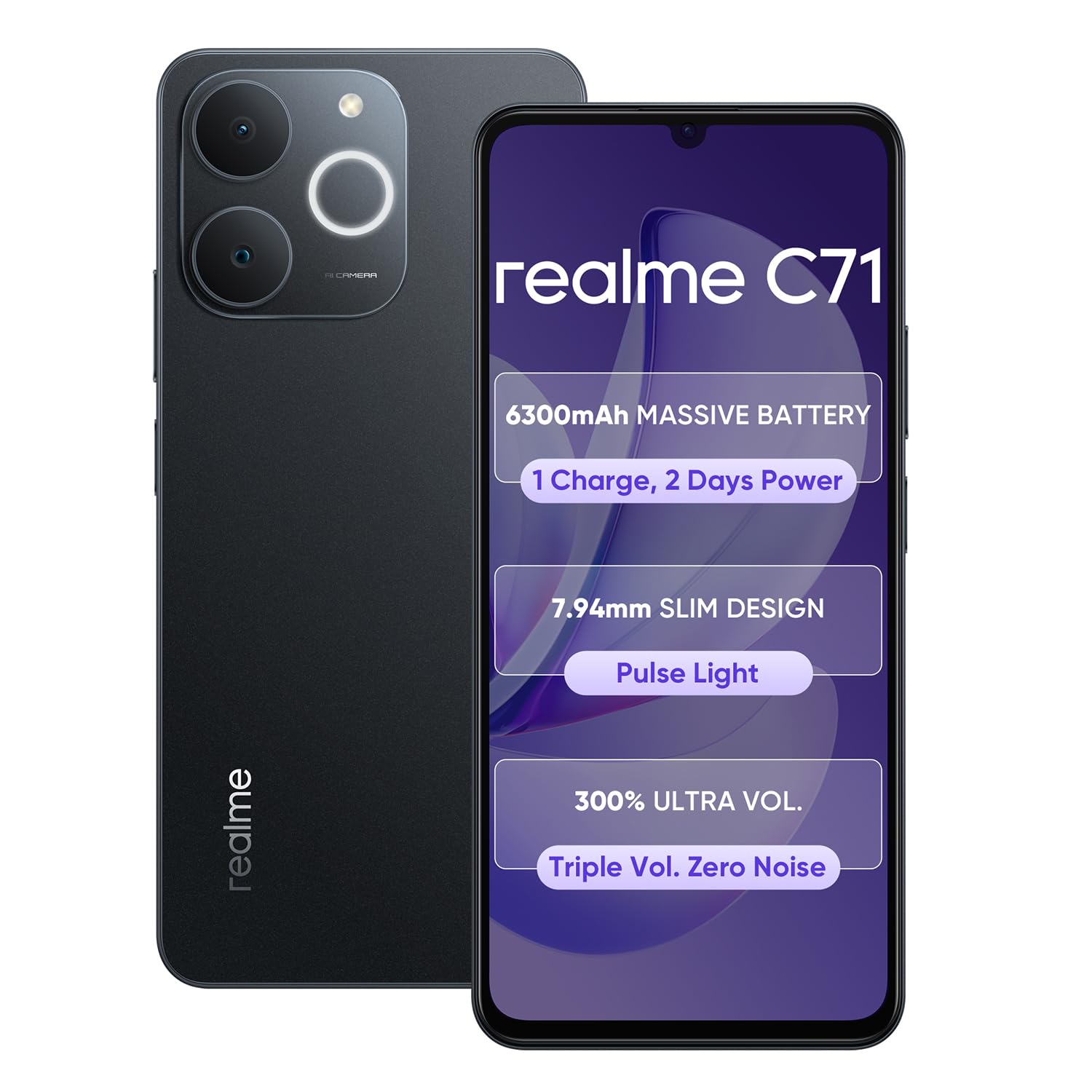
Image: realme C71 4G Smartphone, showcasing its sleek design.
2. What's in the Box
Upon unboxing your realme C71, please verify that all the following items are included:
- Handset (realme C71 4G Smartphone)
- Charger
- USB Data Cable
- SIM Tray Ejector
- Phone Case
3. Setup
3.1. Inserting SIM Card and SD Card
- Locate the SIM tray on the side of your device.
- Insert the provided SIM tray ejector tool into the small hole next to the tray and press gently until the tray pops out.
- Place your Nano-SIM card(s) and/or microSD card into the designated slots on the tray. Ensure the gold contacts are facing down and the cards are correctly oriented.
- Carefully push the tray back into the device until it is flush with the side.
3.2. Initial Power On and Setup
- Press and hold the Power button (usually on the right side) until the realme logo appears.
- Follow the on-screen instructions to complete the initial setup, which includes selecting your language, connecting to Wi-Fi, setting up your Google account, and configuring security features.
3.3. Charging the Device
Before first use, it is recommended to fully charge your realme C71. Use the provided charger and USB data cable.
- Connect the USB cable to the charger adapter.
- Plug the charger adapter into a power outlet.
- Connect the USB-C end of the cable to the charging port at the bottom of your phone.
- The charging indicator will appear on the screen.
4. Operating Your Device
4.1. Basic Operations
- Power On/Off: Press and hold the Power button. Select 'Power off' or 'Restart' from the menu.
- Volume Control: Use the Volume Up and Volume Down buttons on the side of the device.
- Screen Lock/Unlock: Briefly press the Power button to lock or unlock the screen.
4.2. Display Features
The realme C71 features a 6.745-inch 90Hz Eye Comfort Display, providing smooth visuals and reduced blue light for comfortable viewing. Adjust display settings in Settings > Display > Screen refresh rate and Eye Comfort.

Image: Illustration of the 90Hz Eye Comfort Display.
4.3. Camera Usage
The device is equipped with a 37MP camera system. Open the Camera app to capture photos and videos. Explore various modes such as Portrait, Night, and Pro for enhanced photography.
4.4. Battery Management
The realme C71 comes with a massive 6300mAh battery designed for extended usage. To optimize battery life:
- Reduce screen brightness.
- Enable power-saving modes when needed.
- Close unused background applications.
- Disable Wi-Fi, Bluetooth, and GPS when not in use.

Image: Visual representation of the 6300mAh battery and its estimated usage times for various activities.
4.5. Performance
Powered by the Unisoc T7250 chip and 4GB RAM, the realme C71 provides smooth multitasking and lag-free performance for applications and browsing.

Image: Graphic illustrating the device's smooth performance capabilities.

Image: Diagram showing the octa-core chipset and its specifications.
4.6. Special Features
- Pulse Light: The device features a Pulse Light notification system. Customize its behavior in Settings > Special Features > Pulse Light.
- AI Noise Reduction: For clearer calls, the device utilizes AI Noise Reduction technology.

Image: Close-up of the realme C71's rear camera module highlighting the Pulse Light feature.

Image: Representation of enhanced call clarity with AI Noise Reduction.
5. Maintenance and Care
5.1. Durability and Protection
The realme C71 features IP54 dust and splash resistance, protecting it from everyday dust and splashes. It also incorporates Armor ShellTM Protection for military-grade shock resistance.

Image: Illustration of the Armor ShellTM Protection providing military-grade shock resistance.
Image: Visual depicting the IP54 dust and splash resistance of the device.
5.2. Cleaning Your Device
To clean your device, use a soft, lint-free cloth. Avoid using harsh chemicals or abrasive materials, which can damage the screen or finish. If necessary, slightly dampen the cloth with water.
5.3. Software Updates
Regularly check for and install software updates to ensure your device has the latest features, security patches, and performance improvements. Go to Settings > About device > Up to date to check for updates.
6. Troubleshooting
If you encounter issues with your realme C71, try the following troubleshooting steps:
- Device Not Turning On: Ensure the battery is charged. Connect the charger and wait a few minutes before attempting to power on again.
- Apps Crashing or Freezing: Close the problematic app and reopen it. If the issue persists, clear the app's cache (Settings > Apps > [App Name] > Storage > Clear cache).
- Poor Battery Life: Review battery usage in Settings > Battery to identify power-hungry apps. Adjust display brightness and disable unnecessary features.
- Network Connectivity Issues: Toggle Airplane Mode on and off. Restart your device. Check your SIM card insertion.
- Device Unresponsive: Press and hold the Power button for about 10-15 seconds to force a restart.
- Factory Reset (Last Resort): If issues persist, you may need to perform a factory reset. Warning: This will erase all data on your device. Back up important data before proceeding. Go to Settings > System settings > Back up and reset > Reset phone > Erase all data.
7. Specifications
| Feature | Specification |
|---|---|
| Model Number | RMX5313 |
| Operating System | Android 14 |
| RAM | 4 GB |
| CPU Model | Unisoc T7250 (Octa-core) |
| CPU Speed | 2.8 GHz |
| Display | 6.745-inch, 90Hz Eye Comfort Display |
| Resolution | 720 x 1600 pixels |
| Battery Capacity | 6300 mAh |
| Camera | 37MP Camera System |
| Connectivity | Bluetooth, USB, Wi-Fi |
| Durability | IP54 Dust and Splash Resistant, Armor ShellTM Protection |
| Dimensions (LxWxH) | 16.72 x 7.66 x 0.79 cm |
| Weight | 200 g |
| Color | Obsidian Black |
| Manufacturer | realme |
| Country of Origin | China |
8. Warranty and Support
Warranty information for the realme C71 4G Smartphone is not provided within this manual. For details regarding your product's warranty, please refer to the warranty card included with your purchase, visit the official realme website, or contact realme customer support.
For further assistance or technical support, please visit the official realme support page or contact their customer service channels.