
Introduction
This manual provides detailed instructions for the setup, operation, maintenance, and troubleshooting of your Satechi OntheGo Bluetooth Keyboard with Adjustable Stand. Please read thoroughly before use to ensure optimal performance and longevity of your device.
Setup
1. Charging the Keyboard
The Satechi OntheGo Bluetooth Keyboard is equipped with a 360mAh rechargeable battery and supports USB-C charging. A USB-C to USB-C charging cable is included.
- Connect the included USB-C charging cable to the keyboard's USB-C port.
- Connect the other end of the cable to a compatible USB-C power adapter (not included).
- The keyboard will fully charge in approximately 2.5 hours. A full charge provides up to 4 months of standby time.
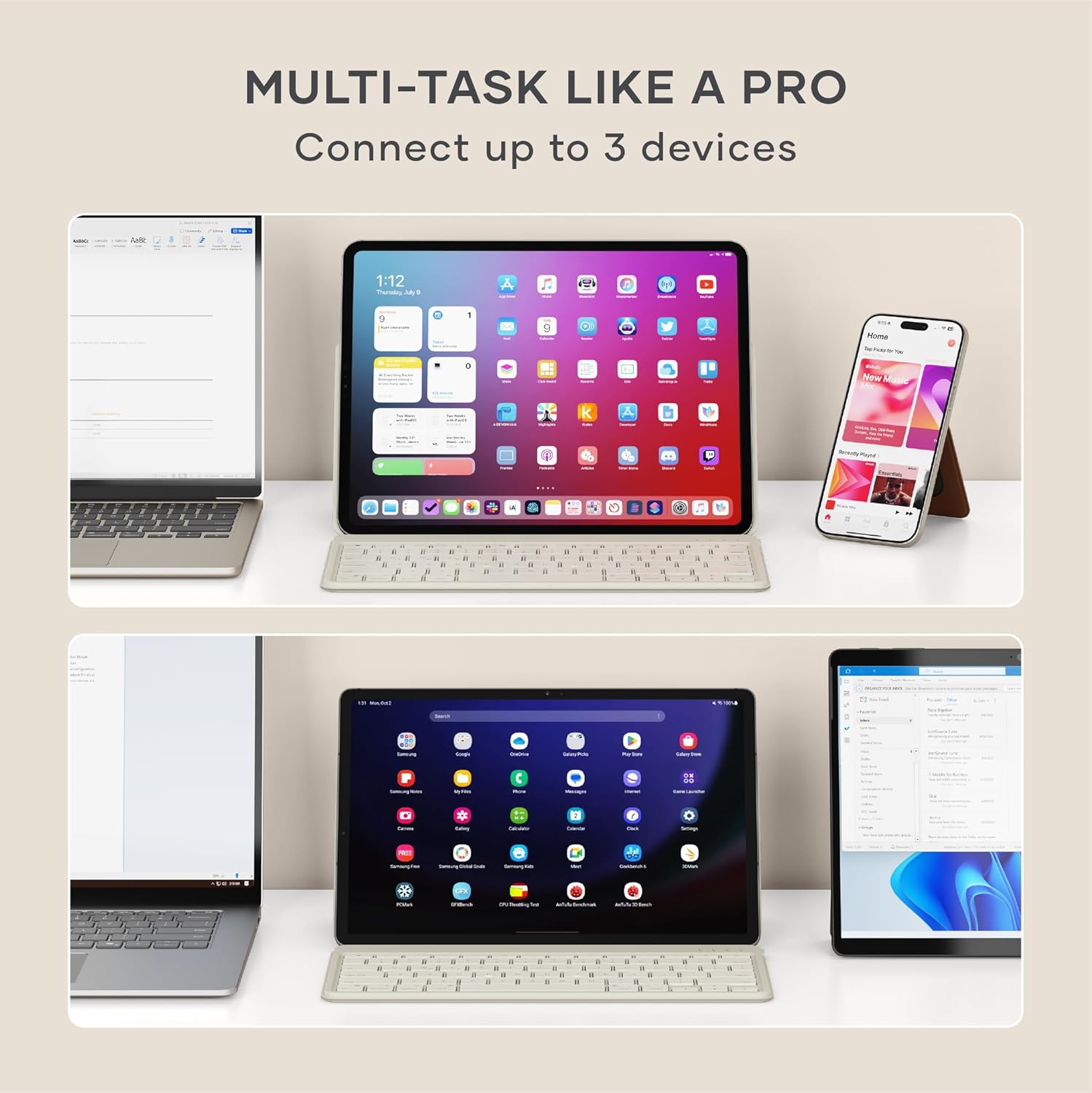
Image: Satechi OntheGo Keyboard connected to a USB-C charging cable.

Image: The Satechi OntheGo Keyboard charging via USB-C, illustrating its long battery life.
2. Bluetooth Pairing
The keyboard supports Bluetooth 5.1 and can connect to up to 3 devices simultaneously.
- Turn on the keyboard using the power switch located on the top right.
- Press and hold the Fn key along with one of the Bluetooth device keys (Q, W, or E) for 3-5 seconds until the corresponding LED indicator above the key starts blinking. This indicates pairing mode.
- On your device (iPad, tablet, smartphone, laptop), navigate to Bluetooth settings.
- Select "Satechi OntheGo Keyboard" from the list of available devices.
- Follow any on-screen prompts to complete the pairing process. The LED indicator will stop blinking and remain solid once connected.
- Repeat these steps for up to two additional devices using the other Bluetooth device keys (W or E).

Image: The Satechi OntheGo Keyboard highlighting Bluetooth 5.1 and 3-device connectivity.

Image: A user switching between an iPad and a smartphone using the keyboard's multi-device feature.
Operating the Keyboard
1. Using the Adjustable Stand
The keyboard features an integrated adjustable stand that supports tablets and smartphones up to 13 inches in both portrait and landscape modes, offering viewing angles from 30° to 150°.
- Gently unfold the stand from the back of the keyboard.
- Place your tablet or smartphone into the stand's groove.
- Adjust the angle of the stand to your preferred viewing position. The reinforced metal hinge ensures stability.

Image: The keyboard in use with an iPad, demonstrating its ergonomic design.
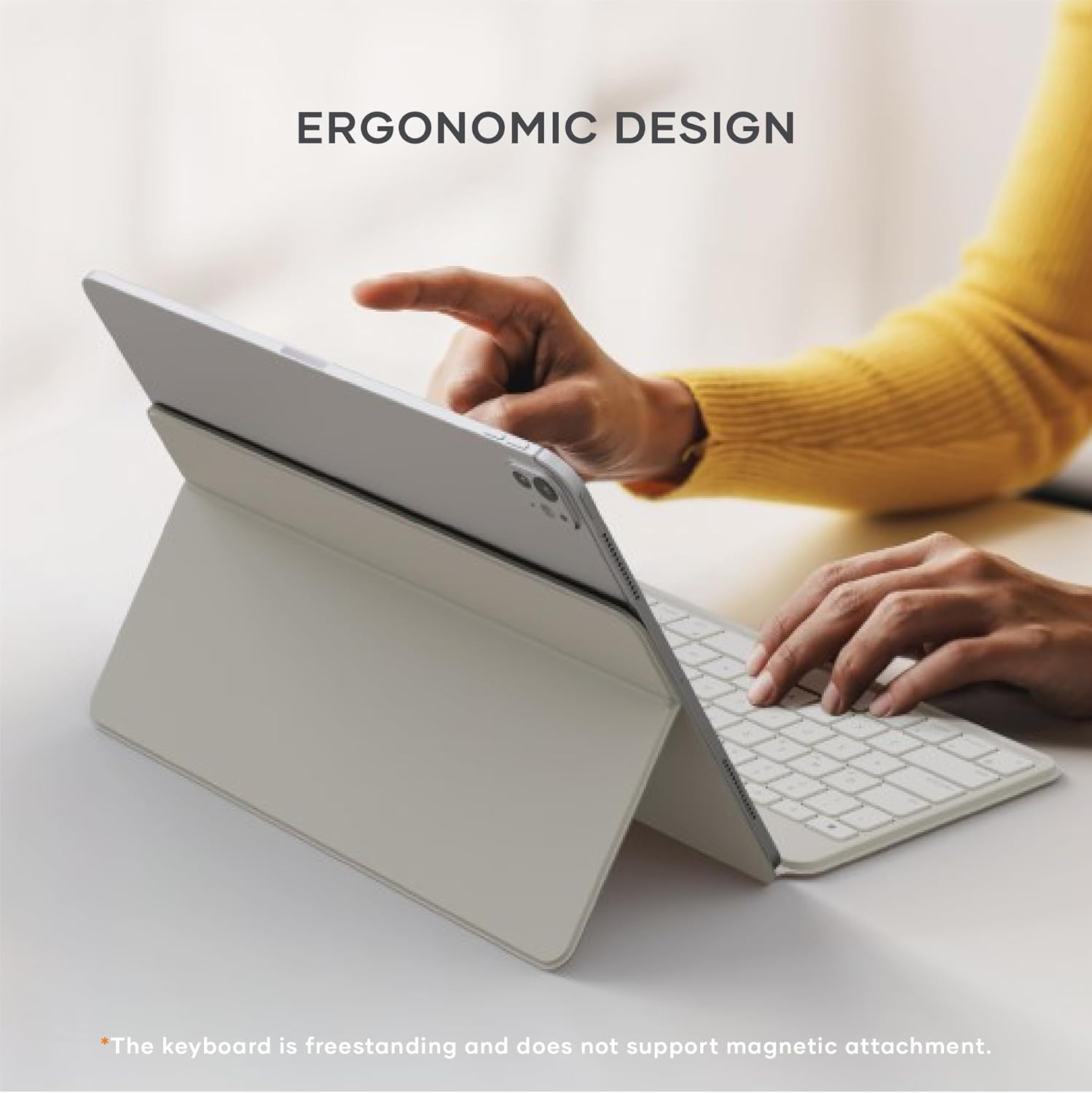
Image: Diagram illustrating the adjustable viewing angles of the keyboard's integrated stand.
2. Switching Between Devices
To switch between your paired Bluetooth devices:
- Press the Fn key along with the corresponding Bluetooth device key (Q, W, or E) for the desired device. The keyboard will quickly switch its connection.

Image: The keyboard demonstrating multi-device connectivity with an iPad, laptop, and smartphone.
3. Keyboard Layout and Features
The keyboard features low-profile scissor switches for a smooth and quiet typing experience. It includes standard function keys and is compatible with iOS, iPadOS, Android, MacOS, and ChromeOS.
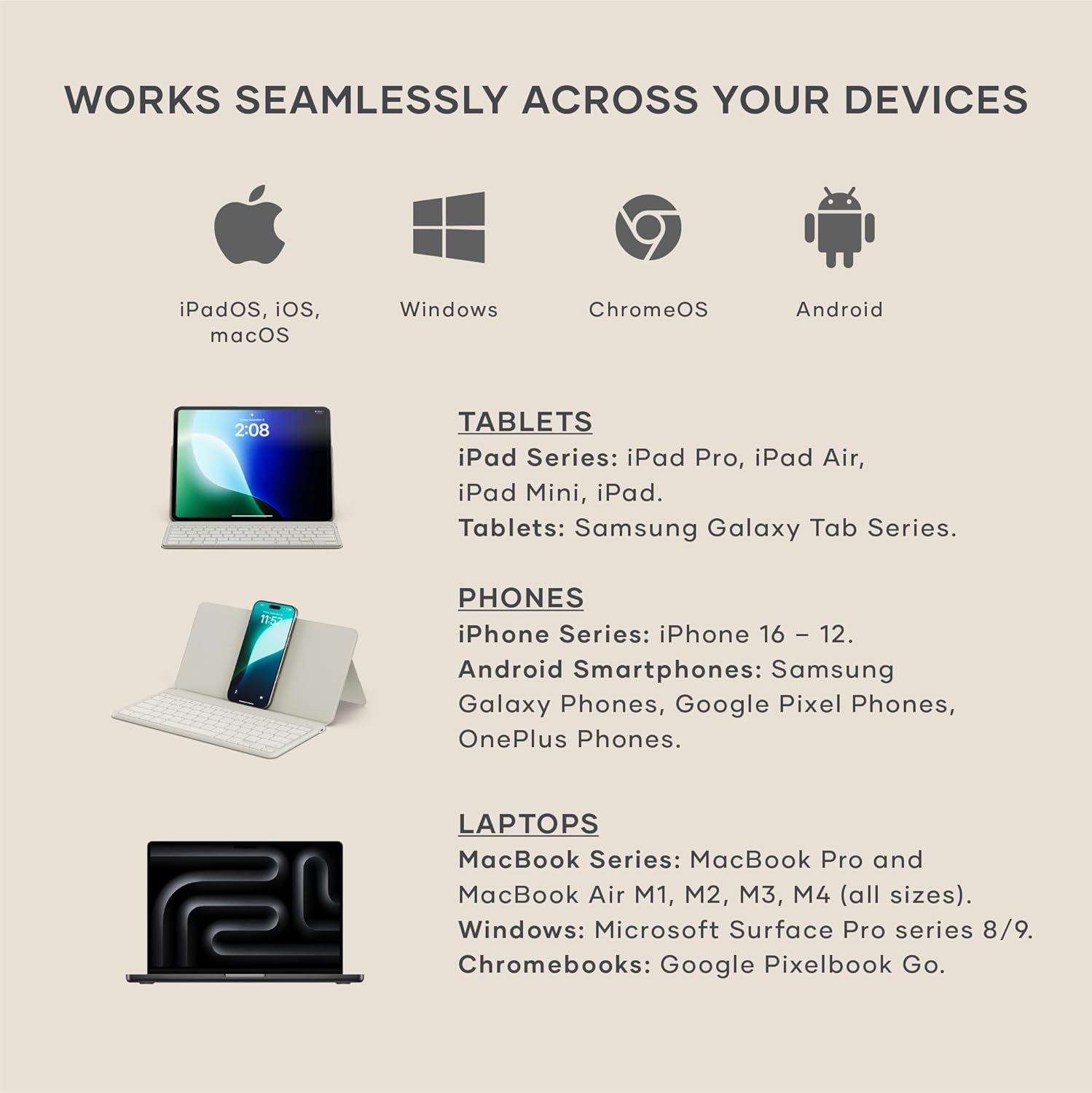
Image: Visual representation of the keyboard's broad compatibility across different operating systems and device types.
Maintenance
1. Cleaning
To maintain the keyboard's appearance and functionality:
- Use a soft, lint-free cloth to wipe the surface of the keyboard.
- For stubborn marks, slightly dampen the cloth with water or a mild, non-abrasive cleaner.
- Avoid excessive moisture and do not spray cleaners directly onto the keyboard.
2. Battery Care
To maximize battery life and performance:
- Charge the keyboard fully before first use.
- Avoid completely draining the battery regularly.
- Store the keyboard in a cool, dry place when not in use for extended periods.
Troubleshooting
1. Connectivity Issues
- Keyboard not pairing: Ensure the keyboard is in pairing mode (LED blinking). Check your device's Bluetooth settings to ensure Bluetooth is enabled and the keyboard is visible. Try forgetting the device on your host device and re-pairing.
- Intermittent connection: Ensure the keyboard is within the 10-meter Bluetooth range of your device. Avoid obstructions between the keyboard and device. Check for interference from other wireless devices.
2. Key Functionality
- Keys not responding: Ensure the keyboard is charged. Try turning the keyboard off and on again. If connected to multiple devices, ensure you have switched to the correct device channel (Fn + Q/W/E).
- Incorrect key input: Verify that the keyboard layout on your device matches the physical layout of the Satechi keyboard.
Specifications
- Product Dimensions: 11.31"L x 5.88"W x 0.5"H (28.74 cm x 14.94 cm x 1.27 cm)
- Item Weight: 1.21 pounds (546.4g)
- Connectivity Technology: Bluetooth 5.1
- Battery: 360mAh rechargeable (included), up to 4 months standby, 2.5 hours charge time
- Compatible Devices: MacBook Pro 14/16-inch (2025 M5/M4/M3/M2/M1), MacBook Air 13/15-inch (2025 M4/M3/M2/M1), iPad Pro 11/13-inch (2025 M5/M4/M2/M1), iPad Air 11/13-inch (2025 M3/M2/M1), iPad Mini (2024 A17/6th Gen), iPhone 17, iPhone Air, iPhone 17 Pro, iPhone 17 Pro Max, iPhone 16/15/14/13/12 Series, Mac Mini (2024 M4/M2/M1), iMac (2024 M4/M3/M1), Mac Studio (2025 M4/M3/M2/M1), Lenovo ThinkPad, Microsoft Surface, Google Pixelbook, Google Pixel Pro 8/9, Samsung S24/Z Flip 5, and other iOS, iPadOS, Android, MacOS, ChromeOS devices.
- Special Features: Ergonomic, Foldable, Low-Profile Key, Portable, Rechargeable, Adjustable Stand (30°-150° viewing angles)
- Material: Premium Material (ABS keycaps, reinforced metal hinge)
- Included Components: 1 x Satechi OntheGo Bluetooth Keyboard, 1 x USB-C to USB-C charging cable

Image: The keyboard in its compact, folded state, with dimensions and weight indicated.
Official Product Videos
Satechi OntheGo Keyboard Overview
Video: An official overview of the Satechi OntheGo Bluetooth Keyboard, showcasing its design and key features.
Satechi OntheGo Keyboard Features
Video: A short video highlighting various features and usage scenarios of the Satechi OntheGo Bluetooth Keyboard.
Warranty and Support
Satechi products are backed by a 2-year limited warranty, protecting against defects in materials and workmanship under normal use.
For customer service or additional support, please refer to the contact information provided in your product packaging or visit the official Satechi website.
