
KINGRID T90
KINGRID T90 Android Tablet User Manual
Model: T90
1. Introduction
Welcome to the user manual for your new KINGRID T90 Android Tablet. This guide provides essential information on setting up, operating, maintaining, and troubleshooting your device. Please read this manual thoroughly to ensure optimal performance and longevity of your tablet.
2. What's in the Box
Upon unboxing your KINGRID T90 tablet, please verify that all the following items are included:
- KINGRID T90 Tablet
- Keyboard
- Screen Protector
- Mouse
- Stylus
- Case
- Tablet Stand
- Charger & Cable
- User Manual (this document)

Image: All included accessories with the KINGRID T90 tablet.
3. Setup
3.1 Initial Power On
- Press and hold the power button located on the side of the tablet until the KINGRID logo appears.
- Follow the on-screen prompts to select your language, region, and accept the terms and conditions.
3.2 Wi-Fi Connection
- During the initial setup, select your preferred Wi-Fi network from the list.
- Enter the Wi-Fi password if prompted.
- Tap 'Connect' to establish the connection.
3.3 Google Account Setup
- Sign in with your existing Google account or create a new one. This is necessary to access the Google Play Store and other Google services.
- Follow the prompts to configure Google services, backup options, and security settings.
3.4 Accessory Connection
Your KINGRID T90 tablet comes with several accessories to enhance its functionality:
- Keyboard & Mouse: These typically connect via Bluetooth. Go to Settings > Connected devices > Bluetooth, turn on Bluetooth, and pair the keyboard and mouse according to their individual instructions.
- Stylus: The stylus is generally passive and does not require pairing. Simply use it for navigation or drawing on the screen.
- Case & Stand: Attach the protective case to your tablet. The stand can be used to prop up the tablet for comfortable viewing.

Image: The KINGRID T90 tablet displayed with its full suite of accessories.
4. Operating Your Tablet
4.1 Basic Navigation
- Tap: Select an item or open an app.
- Tap & Hold: Access contextual menus or move icons.
- Swipe: Navigate through screens, scroll content, or dismiss notifications.
- Pinch-to-Zoom: Enlarge or reduce content on the screen.
4.2 Android 16 Features
Your KINGRID T90 runs on Android 16, offering enhanced features:
- Smart Notification Experience: Manage notifications more efficiently with improved controls and cooldown options.
- Comprehensive Screen Adaptation: Optimized display for various applications and content.
- Privacy and Security Protection: Robust privacy controls and enhanced security features to protect your data.
- Convenient Operation and Efficiency Enhancement: Streamlined user interface for smoother interactions.
- Call and Health Optimization: Improved battery health monitoring and communication features.
- Powerful Media Processing: Enhanced capabilities for handling multimedia content.

Image: Overview of Android 16's smart control features.
4.3 Gemini AI 2.0 Integration
The tablet integrates Gemini AI 2.0, providing intelligent assistance:
- Real-time Voice Translation: Translate spoken language in real-time.
- Smart Image Optimization: Automatically enhance photos for better quality.
- Intelligent Office Experience: Boost productivity with AI-powered tools for document creation and management.
- Personalized Learning Recommendations: Receive tailored advice for educational content.
- Smart Interaction and Easy Communication: Facilitate seamless communication and interaction.
- Smart Multitasking: Manage multiple tasks efficiently with AI assistance.
- Security Enhancements and Privacy Protection: AI-driven security features.
- Virtual Classroom and Remote Guidance: Support for online learning and remote assistance.

Image: Visual representation of Gemini AI 2.0's intelligent capabilities.
4.4 Camera Usage
The KINGRID T90 features a 13MP rear camera and a 5MP front camera.
- Open the Camera app from the home screen or app drawer.
- Switch between front and rear cameras using the icon on the screen.
- Utilize Google Lens for object recognition, text translation, and educational assistance by tapping the Google Lens icon within the camera app.
- The tablet also supports Face Unlock for convenient security.
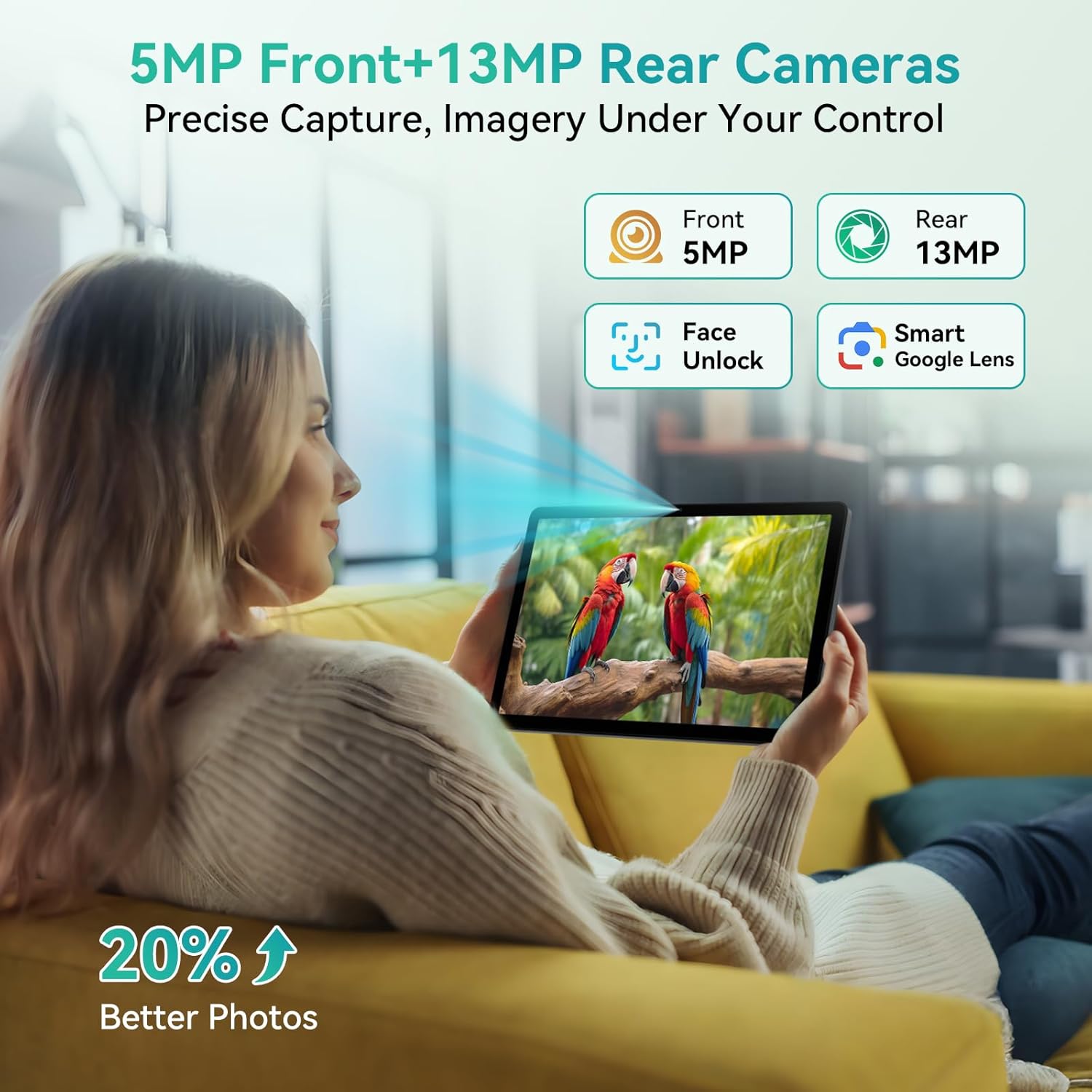
Image: Demonstrating the tablet's camera features and usage.
5. Features Overview
5.1 Display
- Screen Size: 11-inch IPS full-view display.
- Resolution: 1920 x 1200 pixels.
- Aspect Ratio: 16:10.
- Brightness: 350 Nits.
- Widevine L1 Support: Enables smooth playback of 1080P HD videos on streaming platforms like Netflix and Prime Video.

Image: The tablet's display quality and specifications.
5.2 Performance
- Processor: Unisoc T615 Octa-core processor (2x A75 @ 1.8GHz + 6x A55 @ 1.6GHz).
- RAM: 24GB (8GB physical + 16GB virtual extension) for smooth multitasking.
- Internal Storage (ROM): 128GB.
- Expandable Storage: Supports up to 2TB via Micro SD card.
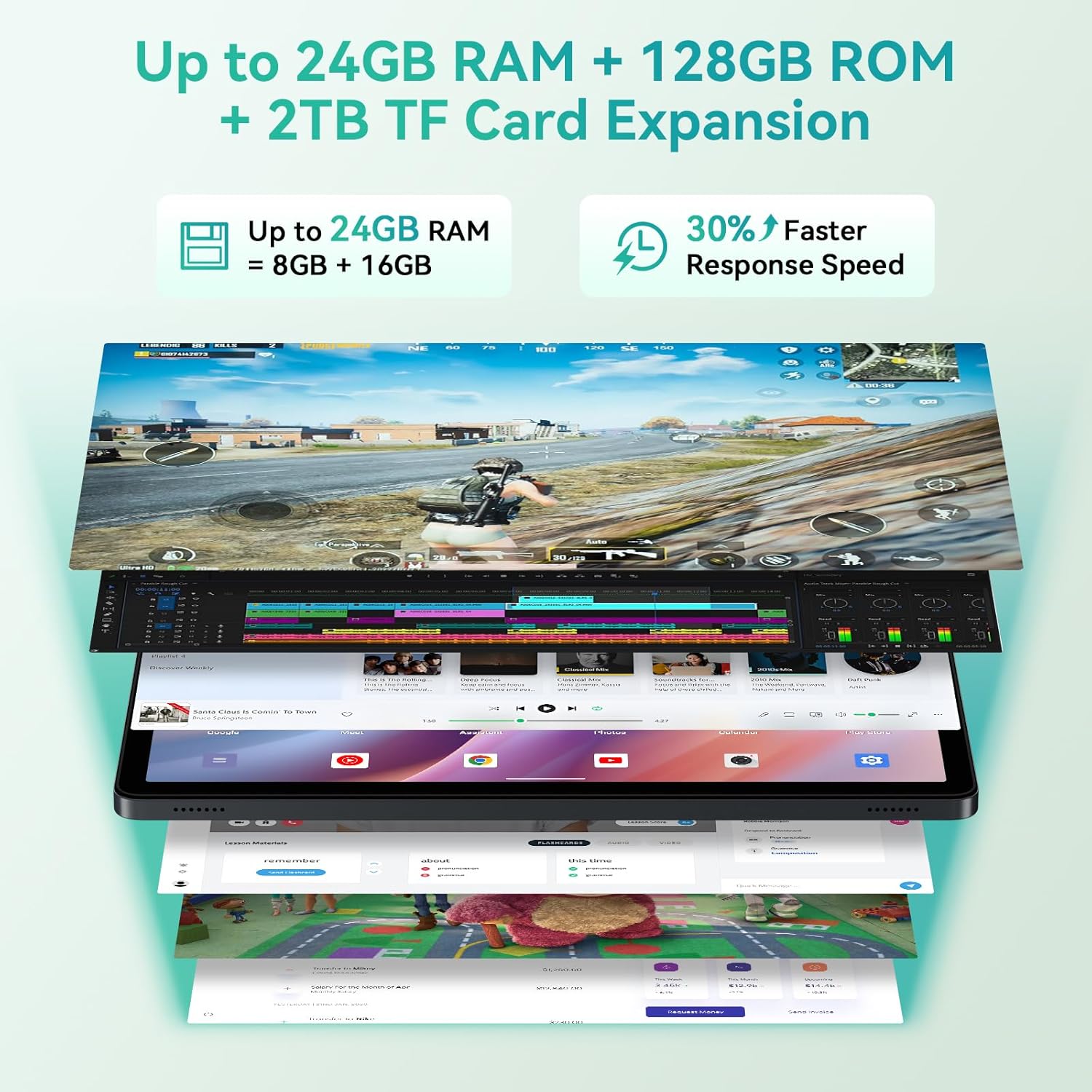
Image: Tablet multitasking with RAM and ROM specifications.
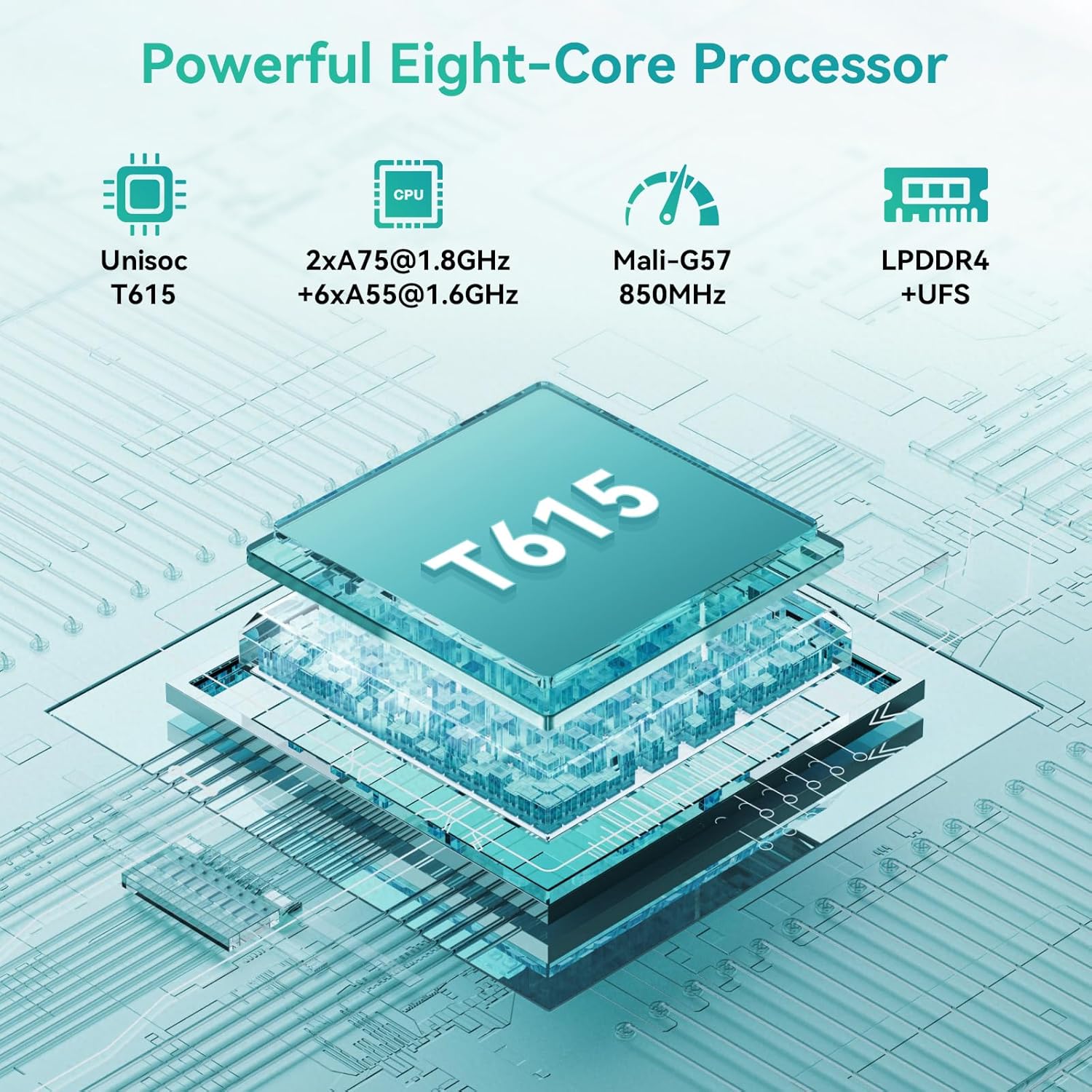
Image: Detailed view of the Unisoc T615 processor.
5.3 Battery
- Capacity: 8000mAh.
- Estimated Usage: Approximately 5 hours for website browsing, 5 hours for video playback, 4 hours for gaming, 45 hours for music, and 840 hours standby.

Image: Battery life and capacity details.
5.4 Connectivity
- Wi-Fi: Dual-band 5G Wi-Fi (802.11a/b/g/n/ac).
- Bluetooth: Bluetooth 5.0.
5.5 Audio
- Speakers: Dual Smart-K Box Speakers.
- Headphone Jack: 3.5mm audio jack.
6. Maintenance
6.1 Cleaning
- Use a soft, lint-free cloth to clean the screen and body of the tablet.
- For stubborn smudges, slightly dampen the cloth with water or a screen-cleaning solution. Avoid harsh chemicals.
- Ensure the tablet is powered off before cleaning.
6.2 Battery Care
- Avoid fully discharging the battery frequently.
- Do not expose the tablet to extreme temperatures, as this can degrade battery life.
- Use the provided charger for optimal charging performance.
6.3 Software Updates
- Regularly check for and install system updates to ensure your tablet has the latest features, security patches, and performance improvements. Go to Settings > System > System update.
7. Troubleshooting
This section addresses common issues you might encounter with your KINGRID T90 tablet.
7.1 Tablet Not Turning On
- Ensure the battery is charged. Connect the charger and wait a few minutes before attempting to power on again.
- Press and hold the power button for at least 10-15 seconds to perform a forced restart.
7.2 Slow Performance
- Close unnecessary background applications.
- Clear cache data for frequently used apps (Settings > Apps > [App Name] > Storage > Clear cache).
- Ensure sufficient storage space is available. Delete unused files or apps.
- Restart the tablet periodically.
7.3 Wi-Fi Connectivity Issues
- Toggle Wi-Fi off and on in Settings > Network & internet > Wi-Fi.
- Restart your Wi-Fi router.
- Forget the network and reconnect (Settings > Network & internet > Wi-Fi > [Network Name] > Forget > Reconnect).
7.4 Screen Unresponsive
- Restart the tablet by holding the power button.
- Ensure the screen is clean and free of debris or liquids.
8. Specifications
| Feature | Specification |
|---|---|
| Brand | KINGRID |
| Model Name | T90 |
| Operating System | Android 16 |
| Screen Size | 11 Inches |
| Max Screen Resolution | 1920 x 1200 Pixels |
| Processor | Unisoc T615 Octa-core (1.6 GHz) |
| RAM | 24GB (8GB physical + 16GB virtual) |
| Flash Memory Size | 128 GB |
| Expandable Storage | Up to 2TB via Micro SD card |
| Rear Webcam Resolution | 13 MP |
| Front Webcam Resolution | 5 MP |
| Wireless Type | 802.11a/ac/b/g/n (5G WiFi) |
| Bluetooth | Bluetooth 5.0 |
| Battery Capacity | 8000mAh |
| Average Battery Life | 550 Hours (Standby) |
| Item Weight | 1.2 pounds |
| Product Dimensions | 10.1 x 6.7 x 0.3 inches |
| Color | Blue |
9. Warranty and Support
9.1 Warranty Information
The KINGRID T90 tablet comes with a two-year warranty from the date of purchase. This warranty covers manufacturing defects and malfunctions under normal use. Please retain your proof of purchase for warranty claims.
9.2 Customer Support
For any technical assistance, troubleshooting, or warranty inquiries, please contact KINGRID Official Store customer support. They offer 24/7 online call support to assist you.
- Seller: KINGRID Official Store
- Support: 24/7 Online Call Support
- Repair Support: 2-Year Repair Support
Image: KINGRID customer service and support details.
Related documentsT90


Ask a question about this manual
Ask about setup, troubleshooting, compatibility, parts, safety, or missing instructions. Manuals+ will review the question and use this page’s manual context to help answer it.