
MageGee V920
MageGee V920 Wireless Keyboard and Mouse Combo User Manual
Model: V920
Introduction
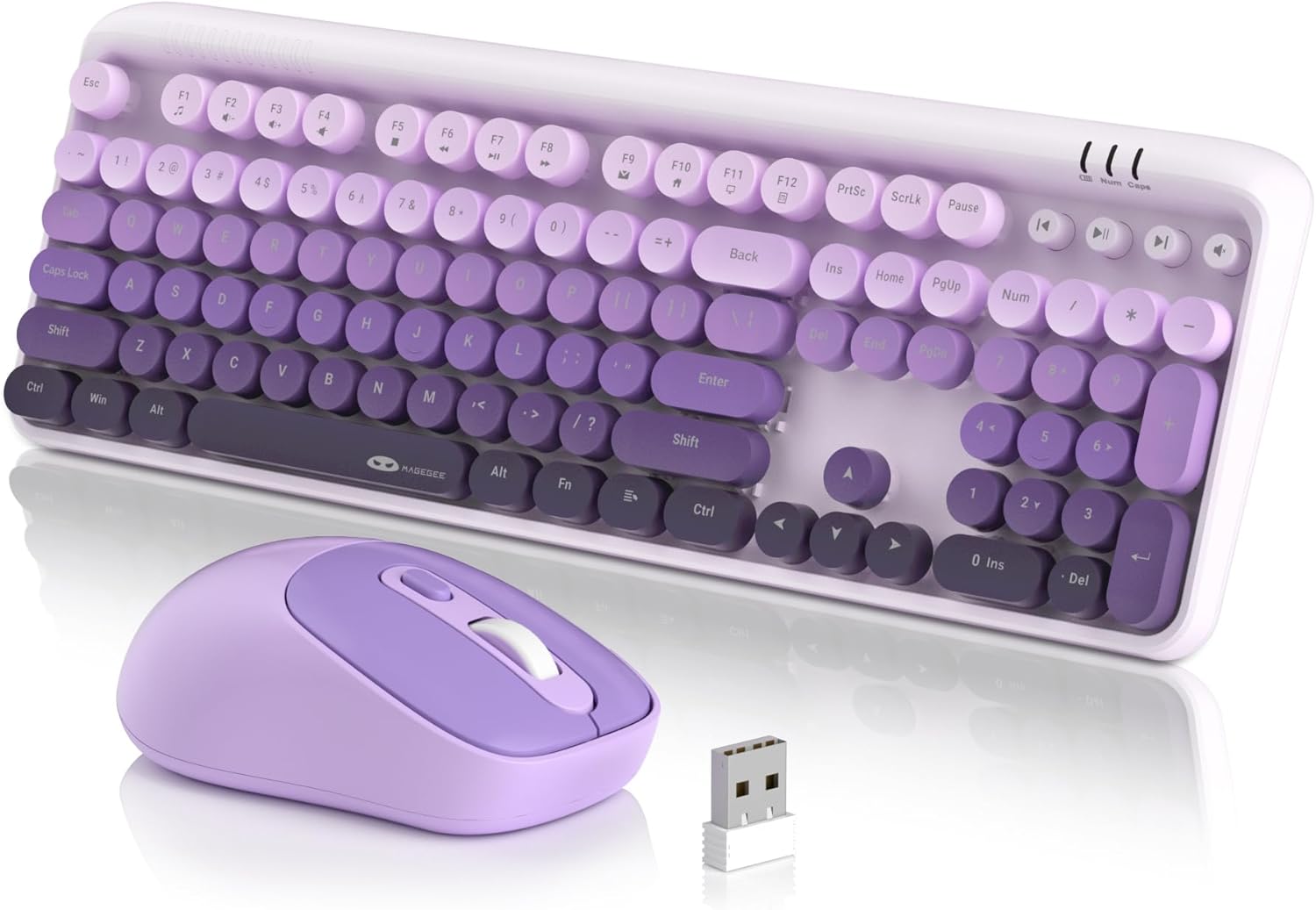
Thank you for choosing the MageGee V920 Wireless Keyboard and Mouse Combo. This product offers a seamless 2.4GHz wireless connection, a full-sized retro-style keyboard with round keycaps, and an ergonomic optical mouse. This manual provides detailed instructions for setup, operation, maintenance, and troubleshooting to ensure optimal performance and longevity of your device.
Package Contents
- 1 x Wireless Keyboard
- 1 x Wireless Mouse
- 1 x 2.4G USB Receiver
- 1 x User Manual

Setup Instructions
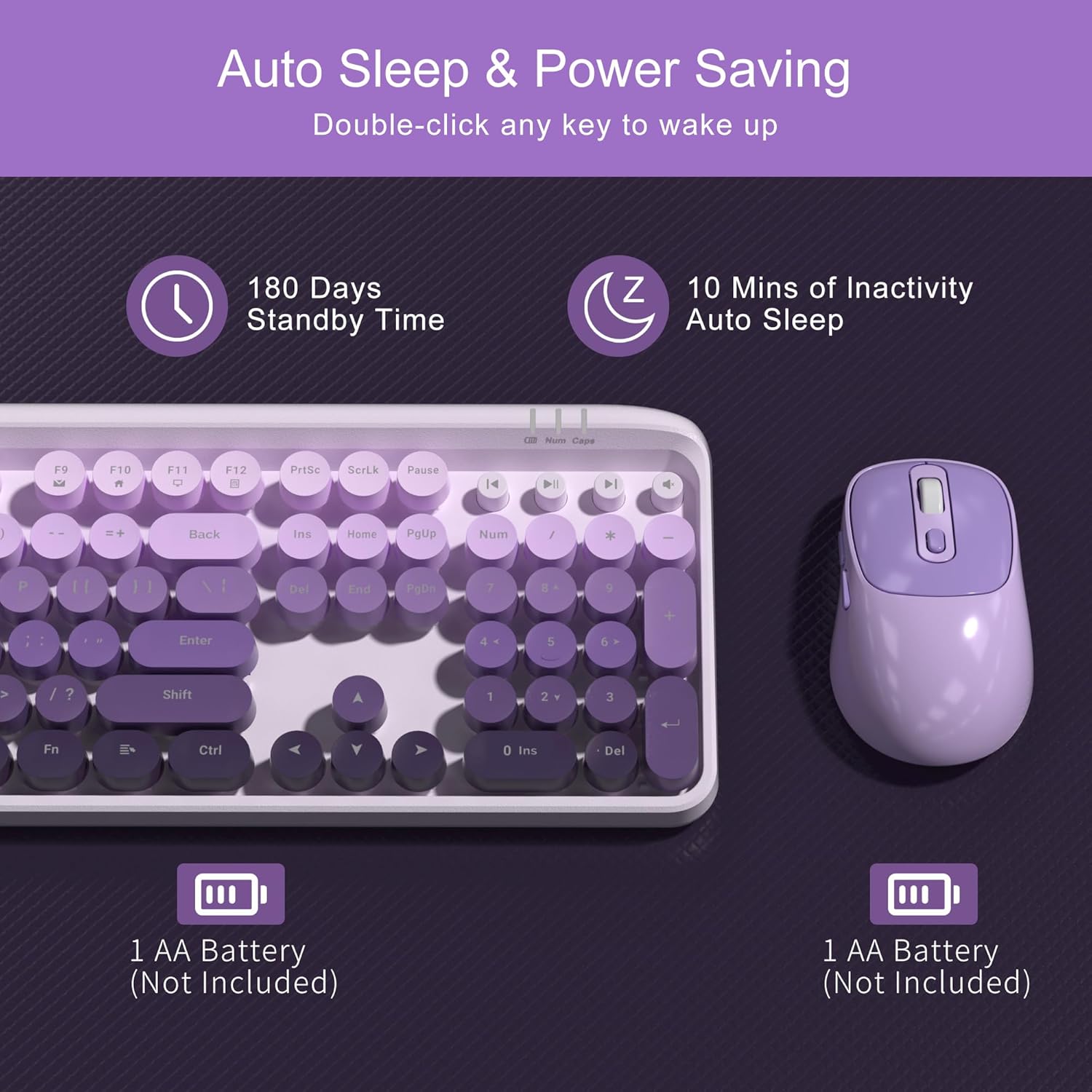
1. Battery Installation
The keyboard and mouse each require one AA battery (not included). Follow these steps to install the batteries:
- Locate the battery compartment on the underside of the keyboard and the mouse.
- Open the battery compartment cover.
- Insert one AA battery into each device, ensuring correct polarity (+/-).
- Close the battery compartment covers securely.
2. Connecting the USB Receiver
The keyboard and mouse share a single 2.4G USB receiver for connection to your computer.
- The USB receiver is stored in a slot at the bottom of the mouse for convenience. Gently remove it.
- Plug the USB receiver into an available USB-A port on your computer (laptop or PC).
- The system will automatically detect and install the necessary drivers. No manual driver installation is required.

3. Powering On
- Keyboard: The keyboard does not have a separate power switch. It will activate once batteries are installed and the receiver is connected.
- Mouse: Locate the independent power switch on the bottom of the mouse. Slide it to the 'ON' position.
Your MageGee V920 combo is now ready for use.
Operating Instructions
2.4GHz Wireless Connection
The V920 combo utilizes a stable 2.4GHz wireless connection, offering a transmission range of up to 33 feet (10 meters). This ensures reliable performance without significant lag or dropouts.

Keyboard Features
- Full-Sized Layout: The keyboard features a 104-key layout, including a numeric keypad for efficient data entry.
- Retro Round Keycaps: Designed for comfortable typing and a unique aesthetic.
- Adjustable Tilt Legs: Two-step keyboard feet allow you to set the keyboard at 3 different tilt angles to reduce wrist pressure and enhance ergonomic comfort.

Multimedia Shortcut Keys
The keyboard includes 12 standard multimedia shortcut keys and 4 dedicated one-touch hotkeys for quick access to various functions. Note: Some functions may not be available on Mac systems.
- FN + F1-F12 Combinations: Use the 'FN' key in combination with F1 through F12 for functions such as media playback control, volume adjustment, and opening applications.
- Dedicated Hotkeys: Four independent keys provide instant control for Previous Track, Play/Pause, Next Track, and Mute.


Mouse Features
- 6 Buttons: The ergonomic mouse features 6 buttons for enhanced functionality.
- 3 Tracking Speed Levels (DPI): Adjust the mouse sensitivity to 800, 1200, or 1600 DPI to match your work demands and personal preference. Press the DPI button located behind the scroll wheel to cycle through the settings.
- Silent Clicks: Designed for quiet operation, ensuring you do not disturb others in shared environments.

Smart Auto-Sleep Mode
To conserve battery life, both the keyboard and mouse automatically enter an energy-saving sleep mode after 10 minutes of inactivity. To wake them up, simply double-click any key on the keyboard or any button on the mouse. The mouse also has an independent power switch for manual shutdown when not in use for extended periods.
Maintenance
Cleaning the Keyboard
The V920 keyboard features removable round keycaps, making cleaning simple:
- Gently pull up on the keycaps to remove them.
- Use a soft brush or compressed air to remove dust and debris from under the keycaps and from the keyboard base.
- Wipe the keycaps with a damp cloth and mild cleaning solution if necessary. Ensure they are completely dry before reattaching.
- Align the keycaps with their respective switches and press down firmly until they click into place.

Battery Replacement
When the keyboard or mouse becomes unresponsive or exhibits intermittent connection issues, it may be time to replace the batteries. Follow the battery installation steps outlined in the Setup Instructions section.
Troubleshooting
- No Connection / Unresponsive Device:
- Ensure the USB receiver is securely plugged into a working USB port on your computer.
- Check if the batteries in both the keyboard and mouse are correctly installed and have sufficient charge. Replace them if necessary.
- Make sure the mouse's power switch is in the 'ON' position.
- Move the keyboard and mouse closer to the USB receiver to rule out range issues.
- Try plugging the USB receiver into a different USB port on your computer.
- Restart your computer.
- Lag or Intermittent Connection:
- Reduce interference by moving other wireless devices (e.g., Wi-Fi routers, cordless phones) away from the receiver.
- Ensure there are no large metal objects between the keyboard/mouse and the receiver.
- Check battery levels and replace if low.
- Mouse Cursor Jumps or is Inaccurate:
- Clean the optical sensor on the bottom of the mouse.
- Ensure you are using the mouse on a suitable surface. Avoid highly reflective or transparent surfaces.
- Adjust the DPI settings using the DPI button on the mouse.
- Multimedia Keys Not Working on Mac:
- Some multimedia functions may not be fully supported on macOS due to system-specific configurations. This is expected behavior.
Specifications
| Feature | Detail |
|---|---|
| Model Number | V920 |
| Connectivity Technology | 2.4G Wireless |
| Wireless Range | Up to 33 feet (10 meters) |
| Keyboard Layout | Full-Sized (104 keys) |
| Keycap Style | Retro Round, Removable |
| Mouse DPI Settings | 800 / 1200 / 1600 |
| Mouse Buttons | 6 Buttons |
| Power Source | 1 x AA Battery (Keyboard), 1 x AA Battery (Mouse) |
| Auto-Sleep Mode | After 10 minutes of inactivity |
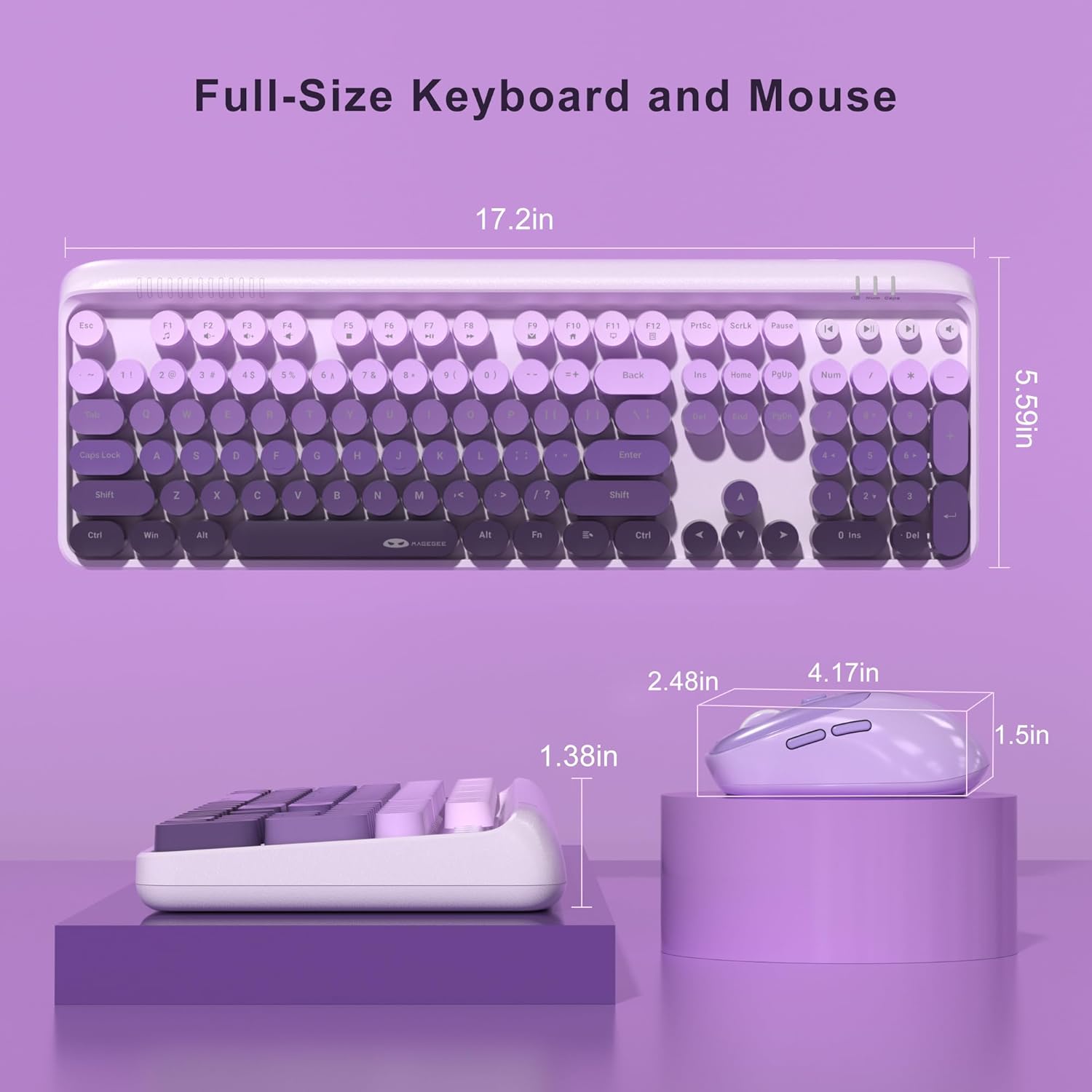
| Product Dimensions (Keyboard) | 17.2 x 5.59 x 1.38 inches |
| Item Weight | 1.5 pounds |
| Compatible Devices | Laptop, Personal Computer |

Warranty and Support
MageGee products are designed for reliability and performance. This product comes with a standard manufacturer's warranty against defects in materials and workmanship. Please refer to the warranty card included in your package for specific terms and conditions.
For technical support, warranty claims, or any questions regarding your MageGee V920 Wireless Keyboard and Mouse Combo, please contact MageGee customer service through the retailer's platform or visit the official MageGee website for contact information.
Safety Information
- Do not expose the device to liquids or excessive humidity.
- Avoid extreme temperatures.
- Do not attempt to disassemble or repair the device yourself. This may void the warranty.
- Dispose of batteries according to local regulations.
- Keep out of reach of children.
Related documentsV920


Ask a question about this manual
Ask about setup, troubleshooting, compatibility, parts, safety, or missing instructions. Manuals+ will review the question and use this page’s manual context to help answer it.