
KINGRID T90
KINGRID T90 Android 16 Tablet User Manual
Model: T90
1. Introduction
This manual provides essential information for setting up, operating, and maintaining your KINGRID T90 Android 16 Tablet. Please read it thoroughly to ensure optimal performance and longevity of your device. The KINGRID T90 is an 11-inch tablet featuring Android 16, a Unisoc T615 octa-core processor, 24GB RAM, 128GB ROM (expandable to 2TB), an 8000mAh battery, and Widevine L1 support for high-definition streaming.
2. Package Contents
Verify that all items are present in your product package:
- KINGRID T90 Tablet
- Protective Case
- Bluetooth Keyboard
- Wireless Mouse
- Stylus Pen
- Screen Protector
- Tablet Stand
- Charger & USB Cable
- User Manual (this document)

Image: The KINGRID T90 tablet displayed with all its accompanying accessories, including the keyboard, mouse, stylus, protective case, and charging components.
3. Device Layout
Familiarize yourself with the physical components of your KINGRID T90 tablet.

Image: Front view of the KINGRID T90 tablet, emphasizing its 11-inch IPS full-view display with 1200x1920 resolution, 16:10 aspect ratio, and 350 nits brightness, along with Widevine L1 support.
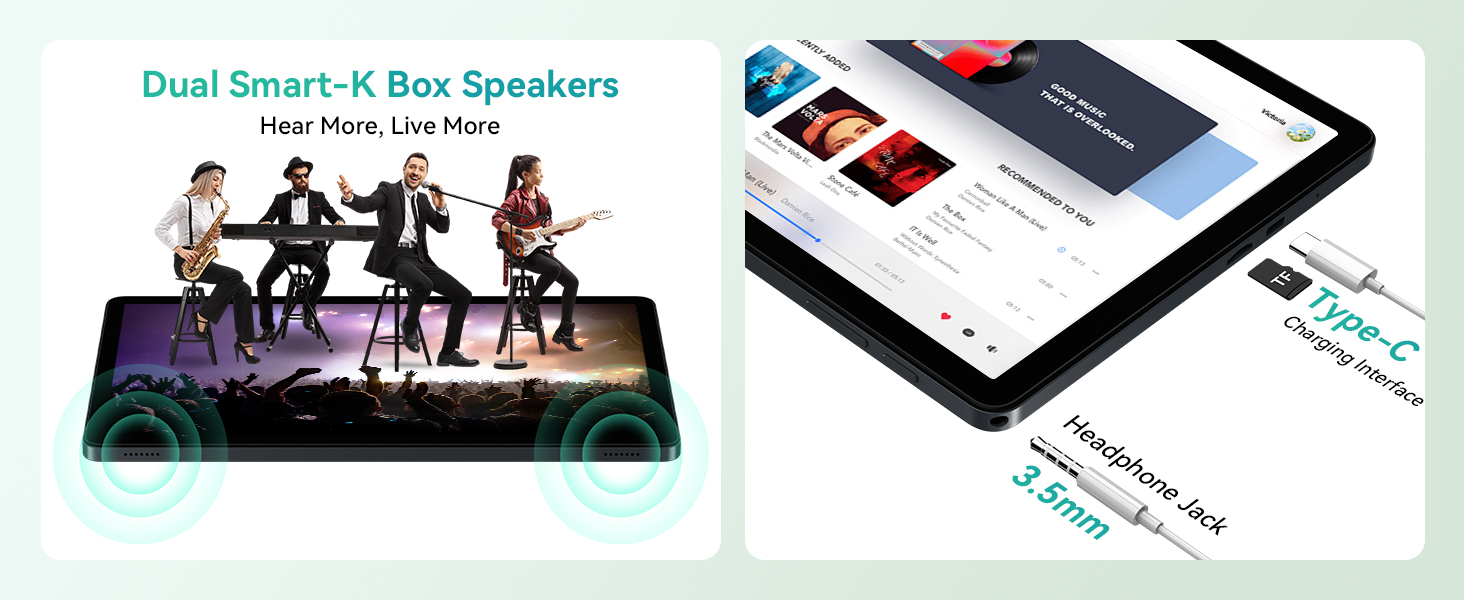
Image: Side view of the KINGRID T90 tablet, illustrating the placement of dual Smart-K Box speakers, the Type-C charging interface, and the 3.5mm headphone jack.
4. Setup
4.1 Initial Power On
- Press and hold the Power button located on the side of the tablet until the KINGRID logo appears.
- Follow the on-screen prompts to select your language, region, and agree to the terms of service.
4.2 Connecting to Wi-Fi
- From the home screen, swipe down from the top to open the Quick Settings panel.
- Tap the Wi-Fi icon to enable it.
- Tap and hold the Wi-Fi icon to go to Wi-Fi settings.
- Select your desired network from the list and enter the password if required.
4.3 Inserting MicroSD Card
The tablet supports storage expansion up to 2TB via a MicroSD card.
- Locate the SIM/MicroSD card tray on the side of the tablet.
- Use the provided SIM ejector tool to gently push into the small hole next to the tray until it pops out.
- Place the MicroSD card into the designated slot on the tray, ensuring correct orientation.
- Gently push the tray back into the tablet until it clicks into place.
4.4 Connecting Accessories (Keyboard, Mouse, Stylus)
The included keyboard, mouse, and stylus connect via Bluetooth.
- Ensure the accessory is charged and in pairing mode (refer to the accessory's individual instructions if needed).
- On your tablet, go to Settings > Connected devices > Bluetooth.
- Turn on Bluetooth. The tablet will scan for available devices.
- Select the accessory from the list of available devices to pair. Follow any on-screen prompts.
5. Operating the Tablet
5.1 Basic Navigation
The KINGRID T90 uses standard Android touch gestures for navigation:
- Tap: Select an item or open an app.
- Swipe: Scroll through pages or content.
- Pinch-to-zoom: Enlarge or reduce content size.
- Long press: Access contextual menus or move icons.
5.2 Android 16 Features
Your tablet runs on Android 16, offering enhanced privacy, security, and performance.
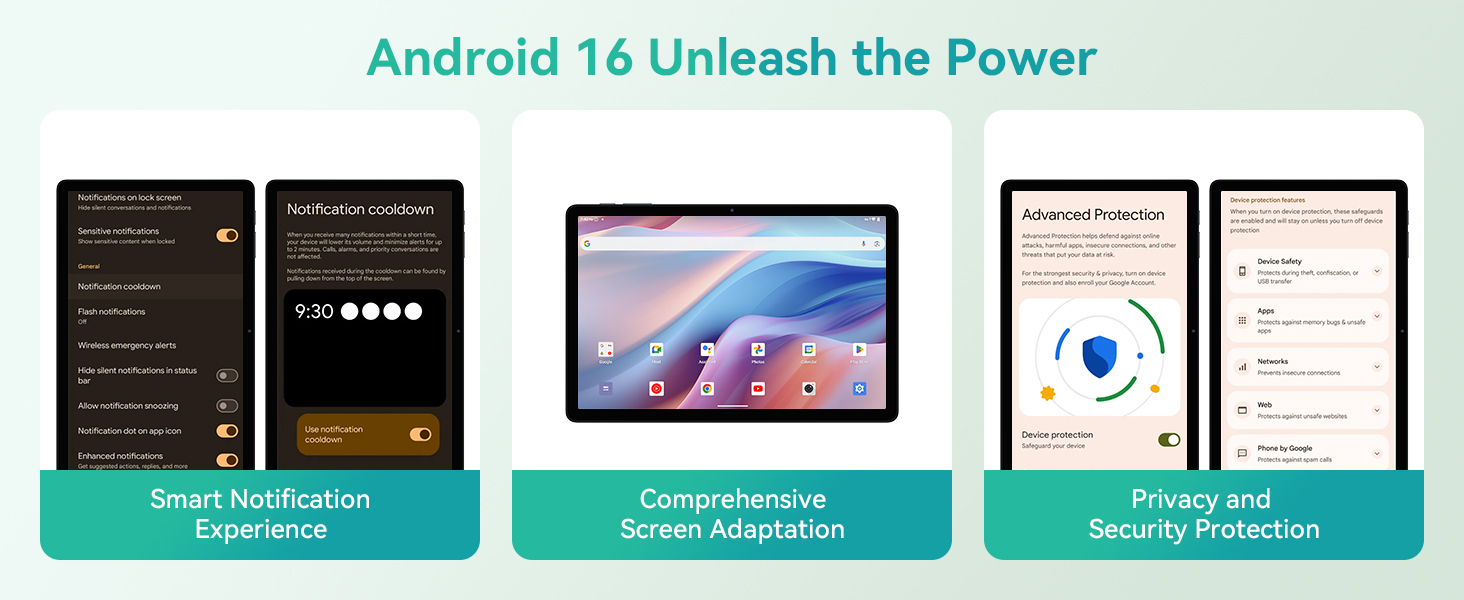
Image: Overview of Android 16 features, including smart notification management, comprehensive screen adaptation, and robust privacy and security protections.
Gemini AI 2.0
The tablet integrates Gemini AI 2.0 for intelligent assistance, enhancing productivity and learning.

Image: The tablet screen showing the Gemini AI 2.0 interface, indicating its role as a smart partner with a 'Hey, Google' prompt.
- Intelligent Office Experience: Utilize AI for tasks like real-time voice translation and smart image optimization.
- Personalized Learning: Receive tailored recommendations and assistance for educational content.
- Smart Interaction: Facilitates seamless communication and effortless information exchange.
- Smart Multitasking: Manage multiple applications and tasks efficiently with AI assistance.
5.3 Display Settings
Adjust display settings for optimal viewing experience:
- Go to Settings > Display.
- Adjust brightness, dark theme, font size, and screen timeout.
- The 11-inch FHD display supports Widevine L1 for 1080P HD video streaming on platforms like Netflix and Prime Video.
5.4 Camera Usage
The tablet features a 13MP rear camera and a 5MP front camera.
- Open the Camera app from the home screen or app drawer.
- Tap the shutter button to take photos.
- Switch between front and rear cameras using the camera toggle icon.
- Utilize Google Lens for object recognition, text translation, and educational assistance.
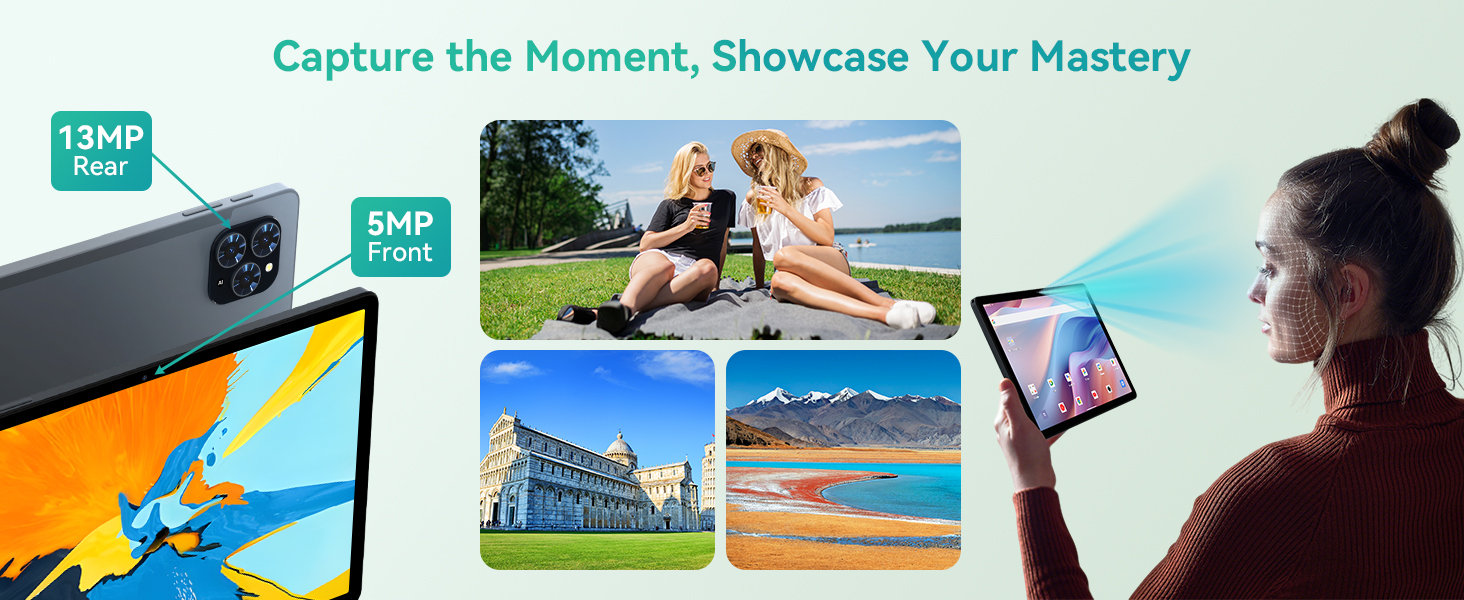
Image: The KINGRID T90 tablet highlighting its 13MP rear camera and 5MP front camera, demonstrating its ability to capture moments and featuring face unlock functionality.

Image: An illustration of Google Lens capabilities, including efficient text recognition and translation, accurate object recognition, educational assistance, and convenient text manipulation.
5.5 Battery Management
The 8000mAh battery provides extended usage times.
- To check battery status, go to Settings > Battery.
- Enable Battery Saver mode to extend battery life when needed.
- Charge the tablet using the provided charger and USB cable.
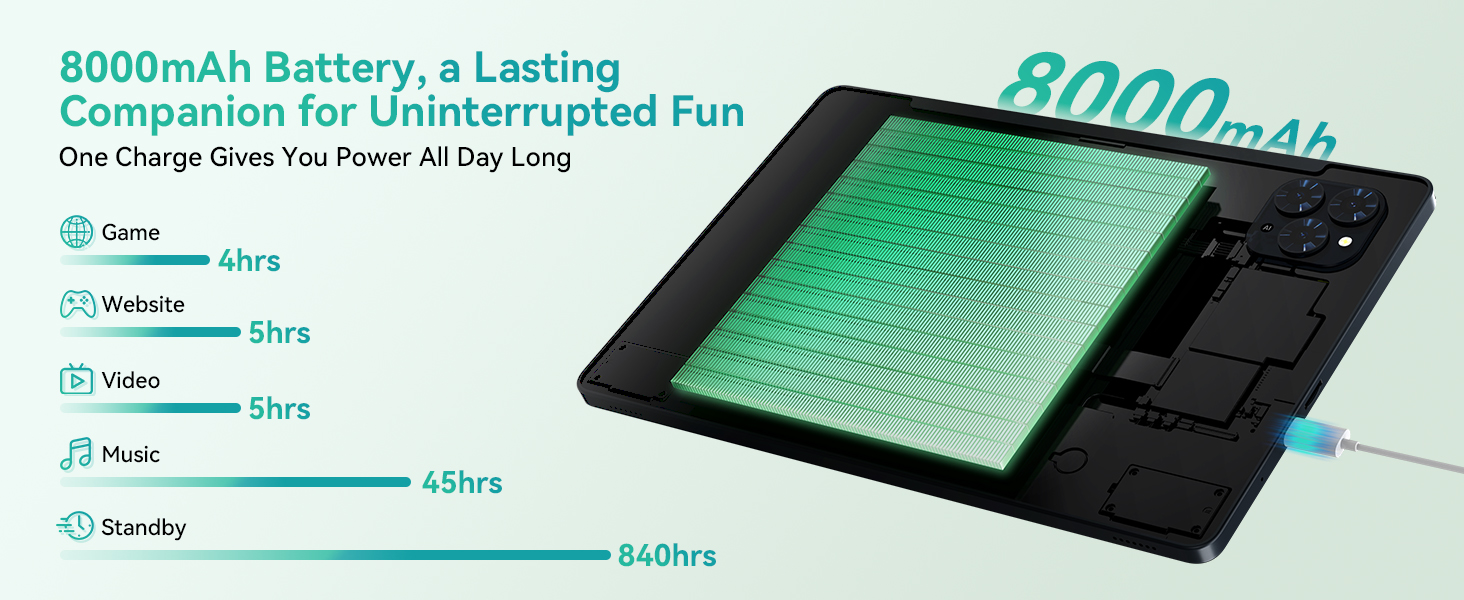
Image: The KINGRID T90 tablet highlighting its 8000mAh battery, with estimated usage durations for gaming (4 hours), website browsing (5 hours), video playback (5 hours), music (45 hours), and standby (840 hours).
5.6 Storage Management
The tablet comes with 128GB of internal storage, expandable up to 2TB.
- To view storage usage, go to Settings > Storage.
- Manage files and applications to free up space.
- Utilize a MicroSD card for additional storage of photos, videos, and documents.
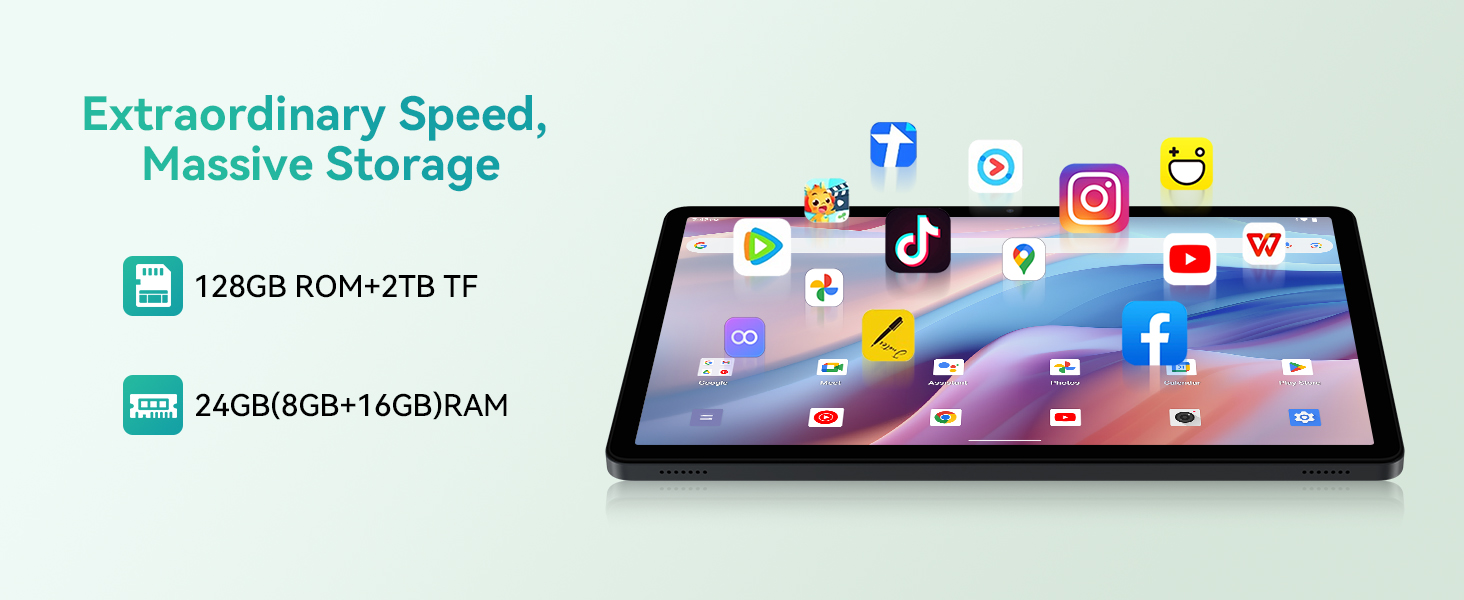
Image: The KINGRID T90 tablet illustrating its storage capabilities, including 128GB ROM with up to 2TB TF card expansion, and 24GB RAM (8GB physical + 16GB virtual).
6. Maintenance
6.1 Cleaning
- Use a soft, lint-free cloth to clean the screen and body of the tablet.
- Avoid using harsh chemicals or abrasive materials.
- For stubborn smudges, slightly dampen the cloth with water or a screen-cleaning solution.
6.2 Battery Care
- Avoid exposing the tablet to extreme temperatures.
- Do not let the battery completely drain frequently.
- Use the original charger for optimal charging performance.
6.3 Software Updates
- Regularly check for system updates to ensure your tablet has the latest features and security patches.
- Go to Settings > System > System update to check for and install updates.
7. Troubleshooting
| Issue | Possible Solution |
|---|---|
| Tablet does not power on | Ensure the battery is charged. Connect the charger and wait a few minutes before attempting to power on again. |
| Wi-Fi connection issues | Restart the tablet and your Wi-Fi router. Check Wi-Fi settings to ensure the correct network and password are used. |
| Slow performance | Close unused applications. Clear cache from apps. Check for system updates. Consider performing a factory reset if issues persist (back up data first). |
| Accessories not connecting | Ensure accessories are charged and in pairing mode. Re-pair them via Bluetooth settings. |
8. Specifications
| Feature | Detail |
|---|---|
| Model | KINGRID T90 |
| Operating System | Android 16 |
| Processor | Unisoc T615 Octa-Core (2x A75@1.8GHz + 6x A55@1.6GHz) |
| RAM | 24GB (8GB physical + 16GB virtual) |
| Internal Storage | 128GB ROM |
| Expandable Storage | Up to 2TB via MicroSD card |
| Display | 11-inch FHD IPS (1920 x 1200 pixels) |
| Brightness | 350 nits |
| Widevine Support | L1 Certified |
| Rear Camera | 13MP |
| Front Camera | 5MP |
| Battery | 8000mAh |
| Connectivity | Dual-band 5G WiFi, Bluetooth 5.0 |
| Dimensions | 24 x 16 x 0.8 cm |
| Weight | 1.39 kg (Product Dimensions state 1.39kg, but feature bullets state 505g. Using the more detailed product dimensions for consistency.) |
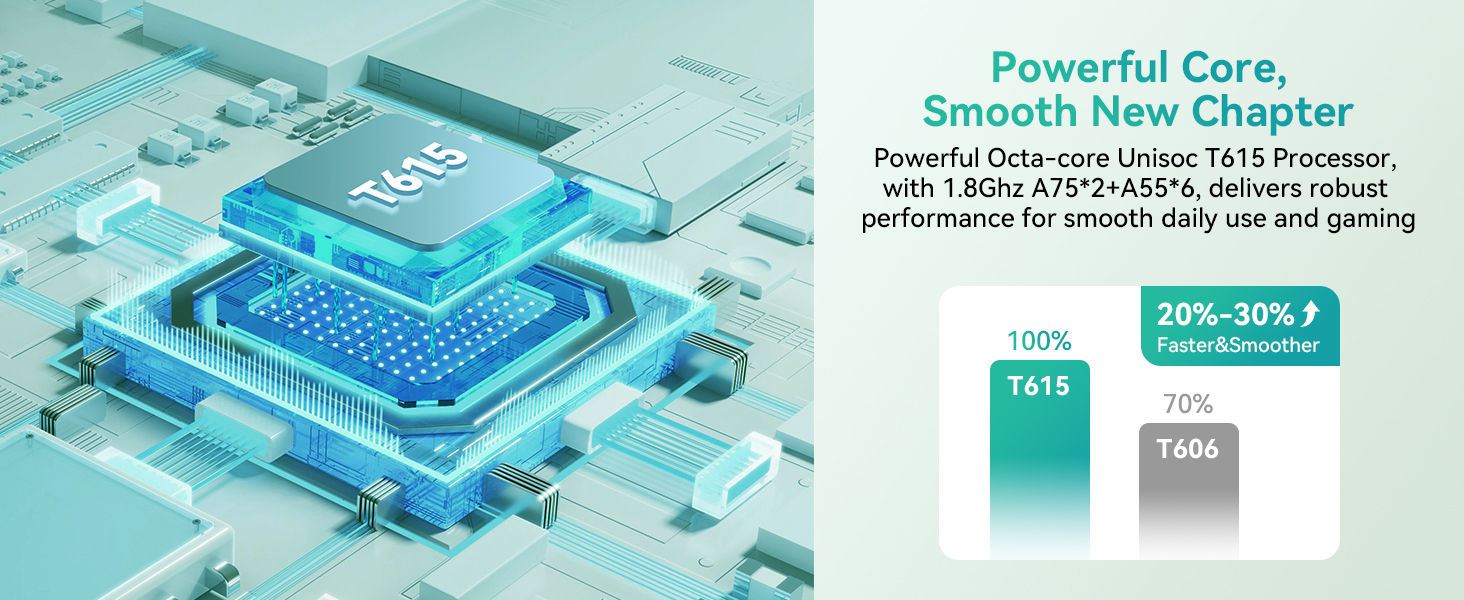
Image: A diagram illustrating the Unisoc T615 octa-core processor, detailing its architecture with 2x A75 cores at 1.8GHz and 6x A55 cores at 1.6GHz, Mali-G57 GPU, and LPDDR4+UFS memory support.
9. Warranty and Support
The KINGRID T90 tablet comes with a 2-year warranty. For technical assistance, troubleshooting, or warranty claims, please contact KINGRID customer support. Refer to the contact information provided on the product packaging or the official KINGRID website.
Customer Support: Available 24/7.
Related documentsT90


Ask a question about this manual
Ask about setup, troubleshooting, compatibility, parts, safety, or missing instructions. Manuals+ will review the question and use this page’s manual context to help answer it.