
Introduction
The KINGRID T20 Tablet is a versatile 10-inch device running on Android 16, designed for various uses from productivity to entertainment. This manual provides essential information to help you get started and make the most of your tablet.
What's in the Box
Upon opening your KINGRID T20 Tablet package, you should find the following items:
- KINGRID T20 Tablet (2026 Model)
- Wireless Keyboard
- Wireless Mouse
- Stylus Pen
- Fitted Case
- Screen Protector
- Tablet Stand
- Charger
- Type-C Cable

Image: All items included in the KINGRID T20 Tablet package.
Product Overview
The KINGRID T20 Tablet features a sleek design with a 10.1-inch Full HD display. It includes essential components for a complete user experience.
Key Components:
- Display: 10.1-inch FHD (1280x800 pixels) with Widevine L1 support for high-definition streaming.
- Cameras: 8MP AI Rear Camera and 5MP AI Front Camera.
- Audio: Smart-K dual stereo speakers for enhanced sound.
- Connectivity: USB Type-C port for charging and data transfer, 3.5mm headphone jack, Bluetooth 5.0, Dual-band 2.4G/5G Wi-Fi.
- Security: Facial ID for quick and secure access.
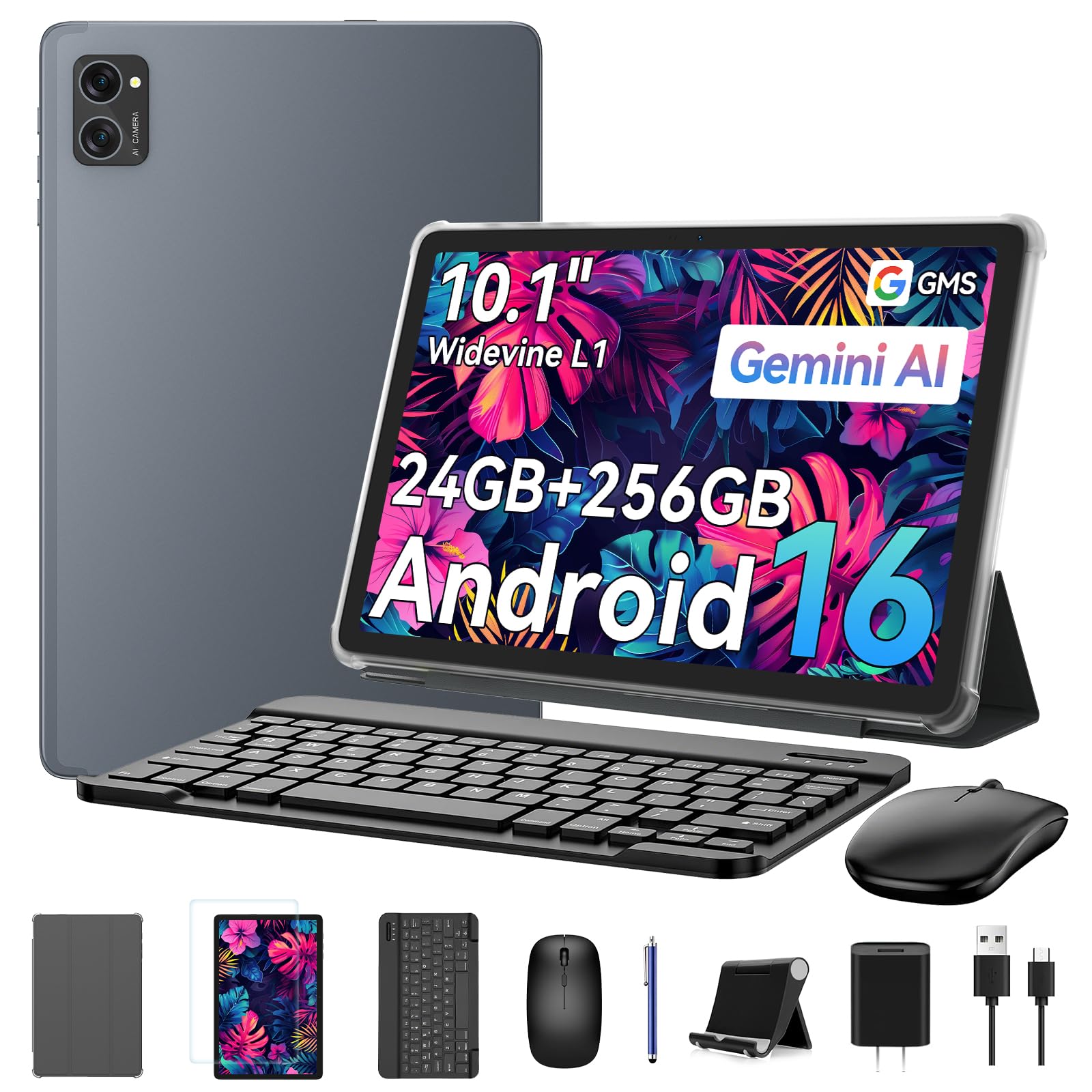
Image: Front view of the KINGRID T20 Tablet.

Image: Detail of the tablet's front and rear cameras.
Setup
Initial Power On
- Press and hold the Power button located on the side of the tablet until the KINGRID logo appears.
- Follow the on-screen prompts to complete the initial setup, including selecting your language, region, and agreeing to terms and conditions.
Connecting to Wi-Fi
- Go to Settings > Network & internet > Wi-Fi.
- Toggle the Wi-Fi switch to the On position.
- Select your desired Wi-Fi network from the list of available networks. The KINGRID T20 supports both 2.4G and 5G Wi-Fi bands.
- Enter the network password if prompted, then tap Connect.
Setting System Language
To change the system language on your tablet, follow these steps:
Video: Instructions on how to change the system language on the KINGRID T20 Tablet.
System Updates
Keeping your tablet's system updated ensures optimal performance and security. Follow these steps to check for and install system updates:
Video: Guide on how to upgrade your system version on the KINGRID T20 Tablet.
Operating Instructions
Basic Navigation and Android 16 Features
The KINGRID T20 runs on Android 16, offering a streamlined and intelligent user experience. Key features include:
- Gemini AI: Intelligently manages background applications to maintain device speed and responsiveness.
- Private Space: A dedicated area for sensitive data, enhancing privacy.
- Predictive Back: Provides intuitive navigation by showing where you'll go when you swipe back.
- Desktop Windowing Mode: Allows for a multi-window experience, similar to a desktop computer, ideal for multitasking.

Image: Overview of the Android 16 system features.
App Management
To ensure smooth operation and prevent apps from closing unexpectedly or missing notifications, manage your applications through the System Manager:
Video: How to fix app notification issues or background auto-close problems on your tablet.
Camera Usage
The tablet is equipped with an 8MP AI rear camera and a 5MP AI front camera. To use the camera:
- Tap the Camera icon on your home screen.
- Grant necessary permissions (e.g., location, storage) when prompted.
- Select between photo, video, or other modes.
- Tap the shutter button to capture images or start/stop video recording.
If you encounter camera errors related to permissions, refer to the following guide:
Video: Guide on how to fix camera errors by empowering permissions in system settings.
The tablet also supports Facial ID for unlocking and Smart Google Lens for scanning, searching, and exploring.
Productivity Features
Transform your tablet into a mobile workstation with the included accessories:
- Wireless Keyboard & Mouse: Connect via Bluetooth for a traditional computing experience.
- Stylus Pen: Ideal for note-taking, drawing, and precise navigation.
- Split-Screen Multitasking: Utilize Android 16's Desktop Windowing Mode to run multiple apps side-by-side, enhancing productivity for tasks like document editing while on a video call.

Image: Tablet in split-screen mode for enhanced productivity.
Entertainment Features
Enjoy immersive entertainment with your KINGRID T20 Tablet:
- Widevine L1 Certification: Enables 1080P HD streaming on platforms like Netflix, Disney+, and Prime Video.
- 10.1-inch FHD Display: Provides clear and vibrant visuals for movies, games, and browsing.
- Dual Stereo Speakers: Delivers rich audio for an enhanced viewing and gaming experience.

Image: Tablet set up for both entertainment and work.
Battery Management
The KINGRID T20 Tablet is equipped with a 5000mAh battery, providing extended usage. To optimize battery life:
- Adjust screen brightness.
- Close unused applications running in the background.
- Utilize the Eye-Comfort Mode to reduce blue light, which can also contribute to battery saving during prolonged use.

Image: Battery capacity and estimated usage times.
Maintenance
Cleaning Your Tablet
To keep your tablet in optimal condition:
- Use a soft, lint-free cloth to wipe the screen and body.
- Avoid using harsh chemicals or abrasive materials.
- Ensure the tablet is powered off and unplugged before cleaning.
Storage Management
The KINGRID T20 comes with 256GB of internal storage, expandable up to 2TB via a microSD card. Regularly manage your storage to maintain performance:
- Delete unnecessary files and apps.
- Move large media files to cloud storage or an external microSD card.
- Clear app cache periodically through Settings > Apps > [App Name] > Storage & cache.

Image: Tablet's memory and storage capabilities.
Troubleshooting
If you encounter issues with your KINGRID T20 Tablet, consider the following common solutions:
- Device Not Responding: Press and hold the Power button for about 10-15 seconds to force a restart.
- Wi-Fi Connectivity Issues: Ensure Wi-Fi is enabled, restart your router, or forget and reconnect to the network in Settings.
- App Crashes/Freezing: Clear the app's cache and data (Settings > Apps > [App Name] > Storage & cache) or reinstall the app.
- Notification Problems: Refer to the "App Management" section and its accompanying video for detailed steps on resolving notification and background app issues.
- Camera Errors: If the camera is not functioning, check app permissions and clear its storage/cache as detailed in the "Camera Usage" section and its video.
- Slow Performance: Close unused apps, clear cache, and ensure sufficient storage space. Consider performing a system update.
Specifications
| Feature | Detail |
|---|---|
| Model Name | T20 |
| Operating System | Android 16 |
| Processor | Unisoc T606 Octa-Core (1.6 GHz) |
| RAM Memory | 8 GB (24GB RAM with virtual expansion) |
| Internal Storage | 256 GB |
| Expandable Storage | Up to 2 TB (microSD) |
| Screen Size | 10.1 Inches |
| Display Resolution | 1280x800 Pixels (FHD) |
| Display Type | LCD |
| Battery Capacity | 5000 mAh (Lithium Polymer) |
| Rear Camera | 8 MP |
| Front Camera | 5 MP |
| Connectivity | Wi-Fi (2.4G/5G), Bluetooth 5.0 |
| Audio Jack | 3.5mm |
| Security Features | Facial ID |
| GPS Functionality | GPS, Glonass, Galileo, Beidou |
| Dimensions (L x W x Th) | 25.8L x 16.9W x 0.8Th Centimetres |
| Weight | 1.35 kg |
Warranty and Support
KINGRID offers an industry-leading 4-Year Protection Plan for your T20 Tablet, which includes a 2-Year Standard Warranty and an additional 2-Year Extended Warranty upon registration. For any assistance with setup, troubleshooting, or general inquiries, our 24/7 North American-based support team is available to help.
Please refer to the warranty card included in your package or visit the official KINGRID website for detailed warranty terms and contact information for support.


