
1. Introduction
Thank you for choosing the GMKtec EVO-T1 Mini PC. This manual provides essential information for setting up, operating, maintaining, and troubleshooting your new mini computer. Please read this manual thoroughly before use to ensure optimal performance and longevity of your device.

Figure 1.1: GMKtec EVO-T1 Mini PC, showcasing its compact design and various ports.
2. Safety Information
Always observe the following safety precautions to prevent damage to the device or injury to yourself:
- Do not expose the device to water, moisture, or extreme temperatures.
- Avoid placing the device near heat sources or in direct sunlight.
- Use only the provided power supply and cables.
- Do not attempt to open or repair the device yourself. Refer to qualified service personnel.
- Ensure proper ventilation around the device during operation.
3. Package Contents
Verify that all items are present in the box:
- GMKtec EVO-T1 AI Mini PC Ultra 9 285H Mini PC Computer
- Power Supply & Cable
- HDMI Cable
- User Manual
- VESA Mount and Screws (for mounting behind a monitor)

Figure 3.1: Contents included in the GMKtec EVO-T1 retail packaging.
4. Setup Guide
4.1 Identifying Ports and Components
Familiarize yourself with the various input/output ports on your EVO-T1 Mini PC:

Figure 4.1: Front and rear port layout of the EVO-T1 Mini PC.
- Front Ports: Power Button, 3x USB3.2 (10Gbps), 1x USB4.0 (PD/DP/Data), 1x 3.5mm Audio Jack, Clear CMOS button.
- Rear Ports: DC In (power), 1x 3.5mm Audio Jack, 1x HDMI 2.1 (8K@60Hz), 1x DisplayPort 1.4 (8K@120Hz), 1x Oculink PCIe Gen4 x4, 2x USB2.0, 2x Giga LAN (RJ45 2.5G).
4.2 Initial Setup Steps
- Connect Display: Connect your monitor(s) to the HDMI 2.1, DisplayPort 1.4, or USB4.0 (Type-C) ports using appropriate cables. The EVO-T1 supports up to four screens with 8K resolution.
- Connect Peripherals: Plug in your keyboard, mouse, and other USB devices into the available USB ports.
- Connect Network: For wired internet, connect an Ethernet cable to one of the 2.5GbE LAN ports. For wireless, ensure your Wi-Fi network is available.
- Connect Power: Plug the power adapter into the DC In port on the back of the Mini PC, then plug the power cable into a wall outlet.
- Power On: Press the power button on the front of the device. The system will boot up.
5. Operating Instructions
5.1 Power On/Off
- To Power On: Press the power button on the front of the Mini PC.
- To Power Off: From the operating system, select 'Shut Down'. Alternatively, press and hold the power button for 5 seconds to force a shutdown (use only when necessary).
5.2 Key Features and Usage
The GMKtec EVO-T1 is designed for high performance across various applications:
- Intel Core Ultra 9 285H Processor: Equipped with 16 cores and 22 threads, offering a turbo frequency of up to 5.4GHz for demanding tasks.
- Intel Arc 140T GPU: Integrated graphics with 8 Xe cores, supporting DirectX 12, OpenGL 4.5, and OpenCL 3, suitable for gaming and creative applications.
- AI NPU: Features an Intel AI Boost NPU with up to 13 TOPS for accelerating AI tasks and optimizing AI-enhanced creativity.

Figure 5.1: The Intel AI Boost NPU enhances performance for AI-driven applications.
- 64GB DDR5 RAM: Dual 32GB SO-DIMM DDR5 5600MHz memory for high-speed multitasking and data processing.
- 2TB PCIe 4.0 SSD: Fast storage with three M.2 2280 expansion slots, each supporting up to 8TB for a maximum of 24TB storage.
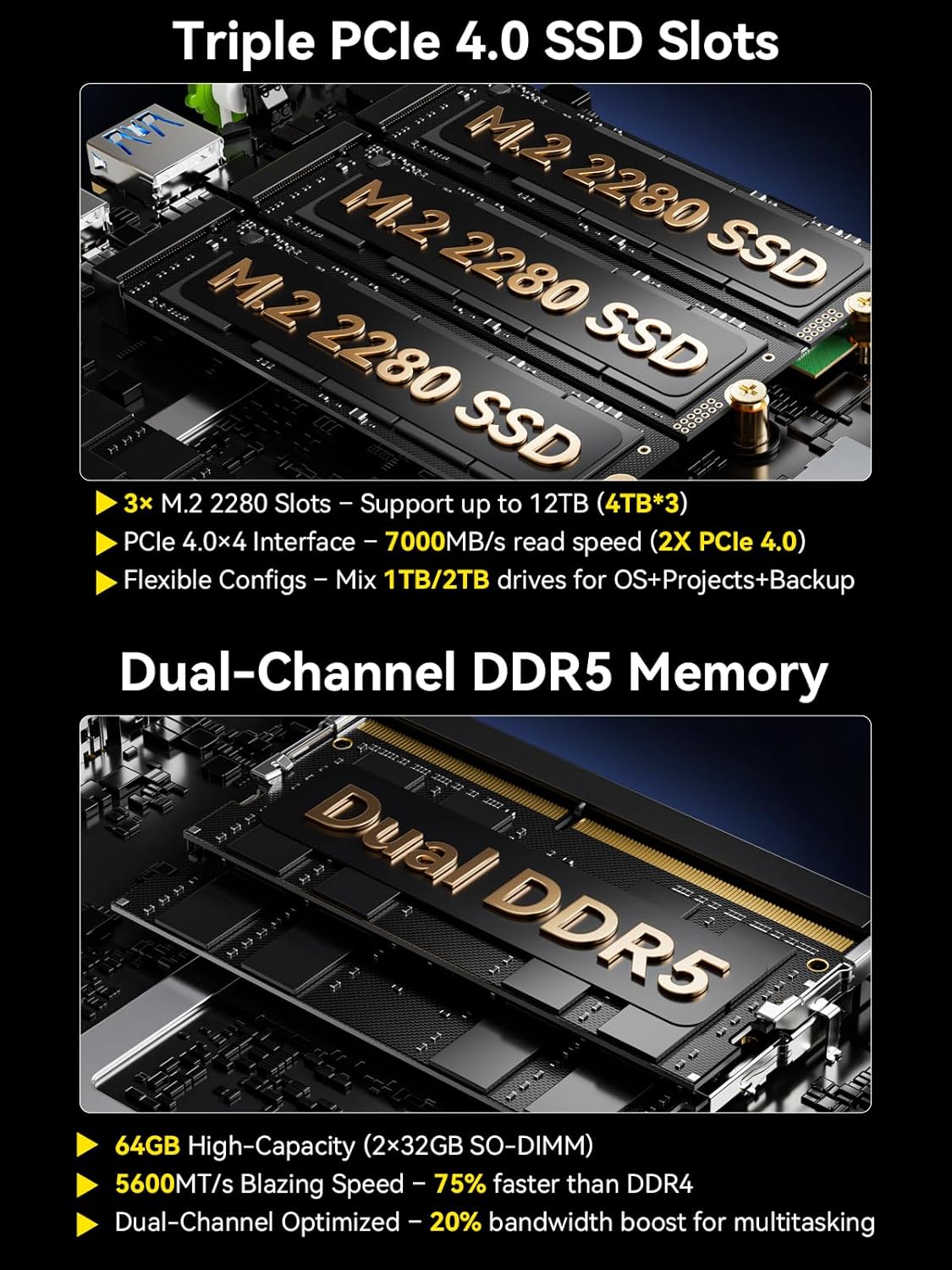
Figure 5.2: Overview of the triple M.2 SSD slots and dual-channel DDR5 memory architecture.
- Quad Screen 8K Display Support: Connect up to four displays via HDMI 2.1 (8K@60Hz), DisplayPort 1.4 (8K@120Hz), and USB Type-C (PD3.0/DP1.4/DATA) for expansive visual workspaces.
- Oculink Port: Provides higher bandwidth (64Gbps) for external GPU (eGPU) setups, offering better frame rates and lower lag compared to Thunderbolt. Note: Oculink does not support hot-plugging. Always power off before connecting/disconnecting devices.

Figure 5.3: OCuLink port capabilities for external graphics performance.
- Fast Connectivity: Features 2.5GbE LAN for high-speed wired networking, Wi-Fi 6 for faster and more stable wireless connections, and Bluetooth 5.2 for connecting wireless peripherals.
6. Maintenance
6.1 Cooling System
The EVO-T1 features an advanced dual-fan cooling system with VC heatpipes and 360° airflow to maintain optimal temperatures, even under heavy loads. It operates quietly, with noise levels as low as 35dB in Quiet Mode.

Figure 6.1: Internal view of the advanced dual-fan cooling system.
6.2 Upgradability
The EVO-T1 allows for easy upgrades of both RAM and storage. The 3x M.2 2280 expansion slots support up to 8TB each, and the DDR5 SO-DIMM slots can be upgraded for increased memory capacity.
6.3 Cleaning
To clean the exterior of the Mini PC, use a soft, dry cloth. For dust accumulation in vents, use compressed air. Ensure the device is powered off and unplugged before cleaning.
7. Troubleshooting
If you encounter issues with your GMKtec EVO-T1, please refer to the following common solutions:
| Problem | Possible Cause | Solution |
|---|---|---|
| No Power | Power cable loose; Power adapter faulty; Power outlet issue. | Check all power connections. Try a different power outlet. Ensure the power adapter is functioning. |
| No Display | Display cable loose; Incorrect input selected on monitor; Monitor faulty. | Ensure display cables are securely connected. Select the correct input source on your monitor. Test with a different monitor or cable. |
| System Freezes/Crashes | Overheating; Software conflict; Driver issue. | Ensure proper ventilation. Update drivers. Check for conflicting software. Perform a system restart. |
| Slow Performance | Too many applications running; Low storage space; Malware. | Close unnecessary applications. Free up disk space. Run antivirus/malware scan. |
If the problem persists, please contact GMKtec customer support for further assistance.
8. Specifications
| Feature | Detail |
|---|---|
| Processor | Intel Core Ultra 9 285H (up to 5.4 GHz) |
| RAM | 64GB DDR5 5600MHz (Dual 32GB SO-DIMM) |
| Storage | 2TB PCIe 4.0 M.2 2280 SSD (3x M.2 Expansion Slots, Max. 24TB) |
| Graphics Coprocessor | Intel Arc 140T GPU 2.35GHz |
| Max Screen Resolution | 7680x4320 Pixels (8K) |
| Display Outputs | HDMI 2.1 (8K@60Hz), DisplayPort 1.4 (8K@120Hz), USB Type-C (PD3.0/DP1.4/DATA) |
| Networking | 2.5GbE LAN, Wi-Fi 6, Bluetooth 5.2 |
| USB Ports | 3x USB3.2 (10Gbps), 1x USB4.0, 2x USB2.0 |
| Special Ports | Oculink PCIe Gen4 x4 |
| Operating System | OS Pro (Compatible with Windows 11 Pro/Linux) |
| Item Weight | 4.95 pounds |
| Dimensions | 14.09 x 8.07 x 3.7 inches |
9. Warranty and Support
GMKtec offers a 1-year limited warranty for the EVO-T1 Mini PC, starting from the date of purchase. This warranty covers defects due to design and workmanship.
9.1 Contacting Support
For technical assistance or warranty claims, please use the following methods:
- Via Amazon: Log in to your Amazon account, go to 'Your Orders', and select 'Ask Product Question' for the EVO-T1.
- Email: Send an email to the After-Sales Team at support@gmktec.com.
- Customer Support: GMKtec provides 24/7 customer support.

Figure 9.1: GMKtec Warranty and Support details.


