
1. Introduction
This user manual provides detailed instructions for the TABWEE K10 Kids Tablet. It covers device setup, operational guidance, maintenance procedures, and technical specifications to ensure optimal use and longevity of your tablet.

Image: The TABWEE K10 Kids Tablet in its blue protective case, accompanied by a stylus pen. The screen displays a cartoon panda, indicating its child-friendly interface.
2. What's in the Box
Upon unboxing, verify that all the following items are present:
- Kids Tablet
- Stylus Pen
- Shockproof Case
- Power Adapter
- User Manual

Image: A visual representation of the TABWEE K10 Kids Tablet package contents, including the tablet, its protective case, a stylus pen, power adapter, and the user manual.
3. Product Overview
Familiarize yourself with the physical components and ports of your TABWEE K10 tablet.

Image: A detailed diagram highlighting the various external features of the TABWEE K10 tablet, including the power on/off button, volume controls, front and rear cameras, speakers, Type-C charging port, reset hole, and the integrated holder on the protective case.
- Power Button: Located on the top edge, used to power on/off or wake/sleep the device.
- Volume Buttons: Located on the side, used to adjust audio volume.
- Front Camera: For video calls and selfies.
- Rear Camera: For taking photos and videos.
- Speakers: Dual speakers for audio output.
- Type-C Port: For charging and data transfer.
- Reset Hole: A small pinhole for factory reset (use with caution).
- Micro SD Card Slot: For expandable storage.
4. Setup
4.1. Charging the Tablet
Before first use, fully charge the tablet using the provided power adapter and USB-C cable. The charging port is located on the side of the device. A full charge ensures optimal performance and battery longevity.
4.2. Initial Power On
Press and hold the power button located on the top edge of the tablet until the screen illuminates. Follow the on-screen prompts to complete the initial setup, including language selection and basic Android configuration.
4.3. Connecting to Wi-Fi
To access online content and applications, connect your tablet to a Wi-Fi network. Navigate to Settings > Network & internet > Wi-Fi. Select your desired network from the list and enter the password to establish a connection.
5. Operating Instructions
5.1. Basic Navigation
The tablet features a 10.1-inch HD IPS touchscreen. Use standard touch gestures such as tap, swipe, and pinch to navigate the interface, open applications, and interact with content. The included stylus pen can be used for more precise input, drawing, and writing.
5.2. Parental Controls
The TABWEE K10 includes integrated parental control features to create a safe digital environment. Access these settings to manage screen time limits, filter web content, and restrict app access. This allows parents to customize the tablet experience for their children.

Image: The tablet's display showing the parental control interface, which includes options for setting up user accounts, managing screen time limits, activating a child lock, and configuring content filters.
5.3. Google Kids Space
The tablet comes pre-installed with Google Kids Space, offering a curated library of teacher-approved apps, games, books, and videos. This platform is designed to promote learning and creativity in a child-friendly interface. Ensure your Google account is linked to enable full functionality.

Image: The tablet's screen showcasing the Google Kids Space environment, filled with colorful icons representing educational applications, games, and digital content suitable for children.
5.4. Using the Stylus Pen
The ergonomic stylus pen is designed for comfortable use by children. It allows for drawing, writing, and interacting with the tablet's touchscreen with enhanced precision. The round tip is suitable for young users and helps prevent scratches on the screen.
5.5. Eye Protection Mode
To reduce eye strain, the tablet features an eye protection mode with low blue light technology. This mode can be activated and adjusted in the display settings to provide a comfortable viewing experience, especially during extended use or in low-light conditions. Options include Dark Theme and Night Light.

Image: A visual representation of the tablet's eye protection features, showing the settings menu for Dark Theme and Night Light, alongside a child comfortably using the tablet in a dimly lit environment.
5.6. Expanding Storage
The tablet's 64GB internal storage can be expanded up to 2TB using a Micro SD card (not included). Insert the Micro SD card into the designated slot to increase storage capacity for apps, photos, and videos. Ensure the tablet is powered off before inserting or removing the card.
6. Maintenance
6.1. Cleaning the Tablet
Use a soft, lint-free cloth to clean the tablet screen and body. Avoid abrasive cleaners or solvents, as these can damage the display or finish. For stubborn smudges, a slightly damp cloth can be used, followed by a dry cloth to remove any moisture.
6.2. Battery Care
To prolong the life of the 5000mAh battery, avoid fully discharging the tablet frequently. Charge the device regularly and store it in a cool, dry place when not in use for extended periods. Avoid exposing the tablet to extreme temperatures.

Image: The tablet connected to a charger, with graphical indicators showing estimated battery life for various activities such as reading (30 hours), video playback (6 hours), gaming (5 hours), and listening (7 hours).
6.3. Protective Case
The included TPU shockproof case is designed to protect the tablet from drops and impacts. Ensure the tablet is securely fitted within the case for maximum protection. The case also features an adjustable stand for hands-free viewing, which can be folded out from the back.
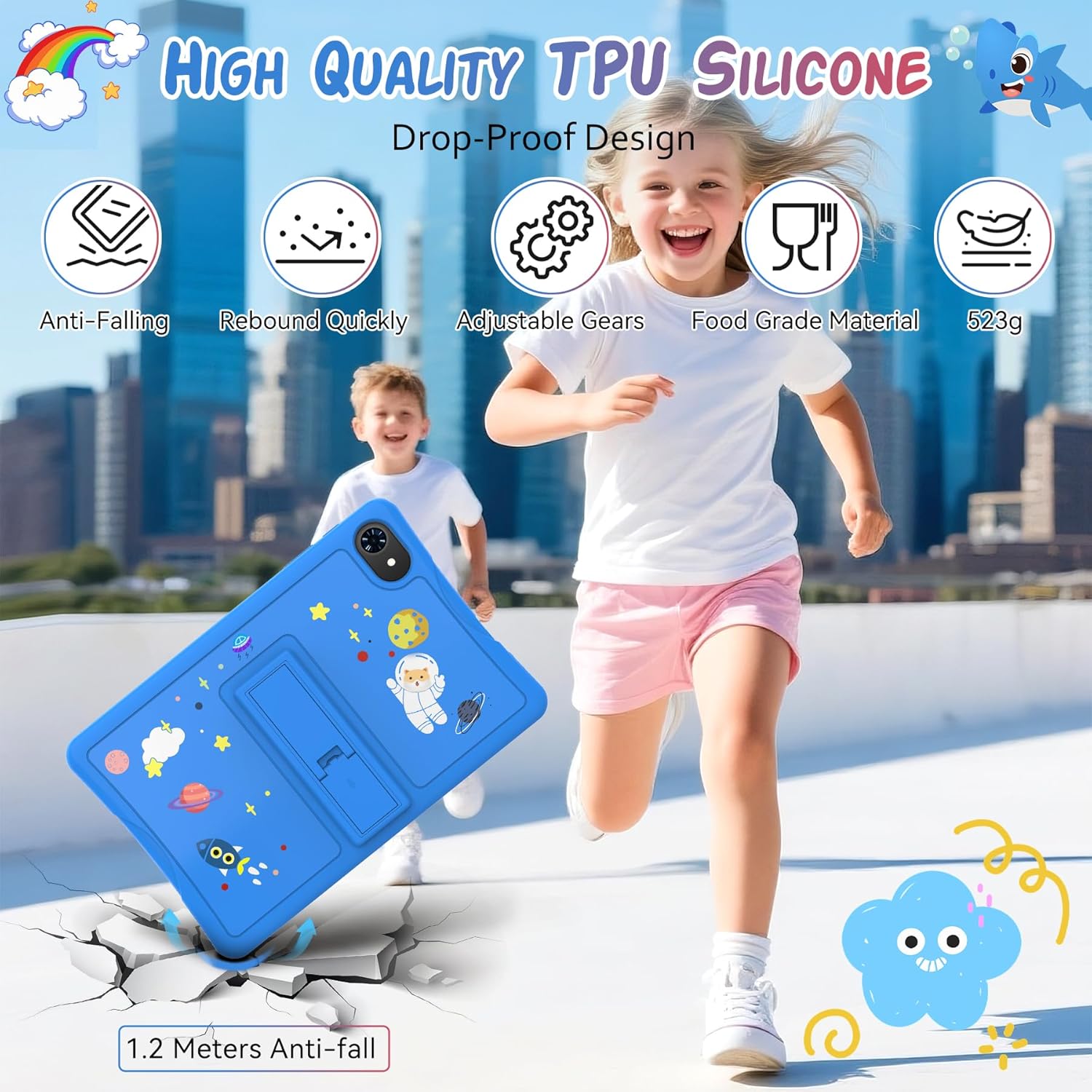
Image: A child running with the TABWEE K10 tablet, emphasizing the durability of its blue TPU shockproof case, which is designed to withstand drops and quickly rebound from impacts.
7. Troubleshooting
If you encounter issues with your TABWEE K10 tablet, refer to the following common problems and solutions:
- Tablet Not Turning On: Ensure the tablet is sufficiently charged. Connect it to the power adapter and wait a few minutes before attempting to power it on again. If unresponsive, press and hold the power button for 10-15 seconds for a forced restart.
- Wi-Fi Connection Issues: Verify that your Wi-Fi router is functioning correctly. Restart the tablet and attempt to reconnect. Check if the Wi-Fi password entered is correct.
- Slow Performance: Close unused applications running in the background. Clear cache for frequently used apps via Settings > Apps > [App Name] > Storage & cache > Clear cache. Consider uninstalling unnecessary applications to free up storage space. The tablet features 12GB RAM for smooth operation, but excessive background processes can impact performance.
- Screen Unresponsive: Perform a forced restart by holding the power button. If the issue persists, ensure the screen is clean and free of debris. If using the stylus, ensure it is functioning correctly and the screen is not damaged.
- Apps Crashing: Ensure your apps are updated to their latest versions. Clear the app's cache and data (this will reset the app). If the problem continues, uninstall and reinstall the app.
8. Specifications
The following table outlines the key technical specifications of the TABWEE K10 Kids Tablet:

Image: The tablet's display highlighting its 10.1-inch HD screen, along with icons representing key features such as dual cameras, Widevine L1 support for high-definition streaming, and eye protection technology.
| Feature | Specification |
|---|---|
| Brand | TABWEE |
| Model Name | K10 |
| Operating System | Android 15 |
| Screen Size | 10.1 Inches |
| Screen Resolution | 1280 x 800 pixels (Max 800*1280 Pixels) |
| RAM | 12 GB |
| Internal Storage | 64 GB |
| Expandable Storage | Up to 2 TB (Micro SD Card) |
| Rear Webcam Resolution | 5 MP |
| Processor Brand | Unisoc |
| Wireless Type | 802.11a, 802.11ac, 802.11ad, 802.11ax, 802.11n |
| Average Battery Life | 560 Hours (Standby) |
| Item Weight | 2.57 pounds (approx. 1.16 kg) |
| Product Dimensions | 27.5 x 18.6 x 0.8 inches |
| Color | Blue |
9. Warranty and Support
The TABWEE K10 Kids Tablet comes with a standard manufacturer's warranty. For warranty details, technical support, or service inquiries, please refer to the contact information provided on the TABWEE official website or the warranty card included in the packaging. You can also visit the official TABWEE Store on Amazon for further assistance.
TABWEE Official Store: https://www.amazon.com/stores/TABWEE/page/D58ED3E4-0C18-4BB8-9D7E-F814EA271682


