
1. Product Overview
The TMEZON Wireless Video Doorbell System (Model MZ-R10+MZ-L10) provides enhanced home security with its 1080P HD camera, 7-inch touchscreen monitor, and solar charging capabilities. This system offers reliable wireless connectivity, two-way audio communication, and smart motion detection for comprehensive surveillance.
Key Features:
- Dual-Band Wi-Fi Connectivity: Supports both 2.4GHz and 5GHz for stable and fast connection.
- 1080P HD Camera with Night Vision: 160° wide-angle view and 850nm infrared night vision for clear images day and night.
- PIR Motion Detection: Intelligent human detection reduces false alerts and sends real-time notifications.
- 7-inch Touchscreen Monitor: Intuitive interface for managing settings, viewing visitors, and reviewing recordings.
- Two-Way Audio: Communicate with visitors directly from the monitor or via the TuyaSmart app.
- Solar Power & Rechargeable Batteries: Doorbell powered by a 5000mAh removable battery and solar panel; monitor with a 1200mAh battery.
- Automatic Recording: Records video upon doorbell press or motion detection to an integrated 32GB memory card (expandable up to 128GB).
- Weatherproof Design: IP55 rated for outdoor use, operating in temperatures from -20°C to 60°C.
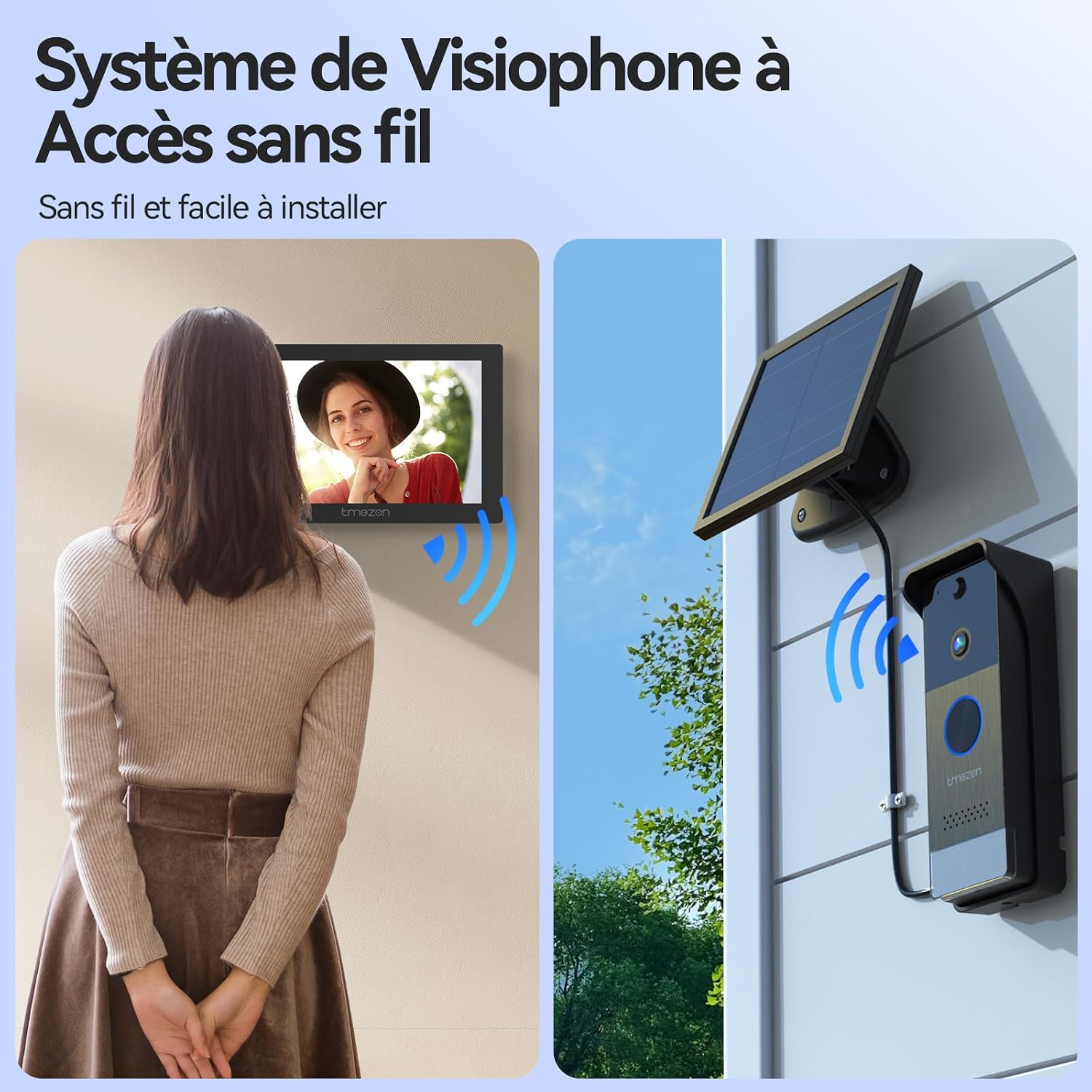
Image 1.1: Overview of the TMEZON Wireless Video Doorbell System components.
2. Setup Instructions
2.1 Package Contents
Before installation, ensure all components are present:
- Outdoor Doorbell Unit
- Indoor 7-inch Monitor
- Solar Panel
- Mounting Hardware (screws, wall anchors)
- USB Charging Cable
- Power Adapter for Monitor
- User Manual

Image 2.1: Package contents of the TMEZON Wireless Video Doorphone.
2.2 Charging the Devices
Fully charge both the outdoor doorbell unit and the indoor monitor before initial use. The doorbell unit has a 5000mAh removable battery, and the monitor has a 1200mAh battery. Use the provided USB cable and power adapter for the monitor. The doorbell can also be charged via the solar panel.

Image 2.2: Doorbell unit charging via solar panel.
2.3 Mounting the Outdoor Doorbell Unit and Solar Panel
- Choose a suitable location for the doorbell unit, typically near your entrance, at a height of approximately 1.2 to 1.5 meters (4 to 5 feet) from the ground.
- Mount the solar panel in a location that receives direct sunlight for most of the day to ensure optimal charging. Connect the solar panel to the doorbell unit.
- Use the provided mounting bracket and screws to securely attach the doorbell unit to the wall.

Image 2.3: Installation of the outdoor doorbell unit.
2.4 Installing the Indoor Monitor
The indoor monitor can be placed on a flat surface using its stand or mounted on a wall. Ensure it is within the wireless range of your Wi-Fi router and the outdoor doorbell unit.
2.5 Wi-Fi Connection
The system supports both 2.4GHz and 5GHz Wi-Fi bands. Follow the on-screen instructions on the 7-inch monitor to connect it to your home Wi-Fi network. This connection is crucial for app functionality and remote access.

Image 2.4: Dual-band Wi-Fi connectivity for the indoor monitor.
2.6 TuyaSmart App Setup
- Download the TuyaSmart app from your smartphone's app store (available on iOS and Android).
- Register or log in to your TuyaSmart account.
- Add the TMEZON video doorbell device by following the in-app instructions. This typically involves scanning a QR code displayed on the monitor or doorbell unit.

Image 2.5: TuyaSmart app interface for device control.
3. Operating Instructions
3.1 Answering a Call
When a visitor presses the doorbell button, the indoor monitor will ring and display the live video feed. You can answer the call by tapping the 'Answer' icon on the monitor or through the TuyaSmart app on your smartphone.
3.2 Two-Way Audio Communication
Once a call is answered, you can engage in two-way audio communication with the visitor. Speak clearly into the monitor or your smartphone, and the visitor's voice will be heard through the doorbell's speaker.

Image 3.1: Two-way audio communication via the indoor monitor.
3.3 Remote Door Unlocking
If connected to an electric lock, you can remotely unlock your door or gate directly from the indoor monitor or the TuyaSmart app. Tap the 'Unlock' icon during a call to grant access.

Image 3.2: Remote unlocking via the TuyaSmart app.
3.4 Motion Detection and Notifications
Activate the PIR motion detection feature via the TuyaSmart app. When motion is detected, the doorbell camera will send a real-time notification to your smartphone. The intelligent PIR detection minimizes false alarms from vehicles or animals.

Image 3.3: PIR motion detection and smartphone notifications.
3.5 Automatic Recording and Playback
The system automatically records video when the doorbell is pressed or motion is detected. Recordings are saved to the integrated 32GB memory card. You can review these recordings directly on the indoor monitor or through the TuyaSmart app.

Image 3.4: Automatic recording and playback on the monitor.
3.6 Monitor Settings
The 7-inch touchscreen monitor allows you to adjust various settings, including volume, brightness, time (Wi-Fi or manual), and language. A sleep mode is available to conserve energy.

Image 3.5: Monitor settings interface.
4. Maintenance
4.1 Battery Management
The outdoor doorbell unit's 5000mAh battery is designed for long-lasting operation, supplemented by the solar panel for continuous charging. Ensure the solar panel is clean and free from obstructions to maximize charging efficiency. The indoor monitor's 1200mAh battery provides portability and can be recharged via its DC5V/1A adapter.
4.2 Storage Management
The system includes an integrated 32GB memory card for storing recordings. This can be expanded up to 128GB by replacing the card. Regularly review and manage stored footage to ensure sufficient space for new recordings.

Image 4.1: SD card slot on the indoor monitor.
4.3 Cleaning
Wipe the outdoor doorbell unit and indoor monitor with a soft, damp cloth. Avoid using harsh chemicals or abrasive cleaners that could damage the surfaces or electronic components.
5. Troubleshooting
If you encounter issues with your TMEZON video doorbell system, refer to the following common troubleshooting steps:
- No Power: Ensure both the doorbell unit and monitor are fully charged. Check the solar panel for obstructions if using solar power. Verify the monitor's power adapter is correctly connected.
- No Video/Audio: Check the wireless connection between the doorbell and monitor, and between the monitor and your Wi-Fi router. Ensure both devices are within range and there are no significant obstructions (e.g., thick walls, metal structures).
- Poor Video/Audio Quality: A weak Wi-Fi signal can affect quality. Try moving the monitor closer to the router or doorbell, or ensure your Wi-Fi network is stable.
- Motion Detection Not Working: Verify that PIR motion detection is enabled in the TuyaSmart app settings. Adjust sensitivity levels if necessary.
- App Connectivity Issues: Ensure your smartphone has a stable internet connection. Restart the TuyaSmart app or re-pair the device if connection persists.
- Doorbell Not Ringing: Check the volume settings on the indoor monitor. Ensure the doorbell unit is powered on and properly paired with the monitor.
- Unable to Unlock Door Remotely: Confirm that the electric lock is correctly wired to the doorbell unit and that the unlock function is enabled in the system settings.
For further assistance, please contact TMEZON customer support.
6. Specifications
| Model Name | MZ-R10+MZ-L10 |
| Brand | TMEZON |
| Connectivity Technology | Wireless (Wi-Fi 2.4GHz/5GHz) |
| Camera Resolution | 1080P HD |
| Camera Angle of View | 160 Degrees |
| Night Vision | 850nm Infrared (Color Night Vision) |
| Monitor Screen | 7-inch LCD Touchscreen (1024x600) |
| Outdoor Unit Battery | 5000mAh (Removable, Rechargeable) |
| Indoor Monitor Battery | 1200mAh |
| Power Source | Solar Power (Outdoor Unit), DC5V/1A Adapter (Indoor Monitor) |
| Storage | 32GB Integrated (Supports up to 128GB SD Card) |
| Weather Resistance | IP55 |
| Operating Temperature | -20°C to 60°C |
| Special Features | Two-Way Audio, PIR Motion Detector, Local Recording, HD Resolution |
| Control Method | Application (TuyaSmart) |
| Dimensions | 50 x 50 x 50 millimeters (approximate) |
7. Warranty and Support
TMEZON offers a 2-year support period for this product. Dedicated customer support is available 7 days a week to assist with any inquiries or issues you may encounter. Additionally, detailed video tutorials are provided to help with installation and operation.
For support, please refer to the contact information provided in your product packaging or visit the official TMEZON website.


