
Product Overview and Key Features
The CARPURIDE W903S is a versatile car navigation screen featuring wireless Apple CarPlay and Android Auto compatibility, integrated with a comprehensive 3-channel dash camera system. This device enhances your driving experience with smart connectivity and advanced recording capabilities.
Triple Camera System for Comprehensive Coverage
The W903S is equipped with a 4K front camera, a 1080P infrared in-car camera, and a 1080P rear camera. The 170° wide-angle lens covers the entire cabin, ensuring thorough recording. The in-car camera records in color during the day and automatically switches to infrared black-and-white at night for clear low-light footage. The dual front camera is 350° rotatable with vertical adjustment, making it suitable for various vehicles and allowing real-time monitoring of backseat children.

Image: The main CARPURIDE W903S unit showing its screen with a live view from the front, rear, and cabin cameras. The unit itself has two cameras visible on top.
Smart Connectivity and Navigation
Seamlessly integrate with your smartphone (iOS/Android) via wireless Carplay & Android Auto. This allows you to wirelessly handle GPS navigation, messaging, phone calls, and Bluetooth music directly from the HD touchscreen. The 9.3-inch HD IPS display offers a clear and intuitive view for real-time maps navigation, supporting popular apps like Google Maps and Waze.

Image: The CARPURIDE W903S screen showcasing the wireless Carplay and Android Auto interfaces with various app icons.
Advanced Recording and Safety Features
The device supports loop recording, automatically overwriting old files when the card is full. A built-in gravity sensor automatically locks key videos in the event of a collision, protecting accident evidence. It comes equipped with a 64GB TF card for immediate use, expandable up to 256GB.
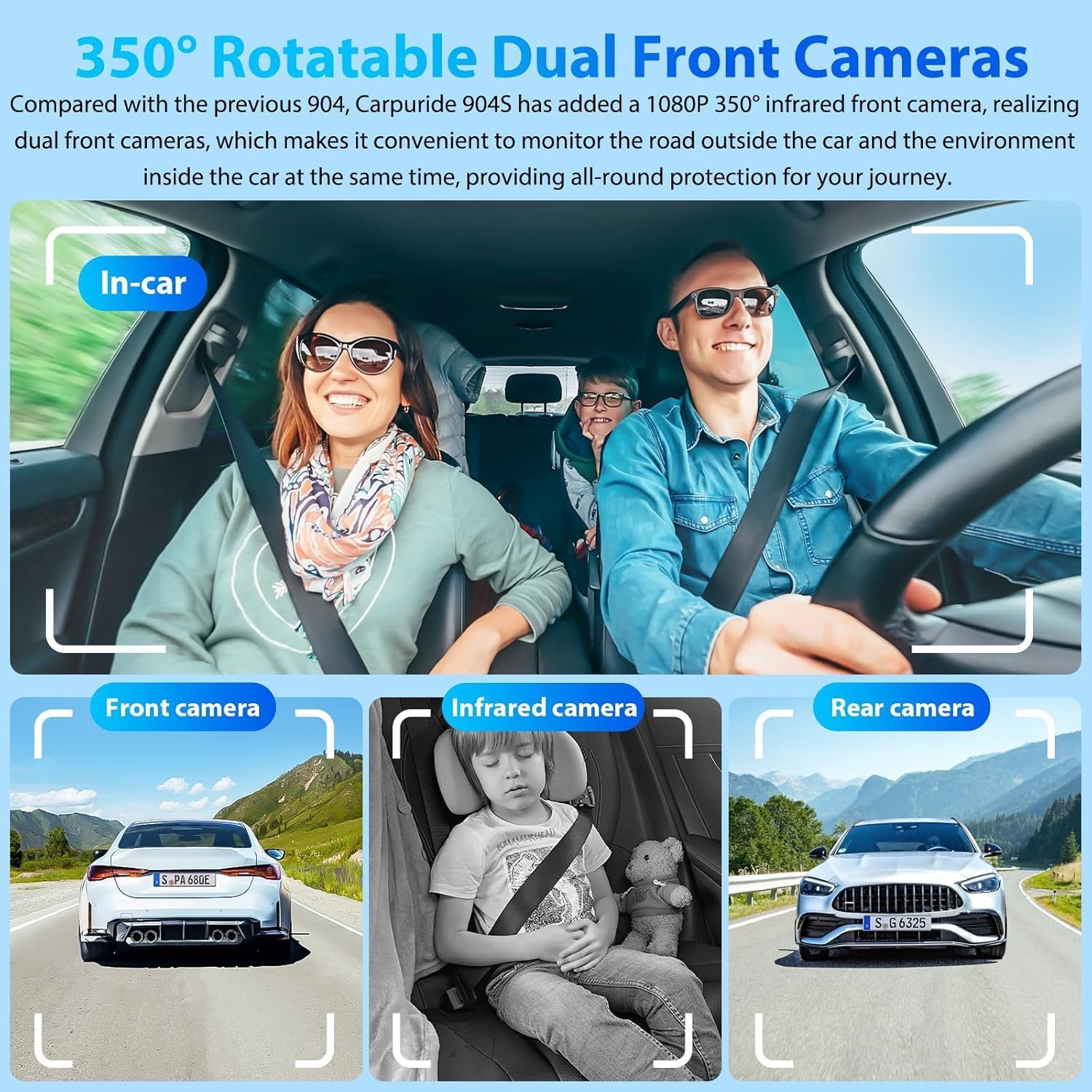
Image: The CARPURIDE W903S screen demonstrating various split display modes, including simultaneous views of navigation, music, and camera feeds.
Audio Output Options and Voice Control
Choose your preferred audio output from BT audio, local speakers, FM radio, and AUX (3.5mm). The clear microphone technology enables smart voice control with Siri and Google Assistant for hands-free operation.

Image: The CARPURIDE W903S screen illustrating different audio output methods like AUX, FM transmit, and built-in speaker, along with Bluetooth connectivity.
Anti-Glare Screen and Light Sensor Design
The 10.26-inch anti-glare full-touch HD capacitive monitor (9.3-inch inner screen) features a 1600x600 resolution. A unique light sensor automatically adjusts screen brightness according to ambient light, with a customizable range from 0% to 100%.

Image: The CARPURIDE W903S screen highlighting its anti-glare properties and light-sensitive automatic brightness adjustment.
Mirror Link Functionality
The device supports two ways of mirror link: Airplay (for iPhone only) and Super Link (for iOS/Android). Effortlessly mirror audio, videos, games, and apps from your smartphone directly onto the screen. Enjoy screen sharing and online video viewing.

Image: The CARPURIDE W903S screen demonstrating the Super Link feature, allowing users to watch online videos or mirror content from their Android phone.
Package Contents
- 1* 904S car stereo
- 2* Bracket
- 1* Charger
- 1* AUX cable
- 1* Backup Cam

Image: A visual representation of all items included in the CARPURIDE W903S package, such as the main unit, brackets, charger, AUX cable, and backup camera.
Setup and Installation
Power Supply
The CARPURIDE W903S uses a Type-C 12V power supply, compatible with most cars and trucks. Use only the original Carpuride car charger, as it includes a built-in FM antenna. Using other chargers may affect FM performance.

Image: Illustration of the Type-C 12V power supply connection and the functions of the charger buttons: 1. Power Button (on/off screen), 2. USB Port (for 12V devices only), 3. Rear Camera Button (manual switch to rear view).
Mounting the Device
The device can be mounted on the vehicle's dash console with the provided bracket or on the car's windshield using the suction cup attachment. Ensure the mount is securely fastened.

Image: Step-by-step guide on rotating the front camera (350° adjustment) and securing the CARPURIDE screen to either the dashboard or windshield using the provided mounts. Caution: Avoid over-rotation to prevent cable loosening/disconnection.
Connecting to Smartphone (Wireless Carplay/Android Auto)
For Apple CarPlay: Open CarPlay on your iPhone, turn on Wi-Fi and Bluetooth. Find "Carpuride-xxxx" in your Bluetooth settings, click to connect. Allow contacts and favorites sync. The connection should be successful.

Image: Visual steps for connecting an iPhone to the CARPURIDE screen for Apple CarPlay functionality via Wi-Fi and Bluetooth.
For Android Auto: Open Android Auto on your phone, turn on Wi-Fi and Bluetooth. Find "Carpuride-xxxx" in your Bluetooth settings, click "Pair" and activate. The connection should be successful.

Image: Visual steps for connecting an Android phone to the CARPURIDE screen for Android Auto functionality via Wi-Fi and Bluetooth.
Super Link (Mirroring) Setup
To use Super Link mode for online videos or mirror casting (Android phone), scan the QR code to download the corresponding EveLink app. Select "Wi-Fi Direct" connection mode and find "EVELINK-xxxx". Once connected, select "Screen Mirroring" in the control center and click "Smartsreen" for wireless mirroring. For iOS, scan the QR code for the EveLink app, select "Wi-Fi Direct", then "Screen Mirroring" in the control center, and click "Smartsreen". To watch online videos, select Settings and click the Lab to play online video.

Image: Visual steps for connecting an iPhone to the CARPURIDE screen for Apple CarPlay functionality via Wi-Fi and Bluetooth.
Relevant Link: EveLink App for iOS

Image: Instructions for setting up Super Link (mirroring) with an Android device, including scanning a QR code for the EveLink app and connecting via Wi-Fi Direct.
Relevant Link: EveLink App for Android
Wi-Fi Video (Dashcam Footage Access)
The carplay screen does not offer cloud storage. However, when connected via Wi-Fi, all recorded videos can be synced and saved directly to your phone's storage, similar to cloud storage. This allows you to easily backup and manage your recordings. Scan the QR code to download the Viidure app. Connect to the Wi-Fi network "CARPURIDE_WIFI-xxxx" with password "12345678". Open the downloaded Viidure App, connect the camera-camera Files-Select, check the required video, and click Download.

Image: Instructions for accessing dashcam video files via Wi-Fi using the Viidure app, including Wi-Fi connection details.
Relevant Link: Viidure App Download
Operating Instructions
Screen Display Modes
The device supports various split display modes, allowing you to view multiple camera feeds, navigation, and music simultaneously. This includes CarPlay Mode, Android Mode, and different combinations of Front/Rear/Cabin camera views.

Image: A collage showing different screen layouts for CarPlay, Android Auto, and various camera views, including split-screen options.
GPS Navigation
Experience real-time GPS navigation by utilizing popular apps like Google Maps and Waze directly from your car's dashboard. The 9.3-inch HD IPS display magnifies map details for better visibility.

Image: The CARPURIDE W903S screen displaying online navigation with icons for various map applications.
Voice Control
Elevate your driving experience with built-in clear microphone technology for hands-free phone calls. Effortlessly send voice commands to Siri or Google Assistant, such as "play music", "make phone calls", and more, all without lifting a finger.

Image: The CARPURIDE W903S screen displaying voice control capabilities with Siri and Google Assistant for making calls and other commands.
Music Playback
Enjoy your favorite music through the device's audio output options. The system supports Bluetooth audio and can play through local speakers, FM radio, or AUX (3.5mm).

Image: The CARPURIDE W903S screen displaying a music playback interface with controls and album art.
Maintenance
TF Card Management (Dashcam Storage)
The pre-installed 64GB TF Card is designed exclusively for dashcam video storage. Loop recording automatically overwrites older files when the card is full. The device supports up to 256GB expansion. Note: It does not support media playback (music/videos) directly from the card.

Image: A visual explanation of the loop recording feature and different TF card capacities (32GB, 64GB, 128GB, 256GB) with corresponding recording hours.
Infrared Camera Usage
Please rotate the infrared camera to face the interior of the vehicle and avoid direct exposure to window glass. When infrared light hits smooth surfaces, it may reflect and cause flickering images. For best performance, use the infrared camera only to record the interior of the vehicle to reduce light interference and ensure a stable image.

Image: A comparison showing the day and night view captured by the 1080P infrared camera, illustrating its effectiveness in low-light conditions.
Software and Logo Customization
Personalize your experience further with customizable boot logos and screens. You can set your boot logo to match your car model or display a cherished family photo.

Image: The CARPURIDE screen displaying various car brand logos, indicating the customizable boot logo feature.
Troubleshooting
- Audio Garbling during Calls: If audio becomes garbled during phone calls (especially after 10 minutes), try switching to speakerphone and then back to the Carplay audio to reset the connection.
- No Audio from Device Speaker: If the 3.5mm audio jack is plugged in, the device's built-in speaker may be muted. Adjust the volume directly on the device's screen.
- Difficulty Connecting to Phone: Ensure Wi-Fi and Bluetooth are enabled on your phone. Try clearing previous connections in the device's settings and reconnecting.
- Flickering Infrared Camera: Ensure the infrared camera is angled towards the vehicle's interior and not directly at windows or reflective surfaces, as this can cause signal interference.
- Rear Camera Lines: The rear camera lines can be calibrated for accuracy. Refer to the device's settings for calibration options.
- Automatic Brightness Adjustment Issues: If the screen brightness is not adjusting as expected, check the custom range settings (0% to 100%) for automatic brightness adjustment.
Specifications
| Product Dimensions | 9.49 x 1.81 x 3.74 inches |
| Item Weight | 0.035 ounces |
| Item Model Number | W903S |
| Brand | Carpuride |
| Connectivity Technology | Auxiliary, Bluetooth, FM |
| Controller Type | iOS |
| Special Features | 4K+1080P+1080P Dash Camera, For Android Auto, For Apple CarPlay, GPS Navigation, Voice Control |
| Compatible Devices | Smartphone |
| Connector Type | 3.5mm Jack |
| Audio Output Mode | Stereo |
| Control Method | App, Touch, Voice |
Warranty and Support
Protection plans are available for this product, including 2-Year and 3-Year options. For detailed warranty information, technical support, or service inquiries, please refer to the manufacturer's official website or contact Carpuride customer service directly.
You can visit the Carpuride Store on Amazon for more information: Carpuride Store