
1. Introduction
Welcome to the user manual for your new TABWEE T60 12.2-inch Android 16 Tablet. This guide provides essential information to help you set up, operate, maintain, and troubleshoot your device. The TABWEE T60 is designed for high-resolution viewing, efficient multitasking, and extended use, featuring a 2.5K UHD display, an Octa-Core processor, 48GB RAM, 256GB internal storage expandable up to 2TB, and a 10000mAh battery. It runs on Android 16 with integrated Gemini AI for enhanced performance and user experience.
Please read this manual thoroughly to ensure proper use and to maximize the potential of your tablet.
2. What's in the Box
Upon opening your TABWEE T60 package, verify that all the following items are included:
- 1x TABWEE T60 12.2-inch Android 16 Tablet
- 1x Detachable Keyboard
- 1x Mouse
- 1x Stylus Pen
- 1x Protective Case
- 1x Charger & Cable (USB-C)
- 1x User Manual (this document)

Image: Contents of the TABWEE T60 package, showing the tablet, detachable keyboard, mouse, stylus pen, protective case, charger, and USB-C cable.
3. Setup
3.1 Charging the Tablet
Before first use, fully charge your tablet. Connect the provided USB-C cable to the tablet's charging port and the other end to the included 18W power adapter. Plug the adapter into a wall outlet. The battery indicator on the screen will show charging status.
3.2 Powering On/Off
- To Power On: Press and hold the Power button located on the side of the tablet until the TABWEE logo appears on the screen.
- To Power Off: Press and hold the Power button until the power options menu appears. Select 'Power off' and confirm.
- To Restart: From the power options menu, select 'Restart' and confirm.
3.3 Initial Setup
The first time you power on your tablet, you will be guided through an initial setup process:
- Language Selection: Choose your preferred language.
- Wi-Fi Connection: Connect to a Wi-Fi network to enable internet access. This is necessary for software updates and Google account setup.
- Google Account: Sign in with your existing Google account or create a new one. This allows access to the Google Play Store, Gmail, and other Google services.
- Date & Time: Set the correct date and time, or allow the network to set it automatically.
- Security: Set up a screen lock method (PIN, pattern, password, or face unlock).
3.4 Connecting Accessories
The TABWEE T60 comes with a detachable keyboard, mouse, and stylus for enhanced productivity.
- Detachable Keyboard: Align the magnetic connectors on the keyboard with the corresponding ports on the tablet. The keyboard will snap into place and connect automatically via Bluetooth.
- Bluetooth Mouse/Stylus: To connect the mouse or stylus, ensure they are powered on and in pairing mode. On your tablet, go to Settings > Connected devices > Bluetooth, then select the device from the list of available devices to pair.
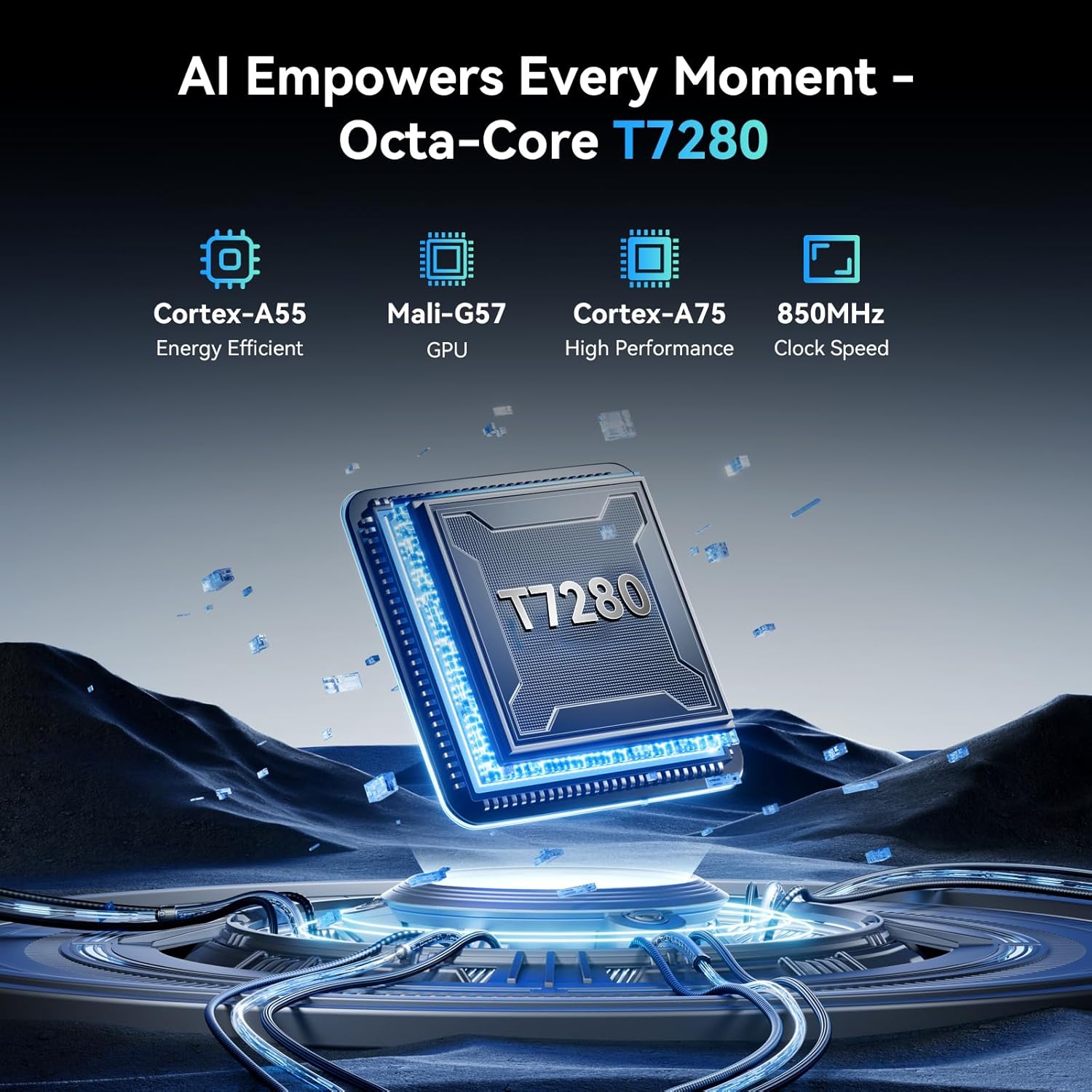
Image: The TABWEE T60 tablet shown with its detachable keyboard, wireless mouse, and stylus pen, illustrating its mobile office capabilities.
4. Operating Your Tablet
4.1 Display
The TABWEE T60 features a 12.2-inch CSOT 2.5K UHD display (2400 x 1600 pixels) with a 90Hz refresh rate for smooth visuals. It supports 99% sRGB color gamut and includes anti-glare technology for comfortable viewing in various lighting conditions. Widevine L1 certification ensures high-quality streaming from supported services.

Image: A visual comparison demonstrating the larger 12.2-inch 2.5K FHD display with 90Hz refresh rate, emphasizing its clarity and smoothness.
4.2 Performance and Storage
Powered by an Octa-Core Unisoc T7280/UMS9230S processor clocked at 2.2 GHz, the T60 delivers efficient performance. It is equipped with 48GB RAM (12GB physical + 36GB virtual expansion) for seamless multitasking and 256GB of internal storage. The storage can be expanded up to 2TB using a TF (microSD) card, providing ample space for applications, media, and documents.

Image: An infographic detailing the tablet's memory specifications: 48GB RAM (12GB physical + 36GB expansion), 256GB ROM, and support for up to 2TB TF card storage.
4.3 Battery Life
The TABWEE T60 is equipped with a large 10000mAh battery, providing extended usage times. Expect approximately 20 hours of music playback, 17 hours of video playback, or 12 hours of gaming on a single charge. The tablet supports 18W fast charging via its USB-C port.

Image: A visual representation of the tablet's 10000mAh battery, highlighting its long-lasting power for various activities like navigation, entertainment, and work/study.
4.4 Cameras
The tablet features a 16MP rear camera with autofocus and an 8MP front camera. These cameras are suitable for video calls, document scanning, and capturing everyday moments. Integrated AI features enhance image quality and offer modes like 'Beauty Mode' and 'Night Shot'.

Image: A depiction of the tablet's 16MP rear and 8MP front cameras, showcasing their capabilities for various photography scenarios.
4.5 Connectivity
The TABWEE T60 supports 5G Wi-Fi (802.11ac) for fast internet speeds and Bluetooth 5.0 for connecting wireless peripherals. It also includes a 4-in-1 GPS system (GPS, GLONASS, Galileo, Beidou) for accurate navigation.

Image: A visual representation of the tablet's 5G WiFi and Bluetooth 5.0 capabilities, showing connections to various devices.

Image: The tablet displaying a navigation map in a car, emphasizing its integrated 4-in-1 GPS system for precise positioning.
4.6 Software (Android 16 & Gemini AI)
The TABWEE T60 runs on the latest Android 16 operating system, offering enhanced security, privacy features, and a smoother user experience. It integrates Gemini AI, which acts as an intelligent assistant for tasks such as summarizing articles, translating text, and optimizing workflow efficiency.

Image: An overview of the Android 16 operating system, highlighting its key features such as enhanced security, smart core, and dynamic themes.

Image: A detailed graphic explaining the various functions of Gemini AI, including intelligent planning, personal assistance, and data analysis.
5. Maintenance
5.1 General Care
- Avoid exposing the tablet to extreme temperatures, direct sunlight, or high humidity.
- Do not drop or subject the tablet to strong impacts.
- Keep the tablet away from liquids and dust.
- Use the provided protective case to safeguard your device from scratches and minor bumps.
5.2 Cleaning
- Use a soft, lint-free cloth to clean the screen and body of the tablet.
- For stubborn smudges, slightly dampen the cloth with water or a screen-cleaning solution. Do not spray liquids directly onto the tablet.
- Avoid using harsh chemicals, abrasive cleaners, or solvents.
5.3 Software Updates
Regularly check for and install software updates to ensure your tablet has the latest features, security patches, and performance improvements. You can check for updates by going to Settings > System > System update.
6. Troubleshooting
If you encounter issues with your TABWEE T60, refer to the following common troubleshooting steps:
6.1 Tablet Not Powering On
- Ensure the tablet is sufficiently charged. Connect it to the charger and wait for at least 15 minutes before attempting to power it on again.
- Press and hold the Power button for 10-15 seconds to perform a forced restart.
6.2 Wi-Fi Connection Issues
- Restart your Wi-Fi router and the tablet.
- Go to Settings > Network & internet > Wi-Fi, forget the network, and then reconnect.
- Ensure you are within range of the Wi-Fi signal.
6.3 Slow Performance
- Close unnecessary background applications.
- Clear cache data for frequently used apps (Settings > Apps > [App Name] > Storage & cache > Clear cache).
- Ensure you have sufficient free storage space. Delete unused apps or large files.
- Restart the tablet periodically.
6.4 Screen Not Responding
- Perform a forced restart (press and hold the Power button for 10-15 seconds).
- Ensure the screen is clean and free of moisture or debris.
6.5 Accessories Not Connecting
- For the detachable keyboard, ensure it is correctly aligned and firmly connected to the tablet's magnetic ports.
- For Bluetooth devices (mouse, stylus), ensure they are charged, powered on, and in pairing mode. Re-pair them via Settings > Connected devices > Bluetooth.
7. Specifications
Below are the key technical specifications for the TABWEE T60 tablet:
| Feature | Specification |
|---|---|
| Brand | TABWEE |
| Model Name | T60 |
| Operating System | Android 16 |
| Screen Size | 12.2 Inches |
| Screen Resolution | 2400 x 1600 Pixels (2.5K UHD) |
| Processor | Unisoc T7280/UMS9230S Octa-Core (2.2 GHz) |
| RAM | 48 GB (12GB Physical + 36GB Virtual) |
| Internal Storage | 256 GB |
| Expandable Storage | Up to 2 TB via TF Card |
| Graphics Coprocessor | Integrated Ai Graphics Mali-G57 |
| Rear Webcam Resolution | 16 MP |
| Front Webcam Resolution | 8 MP |
| Wireless Type | 802.11ac (5G WiFi), 802.11b, 802.11g, 802.11n |
| Bluetooth | Bluetooth 5.0 |
| Battery Capacity | 10000 mAh |
| Average Battery Life | 10000 Hours (standby, actual usage varies) |
| Charging Port | USB-C (18W Fast Charging) |
| GPS | 4-in-1 System (GPS, GLONASS, Galileo, Beidou) |
| Item Weight | 1.41 pounds |
| Product Dimensions | 25 x 20 x 5 inches |
| Color | Space Gray |
8. Warranty and Support
The TABWEE T60 tablet comes with an industry-leading 4-Year Warranty, demonstrating our commitment to quality and customer satisfaction. This warranty covers manufacturing defects and ensures long-term support for your device.
8.1 Warranty Claims
For warranty claims or technical assistance, please contact TABWEE Customer Support. You will need your proof of purchase and the tablet's serial number (usually found on the back of the device or in Settings > About tablet).
8.2 Customer Support
Our dedicated customer support team is available 24/7 to assist you with any questions or issues you may have. Please refer to the contact information provided on the TABWEE official website or your purchase documentation for the most up-to-date support channels.


