
Introduction
This manual provides detailed instructions for the installation, operation, and maintenance of your ANTELA XZ-TDW101 1-Channel WiFi and Bluetooth Relay Switch. This smart device allows you to convert traditional switches into smart switches, enabling remote control via the Smart Life app, voice control with Alexa and Google Home, and scheduling functions. Please read this manual thoroughly before use to ensure proper functionality and safety.
Important Safety Information
- Risk of Electric Shock: Always turn off the main power switch at the circuit breaker before performing any installation, maintenance, or wiring. Failure to do so can result in serious injury or death.
- Professional Installation Recommended: If you are unsure about electrical wiring, seek assistance from a qualified electrician or professional.
- Do Not Touch During Use: Avoid touching the device directly when it is powered on and operating.
- Indoor Use Only: This device is designed for indoor use in dry environments. Do not expose it to moisture or extreme temperatures.
- Material Safety: The product casing is made from flame-retardant, high-temperature resistant plastic to ensure electrical safety.
- Load Capacity: Do not exceed the maximum load capacity of 10A (2300W resistive, 200W capacitive) to prevent overheating and damage.
Product Overview
The ANTELA XZ-TDW101 is a compact 1-channel smart relay switch designed to integrate seamlessly into your existing electrical system. It enables smart control over lights and other appliances without replacing your traditional switches.
Key Features:
- Dual Connectivity: Supports both Wi-Fi (2.4 GHz) and Bluetooth LE for flexible pairing and control.
- Voice Control: Compatible with Amazon Alexa and Google Home for hands-free operation.
- App Remote Control: Manage your devices from anywhere using the Smart Life mobile application.
- Timer and Schedule Functions: Automate your lighting and appliances with custom schedules.
- Compact Design: Small size allows for hidden installation behind traditional wall switches or in junction boxes.
- Safety Protections: Built-in short-circuit and overcurrent protection.

Figure 1: The ANTELA Mini Smart Switch, illustrating its compact size and key functionalities including timer scheduling, group control, voice control, and app remote control.

Figure 2: The ANTELA relay switch enables smart control for various traditional switches and outlets, enhancing home automation through the Smart Life app.
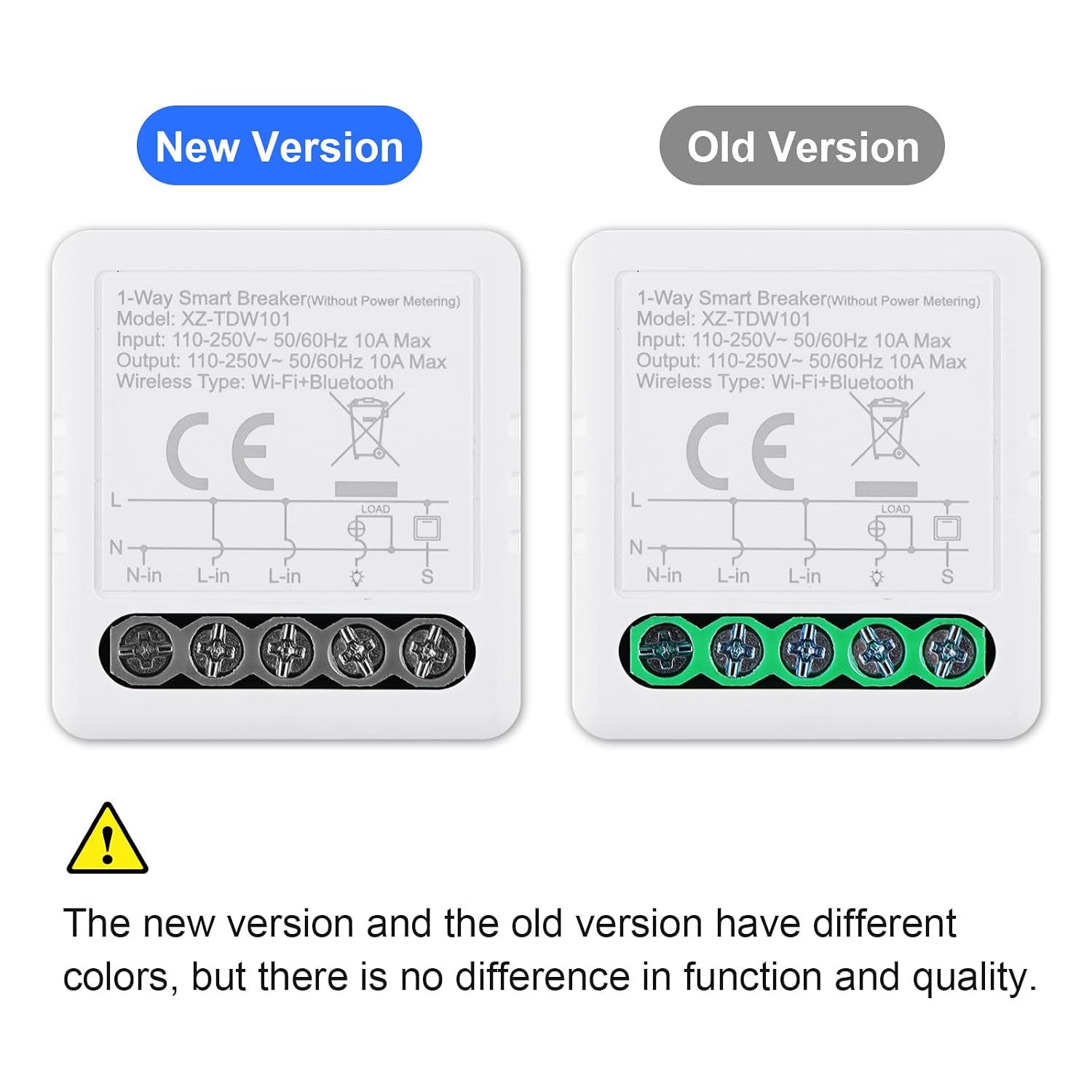
Figure 3: A visual comparison between the new and old versions of the XZ-TDW101, noting that while terminal colors may vary, functionality and quality remain consistent.
Technical Specifications
| Model Number | XZ-TDW101 |
| Input Voltage | 110 – 250 V AC |
| Input Frequency | 50 Hz / 60 Hz |
| Max Input Current | 0.3 A |
| Max Starting Current | 10 A |
| Standby Power Consumption | 2 W |
| Output Voltage | 110 – 250 V AC |
| Output Power (Resistive) | 2300 W |
| Output Power (Capacitive) | 200 W |
| Wireless Type | Wi-Fi (2.4 GHz only) & Bluetooth LE |
| Dimensions (L x W x H) | 34 x 37 x 18.3 mm |
| Material | Flame-retardant Plastic |
| Safety Protection | Short-circuit, Overcurrent |
| Certifications | CE |
Setup and Installation
1. Pre-Installation Checklist:
- Ensure the main power supply to the circuit is turned OFF at the breaker.
- Confirm you have a 2.4 GHz Wi-Fi network available. The device does not support 5 GHz Wi-Fi.
- Prepare necessary tools: screwdriver, wire strippers, voltage tester.
2. Wiring Diagram:
Follow the wiring diagram carefully. If you are not comfortable with electrical wiring, consult a qualified electrician.

Figure 4: Wiring diagram for the XZ-TDW101 relay switch. Connect the Live (L) and Neutral (N) wires to the input terminals. Connect the load (e.g., light fixture) to the Load-1 terminal and the neutral to the N-out. Connect your traditional wall switch to the Switch-1 terminals. Always ensure power is off before wiring.
- Connect the Live (L) wire from your power source to the L-in terminal.
- Connect the Neutral (N) wire from your power source to the N-in terminal.
- Connect the load (e.g., light fixture) to the Load-1 terminal and its neutral wire to the N-out terminal.
- Connect your traditional wall switch to the Switch-1 terminals.
- After wiring, carefully place the module into the wall box, ensuring no wires are pinched.
- Restore power at the circuit breaker.
3. App Download and Pairing:
- Download the Smart Life app from the App Store (iOS) or Google Play Store (Android).
- Register or log in to your Smart Life account.
- Ensure your smartphone is connected to a 2.4 GHz Wi-Fi network.
- Open the Smart Life app and tap the "+" icon to add a device.
- The device should automatically be discovered via Bluetooth. If not, select "Electrical" -> "Switch (Wi-Fi)" or "Relay Switch".
- Follow the in-app instructions to connect the relay switch to your Wi-Fi network. The device's indicator light will flash white when ready for pairing.
- Once successfully paired, you can rename the device for easier identification.

Figure 5: The ANTELA smart switch converter transforms a traditional switch into a smart one, controllable via the Smart Life app on your smartphone.
Operating Instructions
1. Manual Control:
The connected traditional wall switch will continue to function normally, allowing you to turn the connected appliance ON or OFF manually.
2. App Control:
- Open the Smart Life app on your smartphone.
- Select the ANTELA relay switch from your device list.
- Tap the ON/OFF button to control the connected appliance remotely.
- The app also allows you to monitor the status of the switch (ON/OFF).
3. Voice Control (Alexa/Google Home):
To enable voice control, link your Smart Life account to Amazon Alexa or Google Home through their respective apps.
- Open the Alexa or Google Home app.
- Navigate to "Skills & Games" (Alexa) or "Works with Google" (Google Home).
- Search for "Smart Life" and enable the skill/service.
- Link your Smart Life account using your credentials.
- Discover devices. Your ANTELA relay switch should appear.
- You can now use voice commands such as:
- "Alexa, turn on [Device Name]"
- "Hey Google, turn off [Device Name]"

Figure 6: The ANTELA relay switch supports voice control through Amazon Alexa and Google Home, allowing for convenient hands-free operation.
4. Timers and Schedules:
Use the Smart Life app to set up custom timers and schedules for your connected devices.
- In the Smart Life app, select your device.
- Tap on "Schedule" or "Timer" options.
- Set desired ON/OFF times for specific days or daily routines.
- This feature is ideal for automating lighting, fans, or other appliances to suit your lifestyle.

Figure 7: Set up custom timers and schedules via the Smart Life app to automate your devices, such as turning lights on at 7:00 AM and off at 10:00 PM.
Maintenance
- Cleaning: Ensure the device is powered off before cleaning. Use a soft, dry cloth to wipe the exterior. Do not use liquid cleaners or sprays.
- Firmware Updates: Periodically check the Smart Life app for available firmware updates to ensure optimal performance and security.
- Environmental Conditions: Keep the device in a dry environment and avoid exposure to extreme temperatures or direct sunlight.
Troubleshooting
- Device does not power on:
- Check the main circuit breaker to ensure power is restored.
- Verify all wiring connections are secure and correct according to the wiring diagram.
- Ensure the input voltage is within the specified range (110-250V AC).
- Unable to pair with Smart Life app:
- Confirm your smartphone is connected to a 2.4 GHz Wi-Fi network. The device does not support 5 GHz Wi-Fi.
- Ensure the device is in pairing mode (indicator light flashing white). If not, try resetting the device by toggling the connected physical switch 5 times rapidly.
- Move the device closer to your Wi-Fi router during the pairing process.
- Check your Wi-Fi password for accuracy.
- Device frequently disconnects from Wi-Fi:
- Ensure your Wi-Fi signal strength is adequate at the device's location. Consider using a Wi-Fi extender if necessary.
- Check for interference from other 2.4 GHz devices (e.g., cordless phones, microwaves).
- Verify your router's settings to ensure it's not aggressively disconnecting idle devices.
- Update the device's firmware via the Smart Life app if an update is available.
- Voice control not working:
- Confirm that your Smart Life account is correctly linked to your Alexa or Google Home app.
- Ensure the device name in Smart Life matches the name you are using in voice commands.
- Check if your Alexa/Google Home device is online and functioning correctly.
Warranty and Customer Support
ANTELA products are designed for reliability and performance. While specific warranty details are not provided in this manual, please retain your proof of purchase for any warranty claims.
If you encounter any issues or have questions regarding your ANTELA XZ-TDW101 relay switch that are not covered in this manual, please do not hesitate to contact ANTELA customer support for assistance.
Contact Information: Please refer to the ANTELA official website or your purchase platform for the most up-to-date customer support contact details.
